
1. Produk Lebihview
The TP-Link TL-WA750RE is a 150Mbps Universal Wireless Range Extender designed to expand the coverage of an existing wireless network. It eliminates Wi-Fi dead zones by boosting the wireless signal to previously unreachable or hard-to-wire areas. Its compact, wall-mounted design allows for flexible deployment and easy relocation within your home or office.
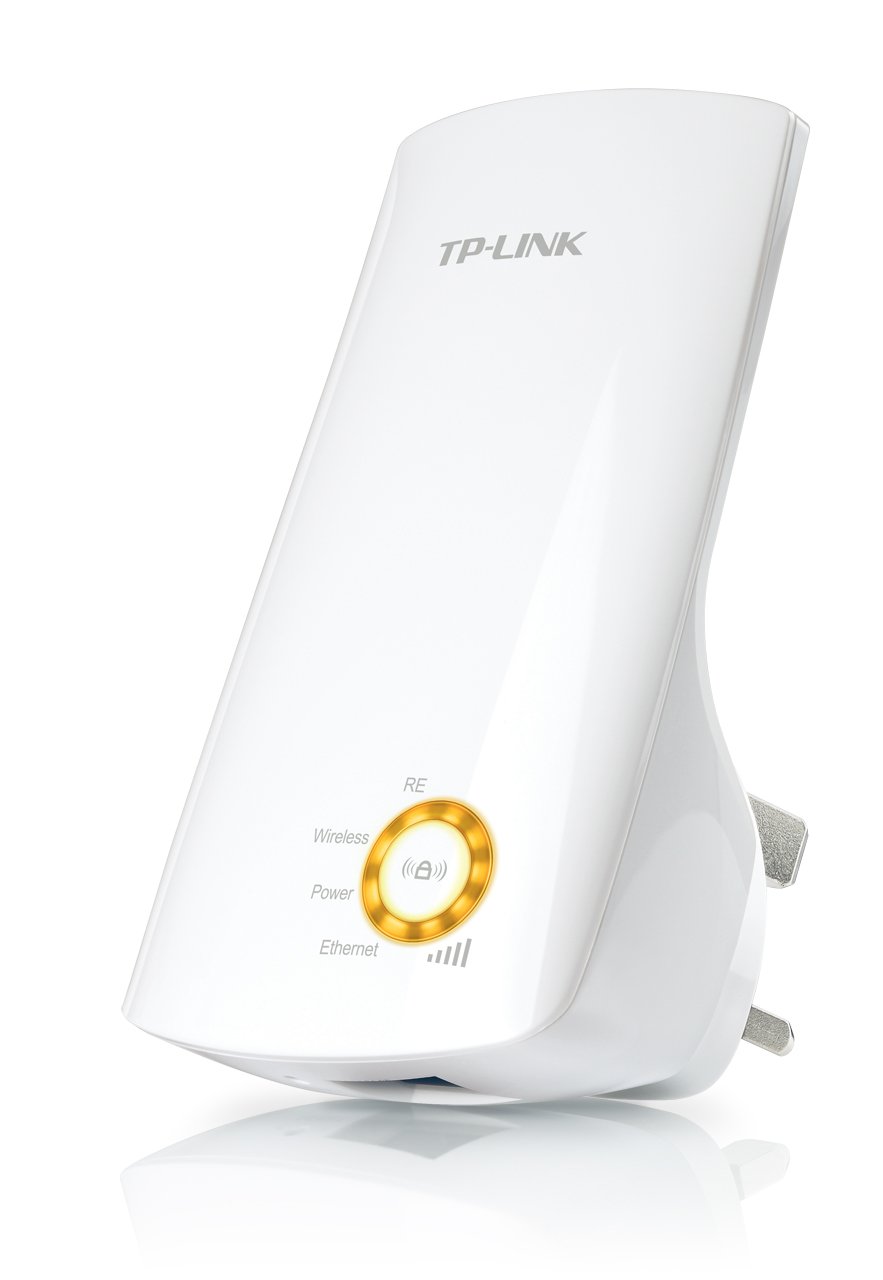
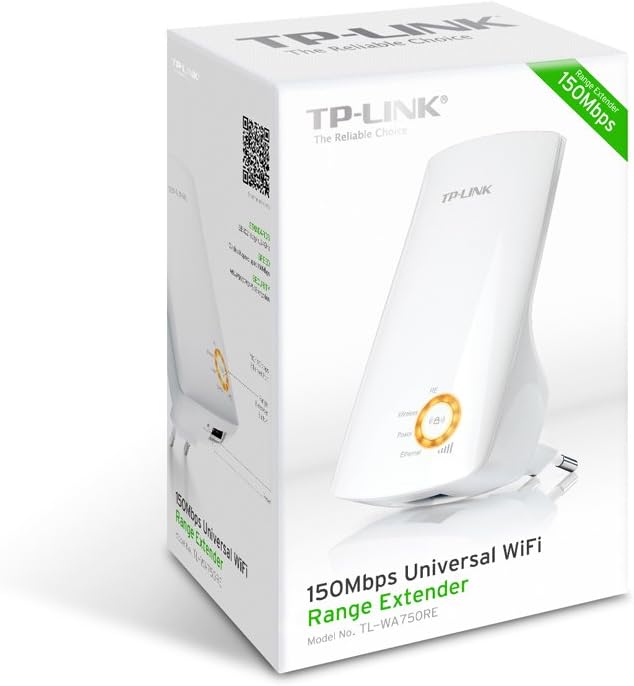
Rajah 1: TP-Link TL-WA750RE Universal Wireless Range Extender. This image shows the device in its retail packaging, highlighting its compact design and wall-plug form factor.
2. Ciri-ciri Utama
- Mod Pengisar Julat: Boosts wireless signal to eliminate Wi-Fi dead zones and extend network coverage.
- Reka bentuk padat: Small size and wall-mounted design for easy deployment and flexible movement.
- Butang WPS: Allows for instant setup and secure connection with compatible routers.
- Penunjuk Isyarat Pintar: Helps users find the optimal location for placing the range extender for best performance.
- Keserasian Universal: Works seamlessly with all 802.11n/g/b wireless devices.
3. Kandungan Pakej
Pakej produk biasanya termasuk item berikut:
- TP-Link TL-WA750RE 150Mbps Universal Wireless Range Extender
- Manual Arahan
4. Panduan Persediaan
4.1. Quick Setup using WPS Button
- Pasangkan: Pasangkan TL-WA750RE ke soket elektrik berhampiran penghala wayarles anda.
- Aktifkan WPS pada Penghala: Tekan butang WPS pada penghala wayarles utama anda. Rujuk manual penghala anda untuk lokasi dan prosedur yang tepat.
- Aktifkan WPS pada Extender: Within two minutes, press the WPS button on the TL-WA750RE. The Signal LED on the extender should begin to flash.
- Tunggu Sambungan: The Signal LED will turn solid blue or green when a successful connection is established.
- Pindahkan Extender: Unplug the extender and move it to a location between your router and the Wi-Fi dead zone. Ensure the Signal LED indicates a strong connection (e.g., solid blue or green) in the new location.
4.2. Manual Setup via Web pelayar
- Pasangkan: Plug the TL-WA750RE into an electrical outlet near your computer.
- Sambungkan ke Extender: Connect your computer to the extender's Wi-Fi network (e.g., "TP-LINK_Extender_XXXXXX"). No password is required initially.
- Akses Web Antara muka: Buka a web pelayar dan taip http://tplinkrepeater.net or the extender's default IP address (usually 192.168.0.254) into the address bar.
- Log Masuk: Enter "admin" for both the username and password when prompted.
- Ikuti Arahan Pada Skrin: Use the Quick Setup wizard to select your main Wi-Fi network and enter its password.
- Pindahkan Extender: Once configured, unplug the extender and move it to an optimal location between your router and the desired coverage area.
Rajah 2: sebelah view of the TL-WA750RE. This image illustrates the physical layout of the device, including the WPS button and Ethernet port, which are crucial for setup and operation.
5. Mengendalikan Range Extender
Once the TL-WA750RE is successfully set up, it will automatically extend your existing Wi-Fi network. Devices within the extended range can connect to the network name created by the extender (e.g., "YourNetworkName_EXT").
5.1. Smart Signal Indicator
The Smart Signal Indicator LEDs on the front of the device provide real-time feedback on the signal strength received from your main router. This helps you determine the best placement for the extender:
- Biru/Hijau Pepejal: Kekuatan isyarat yang sangat baik.
- Merah Pepejal: Weak signal strength. Consider relocating the extender closer to your router.
- Mati: No connection to the main router.
5.2. Ethernet Port Usage
The TL-WA750RE includes an Ethernet port. This port can be used to connect a wired device, such as a desktop computer, gaming console, or smart TV, to your wireless network, providing a stable wired connection in the extended Wi-Fi area.
6. Penyelenggaraan
- Pembersihan: Gunakan kain lembut dan kering untuk membersihkan peranti. Jangan gunakan pembersih cecair atau aerosol.
- penempatan: Elakkan meletakkan pemanjang di bawah cahaya matahari langsung, berhampiran sumber haba atau di kawasan yang mempunyai kelembapan tinggi.
- Kemas kini Firmware: Periksa pegawai TP-Link secara berkala webtapak untuk kemas kini perisian tegar bagi memastikan prestasi dan keselamatan yang optimum.
- Kitaran Kuasa: If the device experiences issues, try unplugging it from the power outlet for 10 seconds and then plugging it back in.
7. Penyelesaian masalah
- Q1: What should I do if I cannot access the extender's web halaman pengurusan?
- A1: Ensure your computer is connected to the extender's network. Verify that http://tplinkrepeater.net is correctly typed in the browser. If issues persist, try using the extender's IP address (e.g., 192.168.0.254) or reset the extender to factory defaults.
- Q2: My extended network has poor signal or frequent disconnections.
- A2: Check the Smart Signal Indicator on the extender. If it's red or off, the extender is too far from your main router. Relocate the extender to a position where the indicator shows a strong signal (solid blue/green). Ensure there are no major obstructions between the router and the extender.
- Q3: How do I reset the extender to factory default settings?
- A3: With the extender powered on, use a pin to press and hold the Reset button (usually a small hole) for approximately 5-10 seconds until all LEDs flash briefly. The extender will then restart with factory default settings.
8. Spesifikasi
| Jenama | TP-Link |
| Nombor Model | TL-WA750RE |
| Standard Tanpa Wayar | 802.11b/g/n |
| Kadar Pemindahan Data | 150 Mbps |
| Kekerapan | 2.4 GHz |
| Ciri Khas | Smart Signal Indicator, WPS Button |
| Jenis Penyambung | RJ45 (Ethernet Port) |
| Berat Barang | 0.4 paun |
| warna | putih |
9. Waranti dan Sokongan
9.1. Maklumat Waranti
This TP-Link TL-WA750RE device comes with a Waranti 2 tahun dari tarikh pembelian. Sila simpan bukti pembelian anda untuk tuntutan waranti. Waranti melindungi kecacatan pada bahan dan mutu kerja di bawah penggunaan biasa.
9.2. Sokongan Teknikal
Untuk bantuan teknikal, penyelesaian masalah atau pertanyaan lanjut, sila lawati sokongan rasmi TP-Link. webtapak atau hubungi perkhidmatan pelanggan mereka. Anda boleh mendapatkan sumber sokongan terperinci, Soalan Lazim dan maklumat hubungan di www.tp-link.com/support.