
pengenalan
The ADATA S102PRO is a high-performance USB 3.0 flash drive designed for fast and reliable data storage and transfer. Its durable design and high-speed interface make it ideal for everyday use, allowing you to carry important files, documents, photos, and videos with ease.
Persediaan
Follow these steps to begin using your ADATA S102PRO USB Flash Drive:
- Kenal pasti Port USB: Locate an available USB port on your computer. For optimal performance, use a USB 3.0 port (often colored blue internally). The ADATA S102PRO is backward compatible with USB 2.0 ports, but data transfer speeds will be limited to USB 2.0 rates.
- Keluarkan Penutup: Carefully remove the protective cap from the USB flash drive to expose the USB connector.
- Masukkan Pemacu: Insert the USB connector firmly into the USB port on your computer. Ensure it is inserted correctly; do not force it.
- Pengecaman Sistem: Your operating system (Windows, macOS, Linux) should automatically detect and install the necessary drivers. A notification may appear indicating that the device is ready for use. The drive will typically appear as a removable disk or volume in your file penjelajah.
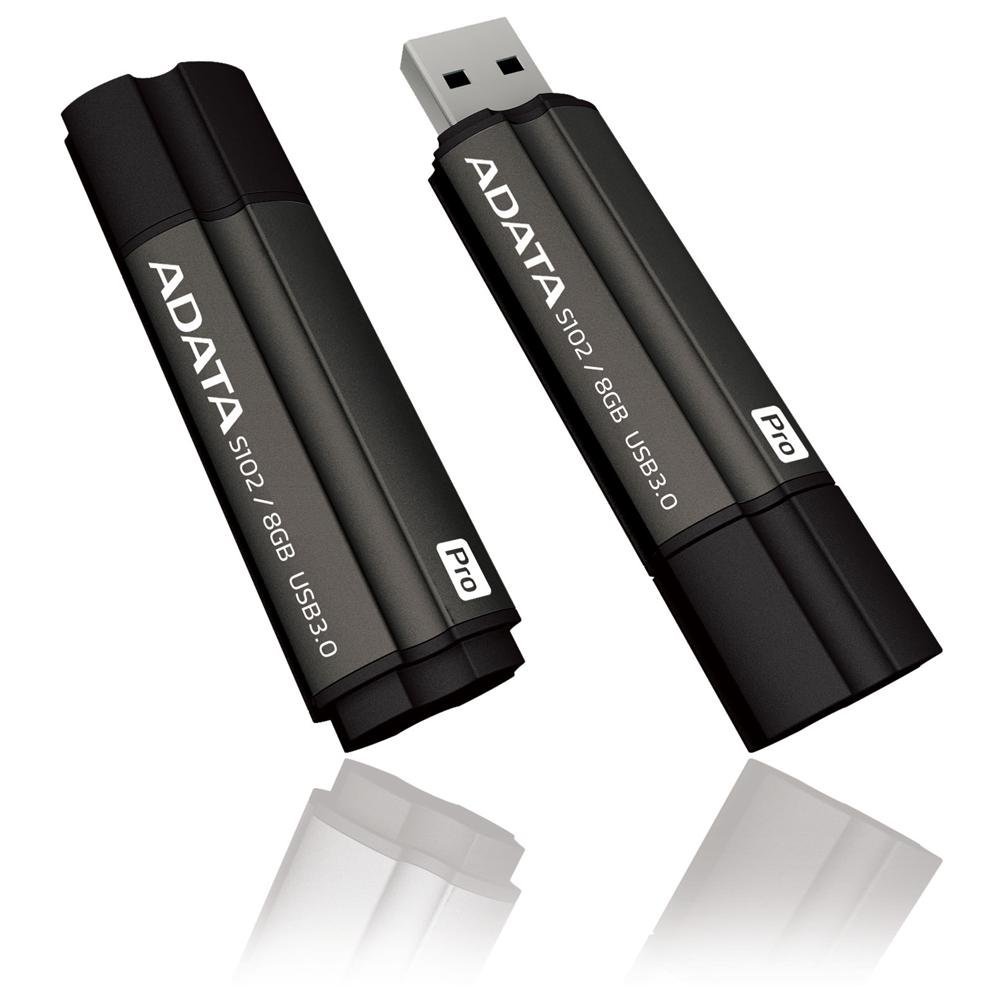
Image: The ADATA S102PRO USB Flash Drive shown with its protective cap on and with the cap removed, revealing the USB 3.0 connector. This illustrates the physical appearance and how to prepare the drive for insertion.
Beroperasi
Once the ADATA S102PRO is recognized by your computer, you can begin transferring files:
- Mengakses Pemacu:
- Windows: Open "This PC" or "My Computer" and locate the drive listed under "Devices and drives" (e.g., "Removable Disk" or a drive letter like E:).
- macOS: The drive icon will appear on your desktop or in the Finder sidebar under "Locations."
- Memindahkan Files:
- Untuk menyalin files kepada the flash drive, drag and drop them from your computer's folders into the flash drive's window.
- Untuk menyalin files daripada the flash drive, drag and drop them from the flash drive's window to a folder on your computer.
- You can also use the standard copy (Ctrl+C / Command+C) and paste (Ctrl+V / Command+V) functions.
- Mengalih Keluar Pemacu dengan Selamat: It is crucial to safely eject the flash drive before physically removing it to prevent data corruption.
- Windows: Click the "Safely Remove Hardware and Eject Media" icon in the system tray (bottom-right corner), then select your flash drive and click "Eject." Wait for the "Safe to Remove Hardware" message.
- macOS: Drag the drive icon from the desktop to the Trash, or click the Eject button next to the drive name in the Finder sidebar. Wait for the icon to disappear before removing the drive.
Penyelenggaraan
Proper care will help ensure the longevity and reliability of your ADATA S102PRO USB Flash Drive:
- Lindungi Penyambung: Always keep the protective cap on the USB connector when the drive is not in use to prevent dust, dirt, and physical damage.
- Elakkan Keadaan Melampau: Do not expose the drive to extreme temperatures, direct sunlight, high humidity, or strong magnetic fields.
- Tangani dengan Berhati-hati: Elakkan daripada menjatuhkan pemacu atau menyebabkannya terkena hentaman kuat.
- Do Not Remove During Transfer: Never unplug the drive while data is being read from or written to it. Always follow the safe removal procedure.
- Sandaran Biasa: While flash drives are reliable, it is always recommended to back up critical data to another storage device or cloud service.
Menyelesaikan masalah
If you encounter issues with your ADATA S102PRO, try the following solutions:
- Pemanduan Tidak Dikenali:
- Pastikan pemacu dimasukkan sepenuhnya ke dalam port USB.
- Cuba port USB lain pada komputer anda.
- Uji pemacu pada komputer lain untuk menolak isu khusus komputer.
- Check your computer's Device Manager (Windows) or System Information (macOS) to see if the drive is listed, even if it doesn't appear in File Explorer/Finder.
- Kelajuan Pemindahan Lambat:
- Ensure you are connected to a USB 3.0 port for optimal performance. USB 2.0 ports will limit speeds.
- Memindahkan banyak kecil files boleh menjadi lebih perlahan daripada memindahkan beberapa besar files.
- Close other applications that might be using system resources or performing disk operations.
- Tidak Boleh Menulis Files ke Drive:
- Periksa sama ada pemacu penuh. Padamkan yang tidak perlu fileatau memindahkannya ke lokasi lain.
- Memastikan file system (e.g., FAT32, NTFS, exFAT) is compatible with your operating system and allows writing. If formatted as NTFS on macOS, you may only have read access without third-party software.
- Check for any software-based write protection or permissions issues on your computer.
Spesifikasi
| Jenama | ADATA |
| Nama Model | S102PRO |
| Nombor Model | AT806-4G-CPK |
| Kapasiti Penyimpanan Memori | 4 GB |
| Antara Muka Perkakasan | USB 3.0 (Serasi ke belakang dengan USB 2.0) |
| Pengeluar | A-DATA TECHNOLOGY (USA) CO. L |
| UPC | 842243005080 |
| ASIN | B004AVOGW8 |
Waranti dan Sokongan
For detailed warranty information, product registration, and technical support, please visit the official ADATA weblaman web. Anda biasanya boleh menemui sumber sokongan, Soalan Lazim dan maklumat hubungan untuk khidmat pelanggan di sana.
Pegawai ADATA Webtapak: www.adata.com