
1. परिचय
Thank you for choosing the DigiLand R11 10.1 Inch Android 15 Computer Tablet. This manual provides essential information for setting up, operating, and maintaining your device. Please read it thoroughly to ensure optimal performance and longevity of your tablet.
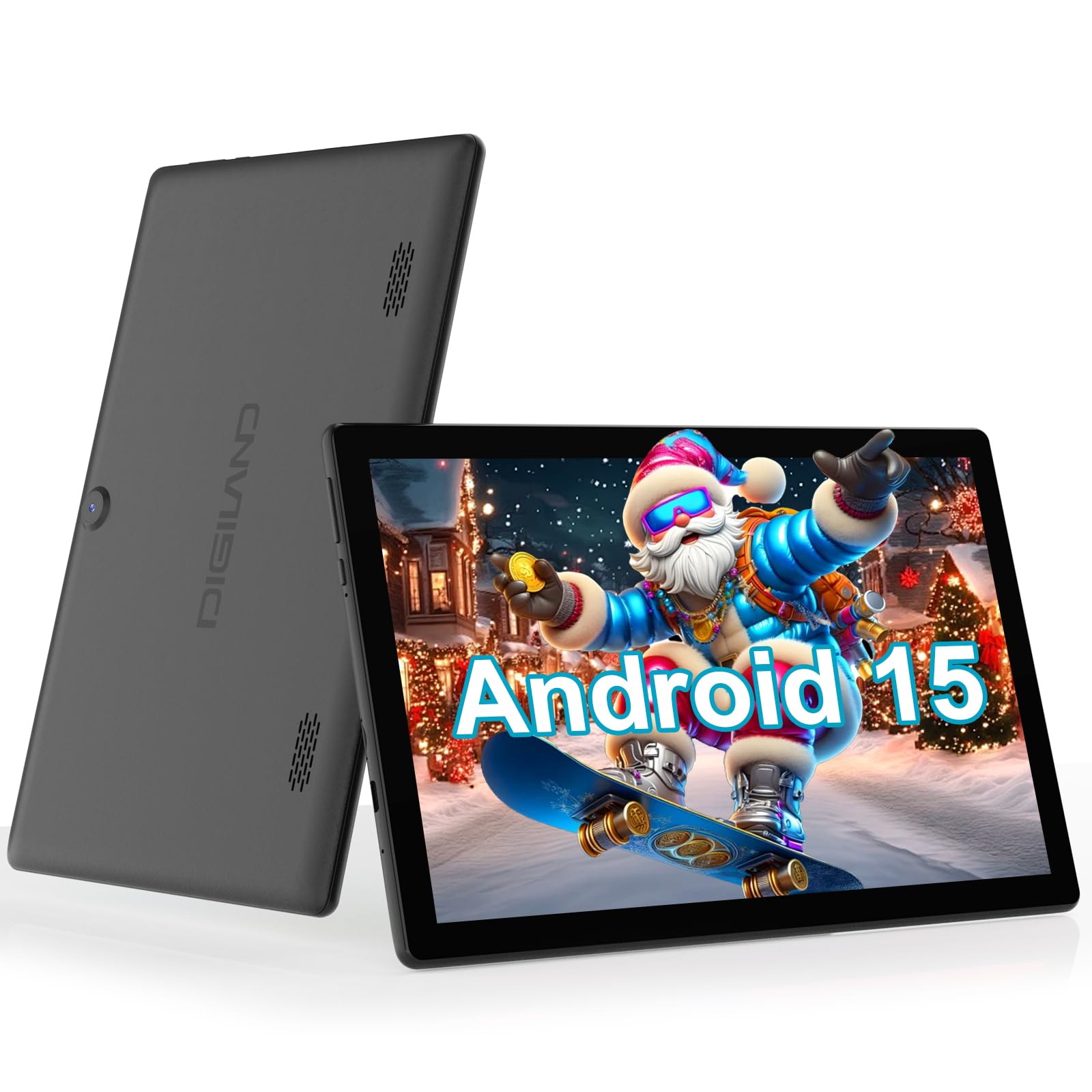
Figure 1: DigiLand R11 10.1 Inch Android 15 Tablet
२. बॉक्समध्ये काय आहे?
Upon unboxing your DigiLand R11 tablet, please verify that all the following items are included:
- DigiLand R11 10.1 Inch Android 15 Tablet
- 1.18 डब्ल्यू पॉवर अॅडॉप्टर
- यूएसबी-सी केबल
- वापरकर्ता मॅन्युअल (हा दस्तऐवज)
- After-sales Card

आकृती ४: बॉक्समधील सामग्री
3. डिव्हाइस ओव्हरview
Familiarize yourself with the physical components and features of your DigiLand R11 tablet.

Figure 3: Tablet Features Overview (Android 15, Bluetooth 5.0, 6000mAh Battery, 2.4/5GHz WiFi, Dual Cameras)
पोर्ट आणि बटणे
- पॉवर बटण: Located on the side, used to turn the tablet on/off or put it to sleep.
- व्हॉल्यूम बटणे: ऑडिओ आउटपुट पातळी समायोजित करा.
- यूएसबी-सी पोर्ट: चार्जिंग आणि डेटा ट्रान्सफरसाठी.
- मेमरी कार्ड स्लॉट: For expandable storage (supports up to 256GB).
- हेडसेट जॅक: वायर्ड हेडफोन कनेक्ट करण्यासाठी.
- समोरचा कॅमेरा: व्हिडिओ कॉल आणि सेल्फीसाठी.
- मागील कॅमेरा: फोटो आणि व्हिडिओ काढण्यासाठी.
- दुहेरी स्पीकर्स: ऑडिओ आउटपुटसाठी.
4. सेटअप
4.1 प्रारंभिक शुल्क
Before first use, fully charge your tablet using the provided USB-C cable and power adapter. The battery indicator on the screen will show charging status.

Figure 4: Charging the Tablet
4.2 पॉवर चालू/बंद
- चालू करण्यासाठी: स्क्रीन लाइट होईपर्यंत पॉवर बटण दाबा आणि धरून ठेवा.
- पॉवर ऑफ करण्यासाठी: पॉवर बटण दाबा आणि धरून ठेवा, नंतर स्क्रीनवरील पर्यायांमधून 'पॉवर ऑफ' निवडा.
- To Sleep/Wake: थोडक्यात पॉवर बटण दाबा.
४.५ प्रारंभिक सेटअप विझार्ड
प्रारंभिक सेटअप पूर्ण करण्यासाठी ऑन-स्क्रीन सूचनांचे अनुसरण करा, ज्यामध्ये हे समाविष्ट आहे:
- तुमची भाषा निवडत आहे.
- वाय-फाय नेटवर्कशी कनेक्ट करत आहे.
- Signing in with your Google account (or creating a new one).
- Setting up screen lock and other security features.
5. ऑपरेटिंग सूचना
५.१ अँड्रॉइड १३ इंटरफेस नेव्हिगेट करणे
Your tablet runs on Android 15 GO, offering an intuitive user experience. Key navigation elements include:
- होम स्क्रीन: तुमच्या अॅप्स आणि विजेट्ससाठी मध्यवर्ती केंद्र.
- अॅप ड्रॉवर: सर्व स्थापित अनुप्रयोगांमध्ये प्रवेश करण्यासाठी होम स्क्रीनवरून वर स्वाइप करा.
- सूचना पॅनेल: स्क्रीनच्या शीर्षापासून खाली स्वाइप करा view सूचना आणि जलद सेटिंग्ज.
- नेव्हिगेशन बार: Located at the bottom of the screen, typically includes Back, Home, and Recent Apps buttons.
5.2 Wi-Fi शी कनेक्ट करत आहे
- वर जा सेटिंग्ज.
- टॅप करा नेटवर्क आणि इंटरनेट.
- चालू करा वाय-फाय.
- तुमचे इच्छित नेटवर्क निवडा आणि संकेतशब्द दिल्यास तो प्रविष्ट करा.
5.3 Using Bluetooth 5.0
- वर जा सेटिंग्ज.
- टॅप करा कनेक्ट केलेली उपकरणे.
- चालू करा ब्लूटूथ.
- निवडा नवीन डिव्हाइस जोडा आणि सूचीमधून तुमचे डिव्हाइस निवडा.
5.4 कॅमेरा ऑपरेशन
To open the camera app, tap the Camera icon on your home screen or app drawer. You can switch between front and rear cameras, take photos, and record videos.

Figure 5: Tablet Usage Scenarios
6. तपशील
| वैशिष्ट्य | तपशील |
|---|---|
| ऑपरेटिंग सिस्टम | Android 15 GO |
| डिस्प्ले | 10.1" IPS, 800 x 1280 pixels |
| प्रोसेसर | Single-core ARM Cortex-A73 and quad-core ARM Cortex-A53, up to 1.75 GHz |
| रॅम | 6GB |
| अंतर्गत स्टोरेज | ८ जीबी (मायक्रोएसडी कार्डद्वारे ३२ जीबी पर्यंत वाढवता येते) |
| बॅटरी क्षमता | ७७००mAh (१५ तासांपर्यंत वापर) |
| कनेक्टिव्हिटी | Wi-Fi (2.4GHz & 5GHz), Bluetooth 5.0, USB OTG |
| कॅमेरे | Dual cameras (front and rear) |
| वक्ते | ड्युअल स्पीकर्स |
| वजन | ४२६ ग्रॅम (०.९४ पाउंड) |
| परिमाण | 10.17 x 6.41 x 0.31 इंच |

Figure 6: Vivid Display
7. देखभाल
To keep your tablet in optimal condition, follow these maintenance guidelines:
- स्वच्छता: स्क्रीन आणि बॉडी स्वच्छ करण्यासाठी मऊ, लिंट-फ्री कापड वापरा. अपघर्षक क्लीनर किंवा सॉल्व्हेंट्स टाळा.
- सॉफ्टवेअर अपडेट्स: सुरक्षा आणि कार्यप्रदर्शन सुधारणा सुनिश्चित करण्यासाठी नियमितपणे सिस्टम अपडेट तपासा आणि स्थापित करा. येथे जा सेटिंग्ज > सिस्टम > सिस्टम अपडेट.
- बॅटरी काळजी: Avoid extreme temperatures. Do not let the battery fully drain frequently. Use only the provided charger.
- स्टोरेज व्यवस्थापन: अनावश्यक गोष्टी वेळोवेळी साफ करा fileस्टोरेज जागा मोकळी करण्यासाठी आणि कार्यप्रदर्शन राखण्यासाठी s आणि अॅप्स.
8. समस्या निवारण
If you encounter issues with your tablet, refer to the following common troubleshooting steps:
- टॅब्लेट चालू होत नाही: बॅटरी चार्ज झाली आहे याची खात्री करा. चार्जर कनेक्ट करा आणि पुन्हा चालू करण्याचा प्रयत्न करण्यापूर्वी काही मिनिटे वाट पहा.
- स्क्रीन प्रतिसाद देत नाही: Restart the tablet by holding the Power button for about 10-15 seconds until it reboots.
- वाय-फाय कनेक्शन समस्या: Try restarting your Wi-Fi router. On the tablet, forget the network and reconnect.
- अॅप्स क्रॅश होत आहेत: Clear the cache for the problematic app (Settings > Apps > [App Name] > Storage > Clear cache). If the issue persists, uninstall and reinstall the app.
- मंद कामगिरी: Close unused apps, clear cache, and ensure sufficient free storage space. Consider a factory reset as a last resort (backup your data first).
9. हमी आणि समर्थन
Your DigiLand R11 tablet comes with a ३ वर्षांची वॉरंटी पॉलिसी. For any questions regarding product usage, technical support, or warranty claims, please contact our customer service team.
9.1 ग्राहक समर्थन
Our dedicated customer service team is available 24/7 to assist you. Please refer to the contact information provided on your After-sales Card or visit the official DigiLand webसमर्थन तपशीलांसाठी साइट.
व्हिडिओ १: संपलेview of the DigiLand 10.1 inch tablet, demonstrating its features and functionality.