
ASUS 90LM02W1-B01171
ASUS VA249QGS प्रोफेशनल मॉनिटर वापरकर्ता मॅन्युअल
Model: VA249QGS (90LM02W1-B01171)
1. परिचय
Thank you for choosing the ASUS VA249QGS Professional Monitor. This 24-inch (23.8-inch visible) IPS Full HD monitor is designed for professional use, offering a 120 Hz refresh rate, Adaptive-Sync technology, and a rapid 1ms response time. It features a blue light filter for eye comfort, and versatile connectivity options including VGA, HDMI, and DisplayPort. Its ergonomic design ensures a comfortable viewअनुभव.

आकृती 1.1: समोर view of the ASUS VA249QGS Professional Monitor.

आकृती १: कोन असलेला view of the ASUS VA249QGS Professional Monitor.
2. सुरक्षितता माहिती
- मॉनिटर साफ करण्यापूर्वी नेहमी वॉल आउटलेटपासून पॉवर कॉर्ड डिस्कनेक्ट करा.
- मॉनिटरला पाऊस किंवा ओलावा येऊ देऊ नका.
- मॉनिटर उघडू नका casing. आत वापरकर्ता-सेवायोग्य भाग नाहीत.
- Use only the power adapter and cables supplied with your monitor.
- योग्य वायुवीजन सुनिश्चित करा. मॉनिटरवरील कोणतेही वायुवीजन छिद्र रोखू नका.
- मॉनिटरला थेट सूर्यप्रकाशात किंवा उष्णतेच्या स्त्रोतांजवळ ठेवणे टाळा.
3. पॅकेज सामग्री
Please check your package for the following items. If any item is missing or damaged, contact your retailer immediately.
- ASUS VA249QGS Monitor
- पॉवर कॉर्ड
- HDMI केबल
- डिस्प्लेपोर्ट केबल
- व्हीजीए केबल
- द्रुत प्रारंभ मार्गदर्शक
- वॉरंटी कार्ड
4. सेटअप
४.१ मॉनिटर स्टँड असेंबल करणे
- ओरखडे टाळण्यासाठी मॉनिटरचा चेहरा मऊ, स्वच्छ पृष्ठभागावर खाली ठेवा.
- Attach the stand base to the stand neck and secure it with the captive screw.
- Align the stand assembly with the mounting holes on the back of the monitor and push until it clicks into place.
4.2 मॉनिटर कनेक्ट करणे
मॉनिटर आणि तुमच्या संगणकावरील संबंधित पोर्टशी आवश्यक केबल्स जोडा.

आकृती 4.1: मागील view पोर्ट कनेक्शनसह मॉनिटरचा.

Figure 4.2: Available connectivity options.
- वीज कनेक्शन: पॉवर कॉर्ड मॉनिटरच्या पॉवर इनपुटशी आणि नंतर पॉवर आउटलेटशी जोडा.
- व्हिडिओ कनेक्शन:
- एचडीएमआयः तुमच्या संगणकाच्या HDMI आउटपुटमधून मॉनिटरच्या HDMI इनपुटला HDMI केबल जोडा.
- डिस्प्लेपोर्ट: तुमच्या संगणकाच्या डिस्प्लेपोर्ट आउटपुटमधून डिस्प्लेपोर्ट केबल मॉनिटरच्या डिस्प्लेपोर्ट इनपुटशी जोडा.
- VGA: तुमच्या संगणकाच्या VGA आउटपुटमधून मॉनिटरच्या VGA इनपुटशी VGA केबल जोडा.
- ऑडिओ कनेक्शन: If desired, connect an audio cable from your computer's audio output to the monitor's Audio-in port, or connect headphones to the Earphone Jack.
- USB हब: Connect the USB upstream cable from your computer to the monitor's USB upstream port to enable the monitor's USB hub functionality.
४.३ VESA वॉल माउंट इंस्टॉलेशन
The monitor supports VESA wall mount standard (100x100mm) for space-saving installation. Refer to your wall mount kit's instructions for detailed installation steps. Ensure the stand is removed before mounting.

आकृती 4.3: उदाample of Mini-PC Kit attachment, demonstrating VESA mounting points.
5. मॉनिटर चालवणे
5.1 पॉवरिंग चालू/बंद
मॉनिटर चालू किंवा बंद करण्यासाठी त्यावर असलेले पॉवर बटण दाबा. मॉनिटर चालू असताना पॉवर इंडिकेटर लाइट प्रकाशित होईल.
३.१ ऑन-स्क्रीन डिस्प्ले (OSD) मेनू
The OSD menu allows you to adjust various settings of your monitor. Use the joystick or buttons on the monitor's bezel to navigate the menu.
- नेव्हिगेशन: मेनू पर्यायांमधून नेव्हिगेट करण्यासाठी जॉयस्टिक वर/खाली/डावीकडे/उजवीकडे हलवा.
- निवड: पर्याय निवडण्यासाठी किंवा सेटिंगची पुष्टी करण्यासाठी जॉयस्टिक आतील बाजूस दाबा.
- बाहेर पडा: मागील मेनूवर परत जाण्यासाठी किंवा OSD मधून बाहेर पडण्यासाठी जॉयस्टिक डावीकडे हलवा.
४.३ प्रमुख वैशिष्ट्ये आणि सेटिंग्ज
४.३ अर्गोनॉमिक समायोजने
The monitor features tilt, swivel, pivot, and height adjustment functions for optimal viewसांत्वन.

Figure 5.1: Monitor tilt adjustment range.
४.३.३ अॅडॉप्टिव्ह-सिंक तंत्रज्ञान
Adaptive-Sync (VRR) technology eliminates screen tearing and choppy frame rates to give you seamless visuals and smooth gameplay. This feature is automatically enabled when a compatible graphics card is detected.

Figure 5.2: Smooth motion with Adaptive-Sync.
5.3.3 ASUS Eye Care Technologies (Flicker-Free & Blue Light Filter)
ASUS Eye Care monitors feature TÜV Rheinland-certified Flicker-Free and Low Blue Light technologies to ensure a comfortable viewing experience, reducing eye strain during prolonged use.

Figure 5.3: Flicker-Free technology in action.
५.४ ASUS डिस्प्लेविजेट सेंटर
The ASUS DisplayWidget Center software allows users to easily modify monitor settings via an intuitive interface on their PC, providing convenient control over display parameters.

Figure 5.4: ASUS DisplayWidget Center interface.
5.3.5 रुंद Viewकोन
आयपीएस पॅनेल विस्तृत १७८° प्रदान करते viewing angle, ensuring consistent color and image quality from almost any perspective.

आकृती ६: १६०° रुंद viewकोन.
6. देखभाल
- स्क्रीन साफ करणे: मऊ, लिंट-फ्री कापडाने स्क्रीन हळूवारपणे पुसून टाका. हट्टी खुणा असल्यास, dampकापडावर सौम्य, अपघर्षक नसलेल्या स्क्रीन क्लीनरने घाला. स्क्रीनवर थेट क्लिनर स्प्रे करू नका.
- सी साफ करणेasing: मॉनिटर पुसण्यासाठी मऊ, कोरडे कापड वापरा.asing. मजबूत डिटर्जंट किंवा अपघर्षक क्लीनर वापरणे टाळा.
- वायुवीजन: जास्त गरम होण्यापासून रोखण्यासाठी मॉनिटरवरील वायुवीजन छिद्रे बंद केलेली नाहीत याची खात्री करा.
- वीज बंद: Always turn off the monitor and unplug it from the power outlet when not in use for extended periods.
7. समस्या निवारण
| समस्या | संभाव्य कारण | उपाय |
|---|---|---|
| स्क्रीनवर कोणतीही प्रतिमा नाही | पॉवर केबल कनेक्ट केलेली नाही; व्हिडिओ केबल कनेक्ट केलेली नाही; चुकीचा इनपुट स्रोत निवडला आहे. | Ensure power and video cables are securely connected. Press the OSD menu button to select the correct input source (HDMI, DisplayPort, VGA). |
| प्रतिमा धूसर किंवा विकृत आहे. | चुकीचे रिझोल्यूशन; केबल समस्या. | Set the display resolution to 1920x1080. Check the video cable for damage or replace it. |
| आवाज नाही | Audio cable not connected; Volume too low; Muted. | Ensure audio cable is connected (if using monitor speakers/headphone jack). Adjust volume via OSD or computer settings. Check if muted. |
| चमकणारा पडदा | रिफ्रेश रेट जुळत नाही; केबल समस्या. | Ensure refresh rate is set to 120Hz in your computer's display settings. Check or replace video cable. |
8. तपशील
| वैशिष्ट्य | वर्णन |
|---|---|
| मॉडेलचे नाव | ASUS VA249QGS |
| पॅनेल आकार | 23.8 इंच (60.5 सेमी) |
| पॅनेल प्रकार | आयपीएस |
| ठराव | 1920 x 1080 (पूर्ण HD) |
| गुणोत्तर | १६:१० |
| रीफ्रेश दर | 120 Hz |
| प्रतिसाद वेळ | 1ms MPRT |
| कॉन्ट्रास्ट रेशो | 2000:1 (नमुनेदार) |
| Viewकोन | 178° (H)/178° (V) |
| पृष्ठभाग उपचार | अँटी-ग्लेअर |
| कनेक्टिव्हिटी | 1x HDMI, 1x DisplayPort, 1x VGA, Earphone Jack, Audio-in, USB Hub (4 ports) |
| विशेष वैशिष्ट्ये | Blue Light Filter, Flicker-Free, Frameless Design, Adaptive-Sync, Ergonomic Stand (Tilt, Swivel, Pivot, Height Adjustment) |
| VESA वॉल माउंटिंग | 100 x 100 मिमी |
| ऊर्जा कार्यक्षमता वर्ग | D |
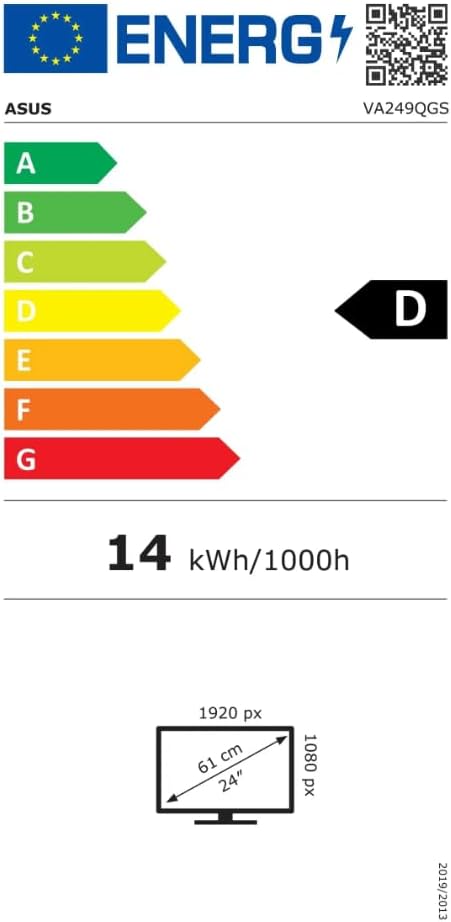
Figure 8.1: Energy Efficiency Label for ASUS VA249QGS.
For more details, refer to the EPREL database: https://eprel.ec.europa.eu/qr/2205871
9. हमी आणि समर्थन
9.1 हमी माहिती
ASUS monitors typically come with a limited warranty. Please refer to the warranty card included in your package for specific terms and conditions, including warranty period and coverage details for your region.
9.2 ग्राहक समर्थन
For technical support, service, or general inquiries, please contact ASUS customer service through the following channels:
- ASUS Service & Support Webसाइट: https://www.asus.com/support/
- ईमेल: servicecenter_emea@asus.com
- दूरध्वनी: +49 (0)21025389557 (Note: This number is for Germany, please check the ASUS support website for your local contact number.)
When contacting support, please have your monitor's model number (VA249QGS) and serial number ready.
Ask a question about this manual
Ask about setup, troubleshooting, compatibility, parts, safety, or missing instructions. Manuals+ will review the question and use this page’s manual context to help answer it.