
1. परिचय
The DigiLand R10 PRO is a 10.1-inch Android 14 tablet designed for versatile use, from entertainment to productivity. It features an MTK Helio G80 Octa-Core processor, 12GB RAM, and 128GB internal storage, expandable via TF card. This manual provides essential information to help you get started and make the most of your tablet.
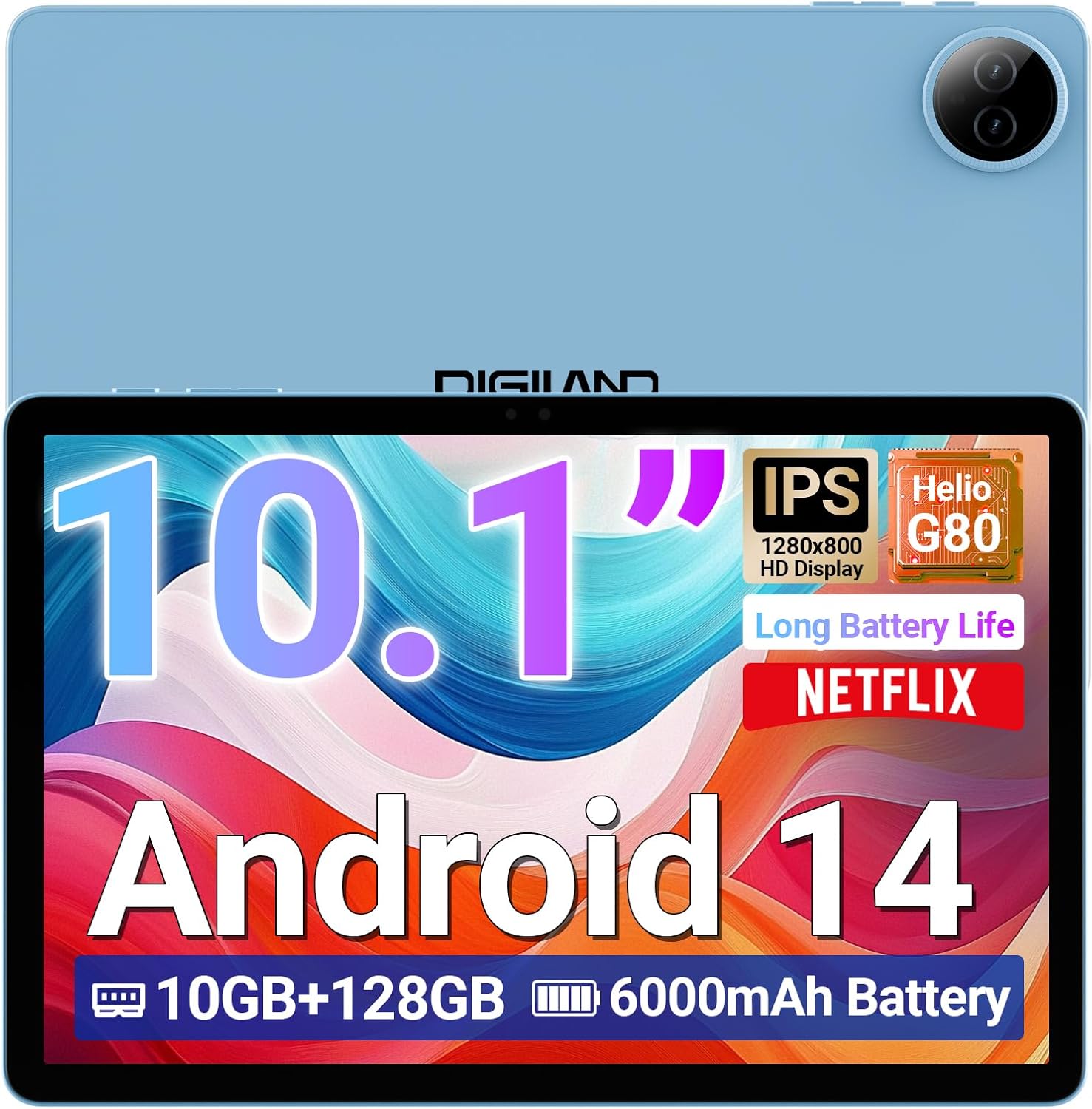
Image 1.1: DigiLand R10 PRO Tablet. This image displays the tablet's front screen, highlighting its 10.1-inch display, Android 14 operating system, 10GB RAM, 128GB ROM, and 6000mAh battery capacity.
२. बॉक्समध्ये काय आहे?
Upon unpacking your DigiLand R10 PRO tablet, please verify that all the following items are included:
- R10 PRO Tablet
- R10 PRO Stand Case
- चार्जर
- चार्जिंग केबल (USB Type-C)
- वापरकर्ता मॅन्युअल (हा दस्तऐवज)

Image 2.1: Box Contents. This image illustrates the tablet, charger, charging cable, stand case, and user manual included in the product packaging.
3. उत्पादन संपलेview
Familiarize yourself with the physical components of your DigiLand R10 PRO tablet.
3.1 समोर View
- ९-इंच एचडी आयपीएस टचस्क्रीन: Main display for interaction.
- फ्रंट कॅमेरा (३२ मेगापिक्सेल): स्क्रीनच्या वर स्थित, व्हिडिओ कॉल आणि सेल्फीसाठी वापरले जाते.
3.2 मागील View
- मागील कॅमेरा (८ मेगापिक्सेल): मागील बाजूस स्थित, फोटो आणि व्हिडिओ कॅप्चर करण्यासाठी वापरले जाते.
3.3 बाजू Views (General Layout)
- पॉवर बटण: Used to turn the tablet on/off or put it to sleep/wake it up.
- व्हॉल्यूम बटणे: ऑडिओ व्हॉल्यूम समायोजित करा.
- यूएसबी टाइप-सी पोर्ट: चार्जिंग आणि डेटा ट्रान्सफरसाठी.
- स्पीकर ग्रिल्स: ऑडिओ आउटपुटसाठी.
- मायक्रोएसडी कार्ड स्लॉट: For expanding storage (supports up to 256GB).

Image 3.1: Tablet Features Overview. This infographic highlights key specifications including screen size, resolution, RAM, ROM, processor, battery, and camera details.
4. सेटअप
4.1 प्रारंभिक चार्जिंग
Before first use, fully charge your tablet. Connect the provided USB Type-C cable to the tablet's charging port and the other end to the power adapter. Plug the adapter into a wall outlet. The charging indicator will show the charging status.
4.2 पॉवर चालू/बंद
- चालू करण्यासाठी: Press and hold the Power button until the DigiLand logo appears on the screen.
- पॉवर ऑफ करण्यासाठी: Press and hold the Power button until a power menu appears. Select "Power off" and confirm.
- To Sleep/Wake: थोडक्यात पॉवर बटण दाबा.
४.५ प्रारंभिक सेटअप विझार्ड
The first time you power on the tablet, you will be guided through an initial setup process. Follow the on-screen prompts to:
- तुमची भाषा निवडा.
- Wi-Fi नेटवर्कशी कनेक्ट करा.
- Set up your Google account (optional, but recommended for app downloads and services).
- स्क्रीन लॉक (पिन, पॅटर्न किंवा पासवर्ड) सेट करा.
- Review आणि अटी आणि शर्ती स्वीकारा.
4.4 वाय-फाय कनेक्शन
Wi-Fi नेटवर्कशी कनेक्ट करण्यासाठी:
- वर जा सेटिंग्ज > नेटवर्क आणि इंटरनेट > इंटरनेट.
- वाय-फाय टॉगल करा On.
- सूचीमधून तुमचे इच्छित नेटवर्क निवडा.
- संकेत दिल्यास पासवर्ड एंटर करा आणि टॅप करा कनेक्ट करा.
५. टॅब्लेट चालवणे
२.१ मूलभूत नेव्हिगेशन
- टॅप करा: एखादी वस्तू निवडा किंवा अॅप उघडा.
- स्पर्श करा आणि धरून ठेवा: संदर्भ मेनूमध्ये प्रवेश करा किंवा आयटम हलवा.
- स्वाइप: स्क्रीन किंवा सूचीमधून स्क्रोल करा.
- चिमूटभर: प्रतिमा झूम इन किंवा आउट करा आणि web पृष्ठे
5.2 होम स्क्रीन
The home screen provides quick access to your favorite apps, widgets, and notifications. You can customize it by adding or removing app icons and widgets.
३.२ सूचना आणि जलद सेटिंग्ज
Swipe down from the top of the screen to access notifications and quick settings toggles (Wi-Fi, Bluetooth, brightness, etc.).
६.२ कॅमेरा वापर
The tablet features an 8MP front camera and a 13MP rear camera. To use the camera:
- उघडा कॅमेरा ॲप
- फोटो काढण्यासाठी शटर बटणावर टॅप करा.
- कॅमेरा टॉगल आयकॉन वापरून पुढील आणि मागील कॅमेऱ्यांमध्ये स्विच करा.
- व्हिडिओ रेकॉर्ड करण्यासाठी व्हिडिओ मोड निवडा.

Image 5.1: Camera Functionality. This image highlights the 8MP front and 13MP rear cameras, showing examples of photos taken with the tablet.
5.5 स्टोरेज व्यवस्थापन
Your tablet comes with 128GB of internal storage. You can expand this by inserting a MicroSD card (up to 256GB) into the dedicated slot. To manage storage, go to सेटिंग्ज > स्टोरेज.

Image 5.2: Memory and Storage. This image details the 12GB RAM, 128GB ROM, and the option for 256GB expansion via MicroSD card.
५.३ ब्लूटूथ कनेक्टिव्हिटी
ब्लूटूथ डिव्हाइस कनेक्ट करण्यासाठी:
- वर जा सेटिंग्ज > कनेक्ट केलेली उपकरणे > कनेक्शन प्राधान्ये > ब्लूटूथ.
- ब्लूटूथ टॉगल करा On.
- निवडा नवीन डिव्हाइस जोडा आणि सूचीमधून तुमचे डिव्हाइस निवडा.
- Follow any on-screen pairing instructions.
6. देखभाल
6.1 बॅटरी काळजी
- जास्त तापमान टाळा, ज्यामुळे बॅटरीचे आयुष्य कमी होऊ शकते.
- टॅब्लेट जास्त काळ पूर्णपणे डिस्चार्ज राहू देऊ नका.
- Use the provided charger and cable for optimal charging.

Image 6.1: Battery Performance. This image illustrates the 6000mAh battery's estimated usage times for video playback, e-books, music, and gaming.
6.2 स्वच्छता
टॅब्लेटची स्क्रीन आणि बॉडी स्वच्छ करण्यासाठी मऊ, लिंट-फ्री कापड वापरा. अपघर्षक पदार्थ किंवा कठोर रसायने टाळा.
6.3 सॉफ्टवेअर अद्यतने
तुमच्या टॅब्लेटमध्ये नवीनतम वैशिष्ट्ये आणि सुरक्षा पॅचेस आहेत याची खात्री करण्यासाठी नियमितपणे सॉफ्टवेअर अपडेट्स तपासा आणि स्थापित करा. येथे जा सेटिंग्ज > प्रणाली > सिस्टम अपडेट.
6.4 डेटा बॅकअप
Periodically back up important data to a cloud service or external storage device to prevent data loss.
7. समस्या निवारण
५.१ टॅब्लेट चालू होत नाही
- बॅटरी चार्ज झाली आहे याची खात्री करा. चार्जर कनेक्ट करा आणि पॉवर चालू करण्याचा प्रयत्न करण्यापूर्वी काही मिनिटे वाट पहा.
- सक्तीने रीस्टार्ट करण्यासाठी पॉवर बटण १०-१५ सेकंद दाबा आणि धरून ठेवा.
६.४ वाय-फाय कनेक्शन समस्या
- तुमचा वाय-फाय राउटर आणि टॅबलेट रीस्टार्ट करा.
- तुम्ही वाय-फाय सिग्नलच्या रेंजमध्ये आहात याची खात्री करा.
- वाय-फाय पासवर्ड बरोबर आहे का ते तपासा.
- वाय-फाय सेटिंग्जमध्ये नेटवर्क विसरून जा आणि पुन्हा कनेक्ट करा.
१०.३ मंद कामगिरी
- पार्श्वभूमीत चालू असलेले न वापरलेले अनुप्रयोग बंद करा.
- अॅप्ससाठी कॅशे डेटा साफ करा.
- पुरेशी साठवणूक जागा उपलब्ध आहे याची खात्री करा.
- टॅब्लेट रीस्टार्ट करा.
7.4 फॅक्टरी रीसेट
जर सतत समस्या येत राहिल्या तर, फॅक्टरी रीसेट केल्याने त्या सोडवता येतील. चेतावणी: हे तुमच्या टॅबलेटवरील सर्व डेटा मिटवेल. पुढे जाण्यापूर्वी महत्त्वाच्या डेटाचा बॅकअप घ्या.
- वर जा सेटिंग्ज > प्रणाली > पर्याय रीसेट करा.
- निवडा सर्व डेटा पुसून टाका (फॅक्टरी रीसेट).
- तुमच्या निर्णयाची पुष्टी करा आणि विचारल्यास तुमचा पिन/पॅटर्न/पासवर्ड प्रविष्ट करा.
8. तपशील
Detailed technical specifications for the DigiLand R10 PRO Tablet:
| वैशिष्ट्य | तपशील |
|---|---|
| मॉडेल क्रमांक | R10 PRO |
| ऑपरेटिंग सिस्टम | Android 14 |
| प्रोसेसर | MediaTek Helio G80 Octa-Core (2.0GHz A75 + 1.8GHz A55) |
| रॅम | 12 जीबी |
| अंतर्गत स्टोरेज | 128 जीबी |
| विस्तारण्यायोग्य स्टोरेज | Up to 256GB via MicroSD card |
| स्क्रीन आकार | 10.1 इंच |
| स्क्रीन रिझोल्यूशन | १०२४x६०० एचडी आयपीएस |
| मागील कॅमेरा | 13 MP |
| समोरचा कॅमेरा | 8 MP |
| बॅटरी क्षमता | 6000mAh (Average 12 hours usage) |
| वायरलेस कनेक्टिव्हिटी | वाय-फाय ५ (८०२.११ए/बी/जी/एन/एसी), ब्लूटूथ ५.० |
| बंदरे | यूएसबी टाइप-सी |
| परिमाण (LxWxH) | 9.54 x 6.35 x 0.31 इंच |
| आयटम वजन | 1.07 पाउंड |

Image 8.1: Detailed Specifications. This image provides a visual summary of the tablet's core features, including Android 14, RAM, ROM, screen size, resolution, cameras, processor, and battery.
9. हमी आणि समर्थन
DigiLand is committed to providing quality products and customer satisfaction. For any issues or inquiries regarding your R10 PRO tablet, please contact DigiLand customer support.
9.1 ग्राहक समर्थन
If you encounter any problems or have questions not covered in this manual, please reach out to our support team. Contact information can typically be found on the DigiLand official webसाइटवर किंवा तुमच्या खरेदी प्लॅटफॉर्मद्वारे.

Image 9.1: After-Sales Support. This image represents DigiLand's commitment to customer service and support.