
1. Танилцуулга
Thank you for choosing the acer Ergonomic Wireless Vertical Mouse OCC314. This manual provides essential information for setting up, operating, and maintaining your new mouse. Designed for comfort and efficiency, this vertical mouse helps reduce wrist and arm strain during extended use.

Figure 1: acer Ergonomic Wireless Vertical Mouse OCC314
2. Үндсэн шинж чанарууд
- 58° Ergonomic Vertical Design: Naturally contours to your right hand, reducing wrist and arm pressure.
- 2.4GHz утасгүй холболт: Provides a fast and stable connection via the included USB-A receiver with a reliable range of up to 10 meters. (Note: This is NOT a Bluetooth connection.)
- Өндөр хүчин чадалтай цэнэглэдэг батерей: Equipped with a 500mAh rechargeable battery for long-term convenience. Charges via USB-C.
- 3 DPI Settings: Customizable DPI levels (800/1200/1600) for optimal precision. An intuitive visual indicator flashes to confirm your selected DPI setting.
- Quick Navigation Side Buttons: Dedicated forward and backward buttons for rapid browsing and folder navigation. (Note: Side buttons do not work on Mac operating systems.)
- Автомат унтах функц: Enters sleep mode after 10 minutes of inactivity to conserve battery. Wake with a double click.

Figure 2: 58° Ergonomic Vertical Design for reduced wrist pressure.

Figure 3: Adjustable DPI settings for precision control.
3. Тохируулах заавар
- USB хүлээн авагчийг олох: The USB-A receiver is stored inside the mouse, accessible by removing the small cover on the bottom.
- Хүлээн авагчийг холбоно уу: USB-A хүлээн авагчийг компьютер дээрээ (зөөврийн компьютер, компьютер эсвэл ширээний компьютер) ашиглах боломжтой USB-A порт руу холбоно уу.
- Хулганыг асаах: Доод талд байрлах цахилгаан унтраалгыг ашиглан хулганаа асаана уу.
- Автомат холболт: The mouse should automatically connect to your computer. No additional drivers are typically required for plug-and-play functionality.

Figure 4: Visual guide for initial setup.
4. Ашиглалтын заавар
4.1 Hand Position
Rest your palm naturally against the mouse's contour. The 58° vertical tilt is designed to align your wrist in a more natural handshake position, reducing strain.
4.2 Adjusting DPI
Press the DPI button (located near the scroll wheel) to cycle through the 800, 1200, and 1600 DPI settings. The indicator light will flash to confirm the selected setting.
4.3 Хажуугийн товчлууруудыг ашиглах
Use the dedicated forward and backward buttons on the side of the mouse for quick navigation in web хөтөч болон file судлаачид. (Note: These buttons are not functional on Mac operating systems.)
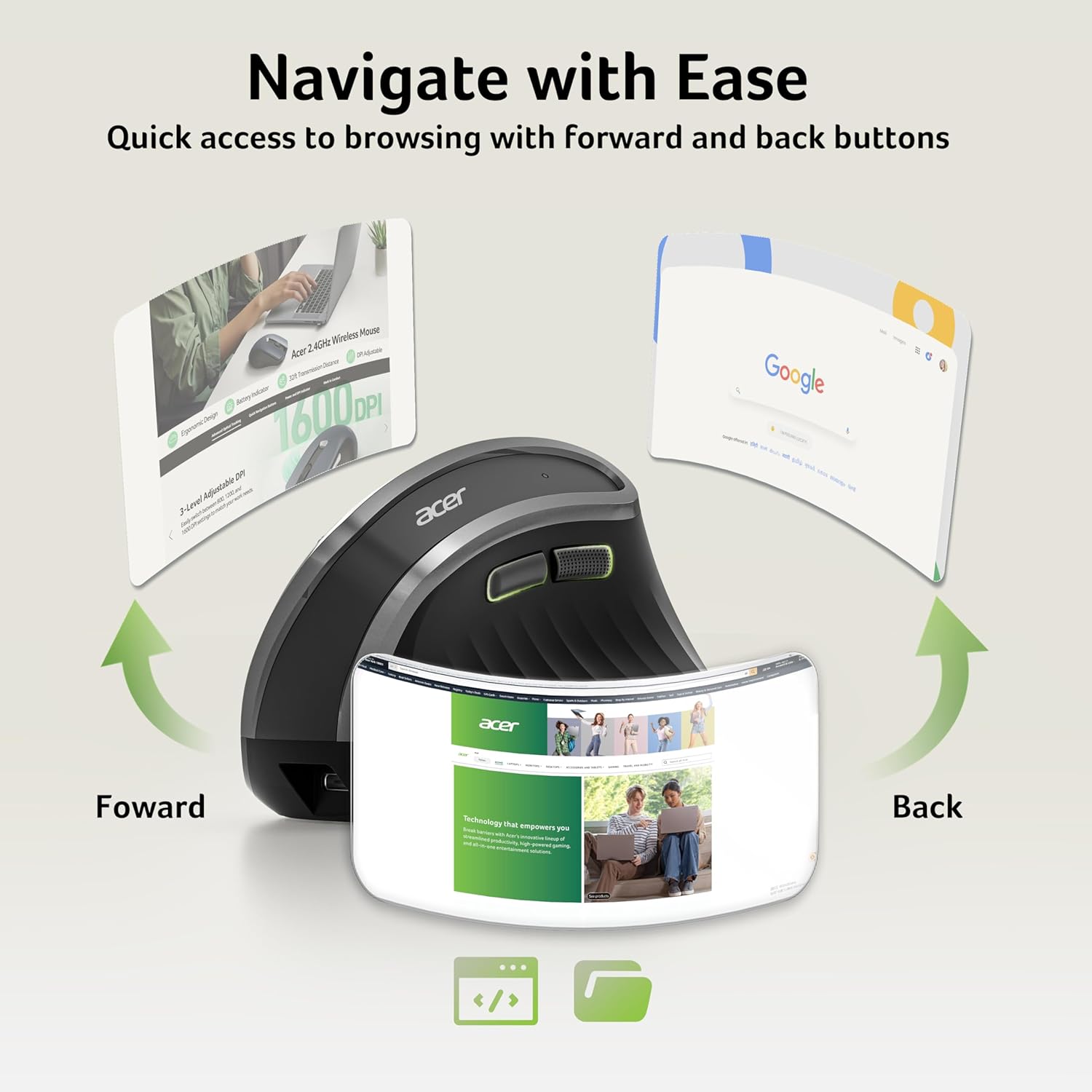
Figure 5: Side buttons for efficient navigation.
5. Засвар үйлчилгээ
5.1 Хулгана цэнэглэх
When the indicator light flashes rapidly, it signifies a low battery. Connect the included USB-C cable to the charging port on the front of the mouse and to a USB power source. A full charge takes approximately 90 minutes.
5.2 Цэвэрлэгээ
To clean the mouse, use a soft, dry cloth. Avoid using harsh chemicals or abrasive materials that could damage the surface.
6. Алдаа засах
- Mouse Malfunction/Re-pairing: If the mouse malfunctions or loses connection, press and hold the Left Button, Right Button, and Scroll Wheel simultaneously for a few seconds to re-pair it with the USB receiver.
- Side Buttons on Mac: The forward and backward side buttons are not supported on Mac operating systems. This is a design limitation.
- Mouse Not Waking Up: If the mouse is in auto-sleep mode, double-click any button to wake it up. Ensure the battery is charged.
- Холболтын асуудал: Ensure the USB-A receiver is securely plugged into a working USB port. Try a different USB port if necessary.
7. Техникийн үзүүлэлтүүд
| Онцлог | Дэлгэрэнгүй |
|---|---|
| Загварын дугаар | OCC314 |
| Бүтээгдэхүүний хэмжээс | 4.84 x 3.23 x 0.1 инч |
| Зүйлийн жин | 6.3 унц |
| Холболтын технологи | 2.4GHz утасгүй (USB-A хүлээн авагч) |
| Хөдөлгөөнийг илрүүлэх | Оптик |
| DPI тохиргоо | 800/1200/1600 |
| Зайны багтаамж | 500 мАч (цэнэглэдэг) |
| Цэнэглэх порт | USB-C |
| Тохиромжтой байдал | Windows, macOS, Linux, ChromeOS, Android (USB-A port required) |

Зураг 6: Илүүview of mouse buttons and components.
8. Баталгаат хугацаа ба дэмжлэг
For warranty information and customer support, please refer to the documentation included with your product or visit the official acer support webсайт. Баталгаат зардлаа авахын тулд худалдан авалтын баримтаа хадгална уу.