
1. Танилцуулга
Thank you for choosing the Dierya x TMKB M1 Wireless Gaming Mouse. This manual provides detailed instructions on how to set up, operate, and maintain your new gaming mouse. The M1 mouse offers versatile connectivity, high-precision tracking, and customizable features to enhance your gaming and productivity experience.
2. Бүтээгдэхүүн дууссанview
2.1 Бүрэлдэхүүн хэсэг ба удирдлага
Familiarize yourself with the various buttons and features of your Dierya M1 mouse:
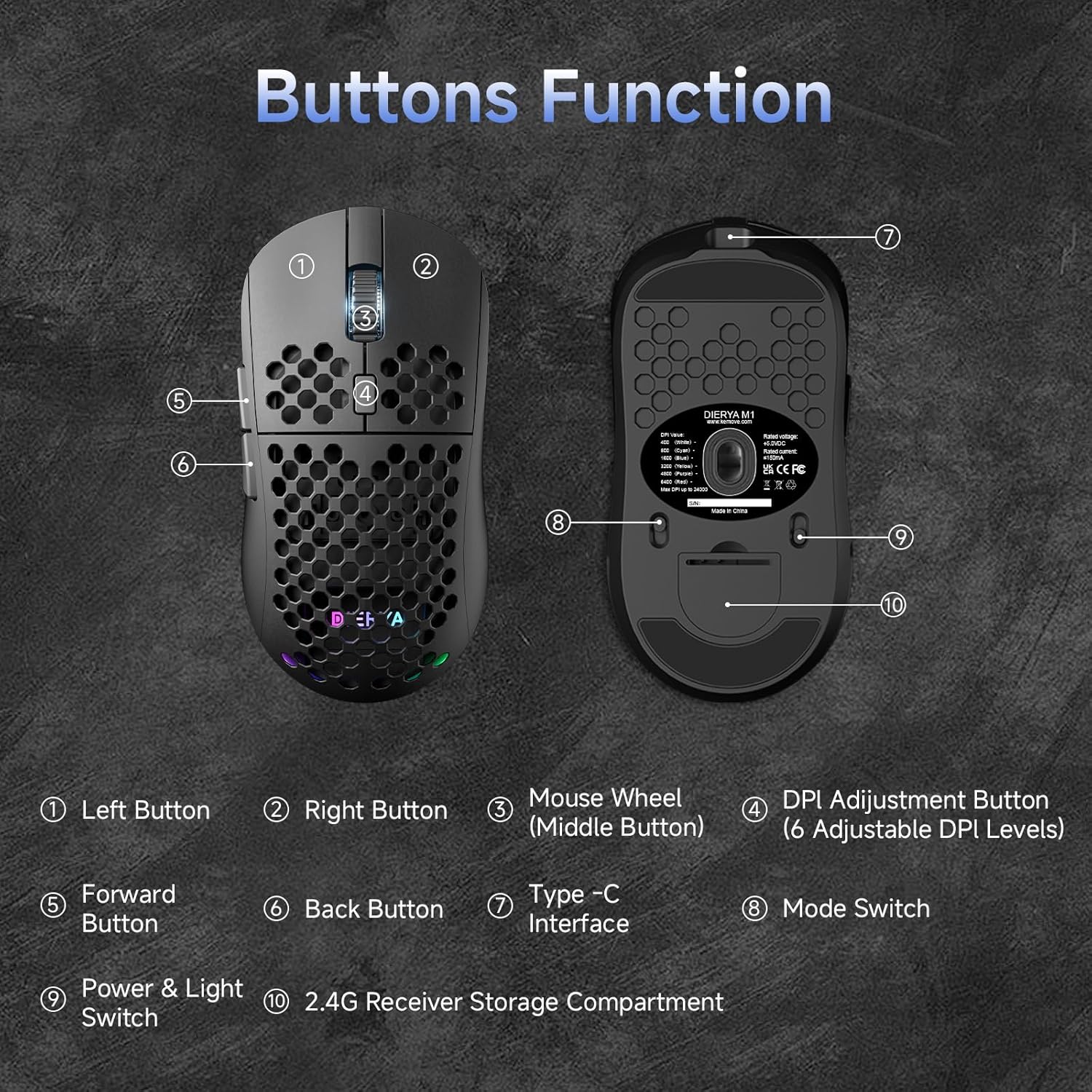
This diagram illustrates the various components of the Dierya M1 wireless gaming mouse. It highlights the Left Button (1), Right Button (2), Mouse Wheel (Middle Button) (3), DPI Adjustment Button (4) with 6 adjustable DPI levels, Forward Button (5), Back Button (6), Type-C Interface (7) for charging and wired connection, Горим солих (8) for selecting connection type, Power & Light Switch (9), болон 2.4G Receiver Storage Compartment (10) located on the underside.
2.2 Гол онцлогууд
- 24,000 DPI Оптик мэдрэгч: Adjustable DPI range from 200 to 24,000, with 6 preset levels (400-6400 DPI).
- Гурван горимын холболт: Supports ultra-fast 2.4GHz wireless, energy-efficient Bluetooth 5.2, and stable USB-C wired connections.
- Батерейны урт наслалт: 1000mAh battery provides up to 180 hours in ECO mode or 48 hours with RGB lighting, with 1-hour fast charging.
- Хөнгөн ба эргономик дизайн: Weighs only 90g with a honeycomb shell for breathability and a symmetrical design (125x63x41 mm).
- Програмчлагдсан товчлуурууд: 6 customizable buttons via the M1 Driver software (Windows only).
- Динамик RGB гэрэлтүүлэг: 13 integrated RGB lighting effects with 16.8 million customizable colors.
- Өндөр гүйцэтгэл: 125-1000 Hz polling rate, 300 IPS tracking speed, and 35G acceleration.
- Удаан эдэлгээтэй унтраалга: Equipped with Huano switches rated for 20 million clicks and 100% PTFE feet for smooth gliding.
3. Тохиргоо
3.1 Хулгана цэнэглэх
Before first use, it is recommended to fully charge the mouse. Connect the provided USB-C cable to the Type-C Interface (7) on the mouse and the other end to a USB power source (e.g., computer USB port, USB wall adapter).
- The mouse charges in approximately 1 hour.
- The scroll wheel LED will indicate charging status (e.g., red for charging, green for fully charged).
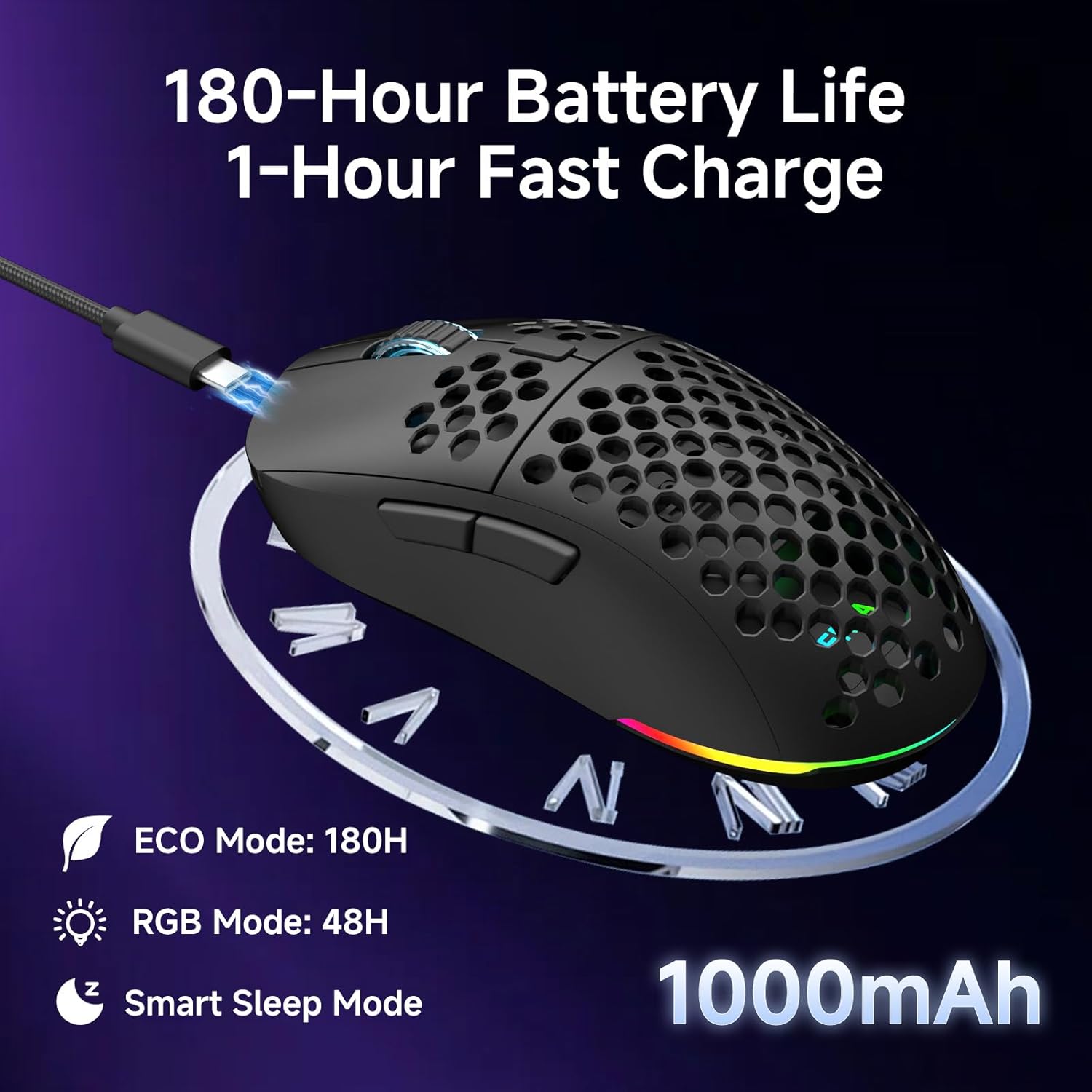
The Dierya M1 mouse features a 1000mAh battery, providing up to 180 hours of use in ECO mode or 48 hours with RGB lighting enabled. It supports fast charging, reaching full capacity in approximately 1 hour via the included USB-C cable. The mouse also includes a smart sleep mode to conserve power during inactivity.
3.2 Хулгана холбох
The Dierya M1 mouse offers three connection modes: 2.4GHz Wireless, Bluetooth 5.2, and USB-C Wired.

The Dierya M1 mouse supports three flexible connection modes: Bluetooth 5.2 for energy-efficient pairing with up to two devices, 2.4GHz Wireless via a USB dongle for ultra-fast response, and a stable USB-C Wired connection for charging and direct use. Each mode offers a different polling rate, with 2.4GHz and wired modes providing 1000Hz, and Bluetooth offering 125Hz.
3.2.1 2.4GHz утасгүй холболт
- Locate the 2.4G receiver in the storage compartment (10) on the underside of the mouse.
- 2.4G хүлээн авагчийг компьютер дээрх боломжтой USB порт руу залгаарай.
- Set the Mode Switch (8) on the underside of the mouse to the '2.4G' position.
- The mouse should connect automatically. The polling rate for this mode is 1000 Hz.
3.2.2 Bluetooth 5.2 холболт
- Set the Mode Switch (8) on the underside of the mouse to the 'BT' position.
- Компьютер эсвэл төхөөрөмж дээрээ Bluetooth тохиргоог нээгээд шинэ төхөөрөмжүүдийг хайгаарай.
- Select 'Dierya M1' from the list of available devices to pair.
- The mouse supports Bluetooth 5.2 and has a polling rate of 125 Hz in this mode.
3.2.3 USB-C утастай холболт
- Connect the USB-C cable to the Type-C Interface (7) on the mouse.
- USB-C кабелийн нөгөө үзүүрийг компьютер дээрээ байгаа USB порт руу холбоно уу.
- The mouse will automatically switch to wired mode and begin charging. The polling rate for this mode is 1000 Hz.
4. Ашиглалтын заавар
4.1 DPI тохируулга
The Dierya M1 mouse features a dedicated DPI Adjustment Button (4) to cycle through preset DPI levels. The scroll wheel LED color indicates the current DPI setting.
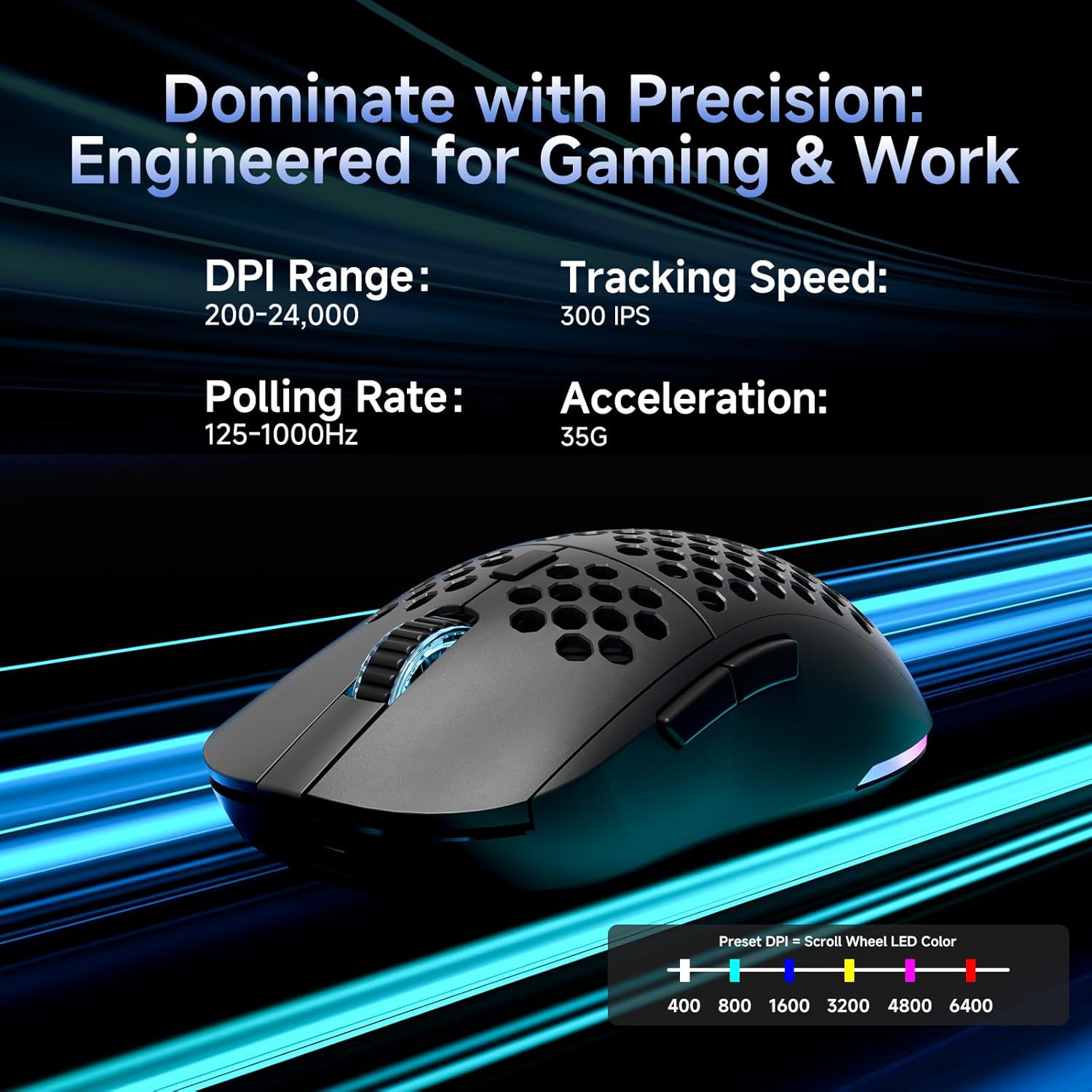
This image details the performance specifications of the Dierya M1 mouse, including a DPI range of 200-24,000, a tracking speed of 300 IPS, a polling rate of 125-1000Hz, and 35G acceleration. It also shows the preset DPI levels (400, 800, 1600, 3200, 4800, 6400) and the color indicators on the scroll wheel for each setting.
- Press the DPI Adjustment Button (4) to cycle through the 6 default DPI settings: 400, 800, 1600, 3200, 4800, and 6400 DPI.
- Each DPI level is indicated by a specific color on the scroll wheel LED.
- For custom DPI settings and a wider range (200-24,000 DPI), use the M1 Driver software.
4.2 RGB гэрэлтүүлгийн удирдлага
The Dierya M1 mouse features dynamic RGB lighting. You can control the lighting effects and colors using the M1 Driver software.
- The mouse has 13 built-in RGB lighting effects.
- Use the M1 Driver software to customize colors (16.8 million options), brightness, and speed of the lighting effects.
- The Power & Light Switch (9) on the underside can be used to turn the lighting on or off.
4.3 Programmable Buttons and Software
The M1 mouse has 6 programmable buttons that can be customized using the dedicated M1 Driver software.

The Dierya M1 driver software, currently available for Windows, allows users to customize various aspects of the mouse. This includes reassigning the 6 programmable buttons, creating macros, adjusting DPI settings, modifying the polling rate, and personalizing the 13 dynamic RGB lighting effects with 16.8 million colors.
- Програм хангамжийн нийцтэй байдал: The M1 Driver software is currently only available for Windows operating systems.
- Гол даалгавар: Reassign functions to any of the 6 programmable buttons (Left, Right, Middle, DPI, Forward, Back).
- Макро бүтээх: Create and assign complex macros to streamline in-game actions or productivity tasks.
- DPI & Polling Rate: Fine-tune DPI settings beyond the presets and adjust the polling rate.
- RGB тохируулга: Personalize lighting effects, colors, and patterns.
- Profile Удирдлага: Save and load different profileянз бүрийн тоглоом эсвэл програмуудад зориулсан s.
4.4 Эрчим хүч хэмнэх горимууд
The M1 mouse is designed with automatic power-saving features to extend battery life:
- The mouse will enter an automatic power-saving mode after 1-5 minutes of inactivity.
- This inactivity time can be adjusted via the M1 Driver software.
- Хулганыг сэрээхийн тулд зүгээр л хөдөлгөх эсвэл дурын товчлуур дээр дарна уу.
5. Засвар үйлчилгээ
Proper maintenance ensures the longevity and optimal performance of your Dierya M1 mouse.
- Цэвэрлэгээ: Хулганы гадаргууг зөөлөн, хуурай даавуугаар арчина. Зөрүүд шороонд бага зэрэг damp даавуу ашиглаж болох ч чийг хулганад орохгүй байхыг анхаарна уу. Хүчтэй химийн бодис эсвэл зүлгүүрийн цэвэрлэгчээс зайлсхий.
- Мэдрэгчийн засвар үйлчилгээ: Хулганы доод талд байрлах оптик мэдрэгчийг тоос шороо, хог хаягдлаас ангид байлгаж, үнэн зөв хянах боломжтой.
- Батерейны арчилгаа: Avoid fully discharging the battery frequently. For long-term storage, charge the mouse to about 50% and store it in a cool, dry place.
- Хадгалах: Ашиглаагүй үед хулганыг хэт өндөр температураас хол, цэвэр, хуурай орчинд хадгална.
6. Алдаа засах
If you encounter issues with your Dierya M1 mouse, refer to the following common troubleshooting steps:
| Асуудал | Боломжит шалтгаан | Шийдэл |
|---|---|---|
| Хулгана хариу өгөхгүй байна (2.4GHz) | Low battery, receiver unplugged, incorrect mode, interference. | Charge the mouse. Ensure 2.4G receiver is securely plugged in. Set Mode Switch to '2.4G'. Try a different USB port. Reduce distance to receiver. |
| Хулгана хариу өгөхгүй байна (Bluetooth) | Low battery, incorrect mode, not paired, Bluetooth off on device. | Charge the mouse. Set Mode Switch to 'BT'. Ensure Bluetooth is enabled on your device. Re-pair the mouse in Bluetooth settings. |
| Хулгана хариу өгөхгүй байна (Утастай) | Cable not connected, faulty cable/port. | Ensure USB-C cable is securely connected to both mouse and computer. Try a different USB port or cable. |
| Inaccurate tracking | Dirty sensor, unsuitable surface, incorrect DPI. | Clean the optical sensor. Use a mouse pad or a clean, non-reflective surface. Adjust DPI settings. |
| RGB гэрэлтүүлэг ажиллахгүй байна | Lighting switched off, low battery, software issue. | Check Power & Light Switch (9). Charge the mouse. Check settings in M1 Driver software. |
| Товчлуурыг програмчлах боломжгүй | M1 Driver not installed/running, not on Windows. | Ensure M1 Driver software is installed and running (Windows only). Check software settings. |
7. Техникийн үзүүлэлтүүд
| Загварын нэр | M1 |
| Брэнд | Диеряа |
| Холболтын технологи | 2.4GHz утасгүй, Bluetooth 5.2, USB-C утастай |
| Хөдөлгөөнийг илрүүлэх технологи | Оптик |
| DPI хүрээ | 200 - 24,000 DPI (6 preset levels: 400, 800, 1600, 3200, 4800, 6400) |
| Санал хураалтын хувь | 125-1000 Гц |
| Хяналтын хурд | 300IPS |
| Хурдатгал | 35G |
| Товчлуурын тоо | 6 (Програмчлагдах боломжтой) |
| Зайны багтаамж | 1000 мАч лити-ион |
| Зайны ашиглалт | Up to 180 hours (ECO mode), 48 hours (RGB mode) |
| Цэнэглэх хугацаа | Ойролцоогоор 1 цаг |
| Жин | 90 грамм |
| Хэмжээ | 125 x 63 x 41 мм |
| Шилжүүлэгчийн төрөл | Huano (20 million clicks) |
| Хөлийн материал | 100% PTFE |
| Үйлдлийн системийн нийцтэй байдал | Windows, macOS, Linux, Chrome OS |
| Driver Software Compatibility | Зөвхөн Windows |
8. Баталгаат хугацаа ба дэмжлэг
8.1 Үйлдвэрлэгчийн баталгаа
The Dierya M1 Wireless Gaming Mouse comes with a 1 жилийн үйлдвэрлэгчийн баталгаа. Энэхүү баталгаа нь ердийн ашиглалтын үед хийгдсэн материал, хийцийн согогийг хамарна. Баталгаат заргад зориулж худалдан авалтаа нотлох баримтаа үлдээнэ үү.
8.2 Хэрэглэгчийн дэмжлэг
For further assistance, technical support, or warranty inquiries, please refer to the official Dierya website or contact your retailer. Ensure you have your product model (M1) and proof of purchase ready when seeking support.