
1. Танилцуулга
This manual provides essential information for setting up, operating, maintaining, and troubleshooting your Lenovo ThinkPad X1 Carbon Gen 12 Laptop. The ThinkPad X1 Carbon Gen 12 is a business notebook designed for performance and durability, featuring an Intel Core Ultra 7 155U Processor, a 14-inch WUXGA 100% sRGB touchscreen, 32GB of 6400MHz RAM, and a 1TB Gen4 Performance SSD, running Windows 11 Pro.

Figure 1.1: Lenovo ThinkPad X1 Carbon Gen 12 Laptop
2. Хайрцагт юу байна
Upon unboxing your Lenovo ThinkPad X1 Carbon Gen 12, ensure all the following items are present:
- ThinkPad X1 Carbon Gen 12 Laptop PC
- Дотоод батерей (урьдчилан суулгасан)
- USB-C Power Adaptor
3. Бүтээгдэхүүн дууссанview
3.1 Порт ба холбогч
The ThinkPad X1 Carbon Gen 12 features a variety of ports for connectivity. Familiarize yourself with their locations and functions:
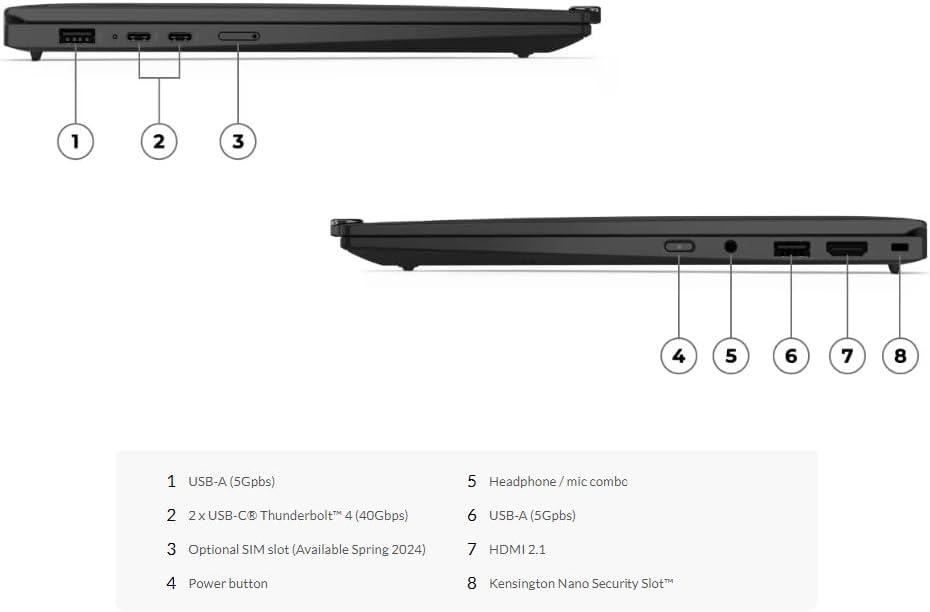
Зураг 3.1: Портын зохион байгуулалт
- USB-A (5Gbps): Standard USB port for connecting peripherals.
- 2 x USB-C Thunderbolt 4 (40Gbps): High-speed ports for data transfer, video output, and charging.
- Optional SIM slot (Available Spring 2024): For mobile broadband connectivity.
- Цахилгаан товч: To turn the laptop on or off.
- Чихэвч / микрофоны хослол: Single jack for audio input and output.
- USB-A (5Gbps): Another standard USB port.
- HDMI 2.1: For connecting to external displays.
- Кенсингтон нано хамгаалалтын үүр: For physical security locking.
3.2 Гар ба мэдрэгчтэй самбар
The ThinkPad X1 Carbon Gen 12 features a redesigned keyboard and a larger glass touchpad. The keyboard includes tactile markings on certain keys to assist touch typists. The 120mm glass touchpad is larger than previous models and retains the traditional ThinkPad buttons at the top. The TrackPoint pointing stick, located in the middle of the keyboard, offers an alternative navigation method.

Зураг 3.2: Гар болон мэдрэгч самбар
3.3 Display and Camera
The laptop is equipped with a 14-inch WUXGA (1920 x 1200) IPS touchscreen display with anti-glare properties, 100% sRGB color gamut, and 400 nits brightness. It features a 1080P FHD IR+RGB camera with a privacy shutter, positioned within the Communications Bar at the top of the display.
4. Тохиргоо
4.1 Анхдагч асаалттай
- Unpack the laptop and power adapter.
- Connect the USB-C power adapter to one of the Thunderbolt 4 ports on the laptop and plug it into a power outlet.
- Open the laptop lid. The power button is located on the side. Press the power button to turn on the device.
- Хэлний сонголт, сүлжээний холболт, хэрэглэгчийн бүртгэл үүсгэх зэрэг Windows 11 Pro-ийн анхны тохиргоог дуусгахын тулд дэлгэц дээрх зааврыг дагана уу.
4.2 Захын төхөөрөмжүүдийг холбох
Use the available USB-A and USB-C ports to connect external devices such as mice, keyboards, external drives, or monitors. The HDMI 2.1 port allows for connection to external displays.
5. Ашиглалтын заавар
5.1 Үндсэн үйл ажиллагаа
- Асаах/унтраах: Press the power button to turn on. To shut down, click Start > Power > Shut down in Windows.
- Унтах горим: Close the lid or click Start > Power > Sleep to enter sleep mode.
- Дахин эхлүүлэх: Эхлүүлэх > Асаах > Дахин эхлүүлэх дээр дарна уу.
5.2 Using the TrackPoint and Touchpad
- TrackPoint: Use the red TrackPoint pointing stick to move the cursor. The three buttons below the spacebar function as left-click, scroll, and right-click for the TrackPoint.
- Түргэн цэс: Double-tapping the TrackPoint pointing stick activates a Quick Menu for microphone settings, output device selection, and voice-to-text functionality.
- Мэдрэгч самбар: Use the glass touchpad for multi-touch gestures. The integrated buttons at the bottom of the touchpad function as left and right clicks.
5.3 Camera and Microphone Usage
The integrated FHD IR+RGB camera and dual-microphone array are optimized for video conferencing. Ensure the privacy shutter is open when using the camera. The ThinkPad X1 Carbon Gen 12 is Zoom-certified and includes Dolby Voice and Dolby Atmos for enhanced audio experiences.

Figure 5.1: Laptop in use for video conferencing
5.4 Холболт
- Wi-Fi: Connect to wireless networks using the integrated Wi-Fi 6E AX211 2x2 AX.
- Bluetooth: Pair Bluetooth devices such as headphones or mice using Bluetooth 5.3.
- Intel Unison: Sync your laptop with iOS or Android smartphones for calls, texts, and file шилжүүлэг.
5.5 Blue Light Protection
The display is Eyesafe Certified, providing always-on blue light protection to reduce eye strain during extended use.
5.6 Аюулгүй байдлын онцлог
The ThinkPad X1 Carbon Gen 12 includes a fingerprint reader and facial recognition for secure login. ThinkShield provides a comprehensive suite of security solutions, including a discrete Trusted Platform Module (dTPM) for data encryption. Intel vPro offers hardware-based security and remote management capabilities.

Figure 5.2: Laptop in a typical work setting
6. Засвар үйлчилгээ
6.1 Зөөврийн компьютерээ цэвэрлэх
- Зөөлөн, хөвөнгүй даавууг хөнгөн хэрэглээрэй dampДэлгэцийг цэвэрлэхийн тулд ус эсвэл дэлгэц цэвэрлэгчээр зайлна.
- Гар болон явах эд ангиудын хувьд зөөлөн даавуу хэрэглээрэй. Хүчтэй химийн бодис, зүлгүүрийн материалаас зайлсхий.
- Зөөврийн компьютерээ цэвэрлэхийн өмнө унтрааж, залгуураас нь салгасан эсэхээ шалгаарай.
6.2 Батерейны арчилгаа
- Зайны ашиглалтын хугацааг уртасгахын тулд хэт өндөр температураас зайлсхий.
- Periodically discharge and recharge the battery.
- For long-term storage, charge the battery to approximately 50-60% and store the laptop in a cool, dry place.
6.3 Програм хангамжийн шинэчлэлтүүд
Regularly update your Windows operating system and Lenovo drivers to ensure optimal performance and security. Use Windows Update and the Lenovo Vantage application for this purpose.
7. Алдаа засах
Энэ хэсэгт танд тулгарч болох нийтлэг асуудлуудыг авч үзнэ. Илүү төвөгтэй асуудлуудын талаар Lenovo-ийн албан ёсны дэмжлэгийн эх сурвалжуудаас лавлана уу.
7.1 Эрчим хүчний асуудал
- Зөөврийн компьютер асахгүй байна: Ensure the power adapter is securely connected and the outlet is functional. Try holding the power button for 10-15 seconds to perform a hard reset.
- Батерейг цэнэглэхгүй байна: Verify the power adapter is working. Check for any damage to the cable or port.
7.2 Дэлгэцийн асуудал
- Дэлгэц дээр харагдахгүй байна: Connect an external monitor to check if the issue is with the laptop's display. Ensure the display brightness is not set to minimum.
- Дэлгэц анивчдаг: Update your graphics drivers.
7.3 Холболтын асуудал
- Wi-Fi холбогдоогүй байна: Check if Wi-Fi is enabled in Windows settings. Restart your router and the laptop.
- Bluetooth төхөөрөмжийг холбохгүй байна: Ensure the Bluetooth device is in pairing mode and within range. Check Bluetooth settings on your laptop.
7.4 Keyboard/Touchpad Unresponsive
- Зөөврийн компьютераа дахин эхлүүлнэ үү.
- Физик саад тотгор эсвэл хог хаягдал байгаа эсэхийг шалгана уу.
- Ensure drivers are up to date via Lenovo Vantage or Device Manager.
8. Техникийн үзүүлэлтүүд
Below are the detailed technical specifications for the Lenovo ThinkPad X1 Carbon Gen 12 Laptop (Model: Ultra 7 155U, WUXGA Touch):

Figure 8.1: Intel Core Ultra 7 Processor and Intel Evo Edition
| Онцлог | Дэлгэрэнгүй |
|---|---|
| Процессор | Intel Core Ultra 7 155U (E-cores up to 3.80 GHz, P-cores up to 4.80 GHz), 12 Core (2 P-core + 8 E-core + 2 LPE-core), 14 threads, 12MB Cache, Intel AI Boost |
| RAM | 32 GB LPDDR5X-6400MHz (Гагнасан) |
| Хадгалах | 1 ТБ SSD M.2 2280 PCIe Gen4 Performance TLC Opal |
| Дэлгэц | 14" Touch WUXGA (1920 x 1200), IPS, Anti-Glare, 100% sRGB, 400 nits, 60Hz, Low Power, 1000:1 Contrast Ratio, 16:10 Aspect Ratio |
| График | Нэгдсэн Intel график |
| Камер | 1080P FHD IR+RGB with Privacy Shutter |
| Батерей | Integrated Li-Polymer 57Wh |
| Холболт | Wi-Fi 6E AX211 2x2 AX, Bluetooth 5.3 |
| Портууд | 2x USB-A (5Gbps), 2x USB-C Thunderbolt 4 (40Gbps), HDMI 2.1, Headphone/mic combo |
| Үйлдлийн систем | Windows 11 Pro |
| Хэмжээ (LxWxH) | 12.31 x 8.45 x 0.59 инч |
| Жин | Ойролцоогоор 2.4 фунт |
| Өнгө | Хар |
9. Баталгаат хугацаа ба дэмжлэг
9.1 Баталгаат хугацааны мэдээлэл
The Lenovo ThinkPad X1 Carbon Gen 12 comes with a One Year Onsite Lenovo Warranty. Users have the option to extend their coverage by adding up to 5 years of Lenovo Premier Support upon registering their computer with Lenovo.
9.2 Хэрэглэгчийн дэмжлэг
For technical assistance, warranty claims, or further information, please visit the official Lenovo support webсайт руу орж эсвэл тэдний хэрэглэгчийн үйлчилгээтэй холбогдоно уу. Дэмжлэг авахдаа бүтээгдэхүүнийхээ серийн дугаарыг бэлэн байлгаарай.
Lenovo дэмжлэг Webсайт: support.lenovo.com