
1. Танилцуулга
This manual provides detailed instructions for the Nulea Wireless Ergonomic Keyboard, Model RT05. This keyboard is designed to enhance typing comfort and efficiency through its split, splayed, and curved layout, integrated wrist rest, and versatile connectivity options. It features a 7-color adjustable backlight and convenient USB-C charging.

Figure 1.1: Nulea Wireless Ergonomic Keyboard (Model RT05)
This image displays the Nulea Wireless Ergonomic Keyboard from a top-down perspective, highlighting its split design, integrated wrist rest, and full key layout including a numeric keypad. The keyboard is black with yellow accents on the spacebar area.
2. Багцын агуулга
Бүх зүйл багцад байгаа эсэхийг шалгана уу:
- Ergonomic Keyboard x1
- USB кабель x1
- Хэрэглэгчийн гарын авлага x1
3. Тохиргоо
3.1 Анхны цэнэглэлт
Before first use, fully charge the keyboard using the provided USB-C cable. The keyboard features a 2000mAh internal battery for extended operation.
- Кабелийн USB-C үзүүрийг гарны цэнэглэх порттой холбоно уу.
- Connect the USB-A end to a compatible USB power source (e.g., computer USB port, wall adapter).
- The battery indicator light will provide charging status. Recharge when the battery level is below 10% (backlight will turn off to conserve power).

Figure 3.1: USB-C Quick Charging
This image illustrates the Nulea keyboard being charged via a USB-C cable, with a graphic indicating a 2000mAh built-in rechargeable battery. The image emphasizes the convenience of USB-C charging.
3.2 Утасгүй холболт
The Nulea keyboard supports both Bluetooth and 2.4G USB connectivity, allowing connection to up to three devices simultaneously.
2.4G USB холболт:
- 2.4G USB хүлээн авагчийг олоорой (ихэвчлэн гар дээрх тасалгаанд хадгалагддаг).
- USB хүлээн авагчийг компьютер дээрээ байгаа USB порт руу холбоно уу.
- Гарыг асаана уу. Энэ нь хүлээн авагчтай автоматаар холбогдох ёстой.
Bluetooth холболт:
- Гараа асаана уу.
- дээр дарна уу Fn аль нэгийг нь нэгэн зэрэг дарна уу Q (2.4G-ийн хувьд), W (for Bluetooth 1), or E (for Bluetooth 2) to select the desired connection channel. For Bluetooth pairing, select W or E.
- Hold the selected Fn + W or Fn + E key combination for 3-5 seconds until the indicator light flashes rapidly, indicating pairing mode.
- On your device (computer, smartphone, tablet), go to Bluetooth settings and search for new devices.
- Select "Nulea Keyboard" or a similar name from the list of available devices to complete the pairing process.
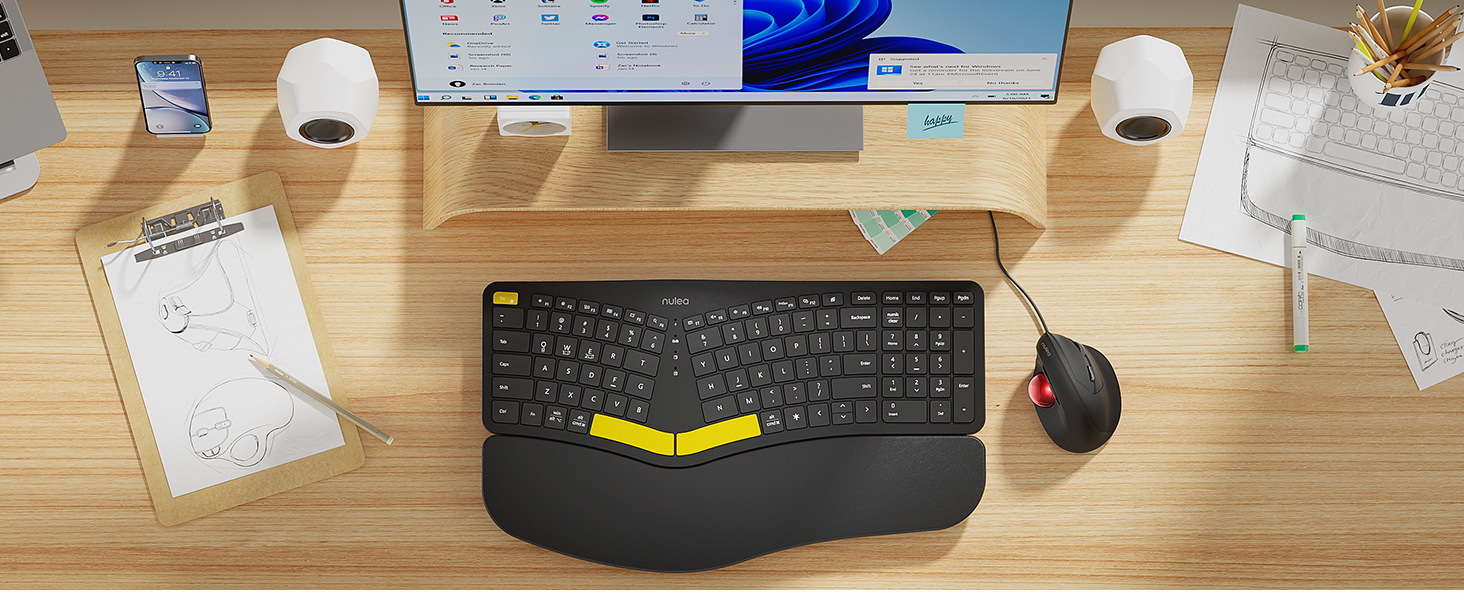
Figure 3.2: Wireless Connectivity Setup
This diagram illustrates the three connectivity options for the Nulea keyboard: 2.4G USB connection via a dongle, and two separate Bluetooth connections. It shows how to switch between devices using Fn + Q/W/E keys.
4. Ашиглалтын заавар
4.1 Асаах/унтраах
Locate the power switch on the keyboard (typically on the top edge or underside) and slide it to the 'ON' or 'OFF' position.
4.2 Холбогдсон төхөөрөмжүүдийн хооронд шилжих
Once multiple devices are paired, you can switch between them instantly:
- дарна уу Fn + Q to switch to the 2.4G USB connected device.
- дарна уу Fn + W Bluetooth Төхөөрөмж 1 рүү шилжихийн тулд.
- дарна уу Fn + E Bluetooth Төхөөрөмж 2 рүү шилжихийн тулд.

Figure 4.1: Easy Device Switching
This image shows the Nulea keyboard connected to a desktop monitor, a laptop, and a smartphone, illustrating its ability to easily switch between up to three paired devices with a single tap.
4.3 арын гэрэлтүүлгийн удирдлага
The keyboard features a 7-color backlight with 3 brightness levels. You can customize the lighting to your preference:
- To cycle through backlight colors (blue, green, red, cyan, purple, yellow, white), press the backlight control key (refer to keyboard layout for specific key).
- To adjust brightness levels, use the dedicated brightness control keys (refer to keyboard layout).
- Note: When the battery level drops below 10%, the backlight will automatically turn off to preserve basic keyboard functionality.

Figure 4.2: Adjustable 7-Color Backlight
This image displays the Nulea keyboard in a dimly lit environment, showcasing its illuminated keys with a vibrant backlight. The image highlights the 7 available backlight colors and 3 brightness levels.
4.4 Тохируулж болох хазайлтын хөл
The keyboard is equipped with 4 adjustable tilt legs, allowing you to set the keyboard at 3 different angles for optimal wrist comfort and posture.
- Gently pull out the tilt legs located on the underside of the keyboard to adjust the angle.
- Experiment with different tilt levels to find the most comfortable position for your typing style.

Figure 4.3: Adjustable Tilt Legs
Энэ зураг нь нэг талыг харуулж байна view of the Nulea keyboard on a desk, with its adjustable tilt legs extended to demonstrate the ergonomic angle. The image emphasizes how the tilt legs help maintain a comfortable wrist position.
4.5 Бичих туршлага
The keyboard features spherical-dished key shapes designed to conform to your fingertips, promoting effortless and comfortable typing.

Figure 4.4: Spherical-Dished Keys
This close-up image focuses on the keys of the Nulea keyboard, highlighting their spherical-dished shape designed for comfortable and precise typing.
5. Засвар үйлчилгээ
5.1 Цэвэрлэгээ
Гарын харагдах байдал, ажиллагааг хадгалахын тулд:
- Disconnect the keyboard from all devices and power sources before cleaning.
- Зөөлөн, хөвөнгүй даавууг бага зэрэг хэрэглээрэй dampгадаргууг арчихын тулд ус эсвэл зөөлөн цэвэрлэгээний уусмалаар зайлна.
- Хүчтэй химийн бодис, зүлгүүрийн цэвэрлэгч, уусгагч хэрэглэхээс зайлсхий.
- Товчлуурын хоорондох тоос, хог хаягдлыг арилгахын тулд шахсан агаарыг ашиглана.
5.2 Батерейны арчилгаа
Батерейны ашиглалтын хугацааг уртасгахын тулд:
- Recharge the keyboard when the battery low indicator appears.
- Байнга зайгаа бүрэн шавхахаас зайлсхий.
- Хэрэв гарыг удаан хугацаагаар хадгалах бол хадгалахаасаа өмнө ойролцоогоор 50% хүртэл цэнэглээрэй.
6. Алдаа засах
6.1 Гар хариу өгөхгүй байна
- Гар асаалттай байгаа эсэхийг шалгаарай.
- Зайны түвшинг шалгаж, шаардлагатай бол цэнэглэ.
- For 2.4G connection, ensure the USB receiver is securely plugged into the device. Try a different USB port.
- For Bluetooth connection, ensure Bluetooth is enabled on your device and the keyboard is paired. Try re-pairing the keyboard.
- Ensure you are on the correct connection channel (Fn + Q/W/E).
6.2 Арын гэрэл ажиллахгүй байна
- Check the battery level. The backlight automatically turns off when the battery is below 10%. Recharge the keyboard.
- Ensure the backlight is turned on and brightness is adjusted using the dedicated keys.
6.3 Connectivity Issues / Lag
- Move the keyboard closer to your device to reduce interference.
- Avoid placing the keyboard near other wireless devices that may cause interference (e.g., Wi-Fi routers, cordless phones).
- Төхөөрөмжийнхөө үйлдлийн систем болон Bluetooth драйверууд шинэчлэгдсэн эсэхийг шалгаарай.
7. Техникийн үзүүлэлтүүд
| Онцлог | Дэлгэрэнгүй |
|---|---|
| Загварын нэр | RT05 |
| Бүтээгдэхүүний хэмжээс | 16.5"L x 9.6"W x 1.3"H (41.9 x 24.4 x 3.3 см) |
| Зүйлийн жин | 3.5 фунт (1.59 кг) |
| Үйлдвэрлэгч | Нулеа |
| Батерей | 1 лити ион батерей (дагсан) |
| Холболтын технологи | 2.4G USB, Bluetooth |
| Тохиромжтой төхөөрөмжүүд | Зөөврийн компьютер, компьютер, ухаалаг утас, таблет |
| Онцлог шинж чанарууд | Backlit, Rechargeable, Split Keyset Design, Adjustable Tilt Legs |
| Өнгө | Хар |
8. Баталгаат хугацаа ба дэмжлэг
For warranty information, technical support, or service inquiries, please refer to the contact information provided on the Nulea official webсайтаас авах эсвэл худалдагчтай шууд холбогдоно уу. Баталгаат хугацааны нэхэмжлэлийн талаар худалдан авалтын баримтаа хадгална уу.
This user manual is included with your product for future reference.