
1. Танилцуулга
Thank you for choosing the CORN Technology N520 Wireless Keyboard and Mouse Combo. This product is designed to enhance your computing experience with its ergonomic design, retro chiclet round keycaps, and stable 2.4GHz wireless connectivity. This manual provides detailed instructions to help you set up, operate, and maintain your new device effectively.
2. Бүтээгдэхүүний онцлог
- 2.4GHz Stable Wireless Connectivity: Plug and play with a single USB receiver for both keyboard and mouse, offering up to 33ft effective wireless range.
- 12 Function Hotkey Design: Multimedia hotkeys (FN combinations) for quick access to music, movies, web үзэх, имэйл.
- Эргономик дизайн: 1600 DPI mouse for adjustable cursor sensitivity and smooth tracking. Ergonomic keycaps for a comfortable typing experience with balanced sound levels.
- Өргөн нийцтэй байдал: Supports Windows XP / WIN7 / WIN10 / ISO, compatible with Notebooks and Desktop PCs.
- Эрчим хүч хэмнэх: Automatic sleep mode for both keyboard and mouse after a period of inactivity to conserve battery life.
3. Багцын агуулга
Таны багцад бүх зүйл байгаа эсэхийг шалгана уу:
- 1 x Утасгүй гар
- 1 x утасгүй хулгана
- 1 x USB хүлээн авагч (хулганы батерейны хэсэгт хадгалагддаг)
- 3 x AA Batteries (for mouse and keyboard)
- 1 x тавтай морилно уу
4. Тохируулах заавар
- Батерейг суулгах:
- Open the battery compartment on the underside of the mouse and insert 1 AA battery.
- Open the battery compartment on the underside of the keyboard and insert 2 AAA batteries.
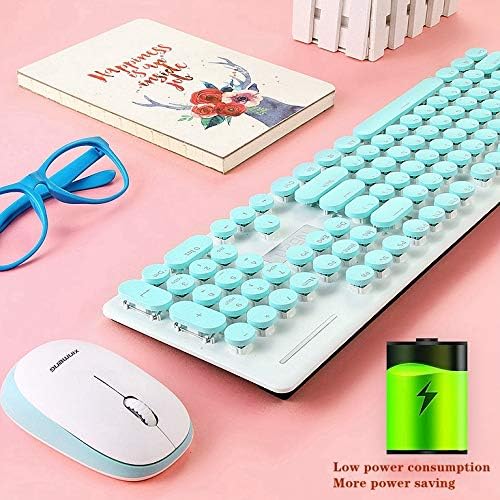
Image: The underside of the keyboard and mouse, highlighting the battery compartments. An icon indicating low power consumption is also visible, suggesting efficient battery usage.
- USB хүлээн авагчийг олох: The tiny USB receiver is stored securely within the battery compartment of the mouse. Carefully remove it.
- Компьютерт холбогдох: USB хүлээн авагчийг компьютер эсвэл зөөврийн компьютер дээрээ байгаа USB порт руу холбоно уу.
- Асаах: Ensure both the keyboard and mouse are switched ON (if they have an on/off switch). The devices should automatically connect to your computer. No additional drivers are typically required.
Video: A seller-provided video demonstrating the installation of batteries and the USB receiver for a wireless keyboard and mouse combo. It shows the process of opening compartments, inserting batteries, and plugging in the receiver.
5. Ашиглалтын заавар
5.1 Хулганы ажиллагаа
- DPI тохируулга: The mouse features a 1600 DPI sensor. Press the DPI button (usually located near the scroll wheel) to cycle through different sensitivity levels to suit your preference.
- Эрчим хүч хэмнэх: The mouse will automatically enter sleep mode after a period of inactivity. To wake it up, simply move the mouse or click any button.
5.2 Гарын ажиллагаа
- Мультимедиа товч: Use the 'Fn' key in combination with the F1-F12 function keys to access various multimedia and system functions (e.g., volume control, media playback, web browser, email). Refer to the keycap legends for specific functions.
- Эргономик бичвэр: The keyboard features an inclined design for comfortable typing.
- Эрчим хүч хэмнэх: The keyboard will automatically enter sleep mode after a period of inactivity. To wake it up, simply press any key.
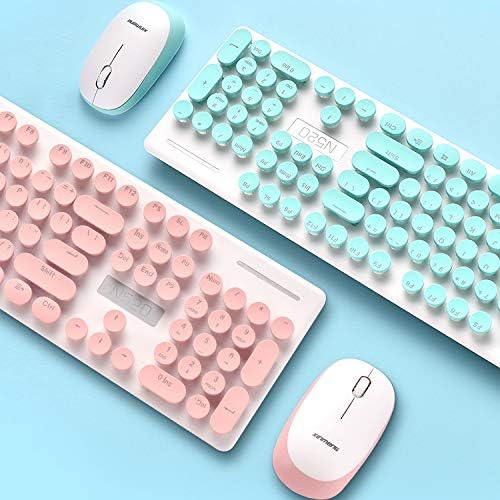
Зураг: Ойрын зураг view of the keyboard, highlighting the round chiclet-style keycaps and the function keys, which can be used for multimedia controls.
6. Засвар үйлчилгээ
- Цэвэрлэгээ: The floating keycap design allows for easy cleaning. Use a soft brush or compressed air to remove dust and debris from between the keys. For surface cleaning, use a soft, damp даавуу.
- Усны хамгаалалттай дизайн: The keyboard features a waterproof design, making it resistant to minor spills and easier to clean. However, avoid submerging the device in water.

Image: A visual representation emphasizing the waterproof capabilities of the keyboard, indicating its resilience against liquid spills.
7. Алдаа засах
- Холболт байхгүй:
- USB хүлээн авагчийг ажиллаж байгаа USB порт руу найдвартай залгасан эсэхийг шалгаарай.
- Check if the batteries in both the keyboard and mouse are correctly installed and have sufficient charge.
- USB хүлээн авагчийг компьютер дээрээ өөр USB порт руу залгаад үзээрэй.
- Компьютерээ дахин эхлүүлнэ үү.
- Хоцрогдсон эсвэл тасалдалтай холболт:
- Ensure the devices are within the effective wireless range (up to 33ft) of the USB receiver.
- Бусад утасгүй төхөөрөмж эсвэл том металл эд зүйлсээс үүсэх хөндлөнгийн оролцоог багасгах.
- Батерейны цэнэг бага бол солих.
- Lost USB Receiver: The USB receiver is crucial for wireless connectivity. If lost, contact customer service for potential replacement options.
8. Техникийн үзүүлэлтүүд
| Брэнд | ЭРдэнэ шиш |
| Загварын дугаар | N520 (EL0780-01B) |
| Өнгө | Цэнхэр |
| Холболтын технологи | 2.4GHz Radio Frequency Wireless |
| Хулганы DPI | 1600 DPI (тохируулж болно) |
| Гарны товчлуурууд | 104 түлхүүр |
| Системийн дэмжлэг | Windows XP / WIN7 / WIN10 / ISO, Mac OS X 10.3+ |
| Тохиромжтой төхөөрөмжүүд | Зөөврийн компьютер, хувийн компьютер |
| Батерей шаардлагатай | 1 AA for Mouse, 2 AAA for Keyboard (included) |
| Зүйлийн жин | 2 фунт |
| Багцын хэмжээ | 17.7 x 8.7 x 1.18 инч |
9. Баталгаат хугацаа ба дэмжлэг
Your CORN Technology N520 Wireless Keyboard and Mouse Combo comes with a worry-free 12-month warranty. For any product inquiries, technical support, or warranty claims, please contact our friendly customer service team. Refer to the contact information provided in your welcome guide or on the product packaging.