
1. Танилцуулга
This manual provides essential information for the safe and efficient use of your Alienware AW3418DW 34.1-inch Curved Gaming Monitor. This monitor features a WQHD (3440x1440) resolution, a 120Hz refresh rate (overclocked), and NVIDIA G-SYNC technology for an immersive gaming experience. Please read this manual thoroughly before operating the device.
2. Аюулгүй байдлын мэдээлэл
- Always disconnect the power cable from the wall outlet before cleaning the monitor.
- Галын болон цочролын аюулаас зайлсхийхийн тулд мониторыг бороо, чийгэнд бүү тавь.
- Мониторыг нээж болохгүй casing. Дотор нь хэрэглэгчийн засвар үйлчилгээ хийх хэсэг байхгүй. Бүх үйлчилгээг мэргэшсэн үйлчилгээний ажилтнуудад шилжүүлээрэй.
- Мониторыг унахаас сэргийлж тогтвортой, тэгш гадаргуу дээр байрлуул.
- Мониторын эргэн тойронд агааржуулалт сайтай байх ёстой. Агааржуулалтын нүхийг хааж болохгүй.
- Зөвхөн дэлгэцтэй дагалддаг тэжээлийн адаптер болон кабелийг ашиглана уу.
3. Багцын агуулга
Бүх бүрэлдэхүүн хэсгүүд багцад байгаа эсэхийг шалгана уу:
- Alienware AW3418DW Monitor
- Хяналтын суурь (суурь ба өргөгч)
- Цахилгаан кабель
- DisplayPort кабель
- HDMI кабель
- USB 3.0 дээд урсгалын кабель
- Баримт бичиг (Тохиргооны хурдан гарын авлага, Аюулгүй байдлын мэдээлэл)
4. Тохиргоо
4.1 Физик тохиргоо
Carefully remove the monitor and its components from the packaging. Place the monitor face down on a soft cloth or cushion to prevent scratches.
Тавиурыг бэхлэх
- Attach the stand riser to the monitor panel until it clicks into place.
- Attach the stand base to the stand riser and tighten the captive screw.

Зураг 4.1: Урд view of the Alienware AW3418DW monitor with its stand attached.

Зураг 4.2: Хажуу тал view of the Alienware AW3418DW monitor with its stand.
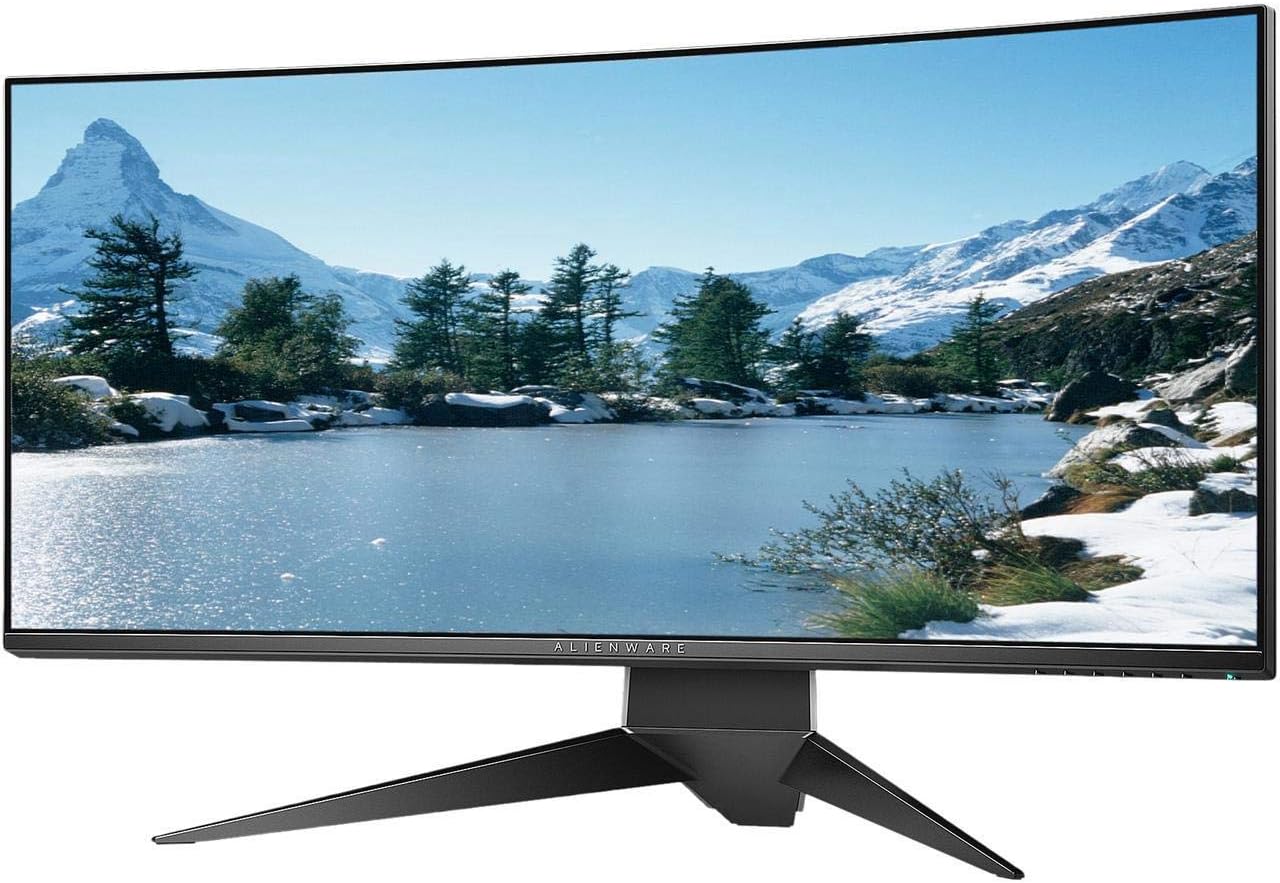
Зураг 4.3: Ар талд view of the Alienware AW3418DW monitor showing the stand and AlienFX lighting.
VESA угсрах
The monitor supports VESA mounting (100 x 100 mm). Remove the stand riser by pressing the release button and then attach the VESA-compatible mount to the monitor using appropriate screws. Ensure the mount can support the monitor's weight of 26.1 pounds (without stand).

Figure 4.4: Monitor dimensions for VESA mount compatibility.
4.2 Холбох кабель
Connect the necessary cables to your monitor and computer.
- Цахилгааны утас: Цахилгааны кабелийг дэлгэцийн цахилгааны порт руу, дараа нь ханын залгуурт холбоно уу.
- Видео кабель: Connect either the DisplayPort cable or the HDMI cable from your computer's graphics card to the corresponding port on the monitor. For optimal performance, especially for 120Hz refresh rate and G-SYNC, use the DisplayPort connection.
- Урсгалын USB кабель: Connect the USB 3.0 upstream cable from your computer to the monitor's upstream USB port to enable the monitor's USB hub functionality.
- USB доод портууд: Connect your USB devices (e.g., keyboard, mouse, webcam) to the four USB 3.0 downstream ports on the monitor.
5. Ашиглалтын заавар
5.1 Асаах/унтраах
Мониторыг асаах эсвэл унтраахын тулд дээр байрлах асаах товчийг дарна уу. Цахилгааны LED нь мониторын төлөвийг заана.
5.2 Дэлгэц дээрх дэлгэц (OSD) навигаци
The On-Screen Display (OSD) menu allows you to adjust various monitor settings. Use the control buttons, typically located on the bottom right or rear of the monitor, to navigate the OSD.
- OSD цэсийг идэвхжүүлэхийн тулд удирдлагын товчийг дарна уу.
- Цэсний сонголтуудаар шилжихийн тулд навигацийн товчлууруудыг (дээш/доош/зүүн/баруун) ашиглана уу.
- Сонголтыг баталгаажуулах эсвэл дэд цэс рүү орохын тулд сонгох товчийг дарна уу.
- Use the back/exit button to return to the previous menu or exit the OSD.
5.3 Дэлгэцийн тохиргоо
Дэлгэцийн тохиргоог оновчтой болгохын тулд тохируулна уу viewing and gaming performance.
- Шийдвэр: Set your computer's display resolution to 3440x1440 for the native WQHD experience.
- Сэргээх хурд: The monitor supports up to 120Hz refresh rate (overclocked). Ensure your graphics card drivers are updated and the refresh rate is set in your operating system's display settings or graphics control panel.
- NVIDIA G-SYNC: For tear-free and smooth gameplay, enable G-SYNC in your NVIDIA Control Panel. This feature synchronizes the monitor's refresh rate with your GPU's frame rate.
- Гэрэлтүүлэг/Ялгарал: Adjust these settings in the OSD menu to suit your environment and preference.
5.4 AlienFX Lighting
Customize the AlienFX lighting zones on your monitor through the OSD menu or Alienware Command Center software (if installed on your PC). You can select colors, effects, and synchronize lighting with other Alienware devices.
5.5 USB Hub Usage
The monitor acts as a USB 3.0 hub, providing convenient access to four downstream USB ports for connecting peripherals. Ensure the USB upstream cable is connected to your computer for this feature to function.
6. Засвар үйлчилгээ
6.1 Мониторыг цэвэрлэх
- Always unplug the monitor from the electrical outlet before cleaning.
- Зөөлөн, хөвөнгүй даавууг хөнгөн хэрэглээрэй dampусаар эсвэл зүлгүүргүй дэлгэц цэвэрлэгчээр дүүргэнэ.
- Цэвэрлэгч бодисыг дэлгэц рүү шууд цацаж болохгүй.
- Тоос, толбыг арилгахын тулд дэлгэцийг зөөлөн арчина.
- Гаднах хэсгийг цэвэрлэнэ үүasing зөөлөн, хуурай даавуугаар.
6.2 Хадгалалт
If storing the monitor for an extended period, disconnect all cables, carefully disassemble the stand (if applicable), and store it in its original packaging in a cool, dry place.
7. Алдаа засах
Хэрэв танд монитортой холбоотой асуудал гарвал дараах нийтлэг алдааг олж засварлах алхмуудыг үзнэ үү.
- Дэлгэц байхгүй: Ensure all power and video cables are securely connected. Check if the monitor is powered on and the correct input source is selected in the OSD.
- Анивчих/Гүтгэх: Verify that your graphics drivers are up to date. Ensure G-SYNC is properly configured in the NVIDIA Control Panel. Check for interference from other electronic devices.
- Буруу нарийвчлал/сэргээх хурд: Adjust the display settings in your operating system or graphics control panel to the native resolution (3440x1440) and desired refresh rate (up to 120Hz).
- Үхсэн пиксел: The Alienware AW3418DW comes with a Premium Panel Guarantee. Refer to the warranty information for details on pixel policy.
- USB портууд ажиллахгүй байна: Ensure the USB 3.0 upstream cable is connected from the monitor to your computer.
8. Техникийн үзүүлэлтүүд
| Онцлог | Тодорхойлолт |
|---|---|
| Брэнд | Alienware |
| Загварын дугаар | AW3418DW |
| Дэлгэцийн хэмжээ | 34.1 инч |
| Шийдвэр | WQHD (3440 x 1440 пиксел) |
| Харьцаа | 21:9 |
| Сэргээх хурд | 120 Гц (Хэт ачаалалтай) |
| Хариу өгөх хугацаа | 4 миллисекунд |
| Дасан зохицох синхрончлолын технологи | NVIDIA G-SYNC |
| Дэлгэцийн төрөл | LED IPS |
| Муруйлт | 1900R |
| Гэрэлтүүлэг | 300 кд/м² |
| Ялгаатай харьцаа | 1000:1 |
| Viewing өнцөг | 178 градус |
| Холболт | 1x DisplayPort (1.2), 1x HDMI (1.4), 4x USB 3.0 Downstream, 1x USB 3.0 Upstream |
| Зүйлийн жин | 26.1 фунт (суурьгүй) |
| Суурилуулах төрөл | VESA Compatible (100 x 100 mm) |
9. Баталгаат хугацаа ба дэмжлэг
Your Alienware AW3418DW monitor is covered by a 3 Years Limited Hardware Warranty болон 3 Years Advance Exchange Service, үүнд а Premium Panel Guarantee. The Premium Panel Guarantee ensures a free panel replacement during the limited hardware warranty period even if only one bright pixel is found.
For technical support, warranty claims, or additional information, please visit the official Alienware or Dell support website. You may also find updated drivers and firmware there.
Онлайн дэмжлэг: www.dell.com/support