
Introduction
The realme Buds T110 are designed to deliver a high-quality audio experience with advanced features for both music and calls. These truly wireless earbuds offer powerful sound, clear communication, and a comfortable fit for daily use.
Key features include 10mm Dynamic Bass Drivers for rich audio, AI Environmental Noise Cancellation (ENC) for clear calls, Google Fast Pair for quick connectivity, 38 hours of total playback, fast charging capabilities, and an 88ms low latency gaming mode. The earbuds also feature an IPX5 water resistance rating, making them suitable for workouts and outdoor activities.

Image: Overview of realme Buds T110 key features including 38-hour playback, AI ENC, IPX5, and low latency.
What's in the Box
Upon opening your realme Buds T110 package, you will find the following items:
- realme Buds T110 Earbuds (Left and Right)
- Charging Case
- Eartips (various sizes for optimal fit)
- USB Charging Cable
- User Manual

Image: realme Buds T110 earbuds in their charging case, showcasing the product's components.
Setup
1. Charging the Earbuds and Case
Before first use, fully charge the realme Buds T110 and their charging case. Connect the provided USB charging cable to the charging port on the case and a power source. The indicator light on the case will show charging status. A 10-minute charge provides up to 120 minutes of playback.

Image: Top view of the realme Buds T110 charging case with its indicator light.
2. Initial Pairing (Google Fast Pair)
- Ensure your smartphone's Bluetooth is enabled.
- Open the charging case with the earbuds inside and hold it close to your Android phone.
- A Google Fast Pair pop-up will appear on your phone's screen. Tap 'Connect' to pair.
- For other devices, open the case, press and hold the function button on the case for 3 seconds until the indicator light flashes white, then select 'realme Buds T110' from your device's Bluetooth settings.
3. realme Link App Compatibility
Download the realme Link app from your device's app store to unlock additional features, customize touch controls, and update firmware for your realme Buds T110.

Image: The realme Link app logo, indicating compatibility for enhanced control.
Operating Instructions
1. Power On/Off
- Power On: Open the charging case, and the earbuds will automatically power on and connect to the last paired device.
- Power Off: Place the earbuds back into the charging case and close the lid. They will automatically disconnect and power off.
2. Touch Controls
The realme Buds T110 feature intuitive touch controls on each earbud. The specific functions can be customized via the realme Link app.
| Action | Function |
|---|---|
| Double Tap | Play/Pause music, Answer/End call |
| Triple Tap | Next track |
| Press and Hold (one earbud) | Decline call |
| Press and Hold (both earbuds) | Enter/Exit Gaming Mode |

Image: Close-up of the right realme Buds T110 earbud, highlighting its design and touch-sensitive area.
3. AI Environmental Noise Cancellation (ENC) for Calls
The AI ENC feature intelligently identifies and reduces background noise during calls, ensuring your voice is heard clearly by the person on the other end, even in noisy environments.
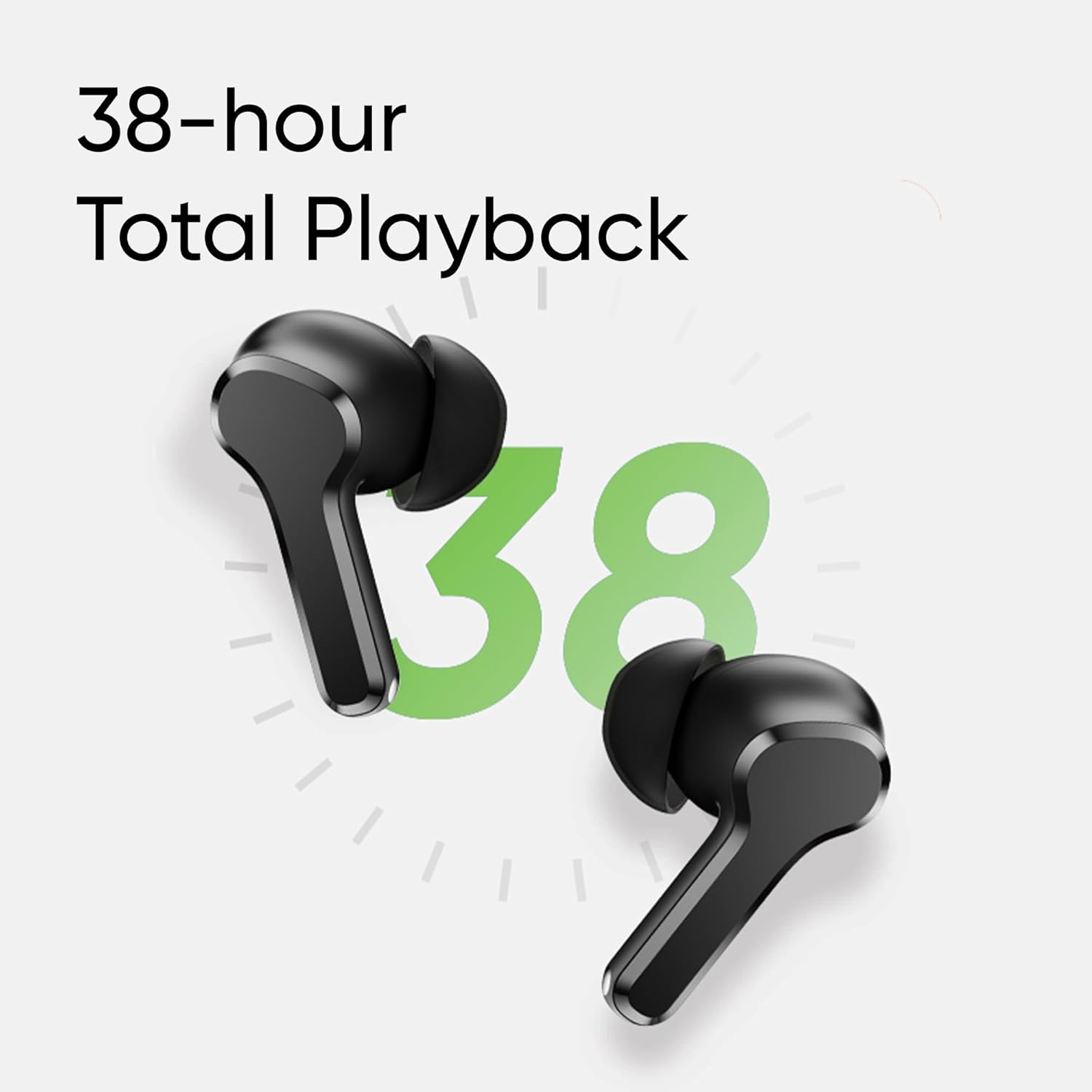
Image: Visual representation of AI ENC technology reducing background noise during calls.
4. Low Latency Gaming Mode
Activate the 88ms low latency gaming mode for a synchronized audio-visual experience, reducing audio delay during gaming or video playback. This mode can be toggled by pressing and holding both earbuds simultaneously.
Maintenance
1. Cleaning
- Regularly clean the earbuds and charging case with a soft, dry, lint-free cloth.
- Remove eartips and clean them with mild soap and water, then dry thoroughly before reattaching.
- Ensure charging contacts on both earbuds and case are free from dust and debris.
2. Water Resistance (IPX5)
The realme Buds T110 are rated IPX5 for water resistance, meaning they are protected against low-pressure water jets from any direction. This makes them resistant to sweat and light splashes. They are not designed for submersion in water or use during swimming.

Image: Visual representation of the IPX5 water resistance feature, showing water droplets around an earbud.
Troubleshooting
- No Sound/Connectivity Issues: Ensure earbuds are charged. Place them back in the case, close the lid, then reopen to re-establish connection. Check your device's Bluetooth settings and ensure 'realme Buds T110' is connected. Try forgetting the device and re-pairing.
- One Earbud Not Working: Ensure both earbuds are charged. Place both earbuds in the charging case, close the lid, wait a few seconds, then open it again. If the issue persists, try resetting the earbuds.
- Charging Issues: Ensure the charging cable is securely connected to both the case and the power source. Clean the charging contacts on the earbuds and inside the case. Try a different charging cable or power adapter.
- Resetting the Earbuds: Place both earbuds in the charging case. Press and hold the function button on the case for 10 seconds until the indicator light flashes rapidly. This will reset the earbuds to factory settings and clear all pairing records. You will need to re-pair them with your device.
Specifications
| Feature | Specification |
|---|---|
| Brand | realme |
| Model Number | RMA2306 |
| Ear Placement | In Ear |
| Form Factor | True Wireless |
| Impedance | 32 Ohms |
| Bluetooth Version | 5.4 |
| Audio Driver Type | Dynamic Driver |
| Audio Driver Size | 10 Millimetres |
| Battery Average Life | 38 Hours (Total Playback) |
| Battery Charge Time | 10 Minutes for 120 Minutes Playback |
| Water Resistance Level | IPX5 |
| Noise Control | Environmental Noise Cancellation (ENC) |
| Low Latency | 88ms |
| Weight | 42 Grams |
| Country of Origin | Vietnam |
Warranty and Support
Warranty Information
The realme Buds T110 come with a 1-Year Manufacturer Warranty from the date of purchase. Please retain your proof of purchase for warranty claims. The warranty covers manufacturing defects but does not cover damage caused by misuse, accidents, unauthorized modifications, or normal wear and tear.
Customer Support
For further assistance, technical support, or warranty claims, please contact realme customer service through their official website or the realme Link app. You can also refer to the official realme support page for FAQs and additional resources.


