
1. Hua Neke Atuview
The NovaStar TB20 Plus is a high-performance, cost-effective asynchronous LED controller designed for managing full-color LED displays. It offers smart features such as Wi-Fi connectivity, remote management, and mobile app control, making it suitable for various applications including storefront signs, retail displays, and promotional screens.
Ko nga ahuatanga matua ko:
- High Pixel Load Capacity: Supports up to 650,000 pixels with resolutions up to approximately 1920x1080, compatible with various LED module scan configurations.
- Dual Network Connectivity: Built-in 2.4GHz Wi-Fi and 10/100M Ethernet for remote content updates and device monitoring.
- Whakahaere Taupānga Waea: Free iOS and Android app for managing multiple devices, scheduling playlists, and performing OTA firmware updates.
- Rich Multimedia Support: Plays MP4, AVI, MOV (H.264), JPG, PNG, BMP formats, scrolling text, live clock, and real-time weather. Supports multi-zone layouts.
- Tāuta Mono me te Purei: Compact design, powered by standard DC 5V/2A, with content loading via USB drive.
- Rokiroki Whakaroha: 8GB internal storage with microSD/TF card expansion capability.
- Awhe Mahi Whanui: Functions reliably in temperatures from -20°C to +60°C.
2. He aha kei roto
Tena koa tirohia kei roto nga taonga katoa kei roto i te kete:
- NovaStar TB20 Plus Playback Controller ×1
- DC 5V / 2A Power Adapter ×1
- Quick Start Guide ×1 (includes English instructions)

Image: The NovaStar TB20 Plus controller with its Wi-Fi antenna connected, showing the various ports and indicator lights.
3. Aratohu Tatūnga
Follow these steps for initial setup of your NovaStar TB20 Plus controller:
- Connect to LED Display: Connect the TB20 Plus to your LED display using an Ethernet cable from the controller's Ethernet output port to the receiving card of the LED display.
- Hono Hono: Plug the DC 5V / 2A power adapter into the controller's power input port and then into a power outlet. The PWR indicator light should illuminate.
- Hononga Whatunga:
- Wi-Fi: Attach the provided Wi-Fi antenna to the designated port. You can configure Wi-Fi settings later via the mobile app or web atanga.
- Itarangi: For a wired connection, connect an Ethernet cable from your network router or switch to the controller's Ethernet input port.
- Initial Content Loading (Optional): To load content directly, insert a USB drive containing your media files into the USB port. The controller can automatically play content from the USB drive after setup.
- Taupānga Waea Pūkoro: Download the official NovaStar mobile application from the iOS App Store or Google Play Store on your smartphone or tablet.
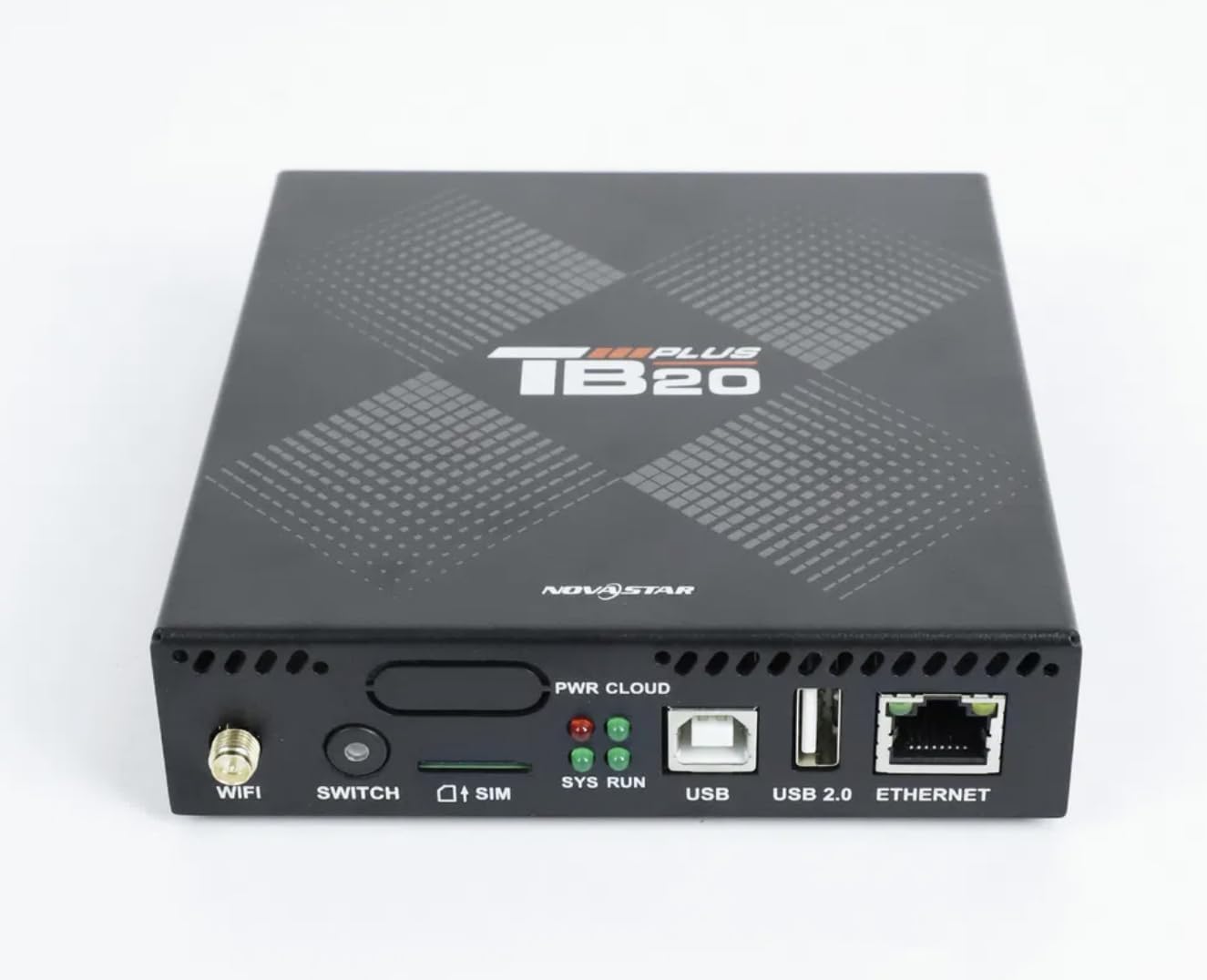
Whakaahua: He tata-ake ki mua view of the NovaStar TB20 Plus, highlighting the Wi-Fi antenna port, SIM card slot, USB ports, and Ethernet port.
4. Nga Tohutohu Whakahaere
The NovaStar TB20 Plus offers flexible content management and control options:
4.1. Mana Whakahaere Taupānga Pūkoro
Use the dedicated mobile app for comprehensive control:
- Takirua Pūrere: Open the app and follow the on-screen instructions to discover and pair with your TB20 Plus controller via Wi-Fi or Ethernet.
- Tukuake Ihirangi: Tukuake pāpāho files (videos, images, text) from your mobile device or cloud storage to the controller.
- Playlist Management: Create and manage playlists, schedule playback times, and set display effects.
- Aroturuki Mamao: Monitor the status of your LED display and controller, receive fault alerts, and adjust settings remotely.
- OTA Firmware Updates: Perform over-the-air firmware updates to ensure your device has the latest features and improvements.
4.2. USB Content Playback
For quick content updates without a network connection:
- Whakaorangia to pāpāho files (MP4, JPG, etc.) to a USB drive.
- Insert the USB drive into the USB port on the TB20 Plus.
- The controller will detect the new content and can be configured to automatically play it or add it to the device's internal storage.
4.3. Multimedia Support
The TB20 Plus supports a wide range of media types and display features:
- Hōputu Ataata: MP4, AVI, MOV (H.264).
- Hōputu Atahanga: JPG, PNG, BMP.
- Ihirangi Hihiri: Scrolling text, live clock, real-time weather.
- Tahora: Multi-zone layouts for professional visual effects, allowing different content to be displayed simultaneously in various areas of the screen.
5. Tiaki
Proper maintenance ensures the longevity and optimal performance of your NovaStar TB20 Plus:
- Te horoi: Keep the device clean and free from dust. Use a soft, dry cloth for cleaning. Avoid liquid cleaners.
- Whakahau: Ensure adequate airflow around the device to prevent overheating. Do not block ventilation holes.
- Whakahōu Firmware: Regularly check for and apply firmware updates via the mobile app or web interface. Updates often include performance improvements and bug fixes.
- Rokiroki: Mena ka roa te wā e rongoa ai te pūrere, momotuhia mai i te hiko ka rongoa ki te wāhi hauhautanga, maroke.
6. Te Raru
Tirohia ngā take me ngā otinga e whai ake nei:
| Putanga | Take pea | Rongoā |
|---|---|---|
| Kaore he whakaaturanga i runga i te mata LED | Power issue, incorrect cable connection, display settings. | Check power adapter connection. Verify Ethernet cable connection to LED display. Ensure display is powered on and configured correctly. |
| Cannot connect via Wi-Fi/Ethernet | Incorrect network settings, weak signal, network interference. | Ensure Wi-Fi antenna is attached. Verify network cable is securely connected. Check Wi-Fi password. Restart the controller and router. |
| Content not playing | Kore i tautokona file format, empty playlist, USB drive issue. | Check if media files are in supported formats (MP4, JPG, etc.). Verify playlist configuration in the app. Ensure USB drive is formatted correctly and contains valid files. |
| Ko te taputapu kaore e aro | He hapa pūmanawa, he piki me te heke o te mana. | Perform a power cycle: disconnect power, wait 10 seconds, then reconnect. If issue persists, contact support. |
7. Whakatakotoranga Hangarau
| Āhuahira | Whakatakotoranga |
|---|---|
| Ingoa Tauira | TB20 Tāpiri |
| Te Kaha Uta Max | ~650,000 pixels (up to 1920x1080 resolution) |
| Rokiroki Roto | 8GB (expandable via microSD/TF card) |
| Hononga Whatunga | Wi-Fi 2.4GHz, 10/100M Ethernet |
| Whakauru Mana | DC 5V / 2A |
| Te Waahi Mahi | -20°C ki te +60°C |
| Papahanga Hototahi | iOS, Android, Windows |
| Hunga Hua | 8"L x 5"W x 2"H (approximately 20.3 x 12.7 x 5.1 cm) |
| Momo Tuhono | HDMI (output for display, not for input) |
| Tautoko Whakatau | 1080p |
8. Nga Korero Whakaputanga
Warranty details for the NovaStar TB20 Plus LED Playback Controller are typically provided at the time of purchase or can be found on the manufacturer's official website. Please retain your proof of purchase for warranty claims. The warranty generally covers manufacturing defects under normal use conditions.
9. Tautoko Kiritaki
For further assistance with installation, configuration, technical guidance, or any other inquiries regarding your NovaStar TB20 Plus, please contact the professional support team of your vendor or the manufacturer. Refer to the contact information provided with your purchase or on the official NovaStar webpae.