
1. Kupu Whakataki
Thank you for choosing the Pisichen 22-inch Touch Screen Monitor with Webcam (Model 22CMR-HD). This monitor is designed to provide a high-quality visual and interactive experience for various applications, including work, education, and entertainment. It features a Full HD 1920x1080P display, 10-point touch functionality, an integrated HD webcam, and multiple connectivity options. Please read this manual thoroughly before using the monitor to ensure proper setup and operation.
2. Nga korero haumaru
- Whakanohoia te kaitutei i nga wa katoa ki runga i te mata papatahi kia kore ai e taka.
- Kaua e tukuna te kaitirotiro ki te ua, ki te makuku ranei hei karo i te ru hiko, te ahi ranei.
- Puritia te mata kia matara atu i te rā tika, i ngā pūtake wera, i ngā pāmahana tino kino rānei.
- Kia tika te hauhautanga huri noa i te mata tirotiro. Kaua e ārai i ngā pūaha hauhautanga.
- Use only the power adapter provided with the monitor.
- Unplug the power cord from the outlet if the monitor will not be used for an extended period.
- Kaua e ngana ki te whakatika i a koe ano i te aroturuki. Tukuna atu nga ratonga katoa ki nga kaimahi whai tohu.
3. Ihirangi mokete
Manatokona kei roto katoa nga mea kei roto i te kete:
- Pisichen 22-inch Touch Screen Monitor
- Tuuru Monitor
- Takapapa DC
- Tauera HDMI
- USB Touch Cable
- Pukapuka Kaiwhakamahi (tenei tuhinga)

Whakaahua 3.1: Nga Taonga Kei roto
This image displays the Pisichen 22-inch monitor alongside its standard accessories, which include a user manual, a DC power adapter, an HDMI cable, a USB touch cable, and the monitor stand. These components are provided to ensure the monitor is ready for immediate use.
4. Hua Neke Atuview
4.1 Āhuatanga Aroturuki
- 22-inch Full HD (1920x1080P) IPS Display
- 10-point Capacitive Touchscreen
- HD whakauru Webkamera
- 400 nits Tirohanga
- 3000: 1 Te Whakataurite Whakaata
- 100Hz Refresh Rate with FreeSync and HDR support
- Multiple Connectivity: HDMI, USB Type-C, VGA
- Nga Kai-korero Hanga-roto
- VESA Maunga Hototahi
Whakaahua 4.1: Mua View o te Aroturuki
This image shows the front of the Pisichen 22-inch touch screen monitor, featuring its white design and a vibrant display. The integrated webcam is visible at the top center of the bezel.
4.2 Ngā Tauranga me ngā Mana Whakahaere
The monitor provides various ports for connecting to different devices and controls for adjusting settings.

Figure 4.2: Rear Ports
This diagram illustrates the connectivity options located on the rear of the monitor. These include an HDMI port, a VGA port, a USB Type-C port, and the DC power input. These ports allow for versatile connections to various computers, laptops, and other devices.
- Paerewa HDMI: Ka hono atu ki ngā pūrere mā te taura HDMI mō te tuku ataata me te oro.
- Tauranga VGA: Connects to older devices via VGA cable for video transmission.
- Tauranga Momo-C USB: Supports single-cable video transmission, power delivery, and touch data for compatible devices.
- Tāuru Hiko DC: Ka hono ki te urutau hiko kua whakaratohia.
- Pātene Hiko: Located on the bottom right of the monitor.
- OSD Menu Buttons: Typically located near the power button for navigating the On-Screen Display menu.
5. Tatūnga
5.1 Te Huinga i te Turanga Aroturuki
- Kia ata tangohia te kaitirotiro me te tu i nga waahanga mai i te kete.
- Attach the base to the stand pillar, securing it with the provided screws if necessary.
- Align the assembled stand with the mounting points on the back of the monitor and secure it firmly.
The monitor also supports VESA mounting (100x100mm) for alternative installation options. Ensure to use appropriate VESA screws and mounting hardware (not included).
5.2 Te hono ki tetahi Pūrere
Choose the appropriate connection method based on your device:
- Hononga HDMI: Connect one end of the HDMI cable to the HDMI port on your computer/laptop and the other end to the HDMI port on the monitor.
- Hononga VGA: Connect one end of the VGA cable to the VGA port on your computer/laptop and the other end to the VGA port on the monitor.
- USB Type-C Connection (for video, power, and touch): For compatible devices (e.g., laptops, smartphones with DP Alt Mode), connect one end of the USB Type-C cable to your device and the other end to the USB Type-C port on the monitor. This single cable can transmit video, power, and touch signals.
- USB Touch Cable (for touch functionality with HDMI/VGA): If using HDMI or VGA for video, connect the USB Touch Cable from your computer's USB port to the monitor's USB-B port (if available, or a dedicated USB port for touch data) to enable touch functionality.

Figure 5.1: Connection Scenarios
This image demonstrates two common connection scenarios: using the monitor as a second display via HDMI/VGA + DC power, and using it as a touchscreen camera monitor via HDMI + USB-C + DC power. The USB-C connection is crucial for enabling both touch and camera functions when not using a single USB-C cable for all data.
5.3 Hononga Hiko
Connect the DC power adapter to the monitor's DC power input, then plug the adapter into a power outlet.
6. Nga Tohutohu Whakahaere
6.1 Kei te Hiko / Weto
- Hei Whakahiko: Press the Power button located on the bottom right of the monitor.
- Hei Whakaweto: Press and hold the Power button for a few seconds until the monitor turns off.
6.2 Taumahinga Mata Paa
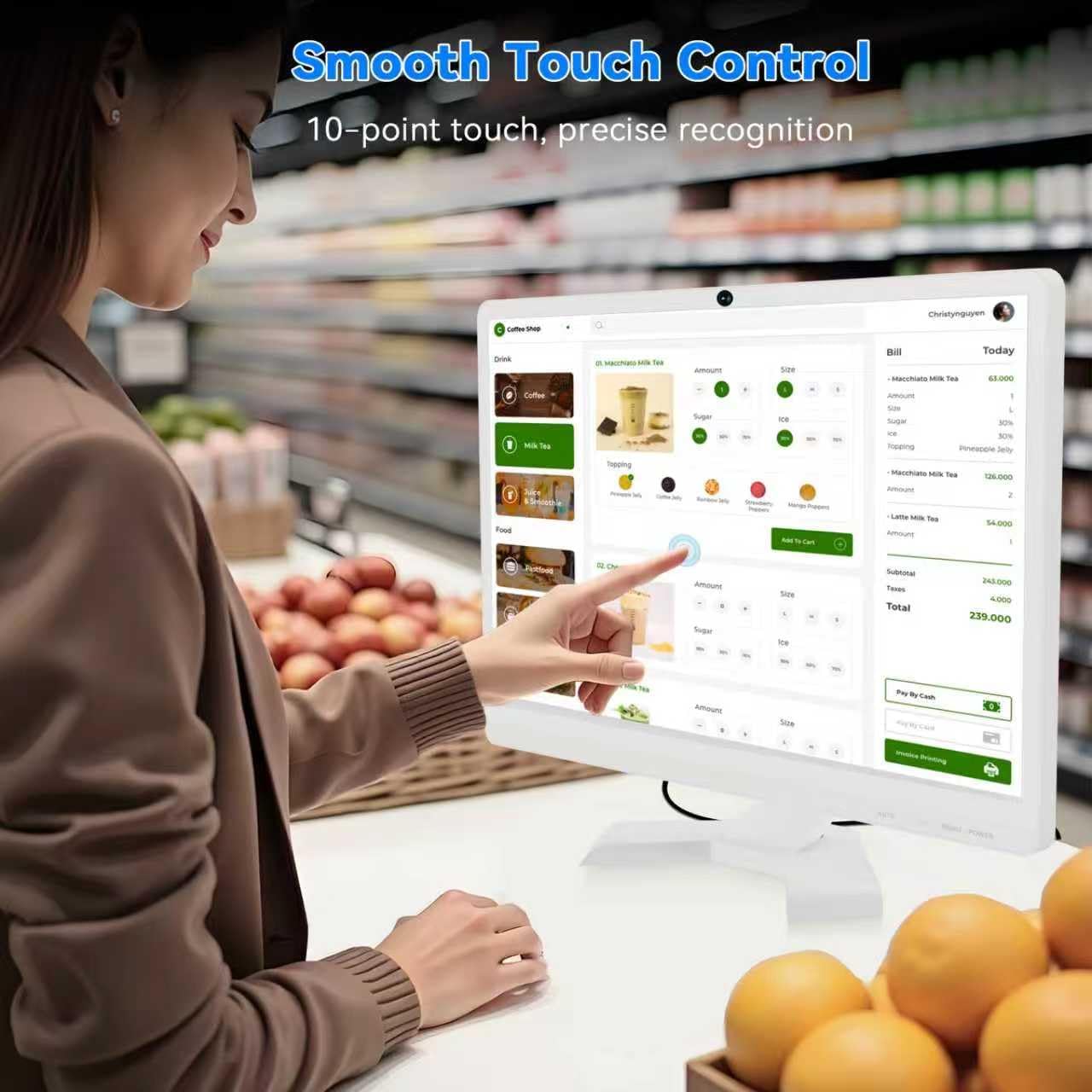
The monitor features a 10-point capacitive touchscreen. Ensure the USB Touch Cable is connected to your computer (if using HDMI/VGA) or that the USB Type-C cable supports touch data. Once connected, the touchscreen should function automatically with compatible operating systems (e.g., Windows, macOS, Android).

Figure 6.1: Touchscreen Interaction
This image shows a user interacting with the monitor's touchscreen, highlighting its responsive 10-point touch control for precise recognition and intuitive operation, similar to a tablet or smartphone.
6.3 Integrated HD Webkamera
Ko te HD hanga-i roto webcam is ready for use with video conferencing applications (e.g., Zoom, Microsoft Teams, Google Meet) and other communication software. No additional drivers are typically required for basic functionality.

Pikitia 6.2: Whakaurunga Webkamera
This image focuses on the integrated HD webcam, positioned discreetly at the top center of the monitor's bezel. This feature allows for convenient video communication without the need for external peripherals.
6.4 Tahua Whakaatu Ma-Mata (OSD).
Use the OSD menu buttons (usually located on the bottom right of the monitor) to adjust various display settings. Common settings include:
- Tirohanga/Prata: Whakatikatikahia te kanapa whānui me te rerekētanga i waenga i ngā wāhi mārama me ngā wāhi pōuri.
- Tautuhinga Tae: Hurihia te pāmahana tae, te hue, me te waiwai.
- Pūtake Tāuru: Manually select between HDMI, VGA, or USB Type-C inputs.
- Tautuhinga Ororongo: Adjust volume for built-in speakers.
- HDR/FreeSync: Enable or disable these features for enhanced visual experience with compatible content and graphics cards.
7. Tiaki
- Te horoi i te Mata: Me ata horoia te mata ki te kakahu ngohengohe, kore-puru. Mo nga tohu pakeke, dampHoroia te kakahu ki te wai, ki tētahi atu mea horoi mata kore-whakakawa rānei. Kaua e rehu tika te wai ki runga i te mata.
- Te horoi i te Casing: Whakamahia he kakahu ngohengohe, maroke hei horoi i te aroturuki casing.
- A ape i nga Kaihoroi Abrasive: Do not use alcohol, ammonia-based cleaners, or abrasive materials, as they can damage the screen or casing.
- Whakahau: Ensure the ventilation holes on the monitor are clear of dust and obstructions.
8. Te Raru
8.1 Karekau he Mana
- Check if the power adapter is securely connected to the monitor and the power outlet.
- Manatokohia kei te mahi tika te putanga hiko.
- Ensure the monitor's power button has been pressed.
8.2 Kore he Atahanga i runga Mata
- Confirm that the video cable (HDMI, VGA, or USB Type-C) is securely connected to both the monitor and your device.
- Kia tika te tīpakonga o te pūtake tāuru i te tahua OSD.
- Check if your computer/device is powered on and not in sleep mode.
- Test the monitor with another device or cable if possible.
8.3 Kāore te Mata Pa e Urupare
- If using HDMI or VGA, ensure the USB Touch Cable is connected from the monitor to your computer.
- If using USB Type-C, verify that your device and cable support touch data transmission.
- Restart your computer and the monitor.
- Check your operating system's settings for touch screen calibration or driver issues.
8.4 WebKāore te kāmera e mahi ana
- Ensure the monitor is properly connected to your computer (USB Type-C or USB Touch Cable).
- Tirohia nga tautuhinga tūmataitinga o to punaha whakahaere kia mohio ka tukuna te urunga kamera ki nga tono.
- Manatokohia ko te tika webcam is selected in your video conferencing application settings.
9. Whakatakotoranga
| Āhuahira | Whakatakotoranga |
|---|---|
| Waitohu | Pisichen |
| Tau tauira | 22CMR-HD |
| Rahi Mata | 21.5 inihi |
| Whakatau | FHD 1920x1080P |
| Aspect Ratio | 16:9 |
| Momo Whakaatu | LED IPS Panel |
| Tirohanga | 400 Candela (nits) |
| Tauwehenga Purata | 3000:1 |
| Rere tāmata | 100 Hz |
| Wā Whakautu | 3 Milihekona |
| Tukutahi Urutau | FreeSync |
| Picture Quality Enhancement | HDR |
| Hononga | HDMI, USB 3.1 Type-C, VGA |
| Nga waahanga taapiri | Built-In Speakers, Built-In Webcam, 10-Point Touchscreen |
| Rahi Tūemi (D x W x H) | 0.78"D x 20.4"W x 14.9"H |
| VESA Maunga Hototahi | Āe (100x100mm) |
10. Pūtāhui me te Tautoko
This product comes with a 1-year manufacturer's warranty. For warranty claims, technical support, or any inquiries regarding your Pisichen monitor, please contact the seller or manufacturer directly. Refer to your purchase documentation for specific contact details.
Mo etahi atu tautoko, ka taea e koe te toro ki te Pisichen Store on Amazon.