
1. Kupu Whakataki
This manual provides detailed instructions for the installation, operation, and maintenance of your JOOAN 4G Solar Security Camera. This outdoor wireless surveillance camera is designed for areas without traditional power or network infrastructure, utilizing 4G cellular connectivity and solar power for continuous operation. Please read this manual thoroughly before use to ensure proper setup and functionality.

Image 1.1: JOOAN 4G Solar Security Camera with its solar panel and a smartphone displaying the camera's live feed, highlighting its 4MP/5MP HD resolution capability.
2. Nga Hua o te Hua
- 4G Hononga: Operates independently using a SIM card, ideal for remote locations.
- Whakahikohia te Ra: Equipped with a solar panel for continuous charging, reducing the need for external power sources.
- Taumira Whakamāramatanga Teitei: Ka hopu i te ataata marama footage for effective surveillance.
- Tirohanga Po Tae: Offers multiple night vision modes including infrared, full-color, and smart color night vision for enhanced visibility in low-light conditions up to 10 meters.
- Rokiroki Paetata & Kapua: Supports up to 256GB SD card storage and optional cloud storage for recorded footage.
- Tāutatanga ngawari: Designed for straightforward setup and mounting.
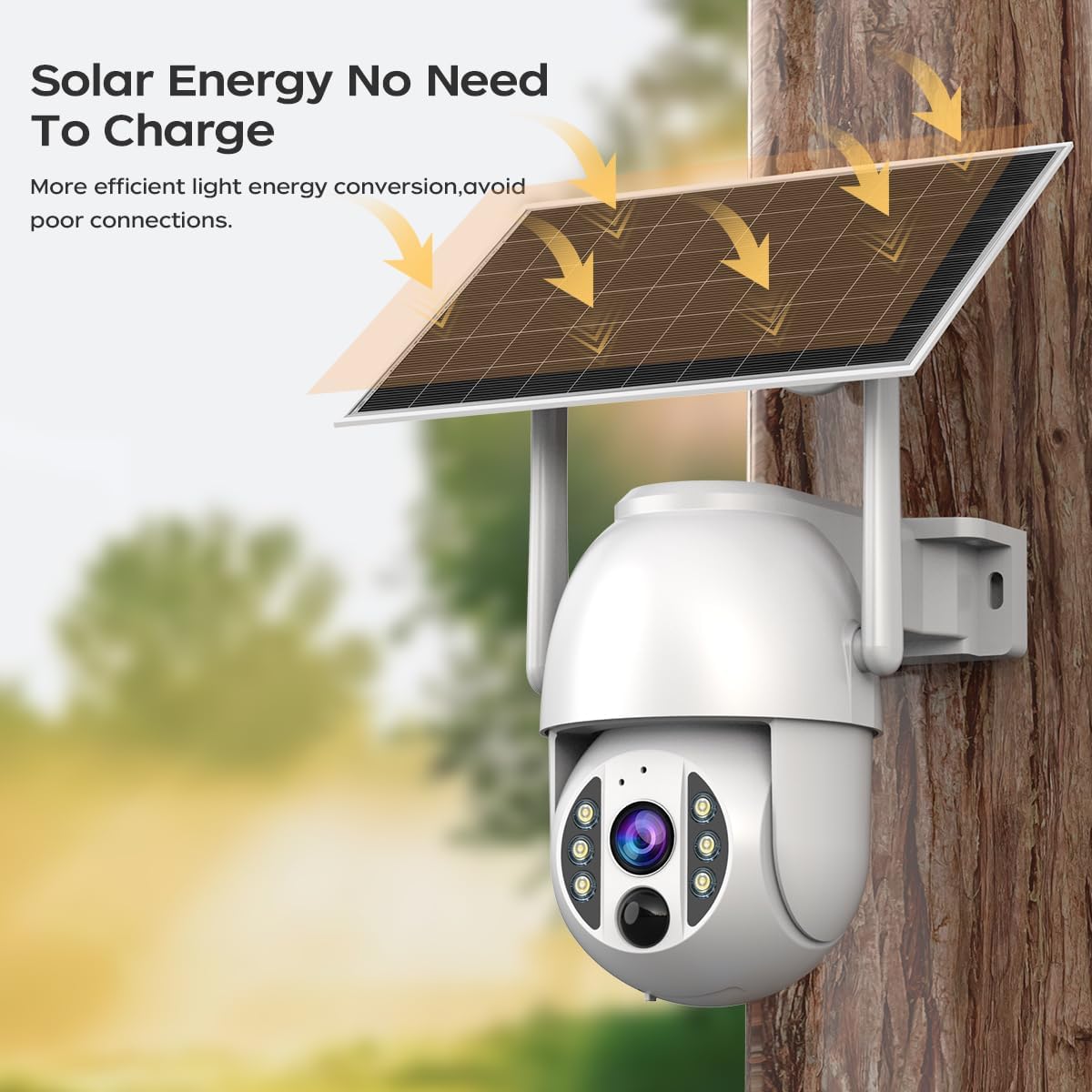
Image 2.1: The JOOAN 4G Solar Security Camera mounted with its solar panel, illustrating its solar energy capability for efficient light energy conversion and avoiding poor connections.
3. Tatūnga me te Tāuta
3.1. Kaari SIM me te Whakataunga Kaari SD
Before mounting, install a 4G SIM card (not included) and an SD card (up to 256GB, not included) into the designated slots on the camera. Ensure the camera is powered off before inserting or removing cards.

Whakaahua 3.1: He tata view of the JOOAN camera's SD card slot, indicating support for cloud storage and a maximum 256GB SD card.
3.2. Te Whakaekenga
- Positioning and Punching: Select a suitable location for the camera and solar panel. Mark the drilling points on the wall. Use a drill to create holes at the marked positions.
- Kōkuhu Tīwiri Roha: Gently tap the expansion screws into the drilled holes until they are flush with the surface.
- Maunga te Kamera: Align the camera bracket with the expansion screws and secure it using the provided screws.
- Kua oti te whakaurunga: Attach the solar panel to the camera bracket or mount it separately in a location with ample sunlight. Ensure all connections are secure.

Image 3.2: Visual guide showing the four installation steps: 1. Positioning and punching, 2. Inserting expansion screws, 3. Mounting the camera with screws, and 4. Completing the installation with the solar panel.
3.3. Hononga Taupānga
Download the official JOOAN app from your smartphone's app store. Follow the in-app instructions to add your camera. There are typically two methods:
- Add APP Phone Code: Scan the QR code displayed on your mobile phone APP with the camera lens from a distance of 20-30cm to add the distribution network.
- Add Camera Body Code: Scan the QR code located on the camera body using the mobile phone APP to add the distribution network.

Image 3.3: Illustration of the two connection methods: scanning the APP phone code or scanning the camera body code to establish a network connection.
4. Mahi
4.1. Te Whakakaha/Weto
The camera automatically powers on when sufficient solar power is available or when connected to a power source. To power off, disconnect the power source and allow the battery to deplete, or use the app if a power-off function is available.
4.2. Ora View me te tuhi
Once connected to the app, you can access the live video feed. The camera supports continuous recording to the SD card or cloud storage (subscription may be required). You can also manually record video or capture screenshots from the live view.
4.3. Te Motini me nga Matohi
Configure motion detection sensitivity and alert settings within the app. The camera will send notifications to your smartphone when motion is detected. Recorded events can be reviewed in the app's playback section.
4.4. Aratau Matakite Po
The camera offers three night vision modes, selectable via the app:
- Tirohanga Po Infrared: Ka whakarato i nga whakaahua pango me te maama i roto i te pouri tino.
- Tirohanga Po Tae Katoa: Utilizes built-in spotlights to provide color images in low-light conditions.
- Tirohanga Pō Tae Atamai: Automatically switches from infrared to full-color vision upon detection of motion or specific events.

Image 4.1: Comparison of the three night vision modes: Infrared night vision, Full color night vision, and Smart color night vision, demonstrating the camera's ability to pick out details in darkness up to 10 meters away.
5. Tiaki
- Te horoi i te Arotahi: Me horoi i nga wa katoa te arotahi o te kamera ki te kakahu maeneene, maroke kia maamaa te ahua o te ahua. A ape i te horoi horoi.
- Whakapai Paewhiri Solar: Keep the solar panel free from dust, dirt, and debris to maximize charging efficiency. Clean with a damp kakahu ina hiahiatia.
- Whakahōu Firmware: Check the app periodically for available firmware updates to ensure optimal performance and security.
- Hauora Pūhiko: Ensure the solar panel receives adequate sunlight to maintain battery charge. Prolonged periods without sunlight may require temporary charging via a USB power adapter (not included).
6. Te Raru
6.1. Camera Not Connecting to 4G Network
- Ensure the SIM card is correctly inserted and activated with a valid data plan.
- Tirohia te kaha o te tohu 4G i te wāhi o te kāmera.
- Restart the camera by briefly disconnecting and reconnecting its power.
6.2. No Video Feed or Poor Quality
- Verify the camera has sufficient power.
- Check the 4G signal strength.
- Horoia te arotahi kamera.
6.3. Solar Panel Not Charging
- Ensure the solar panel is positioned to receive direct sunlight for several hours daily.
- Clean any dirt or obstructions from the solar panel surface.
- Tirohia te taura hononga i waenga i te papa rā me te kāmera.
6.4. SD Card Not Recording
- Ensure the SD card is correctly inserted and formatted within the app.
- Tirohia mēnā he rawaka te mokowā wātea o te kāri SD.
- Verify recording settings in the app.
7. Whakatakotoranga
| Āhuahira | Taipitopito |
|---|---|
| Waitohu | HOKI |
| Tauira | B0GCFGYCLX |
| Puna Mana | Ko te hiko o te ra |
| Kawa Hononga | 4G Cellular (SIM card required), Wi-Fi (for initial setup/local access if applicable) |
| Nga Whakamahinga Manakohia | Indoor/Outdoor Surveillance |
| Āhuahira Motuhake | Hewari ki te Tāuta |
| Rokiroki | Supports up to 256GB SD card, Cloud Storage (subscription may apply) |
8. Pūtāhui me te Tautoko
For warranty information and technical support, please refer to the JOOAN official webpaetukutuku, whakapā atu ranei ki ta raatau ratonga kaihoko. Puritia to riiki hoko hei tohu mo te hoko.
Mo etahi atu awhina, tirohia: JOOAN Store on Amazon