
1. Kupu Whakataki
The ACECONN Pi2 Linux 4K HD Super Box TV Box is a versatile streaming device designed for high-definition media consumption. It operates on a Linux system, offering a customizable, stable, and secure platform for your entertainment needs. This device supports 4K UHD resolution and a wide array of video formats, ensuring a premium viewte wheako.
Ko nga ahuatanga matua ko:
- Linux system for high customization, stability, and security.
- Supports 4K UHD resolution and multiple video formats for high-definition quality.
- Compatible with various connection methods such as HDMI and RCA.
- Multiple USB ports for media playback and software updates.
- Supports network and USB dual upgrades for convenient software maintenance.

Image: The ACECONN Pi2 Linux 4K HD Super Box TV Box and its remote control.
2. Aratohu Tatūnga
2.1 Ihirangi mokete
I mua i to tiimata, tirohia koa ko nga mea katoa kei roto i te kete:
- ACECONN Pi2 TV Box
- Wae Mana Mamao (RCU)
- Power Adapter (US type)
- Tauera HDMI
- IR Torahi
- Pukapuka Kaiwhakamahi

Image: All components included in the ACECONN Pi2 package.
2.2 Te hono i te Pūrere
- Hononga Hiko: Connect the provided power adapter to the DC IN port on the TV Box and then plug it into a power outlet.
- Hononga HDMI: Use the HDMI cable to connect the HDMI OUT port on the TV Box to an HDMI IN port on your television or display. Note the HDMI input number on your TV.
- Hononga Whatunga (Kōwhiringa):
- Itarangi: Mō te hononga waea, honoa he taura Ethernet mai i tō pouara ki te tauranga LAN i runga i te Pouaka Whakaata.
- Wi-Fi: For a wireless connection, you will configure Wi-Fi settings after the initial power-on.
- Ngā Pūrere USB (Whiringa): You can connect USB storage devices or other peripherals to the available USB ports.
2.3 Te Hiko Tuatahi
After connecting all necessary cables, turn on your television and select the correct HDMI input. The ACECONN Pi2 TV Box should power on automatically or can be powered on using the remote control. Follow any on-screen prompts for initial setup, such as language selection and network configuration.
3. Nga Tohutohu Whakahaere
3.1 Atanga Kaiwhakamahi Nekeview
Upon startup, you will see the main user interface, which provides access to various applications and settings. The interface is designed for easy navigation using the provided remote control.
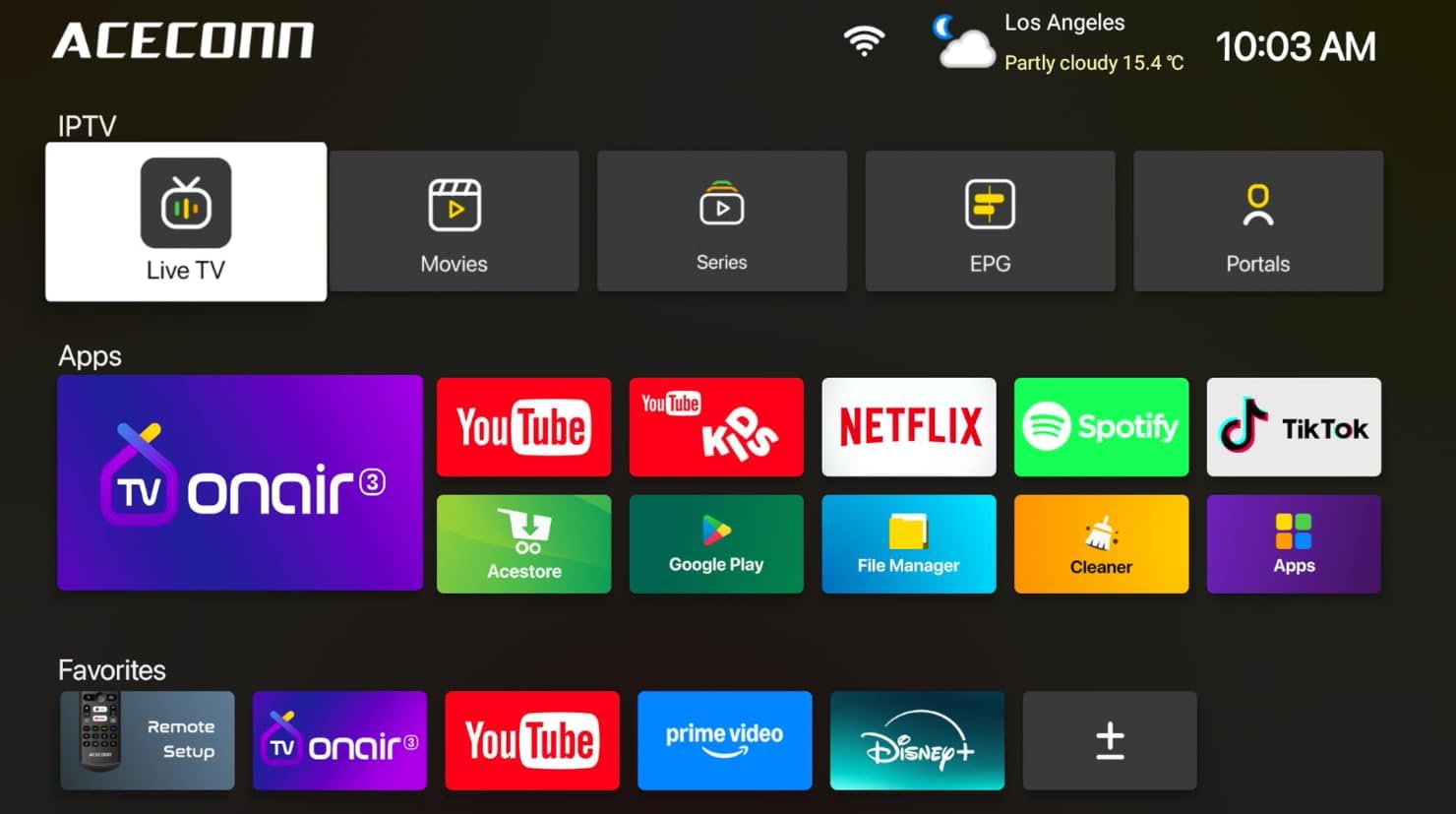
Image: Main user interface of the ACECONN Pi2, displaying various content categories and applications.
3.2 Whakatere me te Mana Mamao
Use the directional buttons on the remote control to navigate through menus and select items. The 'OK' button confirms selections, and the 'Back' button returns to the previous screen. Familiarize yourself with the remote's layout for optimal control.
3.3 Whakahoki Whakahoki Media
The Pi2 supports various media playback options:
- Rere ana: Access pre-installed or downloaded streaming applications for online content.
- Purei Whakahoki Paetata: Connect a USB hard drive or flash drive to play downloaded 4K content directly. The device supports full format compatibility including MKV, MP4, and AVI.
- Personal Media Library: Utilize applications like Kodi to organize and play your media collection.

Image: The ACECONN Pi2 supports various media consumption scenarios, including family streaming, personal media organization, and local file purei hoki.
3.4 Tautuhinga Whatunga
Hei hono ki te whatunga:
- Navigate to the 'Settings' menu from the home screen.
- Select 'Network' or 'Wi-Fi' settings.
- For Wi-Fi, select your network from the list and enter the password. For Ethernet, ensure the cable is connected; the device should automatically connect.
3.5 Tautuhinga Pūnaha
The 'Settings' menu allows you to customize various aspects of your device:
- Whakaatu: Adjust resolution, screen scaling, and HDR settings. The device supports 4K@60fps with HDR 10+ for an enhanced visual experience.
- Ororongo: Configure audio output options.
- Language & Input: Change the system language and keyboard settings.
- Mana Mātua: Utilize the built-in parental control features to manage content access.
- Mō: View device information, including the Linux 4.9 kernel version.

Image: The ACECONN Pi2 offers advanced 4K decoding, HDR 10+ dynamic color, and broad media format compatibility.
4. Tiaki
4.1 Te horoi
To maintain the device's appearance and performance, gently wipe the exterior with a soft, dry cloth. Avoid using liquid cleaners or abrasive materials.
4.2 Software Updates (OTA Updates)
The ACECONN Pi2 supports Over-The-Air (OTA) updates, as well as updates via USB. Regularly checking for and installing updates ensures you have the latest features, drivers, and security enhancements. This contributes to the device's rugged 24/7 stability.
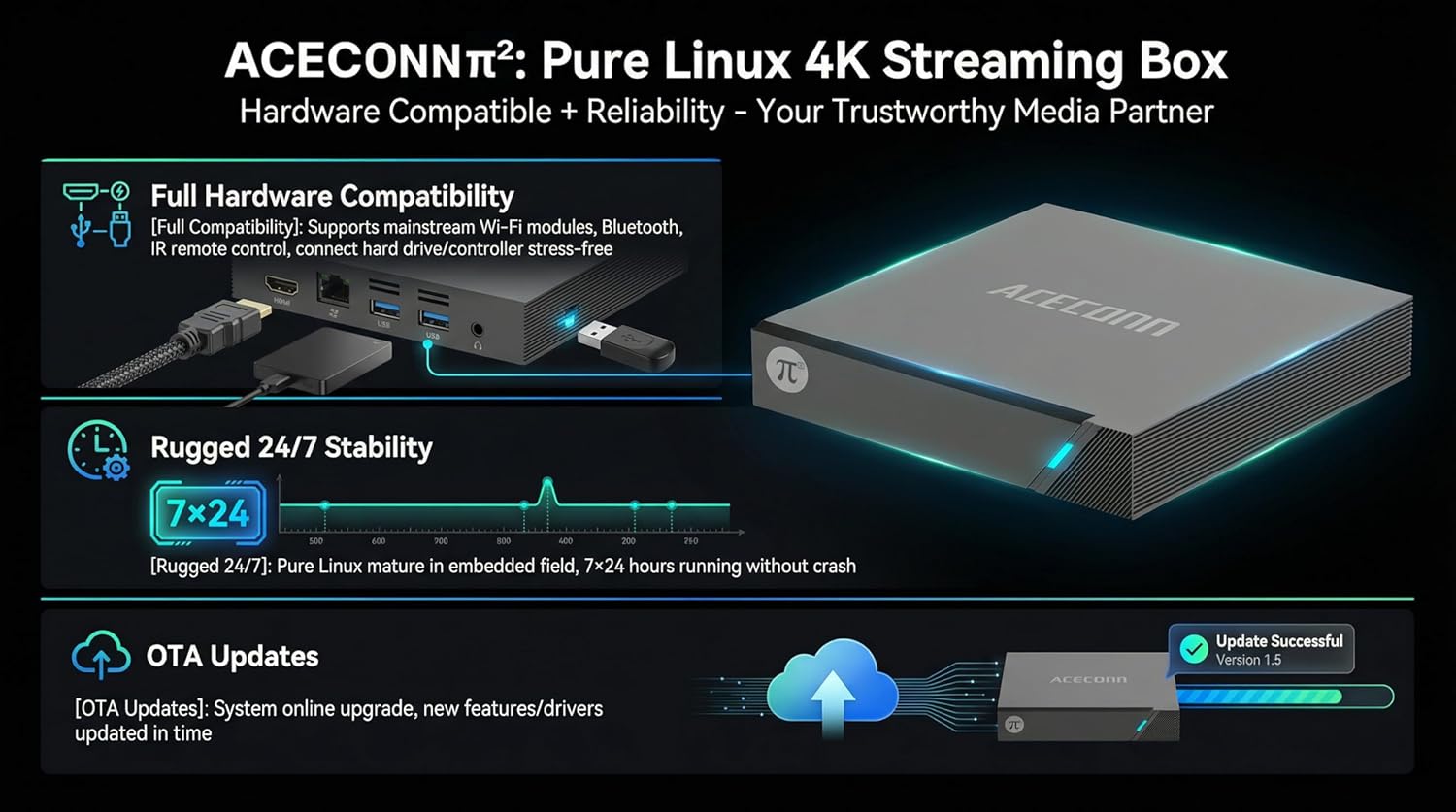
Image: The ACECONN Pi2 features full hardware compatibility, robust stability, and convenient OTA updates.
5. Te Raru
If you encounter issues with your ACECONN Pi2, refer to the following common problems and solutions:
- Kore Mana:
- Me whakarite kei te hono tika te urutau hiko ki te pūrere me te putanga hiko e mahi ana.
- Whakamātauria he putanga hiko rerekē.
- Karekau he Tohu i runga pouaka whakaata:
- Verify the HDMI cable is firmly connected to both the TV Box and the TV.
- Tirohia mēnā kua whakatakotoria tō pouaka whakaata ki te pūtake tāuru HDMI tika.
- Whakamātauria he taura HDMI rereke, tauranga HDMI ranei i runga i to pouaka whakaata.
- Mana Mamao Kaore i te Whakautu:
- Ensure the batteries in the remote control are correctly inserted and not depleted. Replace if necessary.
- Point the remote directly at the TV Box's IR receiver.
- Nga Take Hononga Whatunga:
- For Wi-Fi, re-enter the password in network settings. Ensure your router is working correctly.
- For Ethernet, check the cable connection to both the TV Box and the router.
- Tīmata anō i tō pouara me te Pouaka Whakaata.
- System Lag or Freezing:
- Tīmata anō i te Pouaka Whakaata.
- Me whakarite he rawaka te hau o te taputapu.
- Tirohia me te whakauru i nga whakahou rorohiko e waatea ana.
6. Whakatakotoranga
| Āhuahira | Whakatakotoranga |
|---|---|
| Tau tauira | Pi2 |
| Waitohu | ACECONN |
| Hunga Hua | 11 x 11 x 2 cm |
| Taumaha Tūemi | 0.5 Kirokaramu |
| Hangarau Hononga | Nihokikorangi, Itarangi, HDMI, USB, Wi-Fi |
| Momo Tuhono | HDMI |
| Whakatau | 4K |
| Whakatau Putanga Ataata | 3840 Pika |
| Momo Kaiwhakahaere | Mana Taupānga, Mana Mamao |
| Te Rokiroki Mahara | 8 GB |
| Āhuahira Motuhake | Ngā Mana Mātua |
| Pūnaha Mahi | Linux 4.9 Kernel |
7. Pūtāhui me te Tautoko
7.1 Nga Korero Whakaputanga
This ACECONN Pi2 Linux 4K HD Super Box TV Box comes with a 1 Tau Kaihanga Rarangi mai i te ra o te hokonga. Tena koa pupurihia to tohu mo te hoko mo nga kereme whakamana.
7.2 Tautoko Kiritaki
For technical assistance or warranty inquiries, please contact the manufacturer:
- Kaihanga: shenzhenshiniulinkejiyouxiangongsi
- Īmēra: zengkkoo@gmail.com