
Kupu Whakataki
This manual provides detailed instructions for the Saitake Wireless Arcade Fight Stick Joystick. It covers product features, setup, operation, connection methods, and troubleshooting to ensure optimal performance across various platforms including PC, Android, iOS, Nintendo Switch, PS3, and PS4.
Ka mutu te huaview
Ataata: Kua mutuview of the Saitake Arcade Fight Stick, showcasing its design, joystick, buttons, and key features.
Nga waahanga matua
- Hototahitanga-maha: Compatible with Windows PC, Android, iOS, Nintendo Switch 1/2, PS3, and PS4.
- Three Connection Methods: Supports Bluetooth, 2.4GHz wireless (with included receiver), and wired (Type-C) connections.
- Mata Whakaaturanga Whakauru: A 1.9-inch functional display screen shows function options, volume, lighting effects, brightness, and language settings.
- 3.5mm Jack Paneoro: For audio output and communication.
- Mahinga TURBO: Equipped with standard turbo and upgraded auto turbo modes for rapid input execution.
- Taumahi Tonotono: Customize button mappings and create macro commands with up to 18 keystrokes, including trigger timestamps.
- High Precision Joystick: Features an adjustable RGB light ring with 4 modes and 7 colors.
- Pro-Itifile Ngā Pātene Whero: Buttons utilize low-profile red switches for light pressure and quick response.
- Hoahoa Ergonomic: Designed for comfortable and extended gaming sessions.
Tahora Hua me nga Mahi Patene
Familiarize yourself with the layout and functions of the arcade fight stick's buttons and controls.

Image: Detailed diagram of the Saitake Arcade Fight Stick showing the location and labels of all buttons and features.
- A: Kōwhiringa Tahua
- B: Joystick Function Option
- C: Ririhiko
- D: Whakaatu Mata
- E: Pātene Turbo
- F: PĀTAHI PĀTAI
- G: Pātene Tīmata
- H: Pātene HOME
- I: Kōwhiringa Hononga
- J: Touch Panel (for PS4 platform)
- K: Earphone & Microphone Option
- L: LSB Button
- M: RSB Button
- N: Patene LB
- O: Patene LT
- P: Waea Atene
- Q: MACRO Button
- R: He Pihi
- S: X Patene
- T: B Patene
- U: Y Patene
- V: Patene RT
- W: Patene RB
Tatūnga me te Hononga
Te utu i te Pūrere
The arcade stick has a built-in 1000mAh rechargeable lithium battery. Connect the included USB Type-C cable to the device and a power source (e.g., computer USB port, USB wall adapter) to charge. The display screen will indicate charging status.
Nga Tikanga Hononga
The Saitake Arcade Fight Stick supports three primary connection methods:

Image: Visual representation of the Bluetooth switch, 2.4G receiver, and Type-C wired connection port.
- Hononga Nihokikorangi:
- Ensure the arcade stick is powered on and in Bluetooth pairing mode (refer to the display screen for status).
- On your device (Android, iOS, Switch, PS3, PS4, PC with Bluetooth), search for available Bluetooth devices.
- Select "Saitake Arcade Stick" to pair.
- 2.4GHz Hononga Ahokore:
- Locate the 2.4GHz receiver in the hidden compartment on the back of the arcade stick.
- Plug the 2.4GHz receiver into a USB port on your PC, Switch dock, or PS3/PS4 console.
- Me hono aunoa te rākau arcade ki te kaiwhiwhi.
- Hononga Waea:
- Connect the USB Type-C cable from the arcade stick to a USB port on your PC, Switch dock, or PS3/PS4 console.
- The device will automatically detect the wired connection.
Hototahitanga-maha
The Saitake Arcade Fight Stick is designed for broad compatibility. The image below illustrates the supported systems.

Image: Icons representing Android, iOS, PC, Nintendo Switch, PS3, and PS4, indicating multi-system support.
Nga Tohutohu Whakahaere
Whakamahinga Whanui
Once connected, the arcade stick functions as a standard controller for compatible games. Use the joystick for directional input and the action buttons for in-game commands. The 1.9-inch display screen provides real-time information and allows for various adjustments.
Mahinga TURBO
The TURBO function allows for rapid, repeated input of a button press. This can be useful in games requiring fast button mashing.
- Standard Turbo: Pehia te TURBO button and the desired action button simultaneously to activate. The button will now rapidly repeat its input when held down.
- Turbo Aunoa: Some modes may offer an auto-turbo feature where the button repeats without needing to be held. Refer to the on-screen display for specific settings.
- Whakarite Tere: The display screen and encoder allow for adjusting the turbo speed settings.
- Deactivating Turbo: Pehia te TURBO button and the action button again to deactivate.
Mahinga Puka
The MACRO function allows you to record a sequence of up to 18 keystrokes and assign them to a single button for complex command execution.
- Recording a Macro:
- Pehia te MACRO button to enter recording mode. The display screen will indicate recording status.
- Perform the desired sequence of button presses and joystick movements.
- Pehia te MACRO te paatene ano kia mutu te tuhi.
- Assign the recorded macro to a specific button by pressing that button.
- Executing a Macro: Press the assigned button to execute the recorded sequence.
- Whakawātea ana i te Tonotono: Refer to the display screen options or the full manual for instructions on clearing recorded macros.

Image: Visual explanation of the Turbo and Macro functions, highlighting their benefits for efficient gaming.
Display Screen and Audio Jack
- 1.9-inch Functional Display Screen: Use the encoder and buttons near the screen to navigate menus and adjust settings such as volume, lighting effects, brightness, and language. The screen also provides status updates.
- 3.5mm Jack Paneoro: Located on the side of the unit, this jack allows you to connect headphones or a headset for in-game audio and voice chat (if supported by the connected platform).
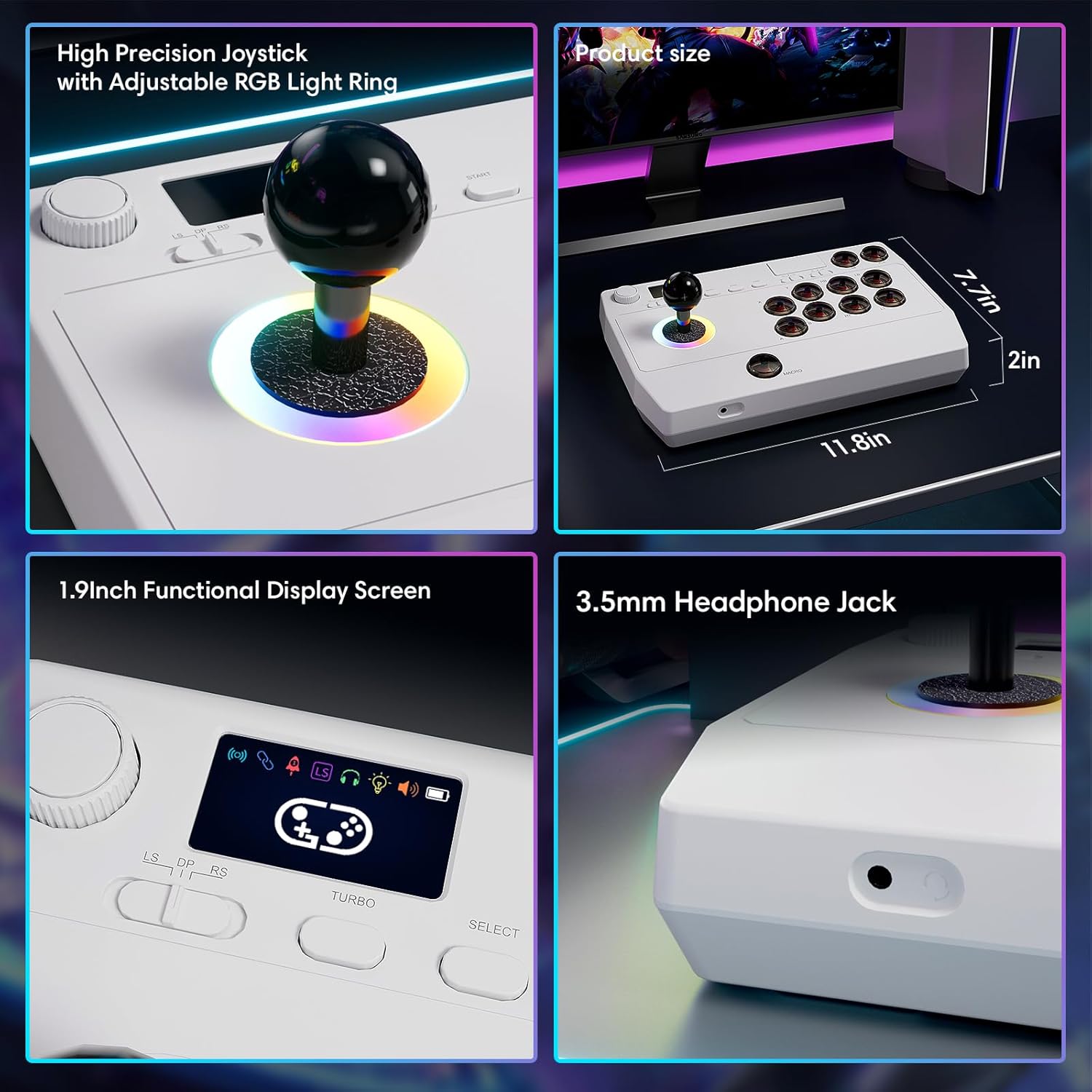
Whakaahua: Kati-ake views of the high-precision joystick with RGB lighting, the 1.9-inch functional display screen, and the 3.5mm headphone jack.
Te tiaki
- Kia ma te taputapu ma te muru ki te kakahu ngohengohe, maroke.
- A ape i te tuku i te taputapu ki te wera nui, te makuku, te ra tika ranei.
- Do not attempt to disassemble the device, as this may void the warranty.
- Store the 2.4GHz receiver in its designated compartment when not in use to prevent loss.
Raparongoā
- Kaore te taputapu i te hiko:
- Ensure the device is fully charged. Connect it to a power source using the USB Type-C cable.
- Kāore e taea te hono atu mā te ahokore:
- For Bluetooth, ensure the device is in pairing mode and your host device's Bluetooth is enabled.
- For 2.4GHz, ensure the receiver is securely plugged into a USB port and the arcade stick is in 2.4GHz mode.
- Try restarting both the arcade stick and the host device.
- Buttons or joystick are unresponsive:
- Ensure the device is properly connected (wired or wireless).
- Test the device on a different game or platform to rule out software issues.
- Check for any physical obstructions or damage to the buttons or joystick.
- Audio issues with 3.5mm jack:
- Me whakarite kia hono katoa ngā pane whakarongo ki te taura.
- Check the volume settings on both the arcade stick's display and the host device.
- Test with a different pair of headphones.
Whakatakotoranga
| Ingoa Tauira | Rakau Arcade |
| Waitohu | Saitake |
| Pūrere Hototahi | Android, iOS, Nintendo Switch 1/2, PC, PlayStation 3/4 |
| Momo Kaiwhakahaere | Ririhiko |
| Hangarau Hononga | Bluetooth, USB (2.4GHz wireless, Wired Type-C) |
| Nga waahanga taapiri | Ergonomic, Headphone Jack, Portable, Wireless, 1.9-inch Display Screen, TURBO Function, Macro Function, RGB Lighting |
| Pūmārō Pūmārō | Papamahi, Papatohu Kēmu, Pona, Waea Atamai, Papaaho, Pouaka Whakaata |
| Puna Mana | Battery Powered (Built-in 1000mAh Lithium Battery) |
| Te Ahu o te Tuemi | 11.61 x 0.71 x 7.68 inihi |
| Tae | Mā |
Pūtāhui me te Tautoko
The Saitake Wireless Arcade Fight Stick Joystick comes with a 1-tau pūtāhui mai i te ra o te hokonga.
For technical support, troubleshooting assistance, or warranty claims, please contact Saitake customer service through their official webte pae tukutuku, te toa hokohoko rānei i hokona mai ai te hua. Kia rite mai tō rīhiti hoko me ngā mōhiohio tauira hua.