
1. Kupu Whakataki
Thank you for choosing the Pisichen 27-inch 4K UHD Touchscreen Monitor with Webcam. This manual provides essential information for the safe and efficient operation of your new monitor. Please read it thoroughly before use and retain it for future reference.
2. Nga korero haumaru
- Puna Hiko: Use only the power adapter supplied with the monitor. Ensure the power outlet meets the voltage whakaritenga.
- Whakahau: Kaua e aukati i nga whakatuwheratanga hau. Whakaaetia he waahi mokowhiti huri noa i te kaitirotiro kia pai te rere o te hau.
- Puranga Wai: Keep the monitor away from liquids. Do not expose it to rain or moisture.
- Te horoi: Disconnect the power cable before cleaning. Use a soft, dry cloth. Avoid abrasive cleaners.
- Turanga: Whakanohoia te kaitutei ki runga i te mata papatahi kia kore ai e taka.
- Ratonga: Kaua e whakamātau ki te mahi i te mata tirotiro māu ake. Tukuna ngā mahi tiaki katoa ki ngā kaimahi whai tohu.
3. Ihirangi mokete
Tirohia ngā mea kei roto i te kete i te wā e wetewete ana i te taonga. Mēnā kua ngaro, kua pakaru rānei ētahi taonga, whakapā atu ki tō kaihokohoko.
- Pisichen 27-inch 4K UHD Touchscreen Monitor
- Tūnga Aroturuki (Turanga me te Ringa)
- Pūurutau Hiko
- Tauera HDMI
- USB-B to USB-A Cable (for Touch Function)
- Pukapuka Kaiwhakamahi
4. Hua Neke Atuview
4.1 Nga waahanga matua
- Ultra HD 4K Touchscreen Display: 27-inch 4K Ultra HD screen with vibrant colors, sharp details, and wide viewing angles. Features a responsive 10-point touchscreen for intuitive control.
- Built-in High-Definition Webkāmera: Whakauru webcam for video calls, online meetings, and streaming, reducing desk clutter.
- Hononga maha: Multiple ports including HDMI, DisplayPort, and USB-C for easy connections to various devices. Supports both touch and traditional input.
- Optimized for Productivity and Creativity: Large 4K touch display for precise control and streamlined workflows, ideal for graphic designers, content creators, and multitasking.
- Sleek and Functional Design: Modern design with an adjustable stand for optimal viewing angles and comfort during extended use.
4.2 Tauranga Aroturuki
The monitor features various ports for connecting to your devices. Refer to the image below for port identification.
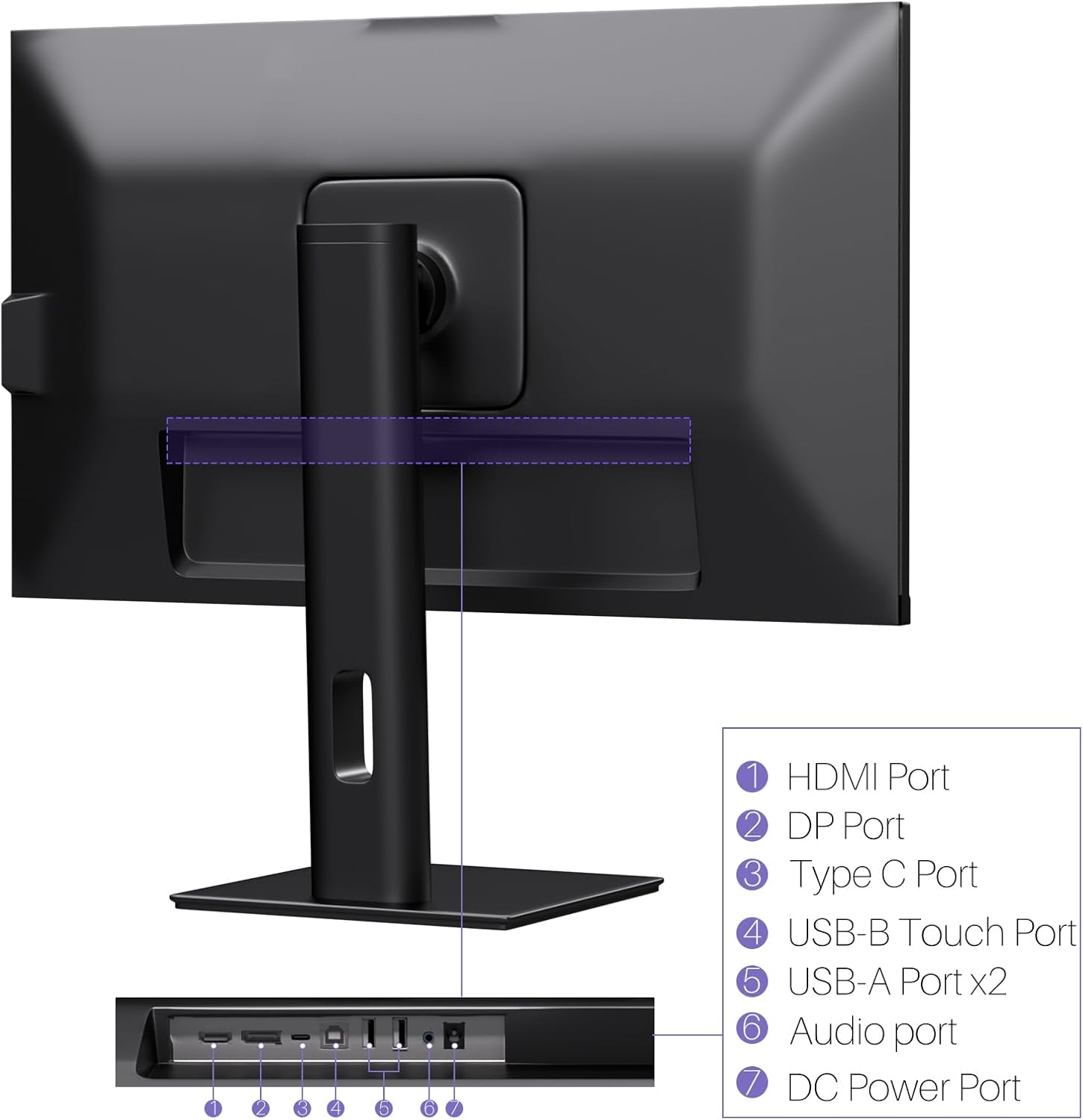
Whakaahua: Rear view of the monitor displaying the HDMI, DP, Type-C, USB-B Touch, USB-A, Audio, and DC Power ports.
- Paerewa HDMI: Connects to devices via HDMI cable for video and audio input.
- Tauranga DP: Connects to devices via DisplayPort cable for video and audio input.
- Momo-C Port: Connects to devices via USB-C cable for video, audio, and power delivery. (Requires USB-C port on signal device to support DisplayPort Alternate Mode for touch functionality).
- USB-B Touch Port: Connects to your computer via USB-B to USB-A cable to enable touchscreen functionality.
- Tauranga USB-A (x2): Mo te hono i nga taputapu USB.
- Tauranga Ororongo: Mo te hono i nga taputapu oro o waho.
- Tauranga Hiko DC: Ka hono ki te urutau hiko.
5. Tohutohu Tatūnga
5.1 Huihui i te Tu
- Kia ata tangohia te kaitirotiro me te tu i nga waahanga mai i te kete.
- Attach the stand arm to the monitor's VESA mounting points.
- Secure the stand base to the arm using the provided screws.
- Ensure all connections are tight and the monitor is stable.
5.2 Te hono ki tetahi Pūrere
The monitor supports various connection types. Choose the appropriate cable for your device.

Image: Connection diagrams illustrating how to connect the monitor as a secondary display (HDMI/DP + DC), a touchscreen monitor (HDMI/DP + USB-B + DC), or via USB-C (USB-C + DC).
- For Video and Audio (Non-Touch): Connect an HDMI or DisplayPort cable from your computer to the corresponding port on the monitor.
- For Video, Audio, and Touch (Windows PC): Connect an HDMI or DisplayPort cable for video/audio. Additionally, connect the USB-B to USB-A cable from the monitor's USB-B Touch Port to a USB-A port on your computer.
- For Video, Audio, and Touch (USB-C Compatible Device): Connect a USB-C cable from your device to the monitor's Type-C port. Ensure your device's USB-C port supports DisplayPort Alternate Mode for touch functionality.
5.3 Hononga Hiko
- Connect the power adapter to the monitor's DC Power Port.
- Monohia te urutau hiko ki te putanga pakitara.
6. Nga Tohutohu Whakahaere
6.1 Hiko / Whakaweto
Pēhia te pātene hiko kei runga i te aroturuki hei whakakā, whakaweto rānei.
6.2 Tahua Whakaatu Ma-Mata (OSD).
Use the control buttons (typically located on the back or bottom of the monitor) to navigate the OSD menu. This menu allows you to adjust settings such as brightness, contrast, color temperature, input source, and other display parameters.
6.3 Taumahinga Mata Paa
The monitor features a 10-point multi-touch screen. Ensure the USB-B to USB-A cable (or USB-C cable for compatible devices) is connected to enable touch functionality.
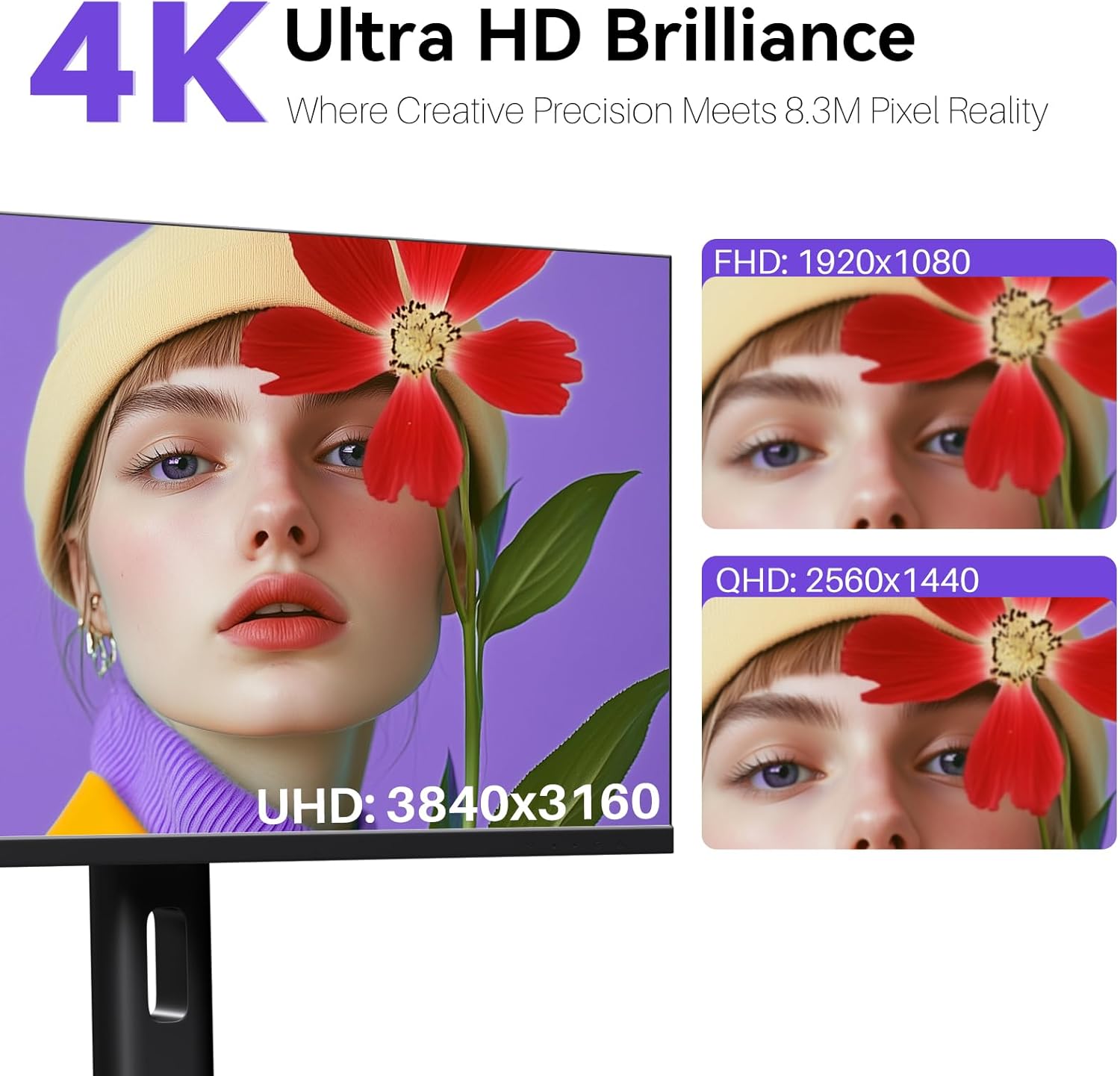
Image: A user's hand interacting with the monitor screen, highlighting the responsive 10-point touch experience.
- Basic Touch: Tap to click, swipe to scroll.
- Nga Tohu Pa-maha: Use two fingers to zoom in/out, rotate, or pan, depending on the application.
- Touch Calibration (Windows Only): If the cursor does not align with your touch, calibration may be required. Go to Control Panel > Hardware and Sound > Tablet PC Settings > Calibrate. Follow the on-screen prompts.
6.4 Te Whakamahi i te Pūnaha Whakauru Webkamera
Ko te whakauru webcam is automatically detected by most operating systems and video conferencing applications. No additional drivers are typically required.

Image: The monitor displaying a video conference call, showcasing its integrated webcam for seamless communication.
- Open your preferred video conferencing software (e.g., Zoom, Microsoft Teams, Skype).
- Select the integrated webcam as your video input device in the application's settings.
6.5 Adjusting Display Resolution
To set the resolution of the monitor (Windows):
- Right-click on your desktop and select "Display Settings."
- Find your monitor (if multiple displays are connected).
- Under "Display resolution," select the recommended resolution of 3840 x 2160.
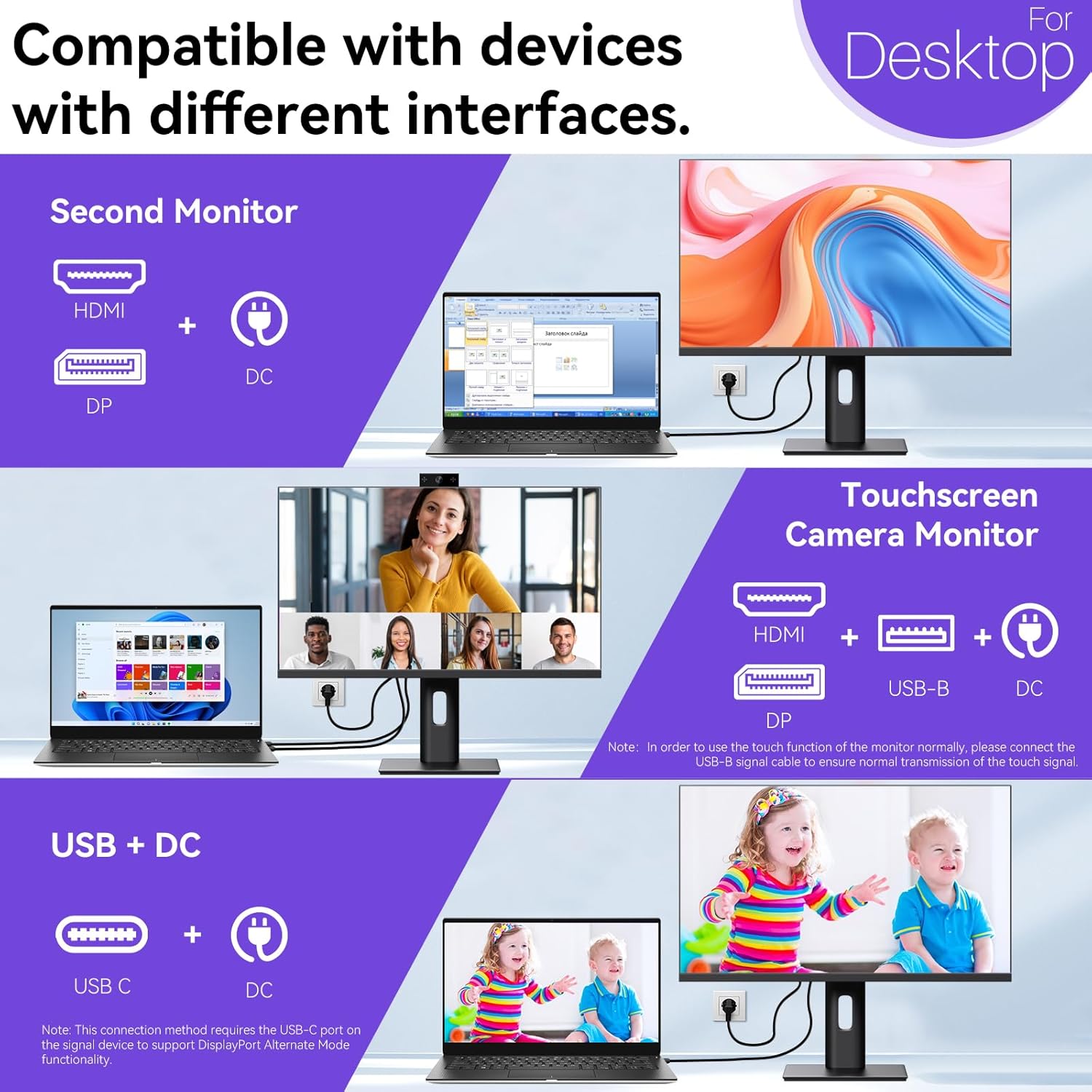
Image: A visual comparison demonstrating the superior clarity of 4K UHD (3840x2160) compared to FHD (1920x1080) and QHD (2560x1440) resolutions.
7. Tiaki
- Te horoi i te Mata: Me ata horoia te mata ki te kakahu ngohengohe, kore-puru. Mo nga tohu pakeke, kia ngawari dampen te kakahu ki te wai, te otinga horoi mata-motuhake ranei. Kaua e rehu tika te wai ki runga i te mata.
- Te horoi i te Casing: Whakamahia he kakahu ngohengohe, maroke hei horoi i te aroturuki casing.
- Rokiroki: If storing the monitor for an extended period, disconnect it from power, pack it in its original packaging, and store it in a cool, dry place.
8. Te Raru
If you encounter issues with your monitor, refer to the following troubleshooting guide. For problems not listed, please contact customer support.
| Raruraru | Take pea | Rongoā |
|---|---|---|
| Kaore he ahua o te mata | Kua momotu te taura hiko; Kua momotuhia te taura ataata; Ko te puna whakaurunga he i tohua. | Ensure power cable is securely connected. Check video cable (HDMI/DP/USB-C) connections. Select correct input source via OSD menu. |
| Karekau te mata pa e whakautu | USB-B cable not connected; USB-C port not supporting DisplayPort Alternate Mode; Device incompatibility (e.g., iPhone). | Ensure the USB-B to USB-A cable is connected from the monitor to your computer. If using USB-C, verify your device's USB-C port supports DisplayPort Alternate Mode. Note: Touch function is not supported when connected to an iPhone due to iOS system restrictions. |
| Cursor moves incorrectly (Windows) | Touchscreen calibration required. | Perform touchscreen calibration: Go to Control Panel > Hardware and Sound > Tablet PC Settings > Calibrate. |
| Webkaore i kitea te kamera | USB connection issue; Software settings. | Ensure all necessary USB cables are connected. Check your application's settings to select the correct webkāmera |
9. Whakatakotoranga
| Āhuahira | Taipitopito |
|---|---|
| Waitohu | Pisichen |
| Tau tauira | 27INTSCMR-4K |
| Rahi Mata | 27 Inihi |
| Whakatau | 3840 x 2160 Pika (4K UHD 2160p) |
| Aspect Ratio | 16:9 |
| Tirohanga Atahanga | 400 Karara |
| Whakaahua Mata Mata | Moataata |
| Hunga Hua | 14.37 x 24.21 x 16.54 inihi |
| Taumaha Tūemi | 16.59 pauna |
| Kaihanga | Te Kamupene Hikohiko o Shenzhen Konowa, LTD |
| Hononga | HDMI, DisplayPort, USB-C, USB-B (for touch), USB-A (x2), Audio Port |
10. Pūtāhui me te Tautoko
This product comes with a manufacturer's warranty. Please refer to the warranty card included in your package for specific terms and conditions. For technical support or inquiries, please contact Pisichen customer service at tautoko_2308@163.com. When contacting support, please provide your model number and a detailed description of the issue, including any relevant pictures or videos.