
1. Hua Neke Atuview
The iFFALCON 65F75 is a 65-inch Class QLED 4K Smart TV designed for an immersive viewing experience. It features an ultra-slim profile, advanced display technologies, and smart functionalities powered by Google TV.
Āhuatanga matua:
- Ultra-Slim & Seamless Wall Mount Design: A sleek, bezel-less frame that sits flush against the wall.
- Aratau Toi: Transforms the TV into a digital canvas, displaying classic masterpieces, AI-generated art, or personal photos.
- 4K QLED Display with Ultra Wide Color Gamut: Delivers vibrant, true-to-life visuals with over a billion colors.
- 144Hz Refresh Rate & Game Master Mode: Ensures ultra-smooth motion for fast-paced content and responsive gaming.
- Dolby Vision IQ & Dolby Atmos: Provides an enhanced cinematic experience with adaptive picture settings and immersive surround sound.
- Hangarau Tiaki kanohi: Features low blue light and flicker-free technology for comfortable extended viewing.
- Google TV: Offers personalized content recommendations, smart home device control, and hands-free voice commands.
2. Tatūnga
2.1 Unboxing and Parts Check
Carefully open the TV packaging and ensure all components are present and undamaged. It is recommended that two people handle the TV during unboxing and installation to prevent damage.
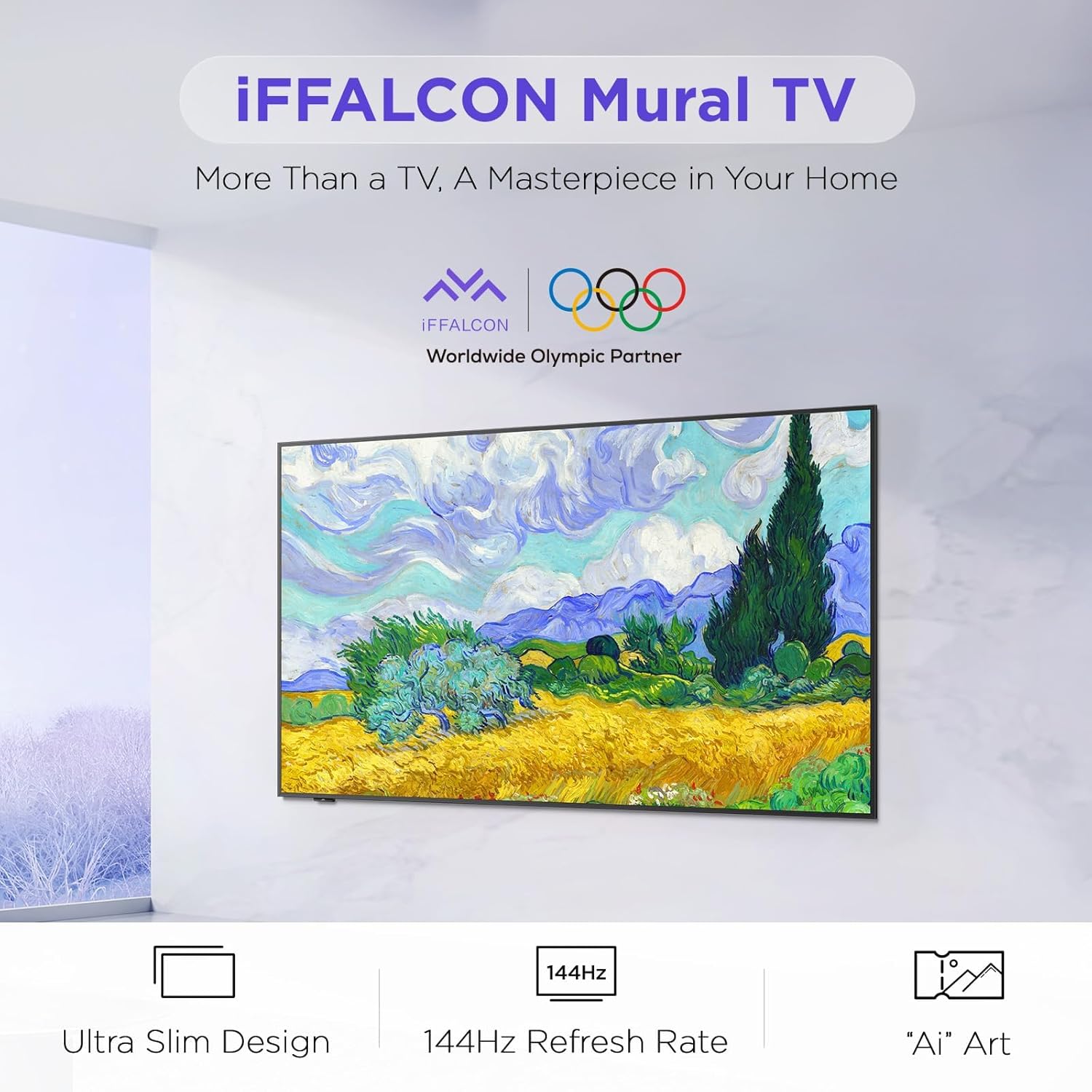
Image: The iFFALCON 65F75 TV securely packaged in its box, ready for unboxing.
He aha kei roto i te Pouaka:
- iFFALCON TV
- taura hiko
- 2 x AAA pākahiko mo te mamao
- 6 x Tu wiri
- Ngā tūnga tēpu
- 2 x Ngā taupoki kōhao tīwiri
- 2 x Ngā parepare rapa
- Taiapa whakairi pakitara
- Aratohu Timata Tere
- Mamao TV
2.2 Wall Mount or Table Stand Installation
The iFFALCON 65F75 TV offers both wall-mounting and table stand installation options. Choose the method that best suits your space and preferences. Always ensure the TV is placed on a soft, cushioned surface when installing stands or brackets to prevent screen damage.
Video: Official iFFALCON tutorial demonstrating the installation of the wall mount and table stand for the Mural TV. This video provides visual guidance for both setup options.
Tautanga Maunga Taiepa:
- Place the provided wall mount marker on your desired wall position.
- Use a level to ensure the marker is horizontal and secure it with tape.
- Drill screw holes at the marked positions (A, B, C, D) on the marker.
- Insert drywall anchors into the drilled holes. (Note: If drilling into wood studs, anchors are not needed).
- Screw the two wall plates to the wall using the provided screws and drywall anchors.
- Screw the two VESA brackets tightly onto the VESA holes on the top of the TV with the provided screws. Ensure brackets are secured via the middle holes of the TV back cover.
- Insert the power cord into the TV's rear power port.
- Drop the hanger on the wall mount bracket. Gently push the TV against the wall until the brackets are flush.
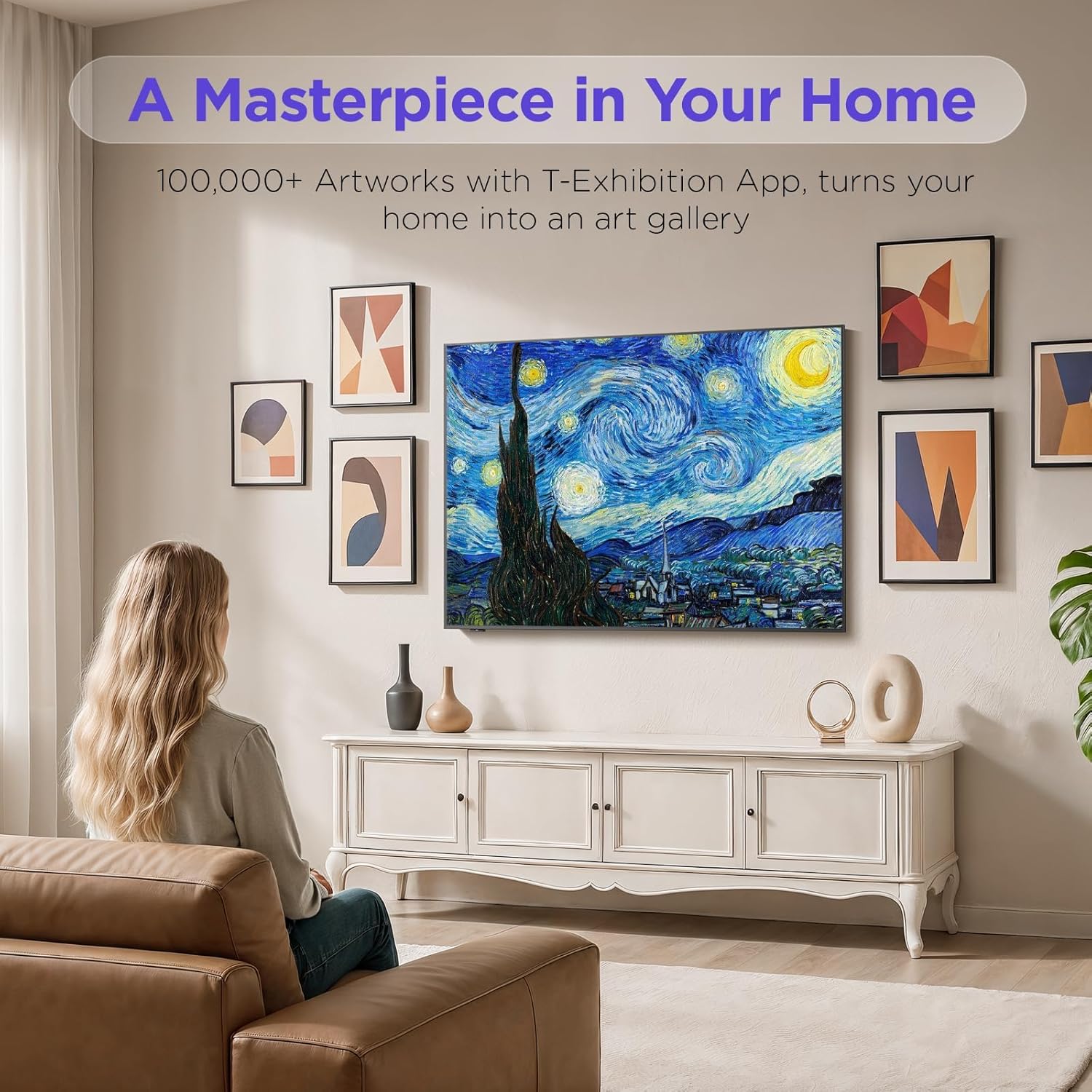
Image: The iFFALCON 65F75 TV seamlessly mounted on a wall, showcasintōna hoahoa tino angiangi.
Tāutanga Tūnga Tēpu:
- Hei karo i te kino o te mata, ata tuuhia to pouaka whakaata ki runga i te mata ngawari, urunga.
- Remove the magnetic decorative cover from the stand bracket.
- Place the stand bracket on the back of the TV at the screws location.
- Secure the stands to the TV with screws.
- Reinstall the magnetic cover by sliding it over the screw holes.
- Repeat the same operation for the other stand.
- Insert the power cord into the TV's rear power port.
- Once both stands are securely attached, carefully lift the TV and place it on a flat and level surface.

Image: The iFFALCON 65F75 TV displayed on its elegant table stand.
3. Nga Tohutohu Whakahaere
3.1 Mahi Taketake
- Hiko Whakaka/Weto: Pēhia te pātene mana i runga i te mana mamao hei whakakā, hei whakaweto rānei i te pouaka whakaata.
- Kōwhiringa Tāuru: Use the 'Input' button on the remote to switch between HDMI, USB, and other connected sources.
- Mana Rōrahi: Adjust volume using the '+' and '-' buttons on the remote.
3.2 Ngā Āhuatanga o te Pouaka Whakaata Google
Your iFFALCON TV comes with Google TV, offering a personalized and integrated entertainment experience.
- Taunakitanga Whaiaro: Google TV learns your preferences and suggests content from across your streaming apps.
- Mana Reo: Use the Google Assistant voice remote for hands-free commands, searching for content, controlling smart home devices, and more.
- Taupānga Uru: Easily access a wide range of streaming applications and games from the Google Play Store.

Image: The Google TV home screen displaying personalized content and app icons.
3.3 Aratau Toi
Transform your TV into a piece of art when not actively watching content. Art Mode allows you to display various artworks or personal photos.
Video: Official iFFALCON tutorial demonstrating how to use Art Mode and Photo Frame features on the Mural TV.
Whakahohe Aratau Toi:
- Open the Apps menu on your Google TV.
- Swipe right to locate and launch the 'T-Exhibition' app.
- Navigate to 'MOMENT' and tap 'Settings' (top-right).
- Navigate to 'Wallpaper Settings'.
- Under 'Wallpaper Content', select 'Classified'.
- Check your preferred categories (e.g., Photography, TCL Art, 'AI' ART).
- To activate an immersive gallery display, tap 'Preview' under 'GALLERY'.

Image: The iFFALCON 65F75 TV showcasing a vibrant artwork in Art Mode, blending into the room decor.
3.4 Game Master Mode
For an optimized gaming experience, the TV features a 144Hz refresh rate combined with Game Master Mode.
- 144Hz Rere Tāmata: Ka whakarato i nga nekehanga tino maeneene mo nga keemu tere.
- VRR (Taupe Rere Whakahou): Ka whakaiti i te haehae mata me te wawau mo te whakaari wai.
- HDR Optimization: Enhances visual details and contrast in supported games.
- Tuhipoka: The TV is initially in Energy Saving Mode. Switch to HDR Mode in settings for optimal picture quality during gaming.
3.5 Dolby Vision IQ & Dolby Atmos
Experience superior audio-visual quality with Dolby Vision IQ and Dolby Atmos technologies.
- Dolby Vision IQ: Automatically adjusts picture settings based on ambient room lighting, ensuring optimal brightness, contrast, and color.
- Dolby Atmos: Delivers immersive, multi-dimensional sound that flows around you, enhancing movies, music, and games.
4. Tiaki
4.1 Te horoi i te pouaka whakaata
- Wewetehia te TV i mua i te horoi.
- Whakamahia he kakahu ngohengohe, maroke, kore-miro hei muru mārire i te mata me te anga.
- Mo nga tohu pakeke, kia ngawari dampen the cloth with water or a specialized screen cleaner (ensure it's safe for TV screens) and wipe carefully. Avoid harsh chemicals or abrasive materials.
4.2 Hangarau Tiaki Kanohi
The iFFALCON 65F75 includes features designed to reduce eye strain during extended viewing.
- Maama Kahurangi iti: Ka whakaiti i ngā tukunga rama kikorangi kino.
- Hangarau Kore-Kore: Minimizes screen flickering for a more comfortable viewte wheako.
- These features are active by default or can be adjusted in the TV's picture settings.
5. Te Raru
If you encounter issues with your iFFALCON TV, refer to the following common troubleshooting steps:
| Raruraru | Rongoa pea |
|---|---|
| Karekau he Mana | Ensure the power cable is securely connected to both the TV and a working power outlet. Check if the power outlet is functional. |
| Kore Pikitia/Oro | Verify the correct input source is selected. Check all cable connections (HDMI, AV, etc.). Try restarting the TV and connected devices. |
| Mamao Kaore i te Whakautu | Whakakapihia nga pākahiko i te mana mamao. Me whakarite karekau he arai i waenga i te mamao me te pukoro IR o te pouaka whakaata. |
| Nga Take Hononga Whatunga | Check your Wi-Fi router and internet connection. Reconnect the TV to the Wi-Fi network in the settings. For wired connections, ensure the Ethernet cable is properly connected. |
| Picture Quality Issues | Whakatikatikahia ngā tautuhinga pikitia (kanapa, rerekētanga, tae) i te tahua pouaka whakaata. Kia tino mōhio koe viewing high-quality content (4K, HDR). Disable Energy Saving Mode if applicable. |
If the issue persists after trying these steps, please contact iFFALCON customer support.
6. Whakatakotoranga
| Āhuahira | Taipitopito |
|---|---|
| Waitohu | iFFALCON |
| Tau tauira | 65F75 |
| Rahi Mata | 65 Inihi |
| Hangarau Whakaatu | QLED |
| Whakatau | 4K |
| Rere tāmata | 144 Hz |
| Nga waahanga motuhake | Art Mode, Game Mode |
| Hangarau Hononga | Nihokikorangi, Itarangi, HDMI, USB, Wi-Fi |
| Ratonga Ipurangi Tautoko | Google TV, various streaming services |
| Taumaha Tūemi | 71.8 pauna |
| Hunga Hua | 1 x 1 x 1 inihi |
7. Nga Korero Whakaputanga
Your iFFALCON 65F75 65-Inch QLED 4K Smart TV is covered by a manufacturer's warranty. Please refer to the warranty card included in your product packaging for specific terms, conditions, and duration of coverage. Keep your proof of purchase for warranty claims.
8. Tautoko
For further assistance, technical support, or service inquiries, please visit the official iFFALCON support webpaetukutuku, whakapā atu rānei ki tā rātou ratonga kiritaki. Ka kitea hoki e koe ētahi atu rauemi me ngā FAQ i runga i te iFFALCON Store on Amazon.