
Kupu Whakataki
The Fender Mustang LTX50 is a versatile 50-watt modeling combo amplifier designed for guitarists seeking a wide range of authentic Fender tones and modern features. Equipped with a 12-inch Celestion G12P-80 speaker, it delivers dynamic sound suitable for practice, rehearsal, and performance. This amplifier offers 25 amp models and 25 effects, covering various musical styles from clean to high-gain. Its intuitive color display, onboard tuner, and 100 user preset slots provide easy customization and quick access to your preferred sounds. The Mustang LTX50 also features Bluetooth audio streaming for playing along with tracks and USB-C connectivity for direct recording and monitoring.
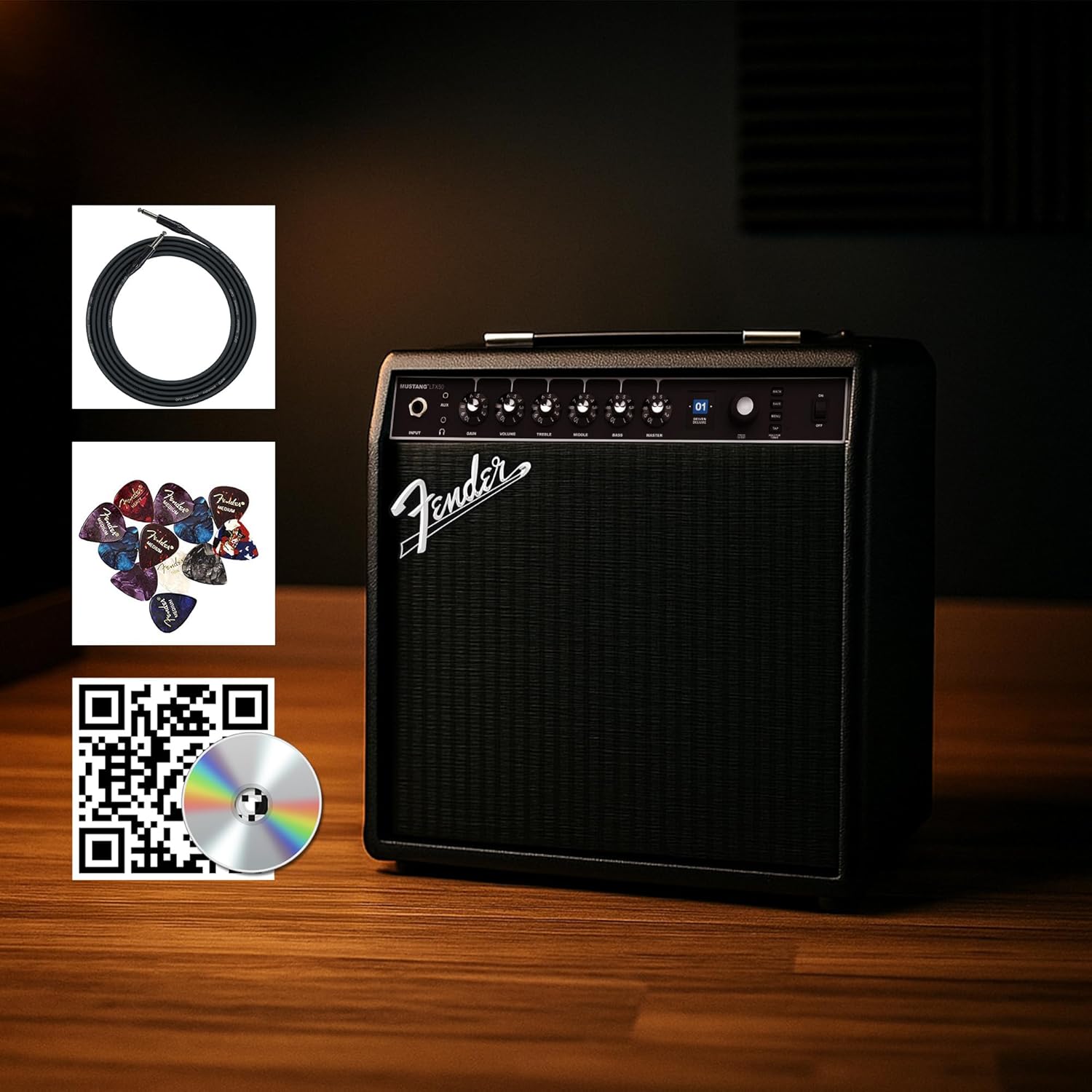
Figure 1: Fender Mustang LTX50 Guitar Combo Amplifier with included accessories.
Tatūnga
1. Te Wetewete me te Tirotiro Tuatahi
- Tango tupato te amplifier and all accessories from the packaging.
- Tirohia te amplifier for any signs of damage that may have occurred during shipping.
- Confirm all included items are present: Mustang LTX50 amplifier, power cord, instrument cable, 12-pack guitar picks, and instructional DVD.
2. Te Mana Hononga
- Me whakarite te ampKo te whakakā hiko a Lifier kei te OFF.
- Connect the included power cord to the AC input on the rear panel of the ampkaikawe
- Monohia tetahi pito o te taura hiko ki tetahi putanga hiko kua oti te tu.
3. Te hono i to Kita
- Use the included instrument cable to connect your guitar to the WHAKATOHU jack on the front panel of the ampkaikawe
4. Mana Taketake Nekeview
Familiarize yourself with the front panel controls before powering on the ampkaikawe
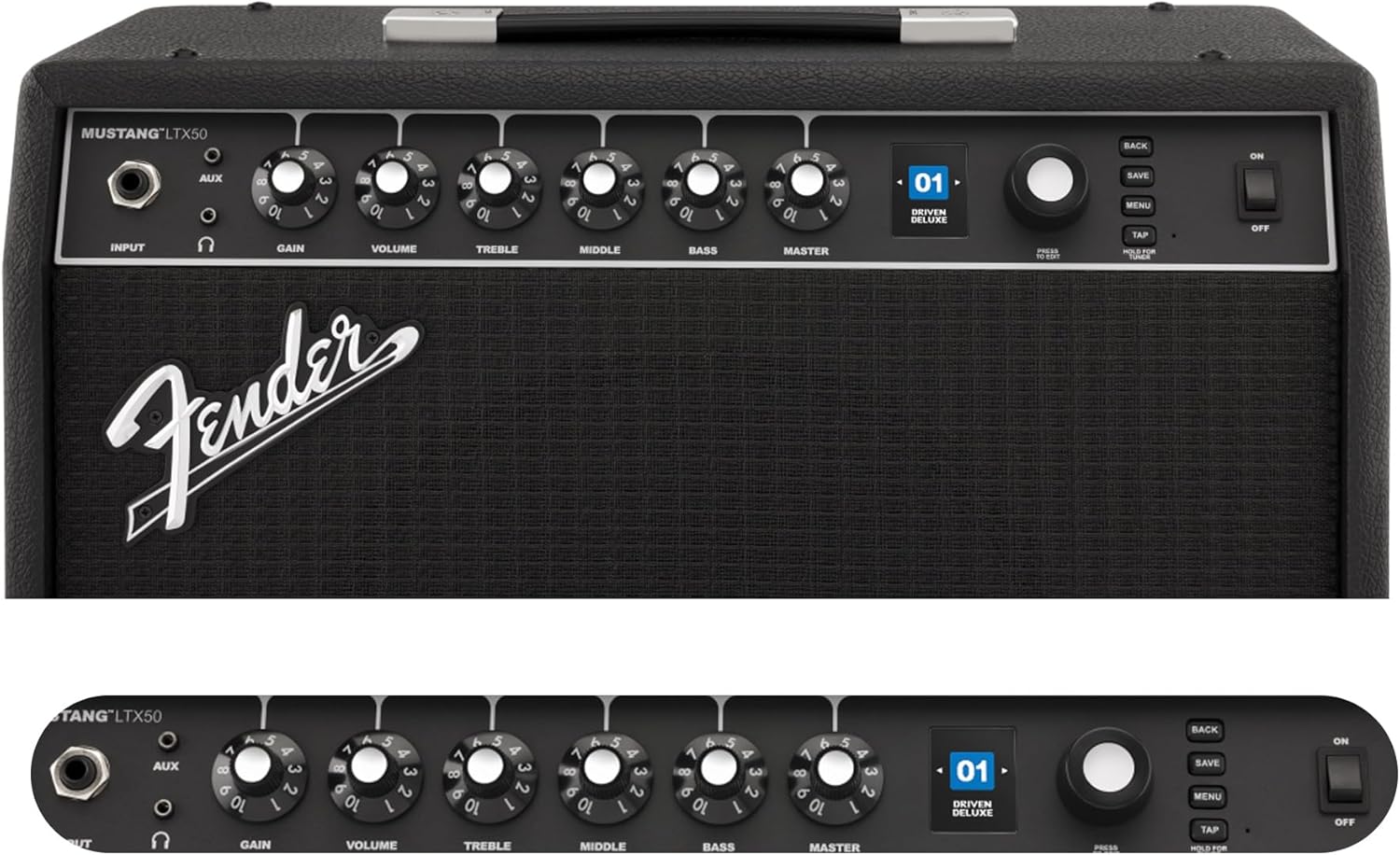
Figure 2: Front Panel Controls of the Mustang LTX50.
Nga Tohutohu Whakahaere
1. Te Whakakaha/Weto
- To power on, ensure all volume controls are set to minimum, then flip the MANA whakawhiti ki te tuunga ON.
- Hei whakaweto i te mana, hurihia te MANA huri ki te tūnga OFF.
2. Navigating Presets
- Whakamahia te TANGATA knob (large rotary knob) to scroll through the 100 available presets (70 factory, 30 user).
- Pehia te TANGATA knob to select a preset.
- The color LCD displays the current preset number and name.
3. Te Whakatikatika Amp Nga Tauira me nga Paanga
- Pehia te MENU paatene kia uru atu ki te ampngā tautuhinga a te kaiwhakaora.
- Navigate through options like AMP, STOMP, MOD, DELAY, REVERB using the TANGATA.
- Select an option and use the TANGATA to choose different amp models or effects.
- Adjust parameters for each effect using the smaller control knobs (GAIN, VOLUME, TREBLE, MIDDLE, BASS, MASTER) or by selecting parameters on the display.
- Perehi Tiaki to store your customized preset.
4. Using the Built-in Tuner
- Patohia me te pupuri i te TAP button to activate the chromatic tuner.
- Play a single note on your guitar; the display will show the note and indicate if it is sharp, flat, or in tune.
- Press any button or play for a few seconds to exit tuner mode.
5. Fender Tone 3.0 App Control
- Download the Fender Tone 3.0 app from your device's app store (iOS/Android).
- Whakahohehia te Nihokikorangi i runga i to taputapu pūkoro.
- I runga i te amplifier, pehia te MENU button, navigate to "Bluetooth," and select "Pair."
- Select "Mustang LTX50" from your device's Bluetooth settings to connect.
- Use the app to wirelessly create, edit, save, and share presets, and to manage your ampnga tautuhinga riipene.
6. Playing Along with Audio (Bluetooth)
- Once paired via Bluetooth, you can stream audio from your mobile device directly to the ampkaikawe
- Adjust the volume of the streamed audio from your mobile device.
- Alternatively, connect an external audio source to the AUX IN jack on the front panel using a 3.5mm stereo cable.
7. Recording via USB-C
- Connect a USB-C cable from the amplifier's USB-C port to your computer (Mac or PC).
- Ko te amplifier functions as a bidirectional audio interface, allowing direct recording and monitoring.
- Refer to your Digital Audio Workstation (DAW) software's manual for specific setup instructions.
Te tiaki
1. Te horoi
- Momotuhia te ampwhakamātao te taputapu mai i te hiko i mua i te horoinga.
- Whakamahia he kakahu ngohengohe, maroke hei muru i nga mata o waho.
- Mo te paru maro, he paku damp ka taea te whakamahi i te kakahu me te hopi ngawari, ā, muri iho ka whakamahia he kakahu maroke.
- Kaua e whakamahi i ngā kai horoi whakakoi, ngā whakarewa, ngā ware pi rānei, nā te mea ka kino pea te āhua o te peita.
2. Rokiroki
- Rokiroki te ampHe whakamatao ki tetahi waahi maroke, matara atu i te ra tika me te wera nui.
- Avoid storing in areas with high humidity.
- If storing for extended periods, cover the amphe whakamarumaru hei tiaki i te puehu.
3. Safety Warnings (Proposition 65)
Tērā pea kei roto i tēnei hua ngā matū e mōhiotia ana e te Kāwanatanga o California hei take mō te mate pukupuku, ngā whānautanga hapa, ētahi atu kino rānei ki te whānau uri. Mō ētahi atu kōrero, tirohia www.P65Warnings.ca.gov.
Raparongoā
Kore Oro
- Me whakarite te amplifier is powered on and the power cord is securely connected.
- Check that your guitar is properly connected to the WHAKATOHU koki.
- Manatokohia ko te ARIKI volume and individual preset volume controls are not set to zero.
- Test with a different instrument cable and guitar to rule out faulty equipment.
- If using headphones, ensure they are fully plugged into the headphone jack and that the main speaker is not muted.
Haruru Whakapēkē, Kāore rānei e Hiahiatia
- Check your guitar's volume and tone controls.
- Whakaitihia te KAUPAPA whakatakoto i runga i te ampkaikawe
- Ensure your instrument cable is not damaged or poorly shielded.
- Try a different power outlet to rule out electrical interference.
- If using high-gain amp models, some distortion is inherent. Adjust settings accordingly.
Nga Take Hononga Nihokikorangi
- Ensure Bluetooth is enabled on both your mobile device and the ampkaikawe
- Me whakarite te amplifier is in pairing mode (refer to "Fender Tone 3.0 App Control" section).
- Move your mobile device closer to the ampkaikawe
- Ngana ki te wetewete me te hono ano i nga taputapu.
- Tīmata anō te rua amplifier and your mobile device.
Amplifier Not Responding
- Huringa Hiko te amplifier by turning it off, waiting 10 seconds, and turning it back on.
- If the issue persists, a factory reset may be necessary. Consult the Fender support website for instructions on performing a factory reset for the Mustang LTX50.
Whakatakotoranga
| Ingoa Tauira | MUSTANG LTX50 |
| Tau tauira | 2311700000 |
| Waitohu | Fender |
| Ampmomo Momo | Whakatauira Mamati |
| Putanga Mana | 50 Watts |
| Kaikōrero | 1 x 12" Celestion G12P-80 |
| Amp Tauira | 25 |
| Ngā Pānga | 25 (distortion, overdrive, compression, modulation, reverb, delay, octave, etc.) |
| Tatūkē | 70 factory + 100 user slots |
| Whakaatu | Color LCD with onboard chromatic tuner |
| Hononga | Bluetooth audio, USB-C bidirectional audio |
| Nga Putanga | XLR line out, Headphone out |
| Tautoko Taupānga | Fender Tone 3.0 app (iOS/Android) |
| Rauemi Whakapiri | Te whakarewa |
| Rahi Tūemi (D x W x H) | 22.3"D x 19.9"W x 12.3"H |
| Taumaha Tūemi | 26.4 Pauna |
| UPC | 840262259088 |

Figure 3: Rear Panel Connections of the Mustang LTX50.
Nga korero Whakaputanga
The Fender Mustang LTX50 Guitar Combo Ampka hipokina e te a 2-Tau Rarangi Rarangi. This warranty covers defects in materials and workmanship under normal use. For full terms and conditions, please refer to the warranty documentation included with your product or visit the official Fender webpae.
Tautoko
For further assistance, technical support, or service inquiries regarding your Fender Mustang LTX50 amplifier, please visit the official Fender support webpae:
You may also find additional resources, FAQs, and software updates on the Fender webpae.