
Bigme B6
Bigme B6 Color Ebook Reader User Manual
Model: B6 | Brand: Bigme
1. Kupu Whakataki
This manual provides detailed instructions for the safe and efficient operation of your Bigme B6 Color Ebook Reader. Please read this manual thoroughly before using the device and retain it for future reference.
Ihirangi mokete
- Bigme B6 Kaipānui pukapuka
- Take Tiaki
- Pukapuka Kaiwhakamahi (tenei tuhinga)
- Uera Whakatau

Image 1.1: Bigme B6 Color Ebook Reader and included protective case.
2. Hua Neke Atuview
Familiarize yourself with the components and features of your Bigme B6 device.
Nga waahanga matua
- Whakaatu: 6-inch Color E-paper display, 300 PPI resolution.
- Tukatuka: Octa-core CPU for responsive performance.
- Pūmahara me te Rokiroki: 4GB RAM and 64GB internal storage, expandable via Micro-SD card (up to 1TB).
- Pūnaha Mahi: Android 14, providing access to various applications.
- Hononga: Bluetooth and Wi-Fi for wireless communication.
- Ororongo: Integrated Hi-Fi Speakers.
- Hoahoa: Pro tino-angiangifile at 6.98mm.
- Whakamarie kanohi: Features Zero Blue Light and Flicker-Free technology, TUV Rheinland certified for reduced eye strain.

Whakaahua 2.1: Ka mutuview of the Bigme B6 Ebook Reader's main features.
3. Tatūnga
3.1 Whakataki Tuatahi
Before first use, fully charge your Bigme B6. Connect the device to a power source using the provided charging cable. The charging indicator will show the charging status.
3.2 Hiko / Whakaweto
- To power on: Press and hold the power button until the screen illuminates.
- To power off: Press and hold the power button, then select "Power Off" from the options.
- Hei moe/ara: Pēhia te pātene mana mō te wā poto.
3.3 Hononga Whatunga (Wi-Fi)
- Mai i te mata kāinga, whakatere ki Tautuhinga.
- Tīpakohia Whatunga me te Ipurangi.
- Takahuri Wi-Fi ki ON.
- Tīpakohia te whatunga Wi-Fi e hiahiatia ana mai i te rarangi.
- Whakauruhia te kupuhipa mēnā ka tonoa, ka pāwhiri Tūhono.
3.4 Whirihoranga Pūnaha Tuatahi
Upon first power-on or after a factory reset, follow the on-screen prompts to select your language, connect to Wi-Fi, and set up your Google account (optional, for app store access).
4. Nga Tohutohu Whakahaere
4.1 Whakaterenga Taketake
- Mata Pa: Tap to select items, swipe to scroll, pinch to zoom.
- Mata Kāinga: Displays installed applications and widgets.
- Paepae Whakamōhiotanga: Swipe ki raro i te tihi o te mata ki te uru ki nga tautuhinga tere me nga whakamohiotanga.
- Pokapū Mana: Access system settings like Wi-Fi, Bluetooth, brightness, and refresh modes.
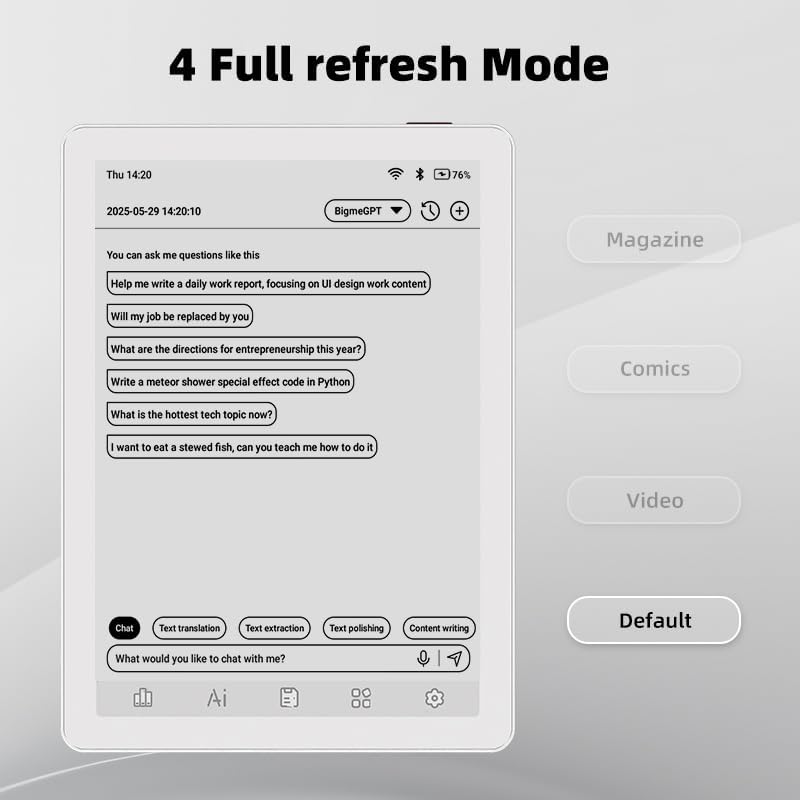
Image 4.1: The Bigme B6 home screen displaying various application icons.

Image 4.2: Accessing the Control Center for quick adjustments to device settings.
4.2 Reading eBooks
The Bigme B6 supports over 19 eBook formats, including PDF, TXT, EPUB, MOBI, and more. You can load books via USB or download them directly through reading applications.
- Open a reading application (e.g., the default reader or a downloaded app like Kindle or Libby).
- Select the book you wish to read from your library.
- Tap the left or right side of the screen to turn pages.
- Tap the center of the screen to access reading options (font size, line spacing, contrast, etc.).
- To highlight text: Press and hold on a word, then drag the selection handles to cover the desired text. Options for highlighting or notes will appear.

Image 4.3: Reading an eBook and highlighting text with color on the Bigme B6.
4.3 Whakahaere Taupānga
As an Android 14 device, you can install applications from the Google Play Store or other compatible sources.
- Tāuta Taupānga: Whakatuwheratia te Toa Taupānga icon (Google Play Store) on your home screen, search for the desired app, and follow the installation prompts.
- Tango Tautanga Taupānga: Haere ki Tautuhinga > Taupānga, tīpakohia te taupānga, kātahi ka pāwhiri Wetetāuta.
4.4 Audiobooks and Media Playback
The device supports audiobook playback through its built-in Hi-Fi speakers or connected Bluetooth headphones.
- Playing Audiobooks: Use a compatible audiobook application.
- Connecting Bluetooth Headphones: Haere ki Tautuhinga> Nga taputapu hono> Nihokikorangi, enable Bluetooth, and pair with your headphones.

Image 4.4: The Bigme B6 supports audiobooks, allowing for hands-free listening.
4.5 Display Refresh Modes
The Bigme B6 offers multiple refresh modes to optimize display performance for different content types.
- Access refresh modes from the Control Center or Display Settings.
- Ko nga ahuatanga noa ko:
- Taunoa: Standard reading mode.
- Moheni: Optimized for images and text in magazines.
- Comics: Enhanced for comic book viewing.
- Ataata: Provides a smoother refresh rate for video content (note: e-paper displays have limitations for video).

Image 4.5: Selecting from various refresh modes to suit different content types.
5. Tiaki
5.1 Te horoi i te taputapu
- Whakamahia he kakahu ngohengohe, kore karekau hei muru ata i te mata me te tinana o te taputapu.
- Mo nga kohukohu pakeke, paku dampen te kakahu ki te wai, te horoi mata ranei i hangaia mo te hikohiko.
- A ape i te whakamahi i nga matū kino, i nga rawa abrasive, i te makuku nui ranei.
5.2 Tiaki Pūhiko
- Me utu te taputapu i nga wa katoa, engari kaua e waiho kia matara katoa mo te wa roa.
- Do not expose the device to extreme temperatures, as this can affect battery life.
- Use only the provided or a certified charging cable and adapter.
5.3 Rokiroki
When not in use for extended periods, store the device in a cool, dry place, away from direct sunlight and extreme temperatures. It is recommended to charge the device to about 50% before long-term storage.
6. Te Raru
| Raruraru | Take pea | Rongoā |
|---|---|---|
| Kaore te taputapu i te hiko. | He iti te pākahiko; kua tio te taputapu. | Charge the device for at least 30 minutes. Perform a forced restart by holding the power button for 10-15 seconds. |
| Screen is unresponsive or slow. | Temporary software glitch; too many apps running. | Restart the device. Close unnecessary background applications. Check for system updates. |
| Kaore e taea te hono ki Wi-Fi. | Kupuhipa hē; raruraru pouara; Wi-Fi kua monoa. | Ensure Wi-Fi is enabled and the password is correct. Restart your Wi-Fi router. Try connecting to a different network. |
| Ka tere te pau o te pākahiko. | High screen brightness; many background apps; frequent Wi-Fi/Bluetooth use. | Reduce screen brightness. Close unused applications. Disable Wi-Fi and Bluetooth when not needed. Adjust refresh mode settings. |
| Applications crash or freeze. | App incompatibility; insufficient memory. | Update the application. Clear the app's cache (Settings > Apps > [App Name] > Storage & cache). If issues persist, uninstall and reinstall the app. |
7. Whakatakotoranga
| Ingoa Tauira | US-B6 |
| Whakaatu | 6-inch Color E-paper, Electronic Ink, 300 PPI |
| Pūnaha Mahi | Android 14 |
| RAM | 4GB |
| Rokiroki Roto | 64GB |
| Rokiroki Whakawhanui | Micro-SD card (up to 1TB support) |
| Hononga | Nihokikorangi, Wi-Fi |
| Pūhiko | 1 Pūhiko Paerewa (kei roto) |
| Ahu (L x W x Th) | 5.88" x 4.25" x 0.28" (14.94 cm x 10.8 cm x 0.71 cm) |
| Taumaha Tūemi | 6.2 hekere (175.77 karamu) |
| Ngā Hōputu Pukapuka e tautokona ana | PDF, TXT, EPUB, EPUB3, HTML, HTM, AZW3, FB2, DOC, DOCX, MOBI, OEB, CBR, RPC, RTF, DJVU, ZIP |
8. Pūtāhui me te Tautoko
8.1 Nga Korero Whakaputanga
Please refer to the warranty card included with your product for specific warranty terms and conditions. The warranty typically covers manufacturing defects for a specified period from the date of purchase.
8.2 Tautoko Kiritaki
For technical assistance, troubleshooting not covered in this manual, or warranty claims, please contact Bigme customer support. Contact details can usually be found on the Bigme official webte waahi kei runga ranei i te kohinga hua.
Ka taea hoki e koe te toro atu ki te Bigme Store on Amazon mo etahi atu korero hua me nga rauemi tautoko.
Ask a question about this manual
Ask about setup, troubleshooting, compatibility, parts, safety, or missing instructions. Manuals+ will review the question and use this page’s manual context to help answer it.