
1. Kupu Whakataki
This manual provides essential information for setting up, operating, maintaining, and troubleshooting your Thunderobot Storm 15 4050 Gaming Laptop. Please read it thoroughly to ensure optimal performance and longevity of your device.
Āhuatanga matua:
- Tukatuka: Intel Core i7-13620H (10 Matua, tae atu ki te 4.9 GHz)
- Whakairoiro: NVIDIA GeForce RTX 4050 Pona GPU
- Pūmahara: 32GB DDR4 RAM (3200 MHz)
- Rokiroki: 1TB PCIe M.2 SSD
- Whakaatu: 15.6-inch Full HD (1920x1080) 165Hz, 100% sRGB, DC Dimming
- Pūnaha Mahi: Windows 11 Home
- Matao: Advanced Frost Cooling System with multi-heat-pipe design and high-pressure turbine fan
- Papapātuhi: Full-size backlit keyboard with numeric keypad
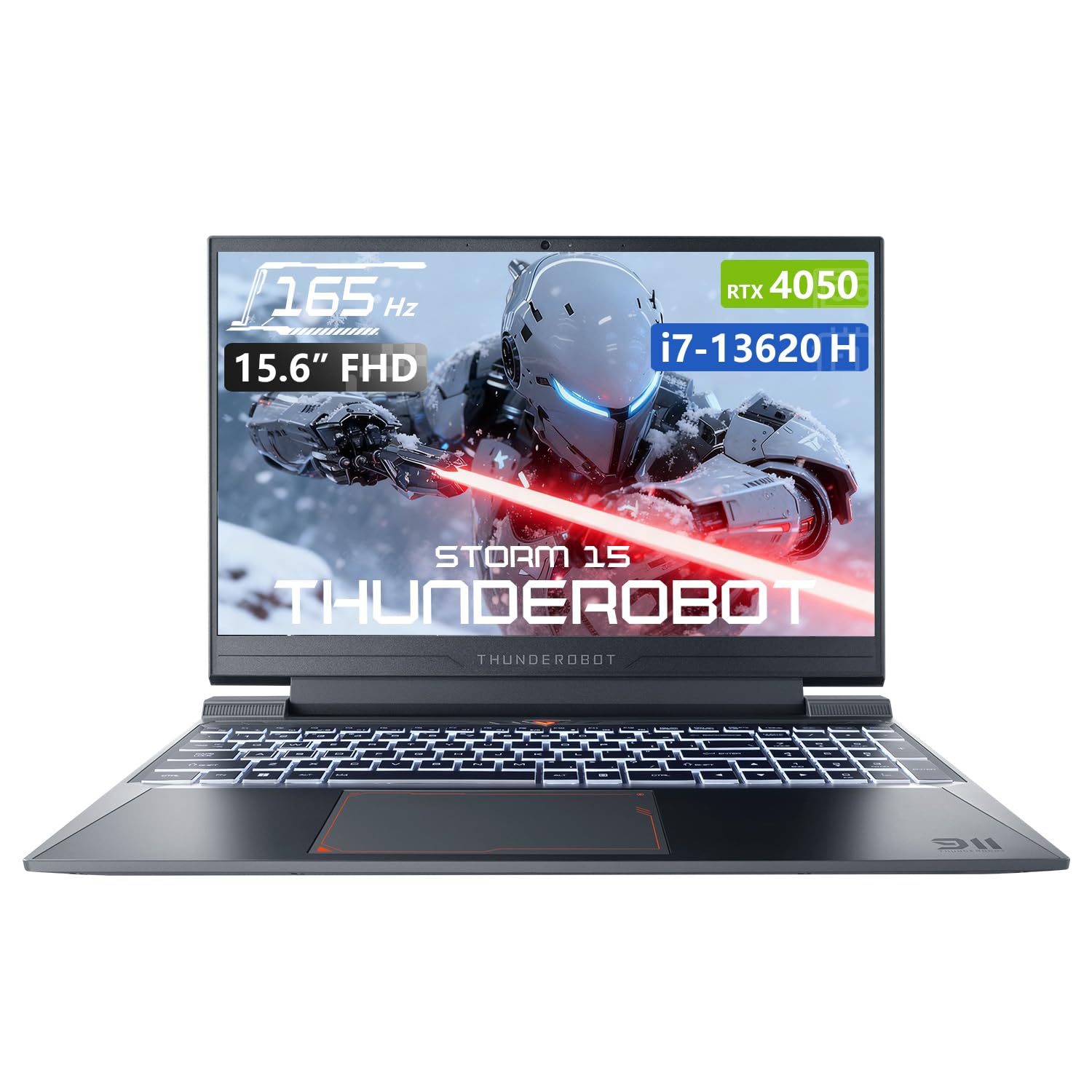
Image: The Thunderobot Storm 15 4050 Gaming Laptop, showcasintōna hoahoa huatau me te papapātuhi whakamārama-muri.
2. Tatūnga
2.1 Hiko Tuatahi
- Wewete: Tangohia marietia te pona me ngā taputapu katoa i roto i te takai.
- Hono Hono: Monohia te urutau AC ki te putanga hiko o te pona, kātahi ki te putanga pakitara.
- Whakahiko: Whakatuwheratia te taupoki o te pona ka pēhi i te pātene mana, kei runga ake i te papapātuhi, kei te taha rānei.
- Tatūnga Tuatahi: Whāia ngā tohutohu kei te mata hei whakaoti i te tatūnga Kāinga Windows 11, tae atu ki te reo, te rohe, te hononga whatunga, me te waihanga pūkete kaiwhakamahi.
2.2 Hononga Pikitia
He maha ngā tauranga kei tō pona hei hono atu i ngā taputapu o waho.

Image: Diagram illustrating the various ports and slots available on the Thunderobot Storm 15 laptop.
- Pūrere USB: Connect USB mice, keyboards, external drives, or other peripherals to the USB 3.1 Type-A ports or the USB 3.1 Gen 2 Type-C port.
- Whakaaturanga a-Waho: Use the HDMI port to connect an external monitor or TV.
- Whatunga: Mō te hononga ipurangi waea pumau, monohia he taura Ethernet ki te tauranga RJ-45.
- Ororongo: Connect headphones or external speakers to the 3.5mm Combo Jack.
3. Whakahaere i to Pona
3.1 Whakaaturanga Whakaaturanga
The 15.6-inch Full HD display offers a 165Hz refresh rate for smooth visuals and 100% sRGB color gamut for accurate color reproduction. DC dimming technology helps reduce screen flickering.
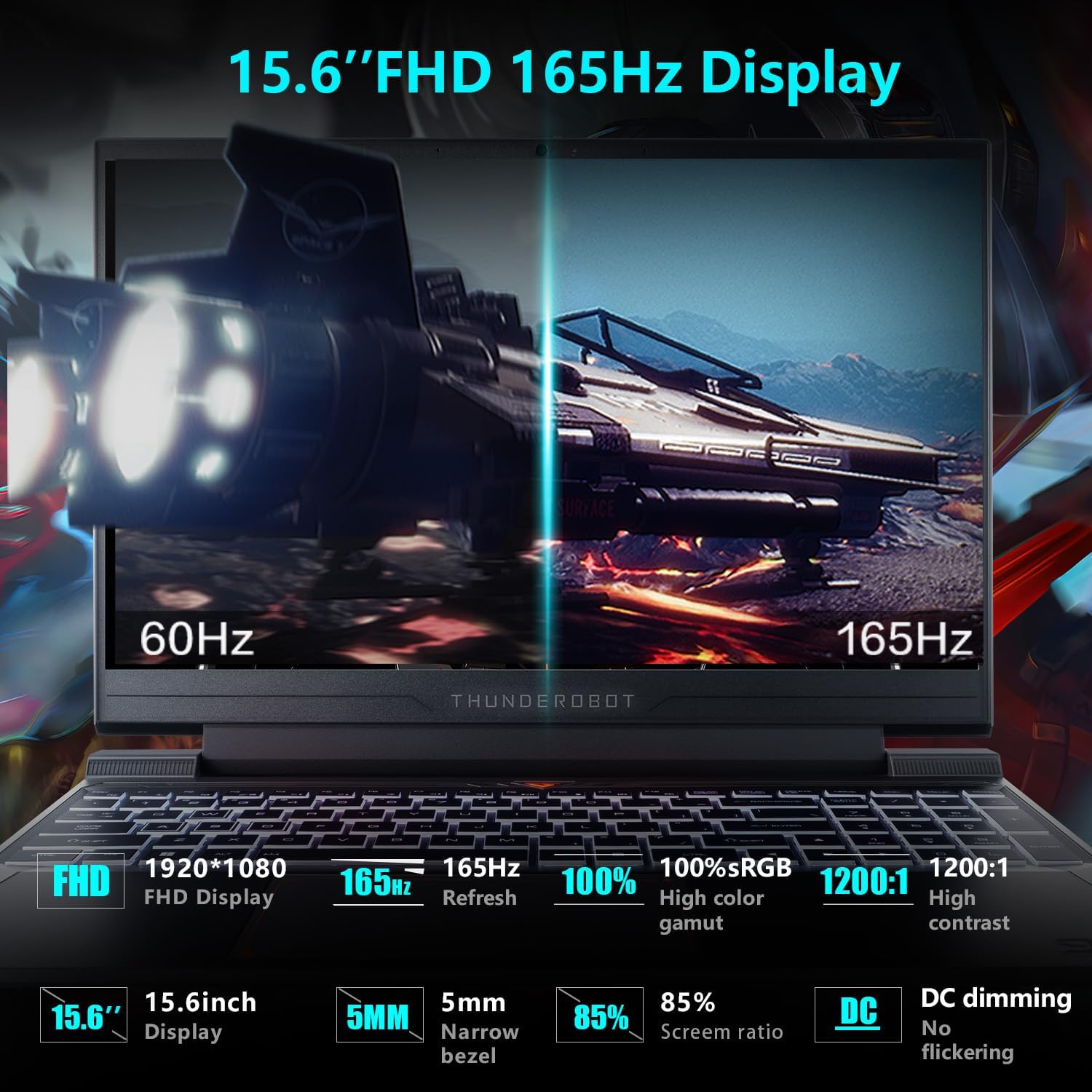
Image: Close-up of the 15.6-inch Full HD 165Hz display, highlighting its smooth motion capabilities.
3.2 Papapātuhi me te Papapātuhi
The full-size backlit keyboard includes a numeric keypad for enhanced productivity and gaming. The anti-fingerprint surface helps maintain a clean appearance.
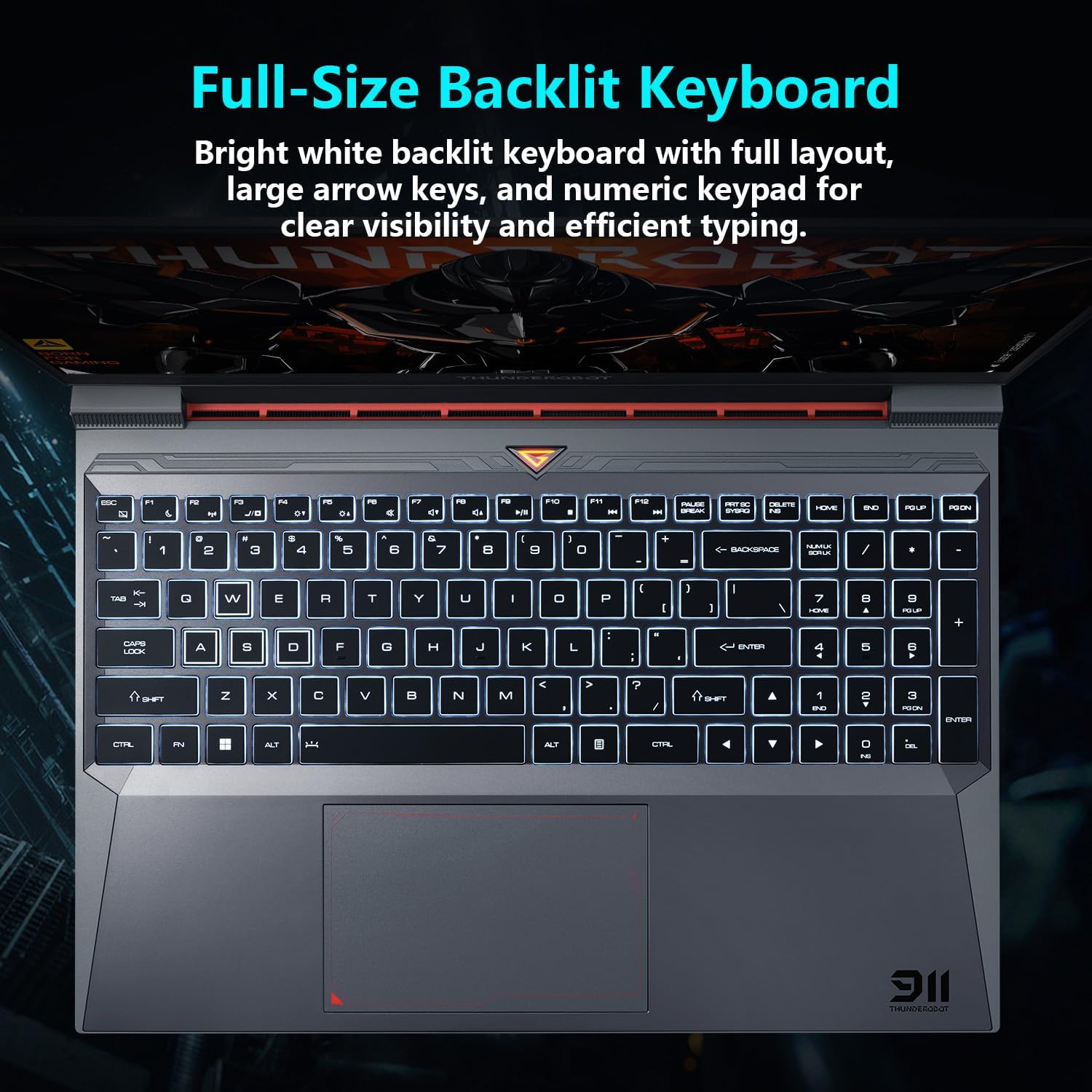
Atahanga: View of the full-size backlit keyboard with its bright white backlighting and numeric keypad.
3.3 Pūnaha Ororongo
Experience immersive sound with the laptop's professional sound certification and high-specification speaker design.
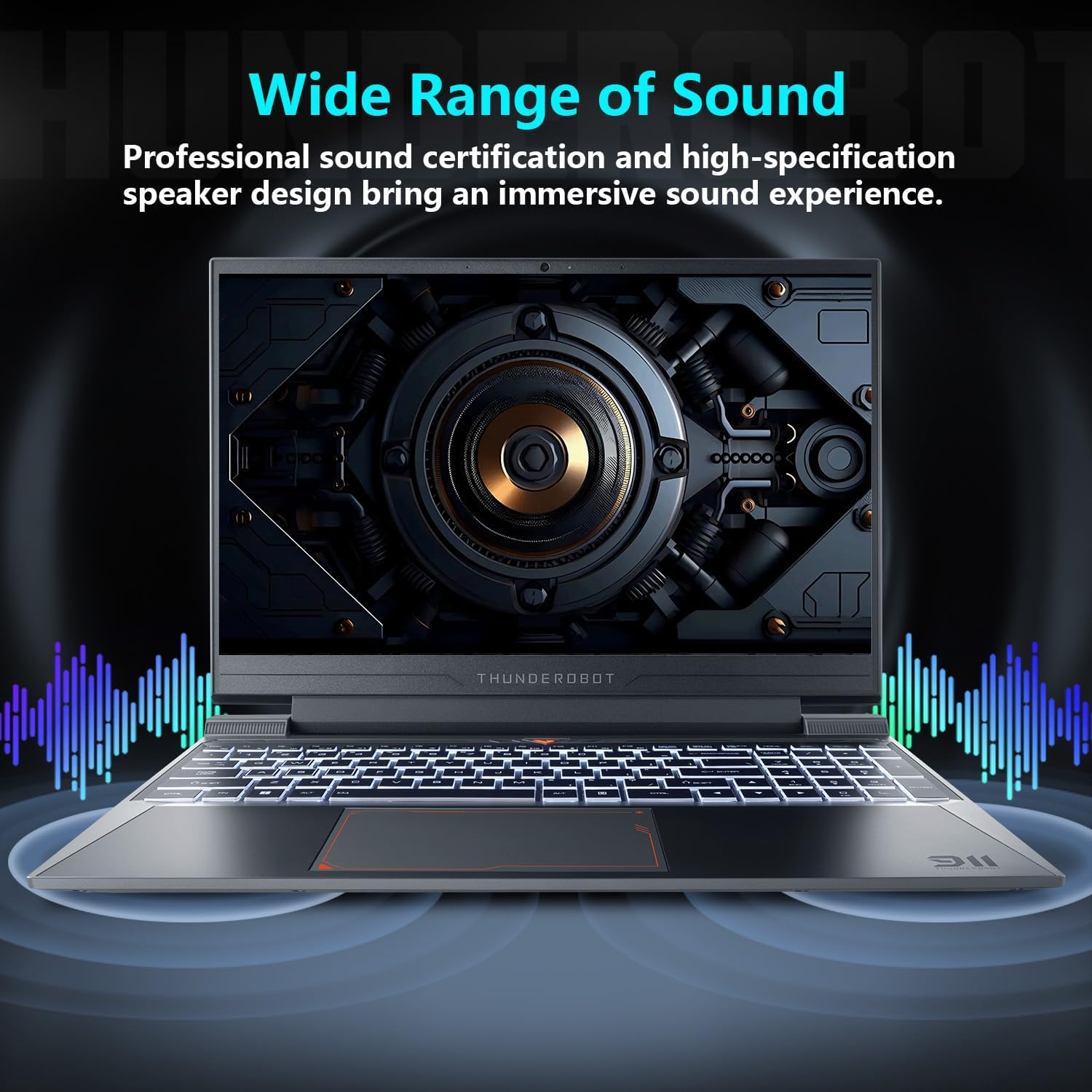
Image: Laptop displaying sound waves, illustrating its wide range of sound capabilities.
3.4 Pūnaha whakamatao
The Advanced Frost Cooling System features multi-heat-pipe design (10mm/8mm composite pipes), a high-pressure turbine fan with 80 ultra-thin LCP blades, and 126 dense copper fins (28,000mm²) to ensure efficient heat dissipation. This design keeps critical components cool during intensive use.
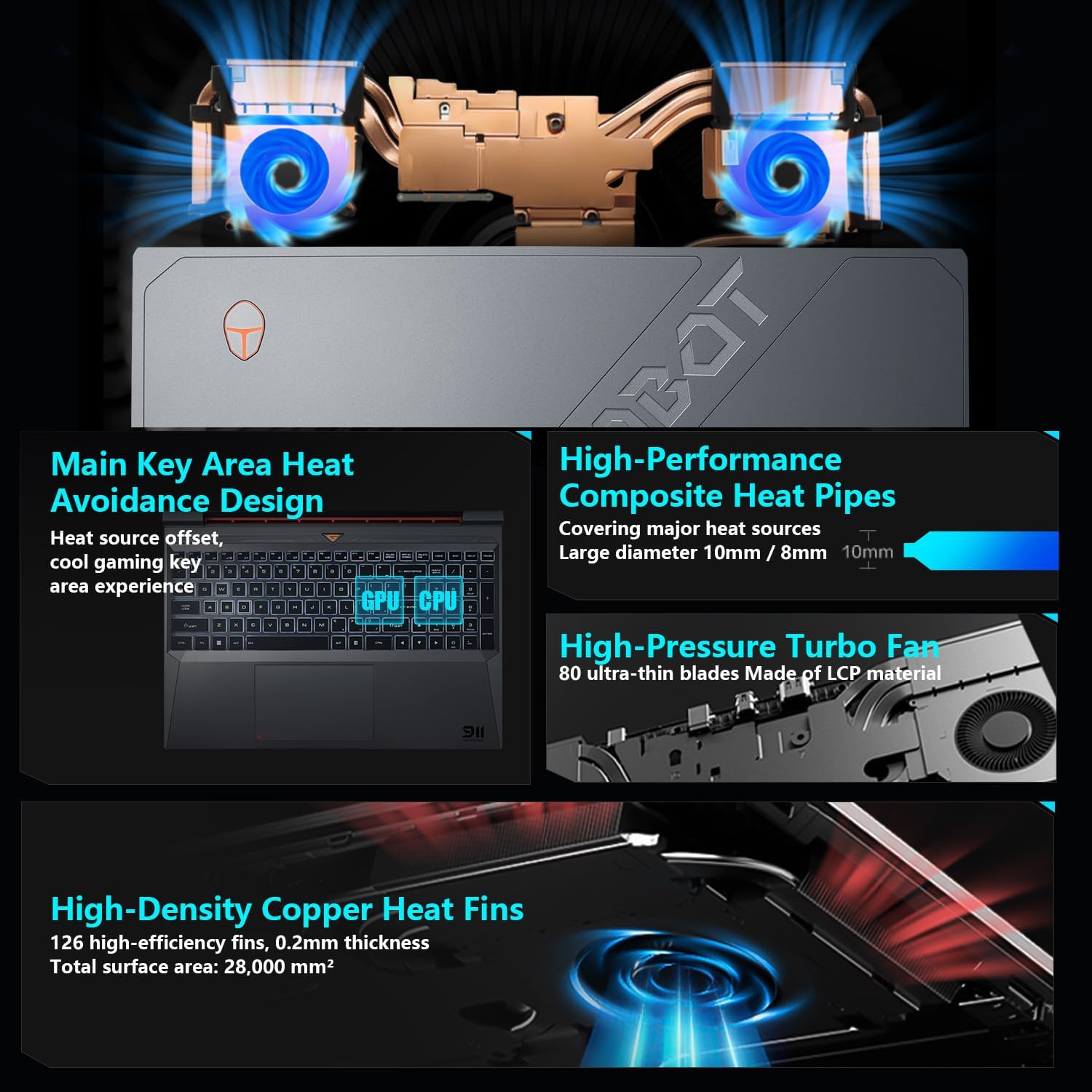
Image: Diagram showing the internal cooling system with heat pipes, fans, and copper fins.
3.5 Control Center Software
The Control Center software allows you to adjust and switch between various performance modes (e.g., Berserk mode, Game mode, Audio and Video Office mode) and customize fan speed and lighting settings. Access it by typing "Control Center" in the Windows search bar or using designated function keys.

Image: Screenshots of the Control Center software interface, showing options for performance modes, fan adjustment, and lighting controls.
4. Tiaki
4.1 Te horoi
- Mata: Whakamahia he kakahu ngohengohe, kore karekau damphoroia ki te wai, ki te kaihoroi mata rānei. Āta karohia ngā matū kino.
- Papapātuhi me te Chassis: Use a soft cloth to wipe surfaces. Compressed air can be used to clear dust from between keys and vents.
- Putanga: Regularly check and clean the cooling vents to prevent dust buildup, which can hinder airflow and performance.
4.2 Whakahōu Pūmanawa
Keep your operating system and drivers updated to ensure optimal performance and security. Windows Update will handle OS updates, and you can check the Thunderobot support website for the latest driver versions for your specific model.
5. Te Raru
5.1 Nga take noa
- Kāore te pona e whakakā ana: Ensure the AC adapter is securely connected to both the laptop and a working power outlet. Check if the power button is functioning correctly.
- Te wera nui: Ensure cooling vents are not blocked. Use the Control Center to adjust fan speeds. Consider using the laptop on a hard, flat surface to improve airflow.
- Whakaatu take: If the screen is blank, try connecting an external monitor to check if the issue is with the laptop's display or the graphics output. Update graphics drivers.
- Mahinga puhoi: Check for background applications consuming resources. Ensure sufficient free storage space. Run a malware scan.
- Kāore i kitea ngā āhuatanga taha: Ensure the peripheral is correctly plugged into the appropriate port. Try a different port or restart the laptop. Update relevant drivers.
5.2 Whakapā Tautoko
If you encounter issues that cannot be resolved using this guide, please refer to the Thunderobot official support channels for assistance.
6. Whakatakotoranga
| Āhuahira | Taipitopito |
|---|---|
| Te rahi o te whakaaturanga whakaatu mata tu | 15.6 Inihi |
| Whakatau Mata | 1920 x 1080 pika |
| Taumira Mata Max | 1920x1080 Pika |
| Tukatuka | Intel Core i7-13620H (4.9 GHz max turbo) |
| RAM | 32 GB DDR4 (3200 MHz) |
| Puku Maama | 1 TB SSD (PCIE x 4) |
| Kaitukatuka Whakairoiro | NVIDIA GeForce RTX 4050 Pona GPU |
| Momo Ahokore | 802.11ax, Nihokikorangi |
| Te maha o nga Tauranga USB 3.0 | 3 |
| Pūnaha Mahi | Windows 11 Home |
| Taumaha Tūemi | 12 pauna |
| Hunga Hua | 14.12 x 10.14 x 0.94 inihi |
| Tae | Pango |
| Āhuahira Motuhake | Papapātuhi Whakamuri, Papapātuhi Tau |

Image: Performance benchmarks comparing the RTX 4050 and Intel Core i7-13620H against previous generations.
7. Pūtāhui me te Tautoko
Every Thunderobot laptop includes a 12-marama whakamana, offering expert support, thorough diagnostics, and genuine parts if a repair is needed. Additionally, a 90-ra whakamana is provided on all warranty replacement parts, ensuring hassle-free repairs. Your complete satisfaction is our commitment.
For further support, please visit the official Thunderobot webpaetukutuku, whakapā atu ranei ki ta raatau ratonga kaihoko.
Ataata: Kua mutuview of the Thunderobot Storm 15 Laptop, showcasing ona ahuatanga me ona hoahoa.