
Qubo T-106
Qubo T-106 Tablet User Manual
Tauira: T-106
1. Kupu Whakataki
Thank you for choosing the Qubo T-106 Tablet. This manual provides essential information for setting up, operating, maintaining, and troubleshooting your device. Please read it carefully before using your tablet to ensure optimal performance and safety.
The Qubo T-106 is a versatile 10.1-inch tablet featuring an Octacore processor, Android 12 operating system, 6GB RAM, and 128GB internal storage. It supports 4G connectivity, Wi-Fi, and Bluetooth 5, making it suitable for various tasks from entertainment to productivity.
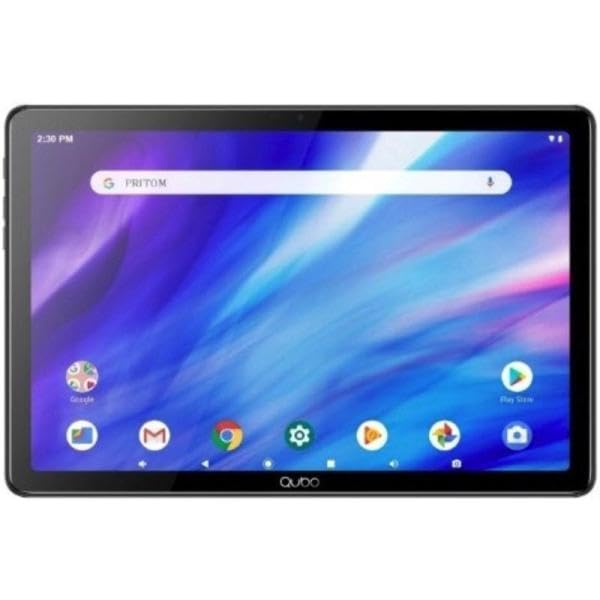
Whakaahua 1.1: Mua view of the Qubo T-106 Tablet, showcasinme tōna mata 10.1-inihi.
2. Nga korero haumaru
To prevent damage to your device or injury to yourself and others, please observe the following safety precautions:
- Kaua e whakaaturia te papa ki ngā pāmahana tino tiketike, ki te rā tika, ki te haumākū tiketike rānei.
- Kaua e tukua te papa kia taka, kia tukua rānei kia pāngia e te kaha.
- Use only Qubo-approved chargers and accessories.
- Do not attempt to disassemble or repair the tablet yourself. Refer to qualified service personnel.
- Puritia te papa kia matara atu i te wai me ētahi atu wai.
- Makahia te papahiko me tōna pākahiko me te whakaaro nui, kia rite ki ngā ture ā-rohe.
3. He aha kei roto i te Pouaka
Upon unpacking your Qubo T-106 Tablet, please ensure all items are present:
- Qubo T-106 Tablet
- Pukapuka Tohutohu (tenei tuhinga)
- USB-C Cable or Connector
If any items are missing or damaged, please contact your retailer or Qubo customer support.
4. Tatūnga
4.1 Te Whakataki i te Papa
Before first use, fully charge your tablet. Connect the provided USB-C cable to the tablet's USB-C port and the other end to a compatible power adapter (not always included) or a computer's USB port.
- Ka marama te tohu utu.
- He 3-4 haora te roa o te utu katoa.
4.2 Kei te Hiko / Weto
- Hei Whakahiko: Press and hold the Power button (usually located on the side or top edge) until the Qubo logo appears on the screen.
- Hei Whakaweto: Patohia me te pupuri i te paatene Mana kia puta ra ano te tahua whiringa hiko. Tīpakohia "Power off" ka whakaū.
- Hei Tīmata anō: Mai i te tahua kōwhiringa mana, tīpako "Tīmata anō" ka whakaū.
4.3 Ruānuku Tatūnga Tuatahi
The first time you power on your tablet, an on-screen setup wizard will guide you through:
- Te whiriwhiri reo
- Hononga whatunga Wi-Fi
- Te takiuru, te waihanga rānei i te pūkete Google
- Tautuhinga ra me te wa
- Security settings (PIN, pattern, password)
4.4 Inserting SIM/MicroSD Card (Optional)
If your model supports 4G connectivity or expandable storage, locate the SIM/MicroSD card tray on the side of the tablet. Use the provided ejector tool to open the tray. Insert the Nano-SIM card and/or MicroSD card (up to 128GB, check specifications for exact maximum) into the designated slots with the gold contacts facing down. Gently push the tray back into the tablet.
5. Te whakahaere i to Papa
5.1 Whakaterenga Taketake
- Pa: Patohia tetahi ata hei whakatuwhera i tetahi taupānga, hei kowhiri ranei i tetahi mea.
- Pa me te pupuri: Press and hold an item to access contextual menus or move icons.
- Swipe: Tōia tō maihao puta noa i te mata hei panuku i roto i ngā whārangi, i ngā rārangi rānei.
- Tiki: Whakamahia nga maihao e rua ki te topa ki roto, ki waho ranei i nga whakaahua me te web wharangi.
5.2 Te hono ki Wi-Fi
- Haere ki Tautuhinga > Whatunga me te ipurangi > Wi-Fi.
- Takahuri Wi-Fi On.
- Tīpakohia te whatunga e hiahia ana koe mai i te rarangi.
- Whakauruhia te kupuhipa mēnā ka tonoa, ka pāwhiri Tūhono.
5.3 Using 4G Data (if applicable)
Me whakarite kua whakauruhia he kaari SIM whaimana. Haere ki Tautuhinga > Whatunga me te ipurangi > Whatunga pūkoro. Whakahohe Raraunga pūkoro. You may need to configure APN settings provided by your mobile carrier.
5.4 Te Mahi Whakaata
Whakatuwheratia te taupānga Kāmera mai i te mata kāinga, i te pouaka taupānga rānei.
- Patohia te paatene kati hei tango whakaahua.
- Tap the video icon to switch to video recording.
- Use the switch icon to toggle between the front (5MP) and rear (8MP) cameras.
6. Tiaki
6.1 Te horoi i te Papa
Use a soft, lint-free cloth to clean the screen and body of the tablet. Do not use liquid cleaners, aerosols, or abrasive materials, as these can damage the screen or finish.
6.2 Whakahōu Pūmanawa
Tirohia i ia wā mō ngā whakahōunga pūmanawa kia mōhio ai kei tō papahiko ngā āhuatanga hou me ngā papaki haumarutanga. Haere ki Tautuhinga > Pūnaha > Whakahoutanga o te punaha.
6.3 Tiaki Pūhiko
- A ape i te tino tuku i te pākahiko i nga wa katoa.
- Kaua e waiho te papahiko kia utua mō te wā roa i muri i te utunga katoa.
- Mena kāore e whakamahia ana mō te wā roa, rongoatia te papahiko ki te wāhi hauhautanga, maroke, me te whakapau kaha o te pākahiko ki te 50%.
7. Te Raru
| Raruraru | Rongoa pea |
|---|---|
| Kaore te papa e huri ki runga. | Kia tino utua te pākahiko. Honoa te rihi ka tatari mō ētahi meneti i mua i te ngana ki te whakakā anō. Ki te kore e aro mai, me whakaoho anō mā te pēhi tonu i te pātene mana mō te 10-15 hēkona. |
| Kaore e taea te hono ki Wi-Fi. | Check if Wi-Fi is enabled in settings. Ensure you have the correct password. Restart your Wi-Fi router and the tablet. Try connecting to a different Wi-Fi network to isolate the issue. |
| Kei te takataka, kei te mīti ranei nga taupānga. | Katia ka whakatuwheratia ano te taupānga. Ūkuia te keteroki me ngā raraunga o te taupānga Tautuhinga > Taupānga. Update the app to the latest version. If the problem persists, uninstall and reinstall the app. |
| Te mahi puhoi. | Katia ngā taupānga kāore i whakamahia. Whakakorehia te keteroki me te wā poto files. Free up storage space by deleting unnecessary files or apps. Restart the tablet. Consider a factory reset as a last resort (back up your data first). |
| Ka tere te pau o te pākahiko. | Reduce screen brightness. Disable Wi-Fi, Bluetooth, GPS, and 4G when not in use. Close background apps. Check battery usage in Tautuhinga > Pūhiko ki te tautuhi i nga taupānga hiakai. |
8. Whakatakotoranga
| Āhuahira | Taipitopito |
|---|---|
| Tauira | Qubo T-106 (T106 128GB) |
| Whakaatu | 10.1 inches IPS, 1280x800 resolution |
| Tukatuka | MT8788 Octacore, 3.4 GHz (max speed) |
| Pūnaha Mahi | Android 12 |
| RAM | 6GB |
| Rokiroki Roto | 128GB |
| Rokiroki Whakawhanui | MicroSD (capacity not specified, typically up to 128GB or 256GB) |
| Kāmera Whakamuri | 8 Megapixels (Autofocus) |
| Kāmera Mua | 5 Megapixels (Fixed Focus) |
| Hononga | 4G (B1/B3/B7/B8/B20), Wi-Fi 802.11n (2.4G/5G), Bluetooth 5, FM, GPS, GLONASS, A-GPS |
| Pūhiko | 6000 mAh Lithium-ion, 12 hours average battery life |
| Tauranga Whakatau | USB-C |
| Ahu | 15 x 15 x 20 cm |
| Taumaha | 1.1 kg |
9. Pūtāhui me te Tautoko
9.1 Nga Korero Whakaputanga
The Qubo T-106 Tablet comes with a pūtāhui toru tau mō ngā hapa hangahanga mai i te rā i hokona ai. Ka hipokina e tēnei pūtāhui ngā hapa o ngā rauemi me te mahi toi i raro i te whakamahinga noa. Kāore e hipokina ngā kino i puta mai i te whakamahi hē, ngā aituā, ngā whakarerekētanga kāore i whakamanahia, te kakahu me te haehae noa rānei.
Tena koa pupurihia to tohu mo te hoko mo nga kereme whakamana.
9.2 Tautoko Kiritaki
For technical assistance, warranty claims, or further inquiries, please contact Qubo customer support through your retailer or visit the official Qubo webpae mo nga korero whakapiri.
Note: Contact information may vary by region. Please refer to your product packaging or the Qubo official webpae mo nga korero tautoko tino hou.
Tuhinga e pa ana - T-106
 |
Pukapuka Kaiwhakamahi mō te Qubo Dashcam 4G Live He pukapuka kaiwhakamahi whānui mō te Qubo Dashcam 4G Live, e kapi ana i te tāutanga, te whakarite, te whakamahinga o te taupānga, ngā āhuatanga, te rapurongoā, me ngā mōhiohio pūtāhui. |
 |
Qubo QBOOK 4K DashCam User Manual - Features, Installation, and Specifications Comprehensive user manual for the Qubo QBOOK 4K DashCam (Model HCA04). Learn about its features, installation process, app connectivity, safety precautions, troubleshooting, and warranty information. |
 |
Qubo 4K DashCam Pukapuka Kaiwhakamahi me te Aratohu Hua He aratohu matawhānui ki te Qubo 4K DashCam, e hipoki ana i nga ahuatanga hua, nga whakaritenga, te whakaurunga, te whakamahinga taupānga, te rapu raruraru, me nga korero whakamana. |
 |
Qubo Dashcam Pro 2.7K: User Manual, Features, Installation, and Specifications Comprehensive guide for the Qubo Dashcam Pro 2.7K, covering its features, installation, app usage, troubleshooting, and warranty information. Enhance your driving safety with this smart car camera. |
 |
Qubo Smart Air Purifier Q600 Aratohu Timata Tere He aratohu poto mo te whakarite me te whakamahi i to Qubo Smart Air Purifier Q600, e whakaatu ana i te hangarau QSensAI, e wha-paparanga tātari, me te whakahaere taupānga. |
 |
Qubo R700 Smart Air Purifier Quick Start Guide A quick start guide for the Qubo R700 Smart Air Purifier, covering product overview, filter setup, optimal placement, and app connectivity. |
Ask a question about this manual
Ask about setup, troubleshooting, compatibility, parts, safety, or missing instructions. Manuals+ will review the question and use this page’s manual context to help answer it.