
1. Kupu Whakataki me Nekeview
This manual provides detailed instructions for setting up and using your Rapoo Blade-Series E9310M Wireless Keyboard and M300G Silent Mouse Combo. This combo offers multi-device connectivity and a compact design for enhanced productivity across various operating systems.
Āhuatanga matua:
- Compact Wireless Combo: Features a 99-key layout with number pad and arrow keys, paired with a silent mouse with side buttons. This design optimizes typing and browsing efficiency while occupying 20% less space.
- Multi-Device and Multi-OS Support: Connects to up to 4 devices across Windows, Mac OS, and Linux via Bluetooth 5.0/4.0 and a plug-and-play USB receiver.
- Fluid Typing Experience: Laptop-like profile with incurve rounded keys ensures a fast, fluid, precise, and quiet typing experience.
- 5-DPI Adjustable Silent Mouse: The M300G mouse offers good portability and ergonomics, with 5 preset DPI levels (800/1000/1200/1600/2400) for smooth tracking.
- Pātuhi Rongorau: Supports Windows and Mac OS dual system shortcuts for 12 common functions like play/pause and volume control.
- Aesthetic and Durable Design: Constructed with an aluminum alloy frame and a matte antioxidant finish for a delicate texture and enhanced durability.
- Refined Details: Includes device and capitalization indicator lights for improved user awareness and an upgraded Bluetooth 5.0/4.0 for extended battery life.
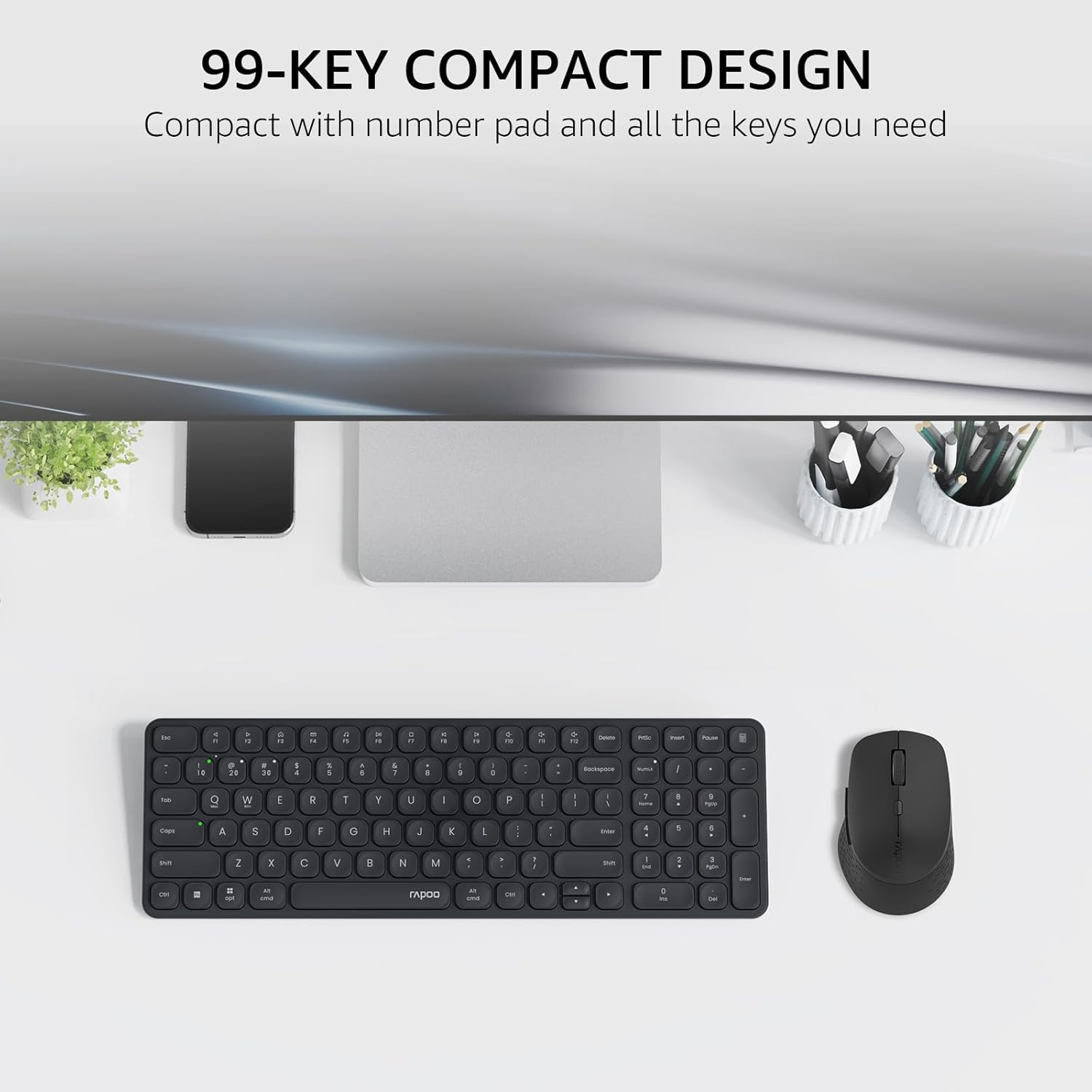
Image: The Rapoo E9310M keyboard and M300G mouse combo, showcasing its compact design on a desk.
2. Tohutohu Tatūnga
2.1 Tāuta Pūhiko
The keyboard and mouse require AAA batteries. Two AAA batteries are included with the product.
- Kimihia te wāhanga pākahiko kei raro i te papapātuhi me te kiore.
- Whakatuwheratia te uhi o te wahanga pākahiko.
- Insert the AAA batteries, ensuring correct polarity (+/-).
- Katia kia mau te uhi o te wahanga pākahiko.
2.2 Te hono ki nga taputapu
Your Rapoo combo supports connection via 2.4GHz USB receiver or Bluetooth 5.0/4.0, allowing connection to up to 4 devices (3 via Bluetooth, 1 via 2.4GHz).
2.2.1 Hononga Kaiwhiwhi USB 2.4GHz
- Kimihia te kaiwhiwhi USB, e rongoatia ana i roto i te wāhanga pākahiko o te kiore.
- Monohia te kaiwhiwhi USB ki tetahi tauranga USB e waatea ana ki to rorohiko.
- Whakakāhia te papapātuhi me te kiore ma te whakamahi i o raatau hiko.
- The devices should automatically connect to your computer. If not, press the 2.4G pairing button on the keyboard/mouse (refer to device for exact button location).
2.2.2 Bluetooth Connection (for up to 3 devices)
- Whakakāhia te papapātuhi me te kiore.
- On the keyboard, press and hold one of the Bluetooth pairing keys (e.g., Fn + 1, Fn + 2, or Fn + 3) until the indicator light flashes, indicating pairing mode.
- I runga i tō pūrere (PC, papahiko, waea), haere ki ngā tautuhinga Nihokikorangi ka rapu i ngā pūrere hou.
- Select the Rapoo keyboard from the list and follow any on-screen prompts to complete pairing.
- Repeat steps 2-4 for the mouse, pressing its Bluetooth pairing button (usually on the underside) until its indicator flashes.
- To switch between paired Bluetooth devices, simply press the corresponding Bluetooth key (Fn + 1/2/3) on the keyboard or the Bluetooth switch on the mouse.
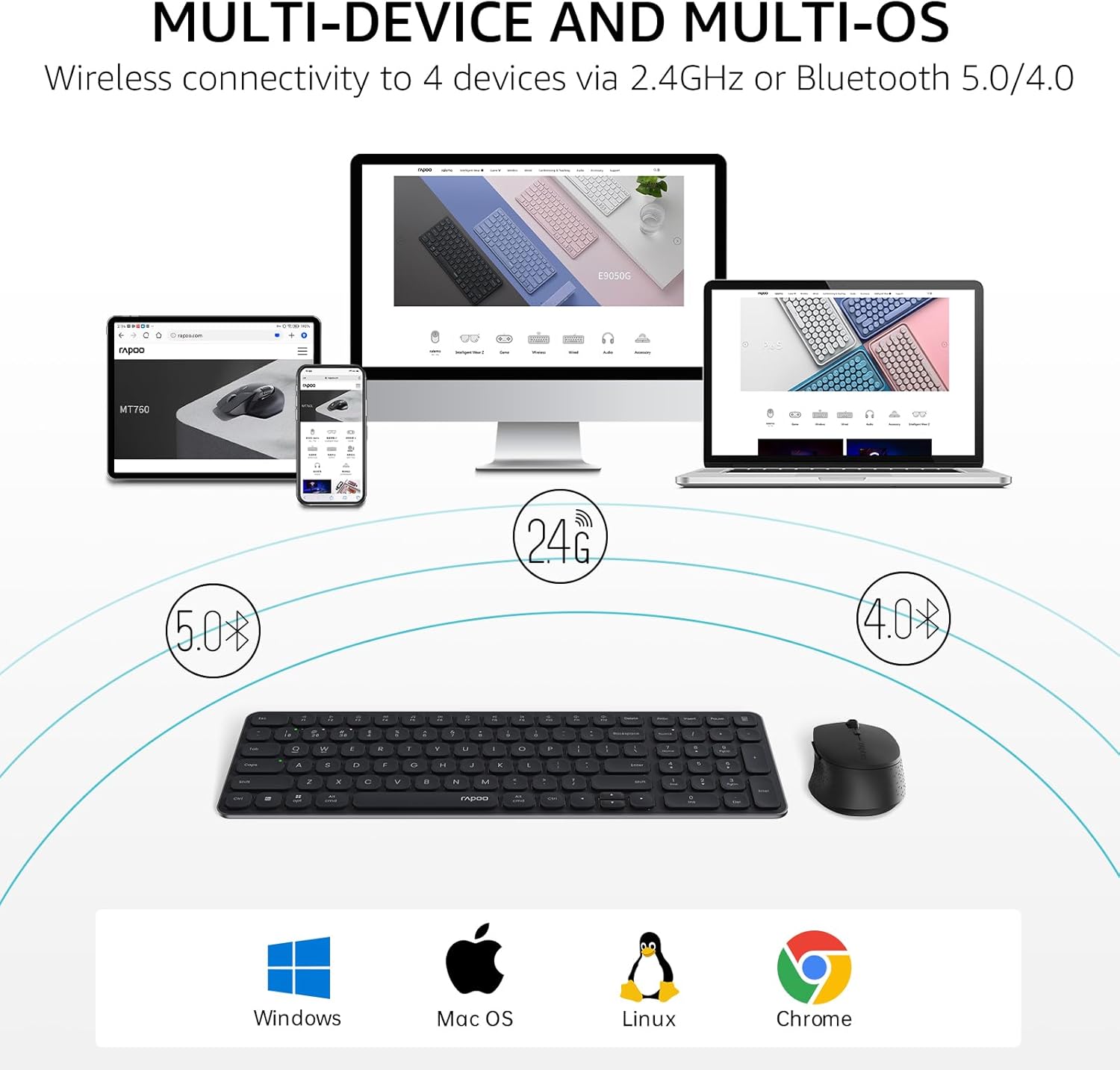
Image: The Rapoo keyboard and mouse combo connected to a desktop, laptop, tablet, and smartphone, illustrating its multi-device capability.
3. Nga Tohutohu Whakahaere
3.1 Nga Mahi Papapātuhi
The E9310M keyboard features a 99-key layout, including a number pad and dedicated arrow keys, designed for efficient input.
3.1.1 Pātuhi Rongorau
Access 12 widely used function keys by pressing the Fn key in combination with the corresponding F-keys (F1-F12). These shortcuts are compatible with both Windows and Mac OS.
- Fn+F1: Purei/Tatari
- Fn+F2: Kati
- Fn+F3: Tuhinga o mua
- Fn+F4: Riro Panuku
- Fn+F5: Wahangu
- Fn+F6: Rōrahi Whakararo
- Fn+F7: Rōrahi Whakarunga
- Fn+F8: Kimihia
- Fn+F9: Kainga
- Fn+F10: Mail
- Fn+F11: Taku Rorohiko
- Fn+F12: Makau
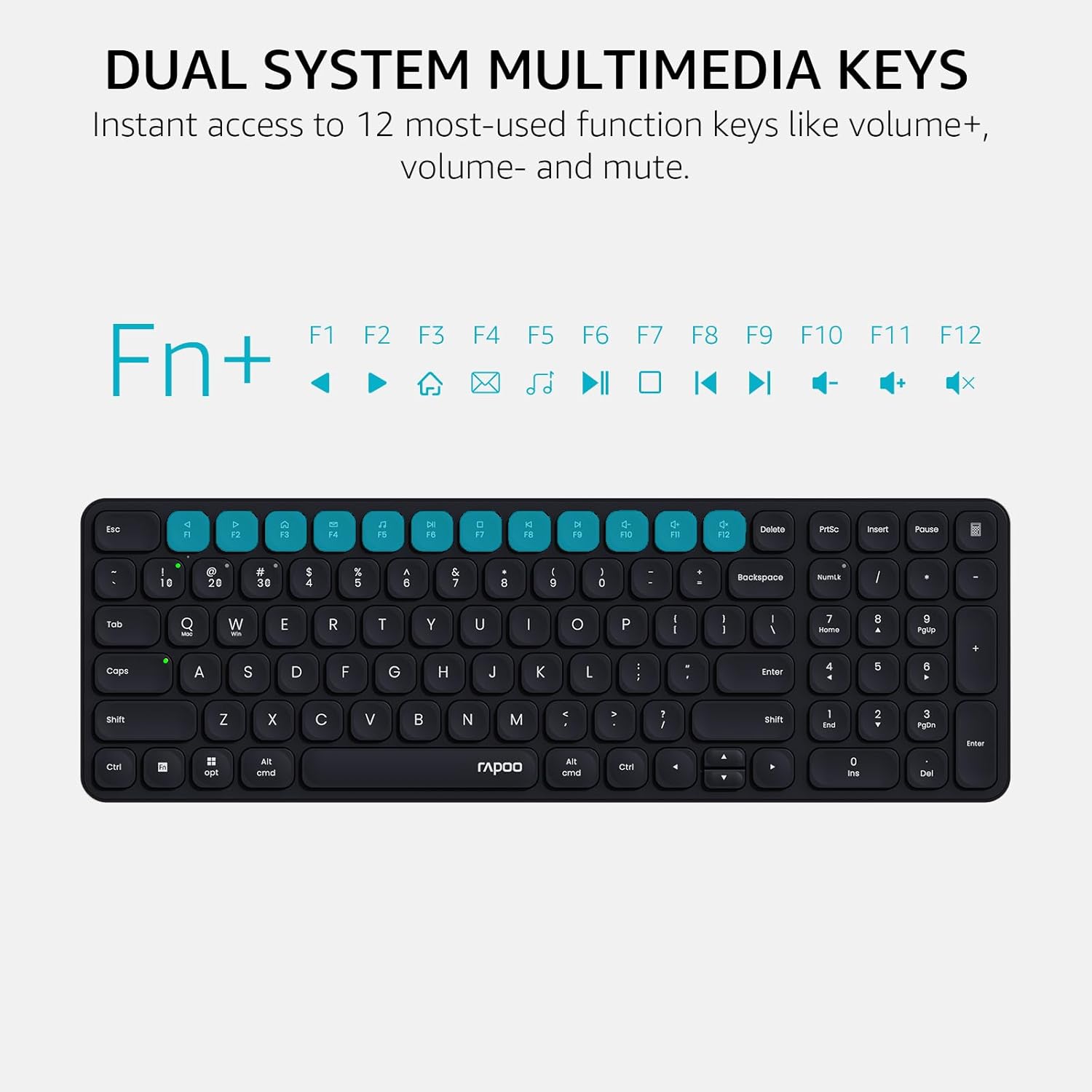
Image: Close-up of the Rapoo E9310M keyboard highlighting the multimedia function keys (F1-F12) and their corresponding icons.
3.1.2 Device and Capitalization Indicator Lights
The keyboard includes indicator lights to show which device is currently active and the status of the Caps Lock key.
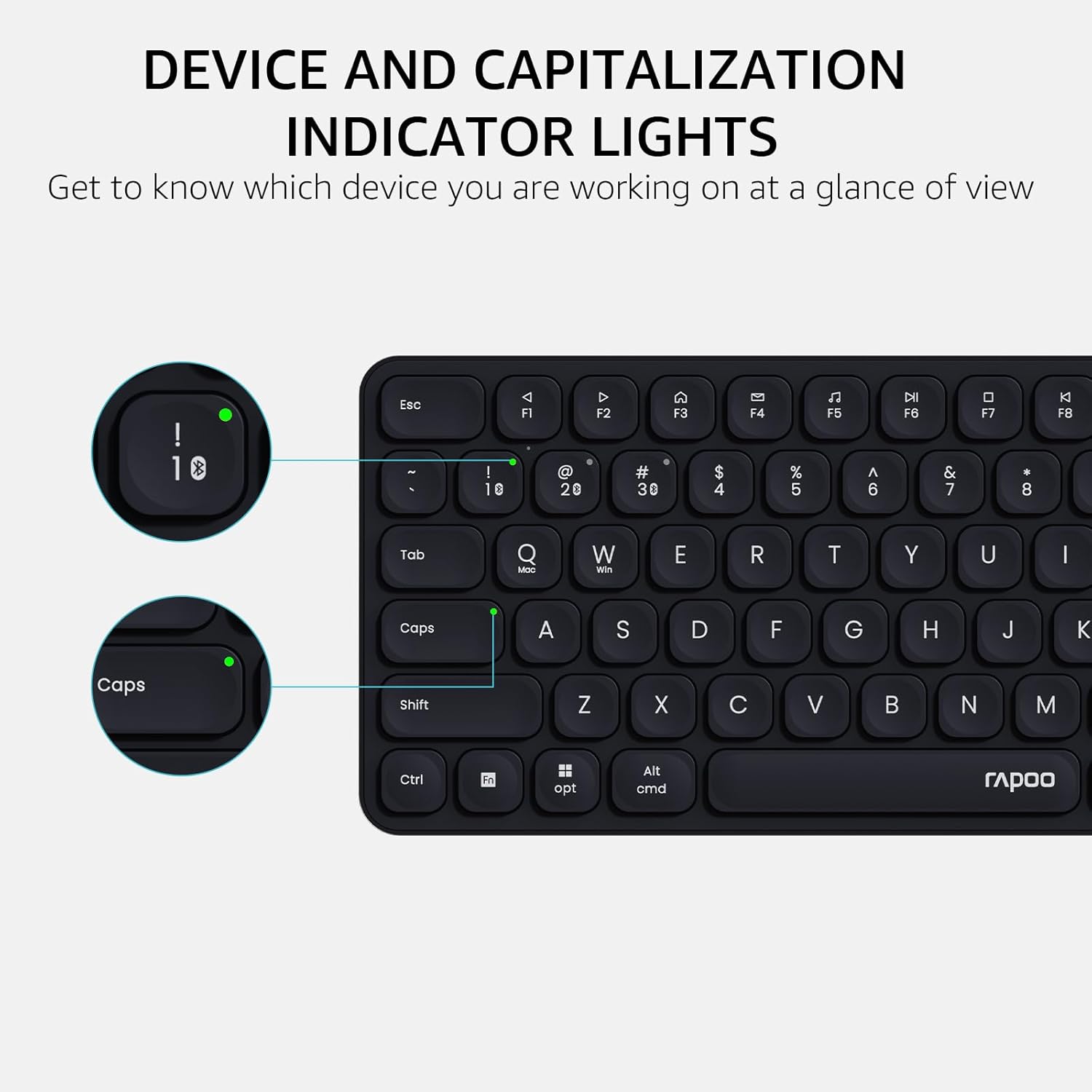
Whakaahua: He taipitopito view of the Rapoo E9310M keyboard, pointing out the indicator lights for device connection and Caps Lock status.
3.2 Nga Mahi Kiore
The M300G Silent Mouse provides precise control with adjustable DPI settings and a quiet click design.
3.2.1 Whakatikatika DPI
The mouse features 5 adjustable DPI levels (800/1000/1200/1600/2400) to suit different screen resolutions and user preferences. Press the DPI button (usually located near the scroll wheel) to cycle through the settings.
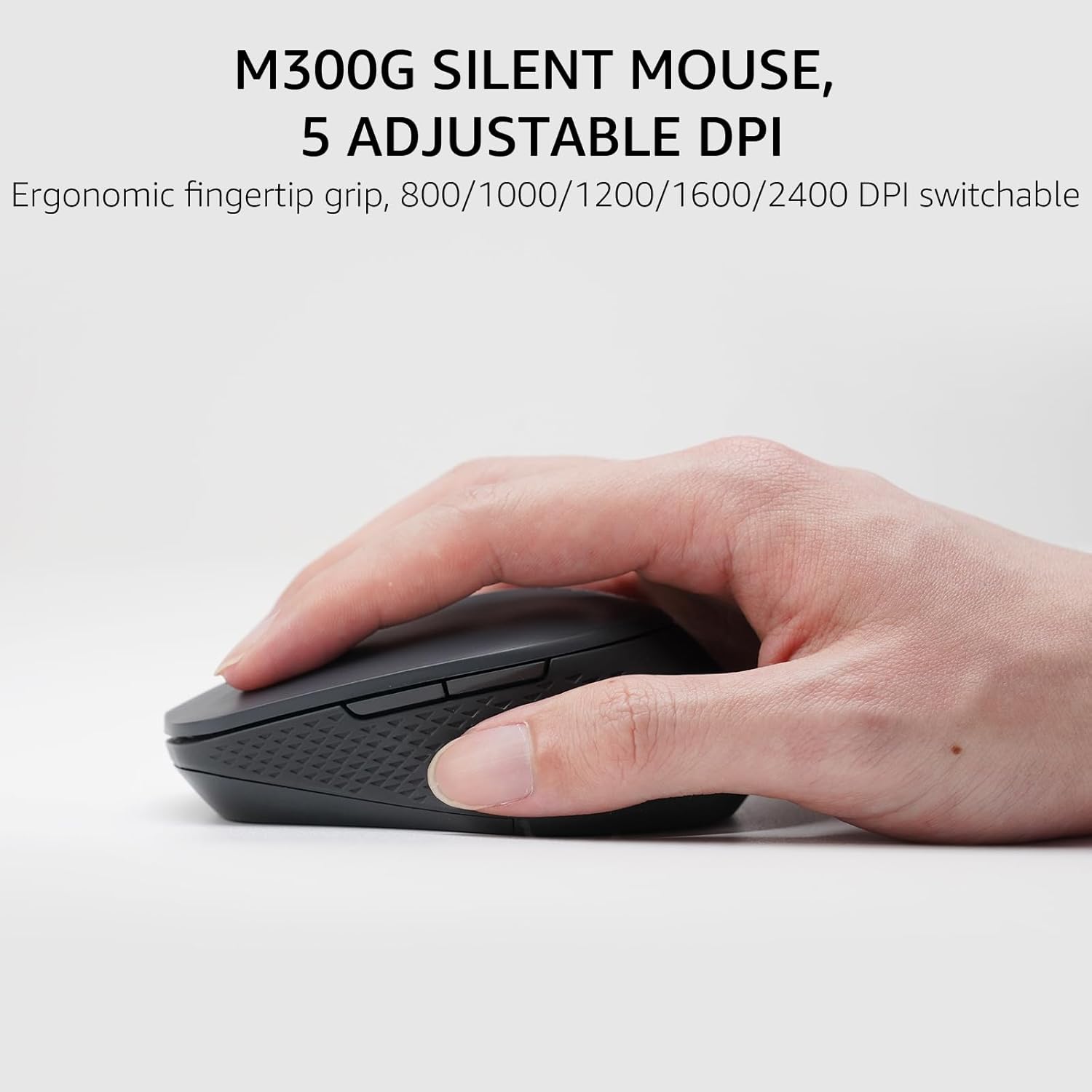
Image: The Rapoo M300G Silent Mouse, highlighting its ergonomic design and the DPI adjustment button.
4. Tiaki
4.1 Te horoi
- Whakamahia he kakahu ngohengohe, maroke hei horoi i ngā mata o te papapātuhi me te kiore.
- Mo te paru maro, paku dampHoroia te kakahu ki te wai, ki tētahi wai horoi ngawari rānei. Āta karohia te makuku nui.
- Kaua e whakamahia nga kai horoi, nga whakarewa, nga rehu aerosol ranei.
4.2 Whakakapinga Pūhiko
When the battery indicator light flashes or performance degrades, replace the batteries. The upgraded Bluetooth 5.0/4.0 technology extends battery life up to 12 months.
- Whakawetohia te taputapu.
- Whakatuwherahia te waahi pākahiko.
- Tangohia ngā pākahiko tawhito ka maka atu kia rite ki ngā ture ā-rohe.
- Whakauruhia ngā pākahiko AAA hou, me te tirotiro tonu i te polarity tika.
- Katia te waahanga.
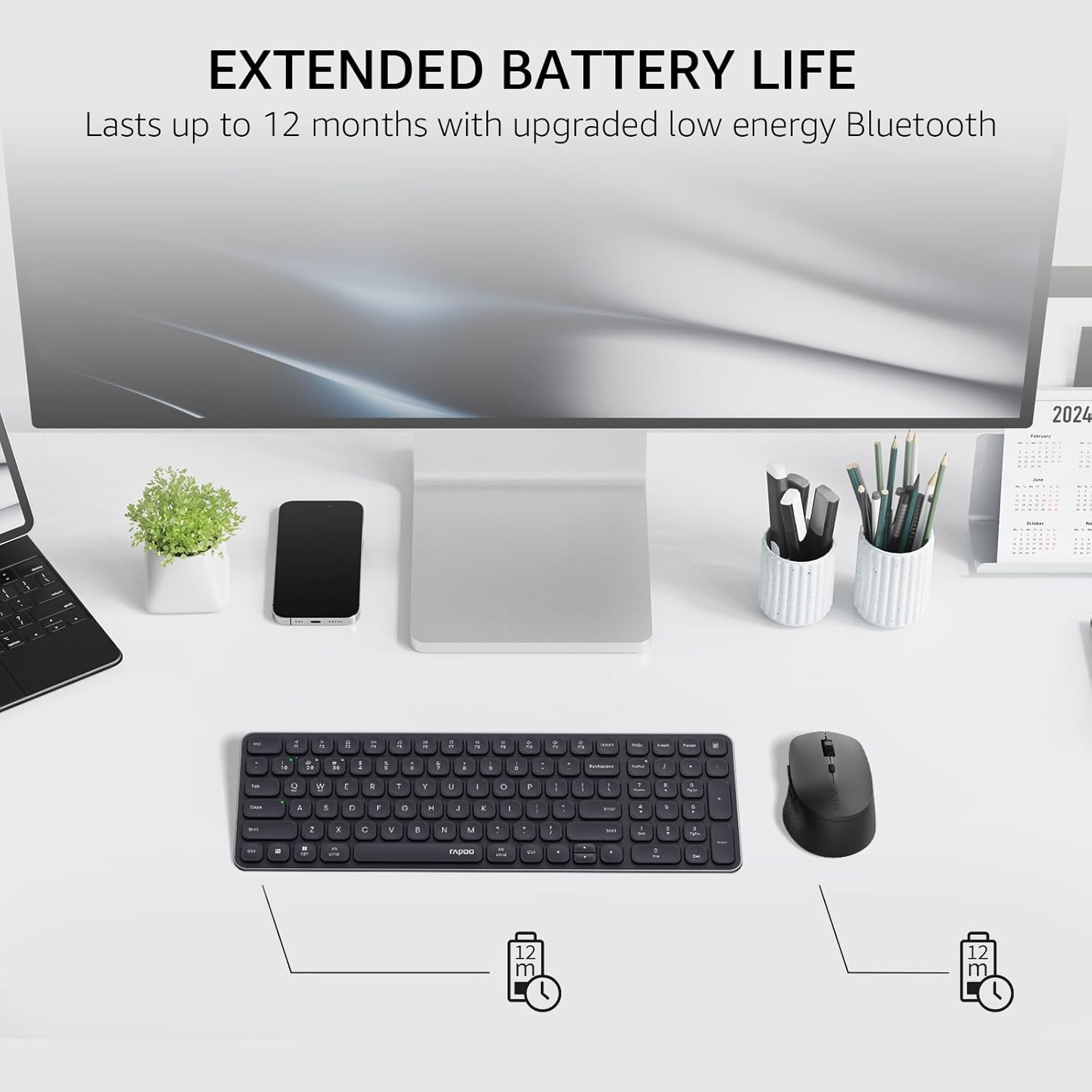
Image: The Rapoo keyboard and mouse on a desk, with an overlay indicating an extended battery life of up to 12 months.
5. Te Raru
5.1 Nga Take Hononga
- Kaore te taputapu e hono ana: Ensure the keyboard/mouse is turned on and in pairing mode (indicator light flashing). Check your device's Bluetooth settings to ensure Bluetooth is enabled and the correct Rapoo device is selected.
- Kāore i te pumau te hononga 2.4GHz: Ensure the USB receiver is securely plugged into a working USB port. Try a different USB port. Ensure no other wireless devices are causing interference.
- Bluetooth connection dropping: Ensure the devices are within the effective range (typically 10 meters/33 feet). Check battery levels. Remove and re-pair the device if issues persist.
5.2 Kāore te Papapātuhi/Kiore e Urupare
- No input: Check battery levels and replace if necessary. Ensure the correct connection mode (2.4GHz or Bluetooth channel) is selected on the keyboard/mouse.
- Kī kore e mahi: Horoi a tawhio noa nga taviri kua pa ki te tango i nga otaota.
- Mouse cursor erratic: Clean the mouse sensor. Ensure the mouse is used on a suitable surface. Adjust DPI settings if sensitivity is an issue.
6. Whakatakotoranga
| Āhuahira | Taipitopito |
|---|---|
| Waitohu | Rapoo |
| Model (Keyboard) | E9310m |
| Model (Mouse) | M300G |
| Tae | Pango |
| Hangarau Hononga | Bluetooth (5.0/4.0), Radio Frequency (2.4GHz) |
| Pūrere Hototahi | Laptop, Personal Computer (Windows, macOS, Linux, Chrome OS) |
| Tahora Papapātuhi | QWERTY, 99-Key with Number Pad |
| DPI kiore | 800/1000/1200/1600/2400 (Adjustable) |
| Puna Mana | Maamaa te Puhiko (2 nga pākahiko AAA kei roto) |
| Taumaha Tūemi | 393.2 Karamu |
| Kaihanga | Shenzhen Rapoo Technology Co., Ltd. |
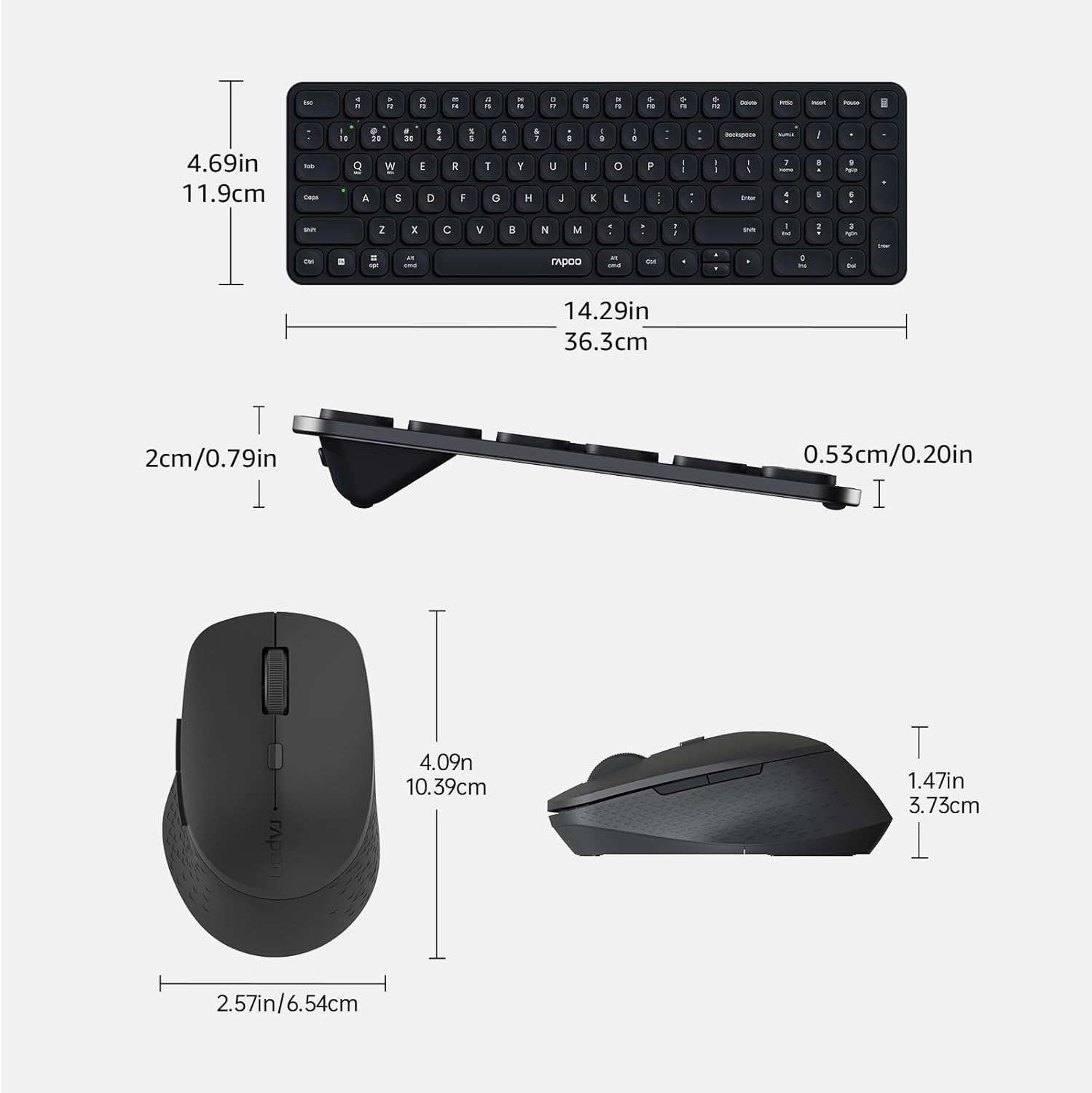
Image: Technical drawing showing the dimensions of the Rapoo E9310M keyboard and M300G mouse in inches and centimeters.
7. Pūtāhui me te Tautoko
7.1 Nga Korero Whakaputanga
Ka tae mai tenei hua me te 1-tau pūtāhui mai i te ra o te hokonga. Tena koa pupurihia to tohu mo te hoko mo nga kereme whakamana. Ka hipokina e te whakamana nga hapa hangahanga me nga mahi kino i raro i nga tikanga whakamahi noa.
7.2 Tautoko Kiritaki
For technical assistance, troubleshooting, or warranty inquiries, please contact Rapoo customer support. Refer to the official Rapoo webpaetukutuku, te takai hua rānei mō ngā mōhiohio whakapā hou.