
Kupu Whakataki
This manual provides detailed instructions for the setup, operation, and maintenance of your EMEET C60E 4K Webcam and EMEET HS50 Wired Headset. Please read this manual thoroughly before using the devices to ensure optimal performance and longevity.
Ka mutu te huaview
EMEET C60E 4K Webkamera
The EMEET C60E is a high-performance 4K webcam designed for clear video communication. It features advanced imaging and audio capabilities for professional and personal use.
- 4K Ultra HD Resolution: Delivers crisp 3840x2160 video at 30 frames per second.
- Arotahi Aunoa PDAF: Ensures sharp focus even with movement.
- Whakatikatika Maama Aunoa: Adjusts to various lighting conditions for optimal image quality.
- Ngā Hopuoro Whakakore-Haruru Takirua: Captures clear audio up to 8 feet, reducing background noise.
- 73° Marae o View (FOV): Provides a balanced perspective for individual or small group use.
- Mono USB & Purei: Kāore he taraiwa e hiahiatia ana mō te tāutanga.
- Uhi Matatapu: Integrated cover for enhanced privacy when not in use.

Image: The EMEET C60E 4K Webcam provides superior image quality, as shown by the clear 4K resolution compared to a blurred standard image.
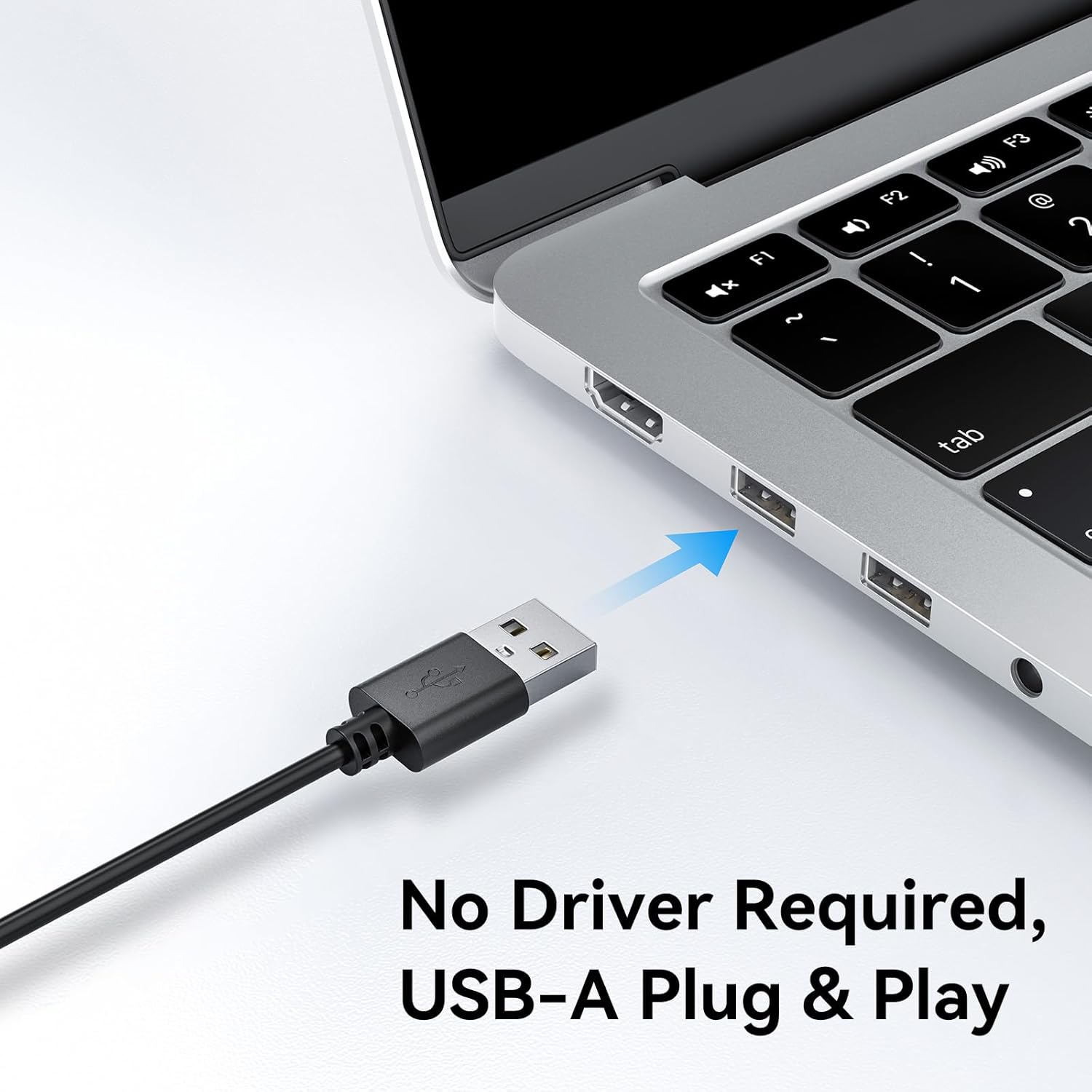
Image: A user on a video call demonstrating the effectiveness of the dual noise-cancelling microphones on the EMEET C60E webcam, showing a waveform before and after noise cancellation.
EMEET HS50 Wired Headset
The EMEET HS50 is a comfortable and versatile wired headset designed for extended use in various communication environments.
- Hoahoa Maamaa: Weighs approximately 0.27 lb for all-day comfort.
- Adjustable Headband and Earpads: Customizable fit for various head sizes with 10° earpad adjustment.
- 270° Flexible Microphone: Allows for precise positioning and can be rotated out of the way.
- Mana Raina: He ngāwari te uru atu ki te whakarerekētanga oro, te whakangū i te hopuoro, me te whakangū i te kaikorero.
- Hononga USB: Simple plug-and-play connection.

Image: The EMEET HS50 Wired Headset, highlighting its lightweight and comfortable design with feather illustrations.

Whakaahua: Taipitopito view of the EMEET HS50 headset's adjustable headband and the 10-degree swivel capability of its earpads for a customized fit.

Image: The EMEET HS50 headset's microphone demonstrating its 270-degree flexible rotation for optimal positioning.
Aratohu Tatūnga
EMEET C60E 4K WebTatūnga kamera
- Honoa te Webkāmera: Plug the USB-A cable from the EMEET C60E webki te tauranga USB e waatea ana i runga i to rorohiko.
- Tāuta Aunoa: Ko te webcam is plug-and-play. Your operating system (Windows, macOS) will automatically detect and install the necessary drivers. No manual driver installation is typically required.
- Tuhia te Webkāmera: Maunga te webcam securely on top of your monitor or place it on a flat surface. Adjust the angle as needed.
- Manatokohia te Hononga: Open a video conferencing application (e.g., Zoom, Skype, Google Meet) or your computer's camera application to confirm the webKa mōhiotia te kāmera, ā, ka whakaatuhia te ataata.
- Adjust Resolution (Optional): The default video resolution may be 1080P. To switch to 4K, use your built-in camera software or applications like PotPlayer/OBS.

Image: The EMEET C60E webcam's USB-A cable being connected to a laptop, illustrating its plug-and-play functionality.
EMEET HS50 Wired Headset Setup
- Honoa te Paneoro: Plug the USB cable from the EMEET HS50 headset into an available USB port on your computer.
- Tāuta Aunoa: The headset is plug-and-play. Your operating system will automatically detect and configure the audio device.
- Whakaritea mo te whakamarie:
- Whakaritehia te taatai kia pai ai to mahunga.
- Rotate the earpads up to 10° to ensure a snug fit over your ears.
- Whakaturia te hopuoro: Rotate the flexible microphone boom to position the microphone near your mouth for optimal voice pickup. It can rotate 270° to be used on either side or moved out of the way when not needed.
- Manatokohia ngā Tautuhinga Ororongo: In your computer's sound settings or communication application, ensure the EMEET HS50 is selected as the input (microphone) and output (speaker) device.
Nga Tohutohu Whakahaere
EMEET C60E 4K WebMahi cam
- Ma te whakamahi me nga tono: Select the EMEET C60E as your video and audio device within your preferred video conferencing software (e.g., Zoom, Microsoft Teams, Google Meet, Skype).
- Pūmanawa EMEETLINK: Download and install the EMEETLINK software from the official EMEET website for advanced settings. This software allows you to:
- Adjust brightness, contrast, and saturation.
- Activate backlight compensation for improved visibility in challenging lighting.
- Whakahōu mārō.
- Uhi Matatapu: Slide the integrated privacy cover over the lens when the webcam is not in use to ensure your privacy.
EMEET HS50 Wired Headset Operation
The HS50 headset features convenient in-line controls for managing your audio during calls or media playback.
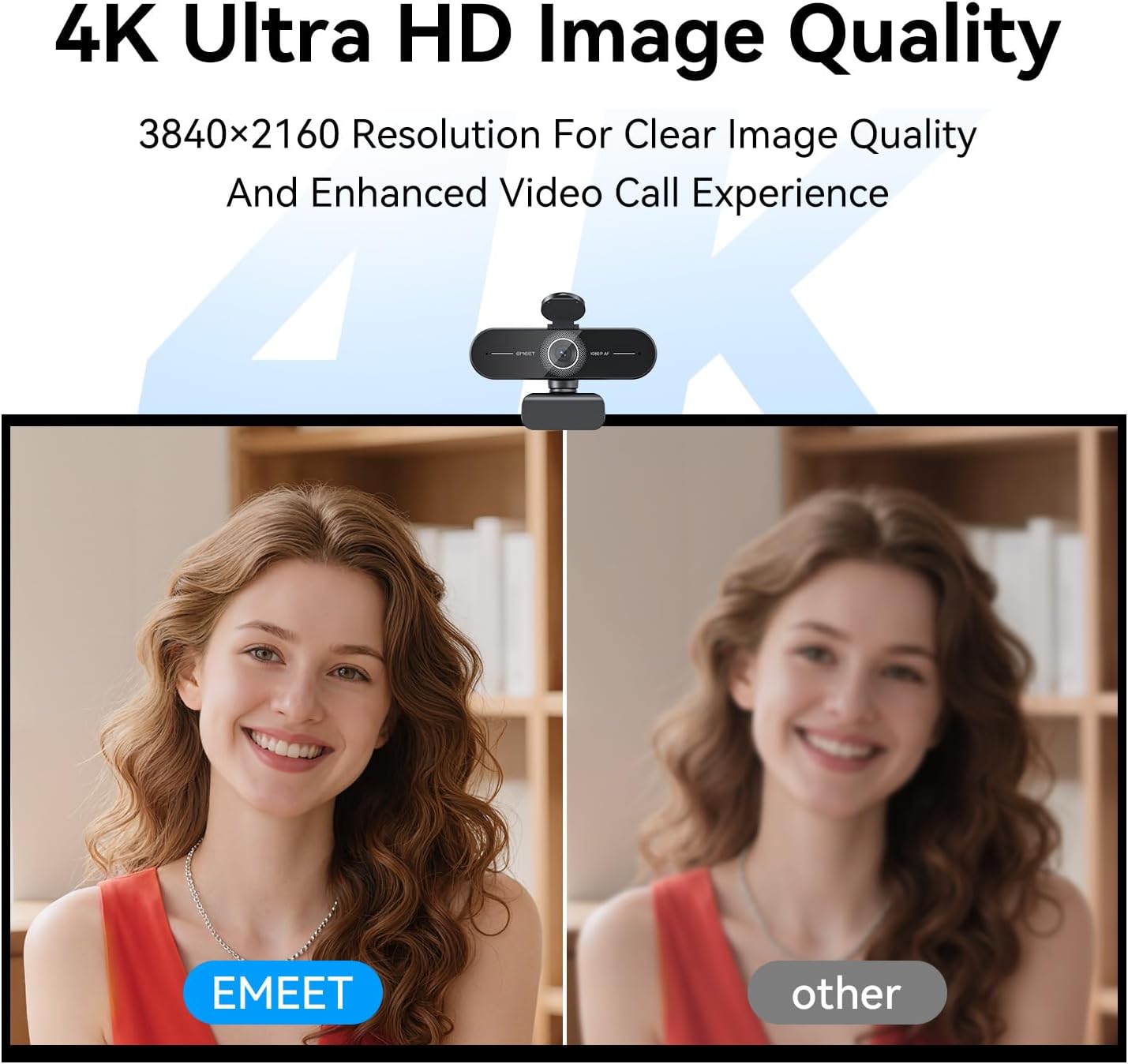
Image: Close-up of the EMEET HS50 headset's in-line control unit, showing buttons for microphone mute, volume up/down, and speaker on/off, along with LED indicators.
- Mana Rōrahi: Whakamahia te + a - buttons on the in-line control unit to adjust the speaker volume.
- Wahangu hopuoro: Pehia te ata hopuoro button to mute or unmute your microphone. An LED indicator will show the mute status.
- Speaker Mute/On-Off: Pehia te tohu korero button to turn the speaker audio on or off. An LED indicator will show the speaker status.
- Turanga Waorooro: Adjust the 270° flexible microphone boom to ensure the microphone is optimally positioned for your voice.
Te tiaki
- Te horoi: Use a soft, dry cloth to clean the exterior surfaces of both the webcam and headset. For the webcam lens, use a lens cleaning cloth.
- A ape i te Wai: Do not use liquid cleaners or aerosols directly on the devices.
- Rokiroki: When not in use, store the devices in a clean, dry place away from extreme temperatures.
- Tiaki taura: Āta karohia ngā piko koi, te tōia nui rānei o ngā taura USB hei ārai i te pakaru.
Raparongoā
Webcam Troubleshooting
- WebKore i kitea te kamera:
- Me mohio kei te hono pai te taura USB ki nga waahanga e rua webkamera me to rorohiko.
- Ngana ki te whakauru i te webcam ki tetahi atu tauranga USB.
- Tīmataria anō tō rorohiko.
- Check your operating system's device manager to see if the webkua whakarārangitia te cam.
- No Video or Poor Video Quality:
- Ensure the privacy cover is open.
- Check lighting conditions; ensure adequate front lighting.
- Manatokohia ko te tika webcam is selected in your application's settings.
- Use EMEETLINK software to adjust video settings like brightness and contrast.
- Ensure your computer meets the system requirements for 4K video streaming.
- No Audio from Webcam Microphones:
- Ensure the EMEET C60E is selected as the microphone input device in your computer's sound settings and your application.
- Check application-specific mute settings.
Headset Troubleshooting
- Kāore i Kitea te Paneoro:
- Ensure the USB cable is securely connected to both the headset and your computer.
- Whakamātauria te mono i te pane ki tetahi tauranga USB rereke.
- Tīmataria anō tō rorohiko.
- No Audio from Headset Speakers:
- Check the in-line control unit to ensure the speaker is not muted and volume is turned up.
- Verify that the EMEET HS50 is selected as the audio output device in your computer's sound settings and your application.
- Adjust the volume on your computer.
- Microphone Not Working on Headset:
- Check the in-line control unit to ensure the microphone is not muted.
- Verify that the EMEET HS50 is selected as the microphone input device in your computer's sound settings and your application.
- Ensure the microphone boom is positioned correctly.
Whakatakotoranga
EMEET C60E 4K Webkamera
| Whakatau | 4K Ultra HD (3840x2160) |
| Auau anga | 30 FPS |
| Momo Pūoko | CMOS |
| Momo Arotahi | PDAF Autofocus |
| Marae o View (FOV) | 73° |
| Nga hopuorooro | Dual Noise-Cancelling Mics (up to 8 ft range) |
| Hononga | USB-A Plug & Play |
| Hototahi | Windows, macOS, Android TV, major conferencing platforms |
EMEET HS50 Wired Headset
| Taumaha | Approx. 0.27 lb (122g) |
| hopuoro | 270° Flexible Microphone |
| Mana whakahaere | In-line: Volume +, Volume -, Mic Mute, Speaker Mute |
| Hononga | USB-A |
| Earpad Adjustment | 10° whakatikatika koki |
Pūtāhui me te Tautoko
EMEET products are designed for reliability and performance. For detailed warranty information, please refer to the warranty card included with your product or visit the official EMEET website. If you encounter any issues or require technical assistance, please contact EMEET customer support through their official channels. You can typically find support contact information on the EMEET webpae, i roto ranei i to putunga hua.
Official EMEET Webpae: www.emeet.com