
1. Kupu Whakataki
This manual provides detailed instructions for the Inateck BCST-72 2D Wireless Barcode Scanner. Please read this guide thoroughly before using the device to ensure proper operation and to maximize its performance. The Inateck BCST-72 is designed for efficient and accurate scanning of various 1D and 2D barcodes, offering versatile connectivity and a long-lasting battery.
2. Ihirangi mokete
Manatokona kei roto katoa nga mea kei roto i to kete:
- Inateck BCST-72 2D Wireless Barcode Scanner
- USB Charging Cable (USB-A to USB-B)
- 2.4G Wireless USB Dongle
- Aratohu Kaiwhakamahi (tenei tuhinga)
Whakaahuatanga Ataata: An unboxing video showing the Inateck BCST-72 barcode scanner, user guide, USB cable, and 2.4G USB dongle being removed from their packaging. This video provides a visual confirmation of the package contents.
3. Hua Neke Atuview
3.1 Ahuatanga Tinana
The Inateck BCST-72 is built for durability and comfort, featuring a robust design suitable for various work environments.
- Hoahoa Roa: The scanner incorporates thickened TPU soft rubber for 360° drop protection, capable of withstanding repeated drops from 1.8 meters.
- Pupuri Ergonomic: Engineered for comfort during extended use, its balanced weight and slip-resistant backstrap ensure effortless handling.
- Pātene roa: The trigger button features a metal and plastic combined design, supporting millions of clicks for long-term reliability.
Whakaahuatanga Whakaahua: He taipitopito view of the Inateck BCST-72 barcode scanner, illustrating its robust construction with enhanced TPU for 360-degree protection against drops from up to 1.8 meters.

Whakaahuatanga Whakaahua: A hand holding the Inateck BCST-72 barcode scanner, emphasizing its ergonomic design for comfortable and effortless control during use.

Whakaahuatanga Whakaahua: A close-up shot of the Inateck BCST-72 barcode scanner's yellow trigger button, highlighting its durable construction designed for millions of clicks.
4. Tatūnga
4.1 Te Whakautu i te Matawai
Before initial use, fully charge the scanner. Connect the provided USB charging cable to the scanner's charging port and a USB power source. The scanner is equipped with a 2600mAh battery, offering up to 180 days of standby time or 180,000 scans on a single charge.

Whakaahuatanga Whakaahua: The Inateck BCST-72 barcode scanner with an overlay indicating its 180-day standby battery life, 144 hours of non-stop scanning, and 2600mAh battery capacity.
4.2 Kōwhiringa Hononga
The BCST-72 offers three connectivity modes: 2.4G Wireless, Bluetooth, and Wired USB. It is compatible with Windows, Mac, iOS, Android, iPadOS, and Linux operating systems.
4.2.1 Hononga Nihokikorangi
Hei hono ma te Nihokikorangi:
- Whakakāhia te matawai.
- Download the "Inateck Scanner" app from the App Store or Google Play.
- Open the app and follow the on-screen instructions to pair the scanner via Bluetooth. The app will guide you through the setup process.
- Once paired, the scanner can be used with your device.
4.2.2 Hononga Ahokore 2.4G
For 2.4G wireless connection:
- Insert the 2.4G USB dongle into an available USB port on your computer or host device.
- Turn on the scanner. It should automatically connect to the dongle.
- The scanner will function as a keyboard input device.
4.2.3 Wired USB Connection
To connect via wired USB:
- Honoa te matawai ki to rorohiko ma te whakamahi i te taura USB kua whakaratohia.
- The scanner will be recognized as a USB HID keyboard device and is ready for use.

Whakaahuatanga Whakaahua: The Inateck BCST-72 barcode scanner shown connecting via Bluetooth to devices running Windows, macOS, Linux, Raspberry Pi, iOS, and Android, illustrating its broad compatibility.

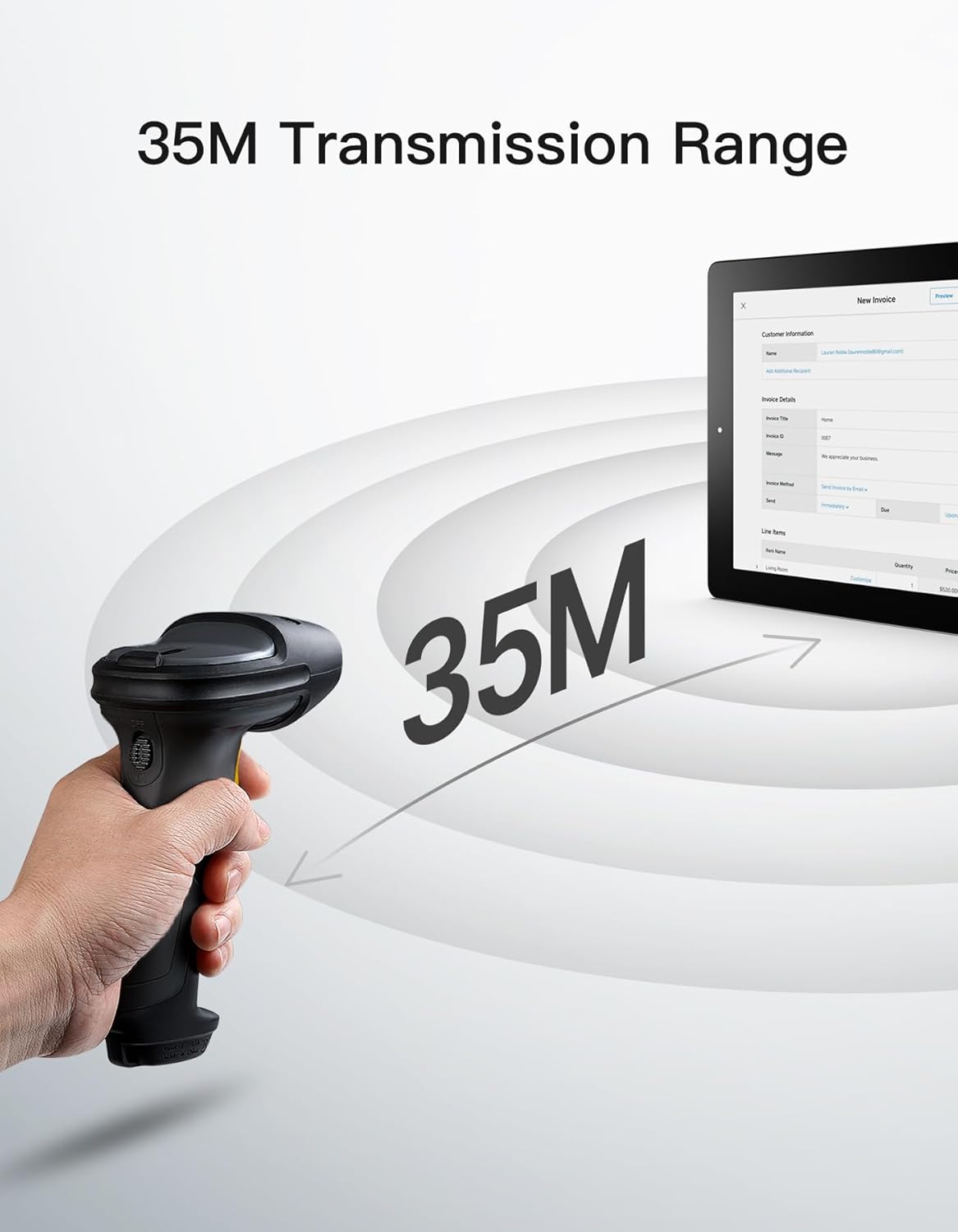
Whakaahuatanga Whakaahua: The Inateck BCST-72 barcode scanner illustrating its 35-meter wireless transmission range, connecting to a tablet displaying an invoice.
5. Nga Tohutohu Whakahaere
5.1 Te Matawai i ngā Paekōti
The Inateck BCST-72 accurately reads almost all 1D and 2D barcodes within a 4–35 cm scanning range. It supports mainstream barcode types including Code 128, EAN-13, UPC-A, QR Code, PDF-417, Data Matrix, Aztec Code, and more. Equipped with a red laser aiming frame and white fill light, it reliably scans damaged, small, or blurred barcodes in both bright and low-light conditions.

Whakaahuatanga Whakaahua: The Inateck BCST-72 barcode scanner head shown with various 1D and 2D barcodes, indicating its "Super Decoding Ability" to read different types of codes.

Whakaahuatanga Whakaahua: The Inateck BCST-72 barcode scanner highlighting its capability to read both 1D and 2D barcodes, listing various supported formats like Code 128, EAN-13, UPC-A, QR, and Data Matrix.
5.2 Matawai Aratau
The scanner offers multiple scanning modes to suit different applications:
- Aratau ā-ringa: Press the trigger button to scan each barcode individually.
- Aratau Tonu: The scanner continuously emits a scan beam, reading barcodes as they pass through the field of view without needing to press the trigger.
- Aratau Taaro-Aunoa: The scanner automatically detects barcodes placed within its scanning range and activates the scan beam.
- Aratau Rarangi: Allows for offline data collection, storing up to 270,000 barcodes internally before uploading them to a host device.

Whakaahuatanga Whakaahua: The Inateck BCST-72 barcode scanner in a stand, demonstrating its automatic detection mode for hands-free scanning.

Whakaahuatanga Whakaahua: The Inateck BCST-72 barcode scanner continuously scanning multiple items on a conveyor belt, illustrating its continuous scanning mode.

Whakaahuatanga Whakaahua: The Inateck BCST-72 barcode scanner used in inventory mode, showing scanned data being uploaded to a spreadsheet, highlighting its offline data collection capability.
5.3 Inateck Scanner App & SDK
The Inateck Scanner app (available on App Store and Google Play) and SDK provide advanced configuration options and seamless integration with ERP systems. The app allows for fast configuration of Bluetooth pairing, barcode settings, and data processing. You can customize settings such as volume, barcode types, suffixes, and prefixes. The SDK enables developers to integrate the scanner directly into custom software solutions.
Whakaahuatanga Ataata: An official product video demonstrating the Inateck BCST-72 barcode scanner's features, including its decoding ability, battery life, durable design, and the functionality of the Inateck Scanner app for configuration and data processing. It also highlights the SDK for seamless integration.
6. Tiaki
To ensure the longevity and optimal performance of your Inateck BCST-72 barcode scanner, follow these maintenance guidelines:
- Te horoi: Use a soft, dry cloth to clean the scanner's exterior. For the scanning window, use a lint-free cloth lightly dampened with a mild, non-abrasive cleaner. Avoid harsh chemicals or abrasive materials that could scratch the lens.
- Tiaki Pūhiko: Avoid fully discharging the battery frequently. For long-term storage, charge the battery to about 50% and store the device in a cool, dry place. Recharge periodically if stored for extended periods.
- Rokiroki: Store the scanner in a clean, dry environment away from extreme temperatures, direct sunlight, and corrosive materials.
7. Te Raru
If you encounter issues with your Inateck BCST-72 scanner, refer to the following common solutions:
- Kaore te Matawai e Whakaka ana: Ensure the battery is charged. Connect the scanner to a power source using the USB cable and allow it to charge for at least 30 minutes before attempting to turn it on again.
- Unable to Connect via Bluetooth/2.4G:
- Ensure the scanner is in the correct pairing mode.
- Verify that Bluetooth is enabled on your host device.
- For 2.4G, ensure the USB dongle is securely plugged in and recognized by your device.
- Try restarting both the scanner and the host device.
- Kaiwaituhi Kaore e Panui Waehere Pae:
- Ensure the barcode is clean, undamaged, and within the scanner's optimal reading range (4-35 cm).
- Check if the barcode type is supported by the scanner. You can configure supported barcode types via the Inateck Scanner app.
- Whakatikatikahia te tawhiti me te koki o te matawai e pā ana ki te waehere pae.
- Ensure sufficient lighting for the barcode. The scanner has a white fill light for low-light conditions.
- Kaore he Tuku Raraunga:
- Confirm successful connection (Bluetooth, 2.4G, or wired).
- Ensure the cursor is in an active text field on your host device where data can be input.
- Check the scanner's settings via the Inateck Scanner app for any data processing rules that might be affecting output.
For further assistance, refer to the electronic manual within the Inateck Scanner app or contact Inateck customer support.
8. Whakatakotoranga
| Āhuahira | Taipitopito |
|---|---|
| Waitohu | Inateck |
| Tauira | BCST-72 |
| Te Matawai Te kaha | 1D and 2D Barcodes (Code 128, EAN-13, UPC-A, QR Code, PDF-417, Data Matrix, Aztec Code, etc.) |
| Awhe Matawai | 4–35 cm |
| Hononga | 2.4G Ahokore, Nihokikorangi, USB Waea |
| Hototahi | Windows, Mac, iOS, Android, iPadOS, Linux |
| Pūhiko | 1 pākahiko Lithium Ion (kei roto), 2600mAh |
| Ora Pūhiko | Up to 180 days standby or 180,000 scans |
| Whakataka Parenga | Withstands 1.8-meter drops |
9. Pūtāhui me te Tautoko
Inateck products come with a standard warranty. For specific warranty terms and conditions, please refer to the documentation included with your purchase or visit the official Inateck website. If you require technical support, have questions about product operation, or need assistance with troubleshooting, please contact Inateck customer support. You can find contact information on the Inateck website or within the Inateck Scanner app.
Tirohia te Inateck Store mo etahi atu korero me nga hua.