
MOBAPAD Huben2
MOBAPAD Huben2 Wireless Switch Controller Pro Instruction Manual
Model: Huben2
Kupu Whakataki
The MOBAPAD Huben2 is a versatile wireless controller designed for use with Nintendo Switch, PC, Android, and iOS devices. It features advanced components such as ALPS linear motors for precise haptic feedback, Omron mechanical buttons for tactile response, and capacitive joysticks for enhanced accuracy. This manual provides detailed instructions for setting up, operating, and maintaining your Huben2 controller.

Mua view of the MOBAPAD Huben2 Wireless Controller in white, showcasing tona hoahoa ergonomic me te whakatakotoranga paatene.
Tatūnga
1. Ihirangi mokete
- MOBAPAD Huben2 Wireless Controller
- USB-C taura
- 2.4G Wireless Dongle (if included with your model)
- Travel Case (if included with your model)
- Pukapuka Tohutohu (tenei tuhinga)
2. Te Whakataki i te Kaiwhakahaere
Before first use, fully charge the controller. Connect the included USB-C cable to the controller's charging port and the other end to a USB power source (e.g., computer, wall adapter). The charging indicator will show the charging status and turn off when fully charged. A full charge provides approximately 15 hours of battery life.

The controller features a 1000mAh battery, providing up to 15 hours of gameplay on a single charge.
3. Aratau Hononga
The Huben2 controller supports three primary connection methods:

Visual representation of the three connection modes: 2.4G for Windows/Android TV, Bluetooth for Switch/Switch 2/iOS/Android, and Wired for Windows/Android TV.
- 2.4G Wireless (via Dongle): Insert the 2.4G dongle into a USB port on your device. The controller will automatically connect.
- Nihokikorangi: For Nintendo Switch, Switch 2, Android, and iOS devices.
- Nintendo Whakawhiti: Navigate to the 'Controllers' menu on your Switch, then select 'Change Grip/Order'. Press and hold the pairing button on the Huben2 controller until the indicator lights flash. The Switch will detect and pair with the controller.
- Android/iOS: Enable Bluetooth on your mobile device. Press and hold the pairing button on the Huben2 controller. Select "MOBAPAD Huben2" from the list of available Bluetooth devices.
- Waea (USB-C): Connect the controller directly to your device using the provided USB-C cable. The controller will be recognized as a wired input device.
Nga Tohutohu Whakahaere
1. Te Tahora Pātene me ngā Mahi
Familiarize yourself with the controller's button layout. The Huben2 features standard gaming buttons, including A/B/X/Y, D-pad, L/R, ZL/ZR, Home, Capture, Plus, Minus, and four programmable back buttons (M1, M2, M3, M4).

A user demonstrating gameplay with the MOBAPAD Huben2 controller, highlighting its ergonomic design during use.
2. Dual Trigger Modes
The Huben2 offers two distinct trigger modes for L2/R2 buttons, switchable via a physical mechanism:
- Microswitch Trigger (2mm travel): Provides a short, tactile click, ideal for rapid inputs in shooting games.
- Hall Linear Trigger (10mm travel): Offers a smooth, analog response, suitable for racing games or precise acceleration control.
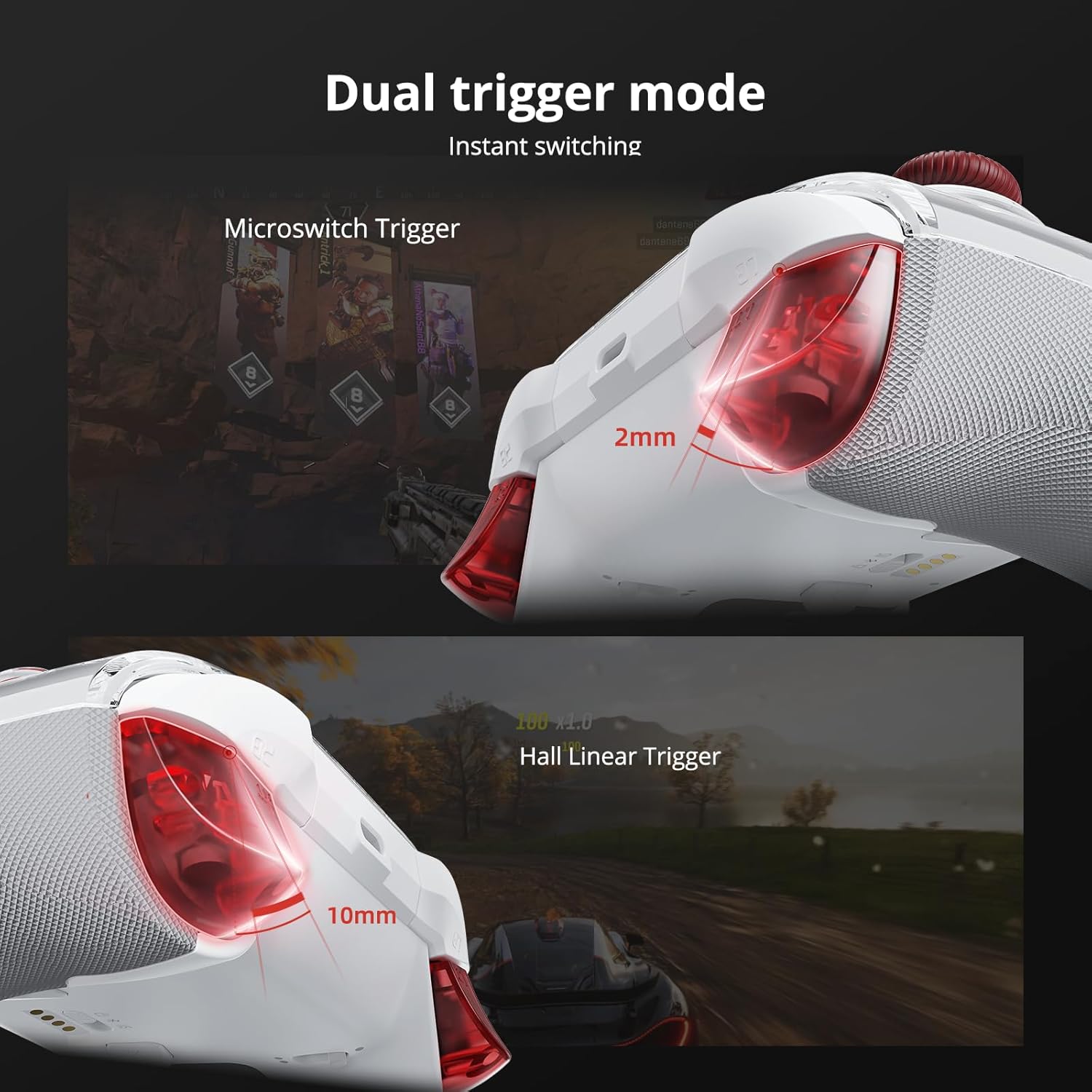
Taipitopito view of the dual trigger mechanism, showing the short travel of the microswitch trigger and the longer, linear travel of the Hall effect trigger.
3. Capacitive Joysticks
The controller is equipped with capacitive thumbsticks that provide 4,096-step precision and a 1ms response rate, designed to minimize drift and enhance control accuracy.

He whakaaturanga hoahoa rotocasing the technology behind the Mobapad capacitive joysticks, emphasizing their precision.
4. Omron Mechanical Buttons
The face buttons (A/B/X/Y) utilize Omron mechanical switches, offering a distinct tactile feel and rapid actuation for competitive gaming.

He tapahi view revealing the Omron mechanical buttons, highlighting their internal structure.
5. 6-Axis Motion Control
The integrated 6-axis motion sensor provides precise tilt and rotation control, enhancing gameplay in compatible titles.

Visual representation of the controller's 6-axis motion sensing capabilities.
6. Programmable Back Buttons (M1-M4)
The four rear buttons (M1, M2, M3, M4) can be programmed for custom macros or remapped to other functions using the MOBAPAD PC/mobile application. Refer to the application's guide for detailed programming instructions.

Close-up of the controller's underside, highlighting the four customizable back buttons.
7. Mahi Turbo
The controller includes a Turbo function for rapid, repeated button presses. Activate and configure the Turbo function via the dedicated button or the companion application.

Detail of the controller's Turbo function button.
8. Customization via Application
Further customization options, including macro programming, vibration intensity adjustment, and stick sensitivity tuning, are available through the MOBAPAD PC/mobile application. Download the application from the official MOBAPAD webpae tukutuku, te toa taupānga rānei o tō pūrere.
Te tiaki
- Te horoi: Whakamahia he kakahu ngohengohe, maroke hei horoi i te kaiwhakahaere. Āta karohia ngā kaihoroi whakakoi, ngā whakarewa rānei.
- Rokiroki: Store the controller in a cool, dry place, away from direct sunlight and extreme temperatures. Use the included travel case for protection during transport.
- Tiaki Pūhiko: Hei whakaroa i te ora o te pākahiko, kaua e tukua kia pau katoa te pūmana. Utuhia i ia wā, ahakoa kāore e whakamahia ana mō te wā roa.
- Removable Faceplate: The controller features a removable magnetic faceplate. Handle with care when detaching or reattaching.

An exploded diagram illustrating the removable faceplate and internal structure of the controller.
Raparongoā
- Karekau te kaiwhakahaere e hono ana:
- Me mohio kei te utuhia te kaiwhakahaere.
- Verify the correct connection mode (2.4G, Bluetooth, Wired) is selected for your device.
- Mō te Nihokikorangi, kia mohio kei te whakahohea te Nihokikorangi o tō pūrere, ā, kei roto te kaiwhakahaere i te aratau takirua.
- Try restarting both the controller and the device you are connecting to.
- He takamuri te whakauru, te kore whakautu ranei:
- Ensure the controller is within range of the wireless receiver (2.4G or Bluetooth).
- Whakaitihia te pokanoa mai i etahi atu taputapu ahokore.
- For wired connection, ensure the USB-C cable is securely connected.
- Update controller firmware via the MOBAPAD application.
- Stick drift:
- While capacitive joysticks are designed to prevent drift, if issues occur, try recalibrating them using the MOBAPAD application.
- Ora pūhiko poto:
- Me whakarite kua whakakiia te kaiwhakahaere i mua i te whakamahi.
- Reduce vibration intensity via the MOBAPAD application to conserve battery.
- Battery performance may degrade over time with prolonged use.
Whakatakotoranga
| Āhuahira | Taipitopito |
|---|---|
| Tau tauira | Mobapad Huben2 H6 |
| Hononga | 2.4G Wireless, Bluetooth, USB-C Wired |
| Hototahi | Nintendo Switch, Switch 2, iOS, Windows, Android |
| Nga rakau harikoa | Capacitive, 4,096-step precision, 1ms response |
| Patene | Omron Mechanical Buttons |
| Kaipupuri | Dual Mode (Microswitch / Hall Linear) |
| Wiri | Dual ALPS Linear Motors (HD Rumble) |
| Mana Motini | 6-Tuaka Gyroscope |
| Pātene Whakahōtaka | 4 Rear Macro Buttons (M1-M4) |
| Pūhiko | 1 Lithium Ion (included), 1000mAh, approx. 15-hour life |
| Hunga Hua | 4.33 x 2.95 x 6.3 inihi |
| Taumaha Tūemi | 1.87 pauna |
| Kaihanga | Mobapad |
Pūtāhui me te Tautoko
For warranty information and technical support, please refer to the official MOBAPAD webpaetukutuku, whakapā atu ranei ki ta raatau ratonga kaihoko. Puritia to tohu hoko mo nga kereme whakamana.
Rauemi ipurangi: Tirohia te MOBAPAD Store on Amazon mō ētahi atu pārongo me ngā whakahōutanga mō te hua.