
1. Kupu Whakataki
This manual provides essential information for setting up, operating, maintaining, and troubleshooting your Vibox IV-528 PC Gamer. This mid-range gaming PC offers an ideal balance of performance and value, perfect for smooth gaming at 1080p and 1440p resolutions. Equipped with a powerful multi-core processor and a dedicated graphics card, it easily handles popular games and allows for future upgrades.
Ko nga ahuatanga matua ko:
- AMD Ryzen 7 5700X Processor (8 cores, up to 4.6 GHz)
- NVIDIA GeForce RTX 3050 Graphics Card (6 GB GDDR6 RAM)
- 500 GB Ultra-fast SSD storage
- 16 GB Dual-channel DDR4 RAM at 3200 MHz
- Pre-installed Windows 11 Home
- 300 Mbps Wi-Fi Adapter included

Figure 1: The Vibox IV-528 PC Gamer, showcasing ona wahanga o roto me te rama RGB.
2. Tatūnga
2.1 Te Wetewete
Tangohia marietia te rorohiko i roto i tana takai. Me whakarite kia tangohia ngā kiriata tiaki katoa me ngā rauemi takai o roto i mua i te whakakā i te pūnaha. Puritia te takai taketake mō ngā kereme kawe, mō ngā kereme whakamana rānei a meake nei.
2.2 Hononga Pikitia
Connect your monitor, keyboard, mouse, and other peripherals to the appropriate ports on the back of the PC. The PC features versatile connectivity options.
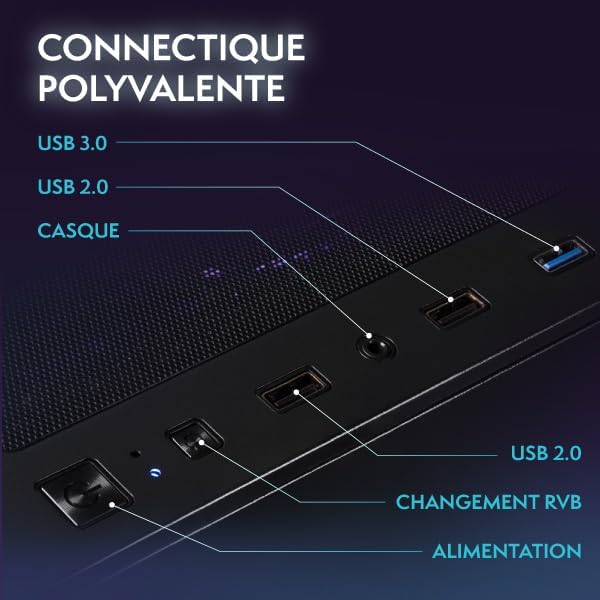
Figure 2: Front panel connectivity including USB 3.0, USB 2.0, headphone jack, RGB control, and power button.
- Aroturuki: Tūhonohia tō mata mā te whakamahi i tētahi taura HDMI, DisplayPort rānei ki ngā tauranga kāri whakairoiro kua whakatapua.
- Papapātuhi me te Kiore: Tūhono ki ngā tauranga USB e wātea ana.
- Whatunga: For wired internet, connect an Ethernet cable to the LAN port. For wireless internet, the included Wi-Fi adapter will provide connectivity.
- Mana: Connect the power cable to the PC's power supply unit (PSU) and then to a wall outlet.
2.3 Whakaara Tuatahi me te Tatūnga Windows 11
Press the power button on the front of the PC. The system will boot into Windows 11. Follow the on-screen instructions to complete the initial Windows setup, including language, region, network connection, and user account creation.
3. Mahi
3.1 Kāinga Matapihi 11
Your Vibox IV-528 comes with Windows 11 Home pre-installed, optimized for gaming and productivity. Windows 11 offers features such as:
- Faster loading times with DirectStorage
- AutoHDR for enhanced graphics
- Seamless Xbox Game Pass integration
- Optimized CPU performance

Figure 3: Key features of Windows 11 Home for gamers.
3.2 Mahi petipeti
The NVIDIA GeForce RTX 3050 graphics card and AMD Ryzen 7 5700X processor are designed to deliver smooth gaming experiences at 1080p and 1440p resolutions. Performance may vary depending on game settings and specific titles.
3.3 Mana Rarama RGB
The PC features customizable RGB lighting for its fans and AIO cooler. Use the dedicated RGB change button on the front panel (refer to Figure 2) or pre-installed software (if applicable) to cycle through various colors and lighting modes to personalize your setup.

Figure 4: Hex RGB Infinity 120mm fans with customizable lighting.
4. Tiaki
4.1 Te horoi
Regularly clean the exterior of your PC with a soft, dry cloth. For internal cleaning, use compressed air to remove dust from fans, heatsinks, and vents. Ensure the PC is powered off and unplugged before cleaning. The mesh design of the case aids in airflow but also requires periodic cleaning.

Figure 5: Modern ATX gaming case with mesh design for optimal airflow.
4.2 Pūnaha whakamatao
The Vibox IV-528 features an AIO (All-In-One) 120mm liquid cooler for the CPU and efficient case fans to maintain optimal temperatures. Ensure that the PC has adequate ventilation and that no vents are obstructed. The system utilizes a reverse airflow design for next-generation cooling efficiency.

Figure 6: Vibox AIO 120mm liquid cooler, designed for compact and efficient cooling.
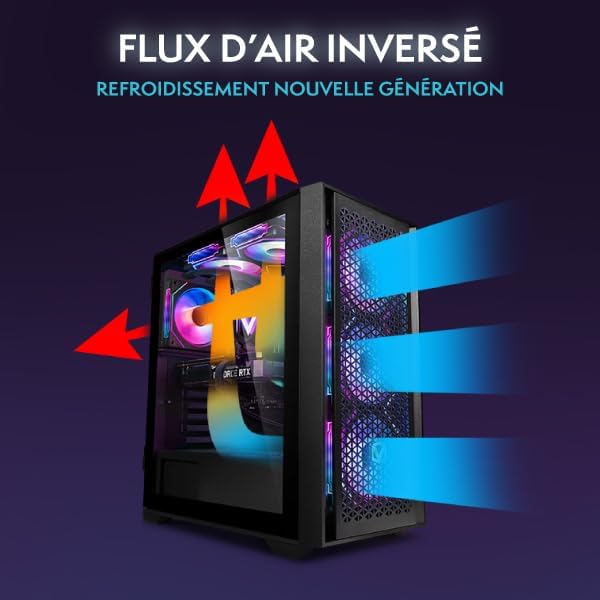
Figure 7: Reverse airflow cooling system for enhanced thermal performance.
4.3 Whakahōu Pūmanawa
Regularly update your Windows operating system, graphics drivers (NVIDIA), and other software to ensure optimal performance, security, and compatibility with the latest games and applications.
5. Te Raru
- Kore Mana:
- Me mohio kei te hono pai te taura hiko ki te PC me te putanga pakitara.
- Check if the power switch on the PSU (located at the back of the PC) is in the 'ON' position.
- Whakamatautauria te putanga pakitara me tetahi atu taputapu.
- Karekau he Whakaatu ki te Aroturuki:
- Verify that the monitor is powered on and connected to the graphics card (NVIDIA RTX 3050) ports, not the motherboard ports.
- Tirohia ngā tautuhinga pūtake tāuru o te aroturuki.
- Try a different HDMI or DisplayPort cable.
- He puhoi, he kore rānei e aro mai te pūnaha:
- Katia nga tono koretake e rere ana i te papamuri.
- Check for available Windows updates and driver updates.
- Ensure the PC has adequate ventilation and is not overheating.
- Whakahaerehia he matawai pūmanawa kino.
- Nga Take Hononga Whatunga:
- For Wi-Fi, ensure the Wi-Fi adapter is properly installed and drivers are up to date. Check network settings in Windows.
- For wired Ethernet, ensure the cable is securely connected and your router/modem is functioning correctly.
6. Whakatakotoranga
| Waehanga | Taipitopito |
|---|---|
| Tukatuka | AMD Ryzen 7 5700X (8 Cores, up to 4.6 GHz) |
| Kaari Whakairoiro | NVIDIA GeForce RTX 3050 (6 GB GDDR6 RAM) |
| RAM | 16 GB DDR4 (3200 MHz, Dual Channel) |
| Rokiroki | 500 GB SSD |
| Pūnaha Mahi | Windows 11 Home |
| Wi-Fi | 300 Mbps Wi-Fi Adapter included |
| Te whakamatao | 120mm AIO Liquid Cooler (CPU), RGB Case Fans |
| Hononga | HDMI, DisplayPort, USB 3.0, USB 2.0, Ethernet, Audio Jacks |
| Ahu (L x W x H) | 40 x 21 x 45 cm |
| Taumaha | 12.69 kg |
| Momo Mono Hiko | Type C/EF – 2-pin (European/Hybrid FR-DE plug) |
7. Pūtāhui me te Tautoko
7.1 Nga Korero Whakaputanga
Your Vibox IV-528 PC Gamer is covered by a 2-tau nga waahanga whakamana a lifetime labor warranty. Ka kapi tenei raihana i nga hapa o nga rawa me nga mahi i raro i te whakamahinga noa. Tena koa pupurihia to tohu mo te hoko mo nga kereme whakamana.
For specific warranty terms and conditions, please refer to the documentation provided with your purchase or contact Vibox customer support.
7.2 Tautoko Kiritaki
If you encounter any issues not covered in the troubleshooting section or require further assistance, please contact Vibox customer support. Have your model number (IV-528) and purchase details ready when contacting support.
You can typically find contact information on the official Vibox webpae, ma to kaihokohoko ranei.