
Kupu Whakataki
Thank you for choosing the Vibox IV-584 Gaming PC. This manual provides essential information for setting up, operating, maintaining, and troubleshooting your new computer. The Vibox IV-584 is a high-performance desktop PC designed for gaming and demanding tasks, featuring an AMD Ryzen 7 5700X processor, NVIDIA GeForce RTX 3050 graphics, 16GB of RAM, and a 500GB SSD, pre-installed with Windows 11 Home.
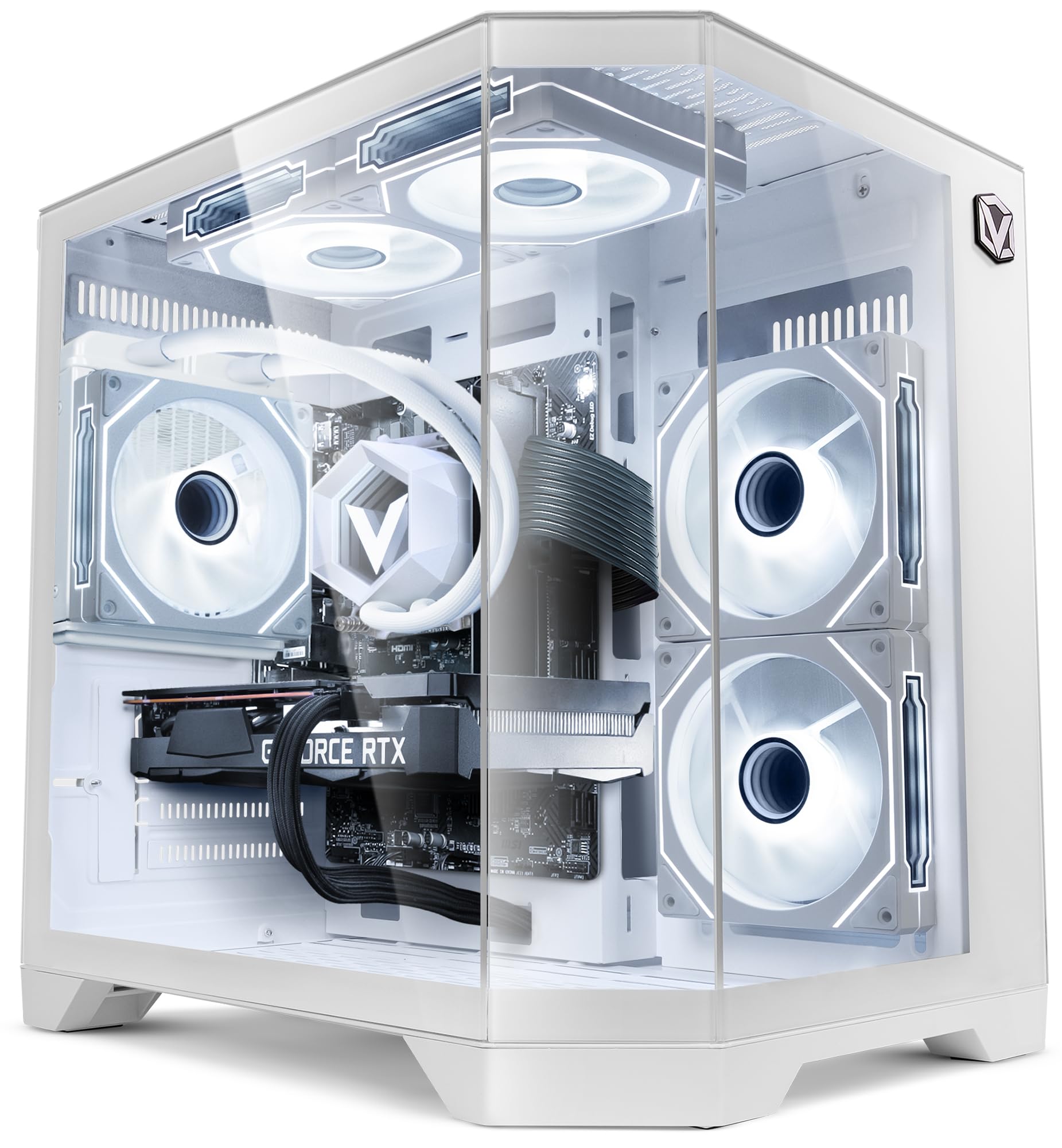
Image: The Vibox IV-584 Gaming PC, showcasing its internal components and sleek design.
1. Tatūnga
Follow these steps to set up your Vibox IV-584 Gaming PC:
- Wetekina te rorohiko: Carefully remove the computer and all accessories from the packaging. Retain the packaging for future transport or warranty claims.
- Tūhono Pikitia:
- Honoa tō mata (ngā mata rānei) ki ngā tauranga kāri whakairoiro (HDMI, DisplayPort rānei) kei muri o te rorohiko.
- Tūhonohia tō papapātuhi me tō kiore ki ngā tauranga USB e wātea ana.
- Hono atu ki etahi atu taputapu pera i nga kaikorero, taringa, puku o waho ranei.
- Hononga Whatunga:
- For a wired connection, connect an Ethernet cable from your router to the Ethernet port on the PC.
- For a wireless connection, ensure the included Wi-Fi adapter is installed (if not pre-installed) and follow Windows 11 instructions to connect to your network.
- Hononga Hiko: Connect the power cable to the power supply unit (PSU) at the rear of the PC, then plug it into a wall outlet.
- Whakaara Tuatahi: Press the power button on the front of the PC. The system will boot into Windows 11. Follow the on-screen instructions for initial setup, including language, region, and user account creation.

Whakaahua: Ka mutuview of the versatile connectivity ports, including USB 2.0, USB 3.0, power button, and audio jacks.
2. Te whakahaere i to PC
Your Vibox IV-584 comes with Windows 11 Home pre-installed, offering a modern and efficient operating environment.
- Windows 11 Basics: Familiarize yourself with the Windows 11 interface, including the Start Menu, Taskbar, and File Explorer. Microsoft provides extensive online resources for learning Windows 11.
- petipeti: This PC is optimized for gaming. Ensure your graphics drivers are up to date for the best performance. You can download the latest drivers from the NVIDIA webpae.
- Tāuta Pūmanawa: Install your preferred games and applications. The 500GB SSD provides fast loading times for your operating system and frequently used software.
- Hononga Whatunga: Use the integrated Wi-Fi or Ethernet connection to access the internet, download games, and play online.

Image: Key features of Windows 11 Home, highlighting benefits for gaming such as faster loading times with DirectStorage, AutoHDR, and optimized CPU performance.
3. Tiaki
Mā te tiaki auau ka roa te ora me te mahi tino pai o tō rorohiko:
- Te horoi:
- Keep the exterior of the PC clean with a soft, dry cloth.
- Periodically clean dust from the air vents and fans using compressed air. Ensure the PC is powered off and unplugged before cleaning.
- Whakahōu Pūmanawa: Regularly check for and install updates for Windows 11, graphics drivers (NVIDIA), and other installed software to ensure security and performance.
- Ngā Tārua Pūnaha: Create regular backups of your important data to an external drive or cloud storage to prevent data loss.
- Matao Wai: The PC features a liquid cooling system. This system is generally maintenance-free. Avoid opening the liquid cooling unit. Ensure proper airflow around the PC to aid cooling.

Image: An illustration demonstrating the optimized inverse airflow design for next-generation cooling within the PC chassis.
4. Te Raru
Here are solutions to some common issues:
- Kaore te PC e Hia:
- Check if the power cable is securely connected to both the PC and the wall outlet.
- Me whakarite kei te 'ON' te whakakā hiko i te PSU (kei muri o te PC).
- Whakamātauria he putanga hiko rerekē.
- Karekau he Whakaatu ki te Aroturuki:
- Verify that the monitor is powered on and the video cable is securely connected to the graphics card (not the motherboard's integrated video ports).
- Me mohio kua tohua te puna whakauru tika ki to kaupane.
- Try connecting the monitor to a different video port on the graphics card if available.
- Mahinga Puturi:
- Katia nga tono papamuri kore e tika.
- Me whakarite kei te hou tonu ngā taraiwa o Windows me ngā taraiwa whakairoiro.
- Tirohia mēnā he pūmanawa kino, he huaketo rānei.
- Aroturuki i nga pāmahana o te punaha kia kore ai te PC e wera rawa.
- Nga Take Hononga Whatunga:
- Mō ngā hononga waea, tirohia te tūnga o te taura Ethernet me te pouara.
- For Wi-Fi, ensure the adapter is properly installed and drivers are updated. Restart your router and PC.
- Run Windows Network Troubleshooter.
5. Whakatakotoranga
Detailed technical specifications for your Vibox IV-584 Gaming PC:
| Waehanga | Whakatakotoranga |
|---|---|
| Waitohu | Vibox |
| Tau tauira | IV-584 |
| Tukatuka | AMD Ryzen 7 5700X (8 Cores, up to 4.6 GHz) |
| Kaari Whakairoiro | NVIDIA GeForce RTX 3050 6GB GDDR6 |
| RAM | 16GB DDR4 3200 MHz (Dual-channel) |
| Rokiroki | 500GB SSD |
| Pūnaha Mahi | Windows 11 Home |
| Hononga | Wi-Fi (300 Mbps adapter included), Ethernet |
| Tauranga | USB (various), HDMI, DisplayPort |
| Te whakamatao | Liquid Cooling, RGB Fans |
| Hoahoa Take | Tempered Glass (3 panels), RGB Lighting |
| Ahu (L x W x H) | Tata ki te 35 x 28 x 38 cm |
| Momo Mono Hiko | Type C/EF - 2 pin (EU/FR-DE hybrid) |

Image: The Vibox AIO 120mm liquid cooling unit, designed for efficient and compact cooling.

Image: Vibox Hex RGB Infinity 120mm fans, offering multiple colors and RGB modes for customization.

Image: The PC case design featuring three tempered glass panels, showcasing its elegant and high-end look, along with approximate dimensions.
6. Pūtāhui me te Tautoko
Your Vibox IV-584 Gaming PC comes with comprehensive warranty and support:
- Pūtāhui Hua: The PC includes a 2-year warranty on parts and lifetime labor warranty. Please refer to your purchase documentation for full terms and conditions.
- Tautoko Hangarau: For technical assistance, troubleshooting beyond this manual, or warranty claims, please contact Vibox customer support through their official webpae, nga korero whakapā ranei i tukuna mai me to hoko.