
Ew EW3295
Pukapuka Kaiwhakamahi mō te Papapātuhi Ahokore Whakamārama a Ewent EW3295
Tauira: EW3295 | Waitohu: Ewent
1. Kupu Whakataki
Thank you for choosing the Ewent EW3295 Backlit Wireless Keyboard. This full-size keyboard offers versatile connectivity options, including Bluetooth 5.0 and 2.4GHz wireless, allowing you to connect up to three devices simultaneously. Its slim design, silent keys, and adjustable backlight provide a comfortable and efficient typing experience. This manual provides detailed instructions for setup, operation, and maintenance to ensure optimal performance of your keyboard.

Figure 1.1: Slim and sturdy design of the EW3295 keyboard.
2. Nga waahanga matua
- Wireless Multi-Device Connection: Connect up to 3 devices simultaneously via Bluetooth 5.0 (x2) or wireless 2.4 GHz. Easily switch between devices with just one button.
- Rama Whakamuri Whakaritea: The keyboard's backlight is dimmable and can be turned off completely, ideal for various lighting conditions.
- Flat & Quiet Design: Flat, silent keys ensure a comfortable and low-noise typing experience, suitable for quiet environments.
- 12 Pātuhi Rongorau: Quick access to functions like volume control, email, and other operations.
- Pūhiko Rechargeable Roa-roa: Equipped with a 300mAh lithium battery and intelligent energy-saving function for extended use.
- Hototahi Whānui: Compatible with Windows (XP, 7, 8.1, 10, 11) and Android, suitable for PCs, laptops, and tablets.
- Hoahoa pakari me te roa: Made of high-density polycarbonate, lightweight yet durable, with a compact design.
- Italian Layout: Features an Italian QWERTY keyboard layout.
3. Ihirangi mokete
Tena koa tirohia nga mea kei roto i te kete i runga i te wetewete pouaka:
- Ewent EW3295 Backlit Wireless Keyboard
- USB-A 2.4GHz Wireless Receiver
- USB-C ki te USB-He Waea Whakakona
- Pukapuka Kaiwhakamahi (tenei tuhinga)
4. Aratohu Tatūnga
4.1 Te Whakataki i te Papapātuhi
The EW3295 keyboard is equipped with a built-in rechargeable 300mAh lithium battery. Before first use, it is recommended to fully charge the keyboard.
- Locate the USB Type-C charging port on the rear panel of the keyboard.
- Connect one end of the provided USB-C charging cable to the keyboard's USB-C port.
- Connect the other end of the USB-A cable to a USB power source (e.g., computer USB port, USB wall adapter).
- The charging indicator light (if present) will illuminate during charging and turn off when fully charged. A full charge takes less than 1 hour and provides over 1 month of use.

Figure 4.1: Rear panel of the keyboard with charging port and receiver compartment.
4.2 Te hono i te Papapātuhi
The EW3295 keyboard supports three connection modes: 2.4GHz wireless and two Bluetooth 5.0 channels (BT1, BT2). You can connect up to three devices and switch between them.
4.2.1 2.4GHz Hononga Ahokore
- Locate the USB-A wireless receiver, typically stored in a compartment on the rear panel of the keyboard.
- Plug the USB-A receiver into an available USB port on your computer or device.
- Pehia te fn+1 keys on the keyboard to switch to 2.4GHz mode. The indicator light for channel 1 will illuminate.
- Me hono aunoa te papapātuhi ki tō pūrere.

Figure 4.2: Ewent EW3295 keyboard and its USB wireless receiver.
4.2.2 Hononga Nihokikorangi (BT1 / BT2)
- Pehia te fn+2 keys to select Bluetooth channel 1 (BT1) or fn+3 keys to select Bluetooth channel 2 (BT2). The corresponding indicator light will flash, indicating pairing mode.
- I runga i tō pūrere (PC, pona, papa), whakahohea te Nihokikorangi ka rapu i ngā pūrere hou.
- Select "EW3295" or a similar name from the list of available Bluetooth devices.
- Follow any on-screen prompts to complete the pairing process. Once connected, the indicator light will stop flashing and remain solid.
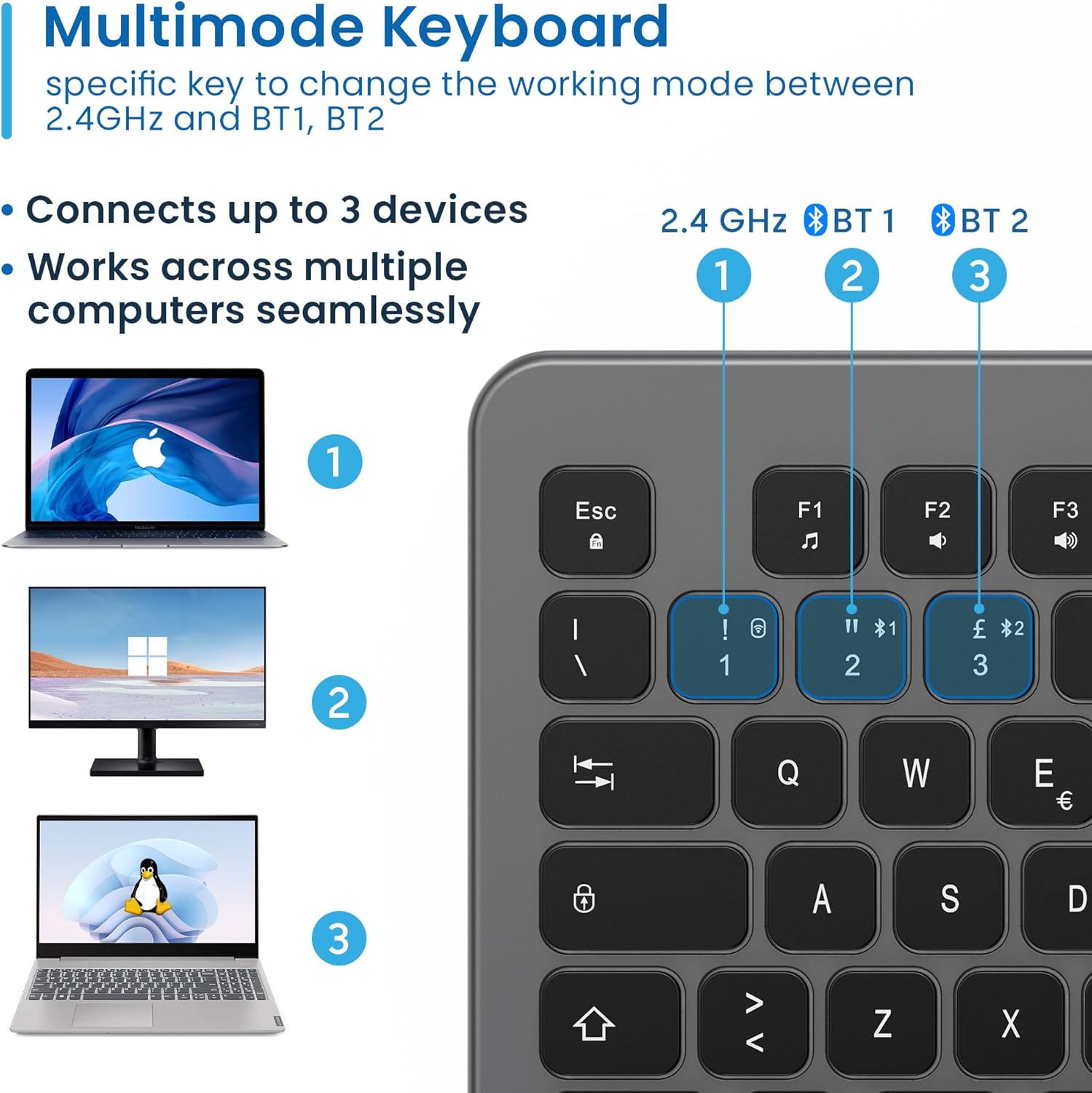
Figure 4.3: Multi-device connectivity options for the EW3295 keyboard.
4.2.3 Te Whakawhiti i waenga i ngā Pūrere Honohono
Once multiple devices are paired, you can easily switch between them:
- Perehi fn+1 to switch to the 2.4GHz connected device.
- Perehi fn+2 to switch to the Bluetooth 1 connected device.
- Perehi fn+3 to switch to the Bluetooth 2 connected device.
5. Nga Tohutohu Whakahaere
5.1 Pato Taketake
The EW3295 features a full-size Italian QWERTY layout. Its flat and silent keys provide a comfortable and precise typing experience, reducing noise in quiet environments.

Figure 5.1: Illuminated Italian QWERTY Keyboard Layout.

Figure 5.2: Silent keys for reduced noise.
5.2 Mana Whakamuri
The keyboard features an adjustable backlight for improved visibility in low-light conditions.
- Rama Whakamuri ON/OFF: Pehia te Poraka Scorr key (often labeled with a lightbulb icon) to toggle the backlight on or off.
- Backlight Brightness Up: Perehi Fn + Pag ↑ hei whakanui ake i te wherikotanga o te papamuri.
- Backlight Brightness Down: Perehi Fn + Pag ↓ hei whakaiti i te kanapa o te papamuri.
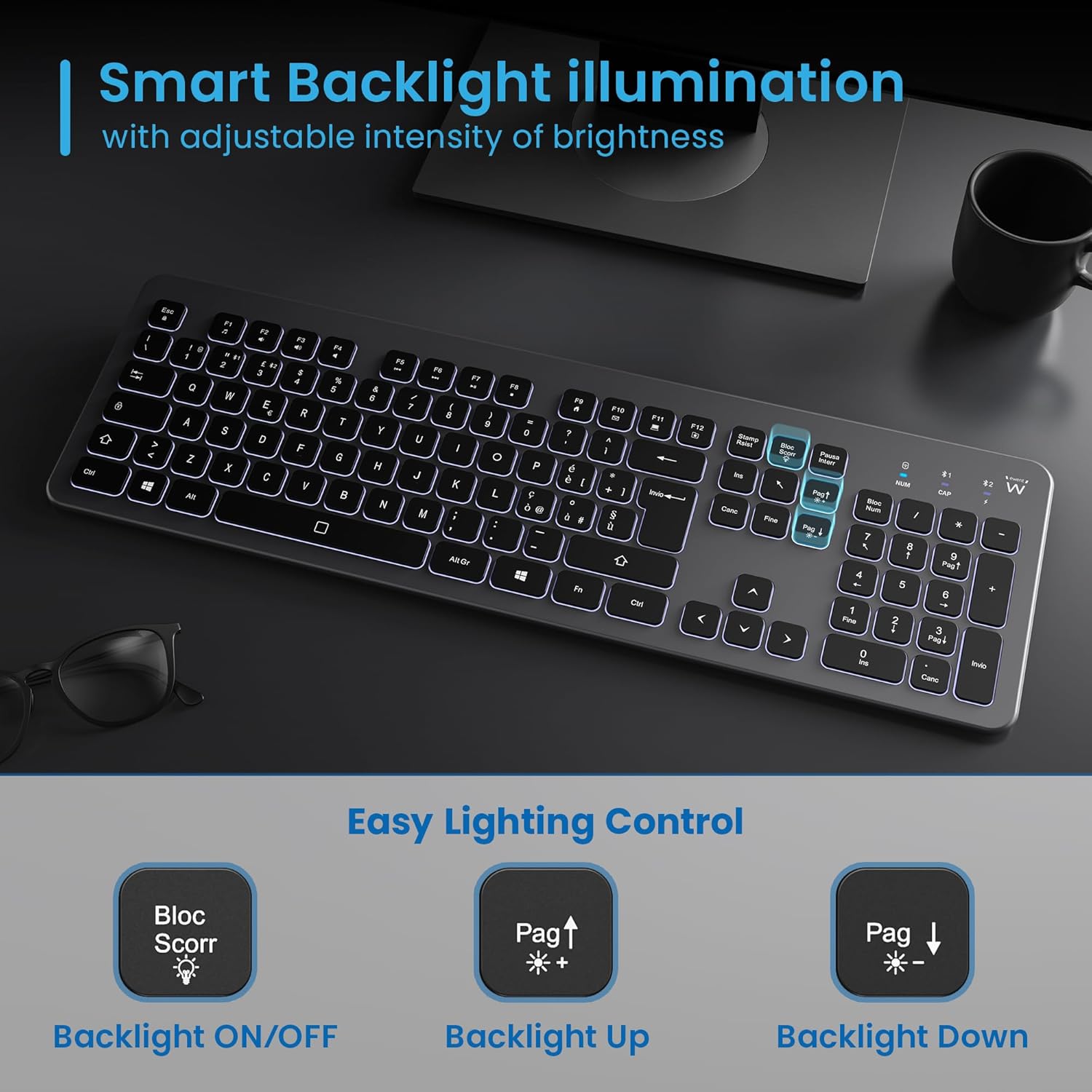
Figure 5.3: Backlight control keys.
5.3 Pātuhi Rongorau
The keyboard includes 12 dedicated multimedia keys (F1-F12) that provide quick access to various functions. To use these functions, press the Fn kī i te wā kotahi me te kī-F e hiahiatia ana.
| Whakakotahitanga Matua | Mahi |
|---|---|
| Fn + F1 | Kaipāho pāpāho |
| Fn + F2 | Rōrahi Whakararo |
| Fn + F3 | Rōrahi Whakarunga |
| Fn + F4 | Wahangu |
| Fn + F5 | Tuhinga o mua |
| Fn + F6 | Riro Panuku |
| Fn + F7 | Purei/Tatari |
| Fn + F8 | Kati |
| Fn + F9 | Whārangi Kāinga |
| Fn + F10 | Īmēra |
| Fn + F11 | Taku Rorohiko |
| Fn + F12 | Te tātaitai |
6. Tiaki me te Tiaki
Ko te tiaki tika ka whakarite i te roa me te mahi tino pai o to papapātuhi.
- Te horoi: Whakamahia he kakahu ngohengohe, maroke, kore-miro hei horoi i te mata o te papapātuhi. Mō te paru uaua, me horoi paku.ampen te kakahu ki te wai, ki te horoi ngawari, kore-abrasive ranei. A ape i te makuku nui.
- A ape i te Wai: Do not spill liquids on the keyboard. In case of accidental spills, immediately disconnect the keyboard and allow it to dry completely before re-using.
- Rokiroki: Ki te kore e whakamahia mō te wā roa, rongoatia te papapātuhi ki te wāhi hauhautanga, maroke, kia matara atu i te rā tika me te pāmahana tino kino.
- Tiaki Pūhiko: To prolong battery life, avoid fully discharging the battery frequently. Charge the keyboard when the low battery indicator appears.
- Rokiroki Kaiwhiwhi: When transporting the keyboard, store the USB wireless receiver in its dedicated compartment on the rear panel to prevent loss.
7. Te Raru
If you encounter issues with your EW3295 keyboard, please refer to the following common solutions:
| Raruraru | Take pea | Rongoā |
|---|---|---|
| Keyboard not responding (2.4GHz) | Low battery; Receiver not plugged in; Incorrect channel selected. | Charge the keyboard; Ensure USB receiver is securely plugged in; Press fn+1 to select 2.4GHz mode. |
| Karekau te papapātuhi whakautu (Nihokikorangi) | Low battery; Bluetooth not enabled on device; Not paired; Incorrect channel selected. | Charge the keyboard; Enable Bluetooth on your device; Re-pair the keyboard (see Section 4.2.2); Press fn+2 or fn+3 to select the correct Bluetooth channel. |
| Ko te rama tuara kaore e mahi | Kua whakawetohia te rama papamuri; He iti te pākahiko. | Perehi Poraka Scorr to turn on/off; Increase brightness with Fn + Pag ↑; Charge the keyboard. |
| He piri, he kore whakautu ranei nga ki | Dirt or debris under keys; Physical damage. | Clean the keyboard (see Section 6); If physical damage, contact support. |
| He poto te ora o te pākahiko | Frequent backlight use; Battery degradation over time. | Reduce backlight brightness or turn it off when not needed; Ensure full charge cycles. |
8. Whakatakotoranga
| Āhuahira | Taipitopito |
|---|---|
| Ingoa Tauira | Tastiera Wireless Retroilluminata EW3295 |
| Tauira Tuemi | EW3295 |
| Waitohu | Ewent |
| Hangarau Hononga | Bluetooth 5.0 (x2), 2.4GHz Wireless |
| Whakaahuatanga Papapātuhi | Multimedia, Full-size, Italian Layout |
| Pūrere Hototahi | PC (Windows XP, 7, 8.1, 10, 11), Android |
| Momo Pūhiko | 300mAh Pūhiko Lithium Ka taea te utu |
| Whakamuri | Te Kaha Whakaritea |
| Ahu (L x W x H) | Approx. 432mm x 122mm x 22mm |
| Taumaha | Approx. 390g |
| Rauemi | High-density Polycarbonate |

Whakaatu 8.1: Te rahi papapātuhi me te taumaha.
9. Nga Korero Whakaputanga
Ewent products are designed and manufactured to the highest quality standards. This product is covered by a limited warranty from the date of purchase. Please refer to the warranty card included with your product or visit the official Ewent website for detailed warranty terms and conditions specific to your region. The warranty typically covers defects in materials and workmanship under normal use.
10. Tautoko Kiritaki
For technical support, troubleshooting assistance, or any questions regarding your Ewent EW3295 keyboard, please contact Ewent customer support. You can typically find contact information (phone, email, support portal) on the official Ewent webte waahi kei roto ranei i te kohinga hua.
Please have your product model number (EW3295) and purchase details ready when contacting support.
Ask a question about this manual
Ask about setup, troubleshooting, compatibility, parts, safety, or missing instructions. Manuals+ will review the question and use this page’s manual context to help answer it.