
1. Kupu Whakataki
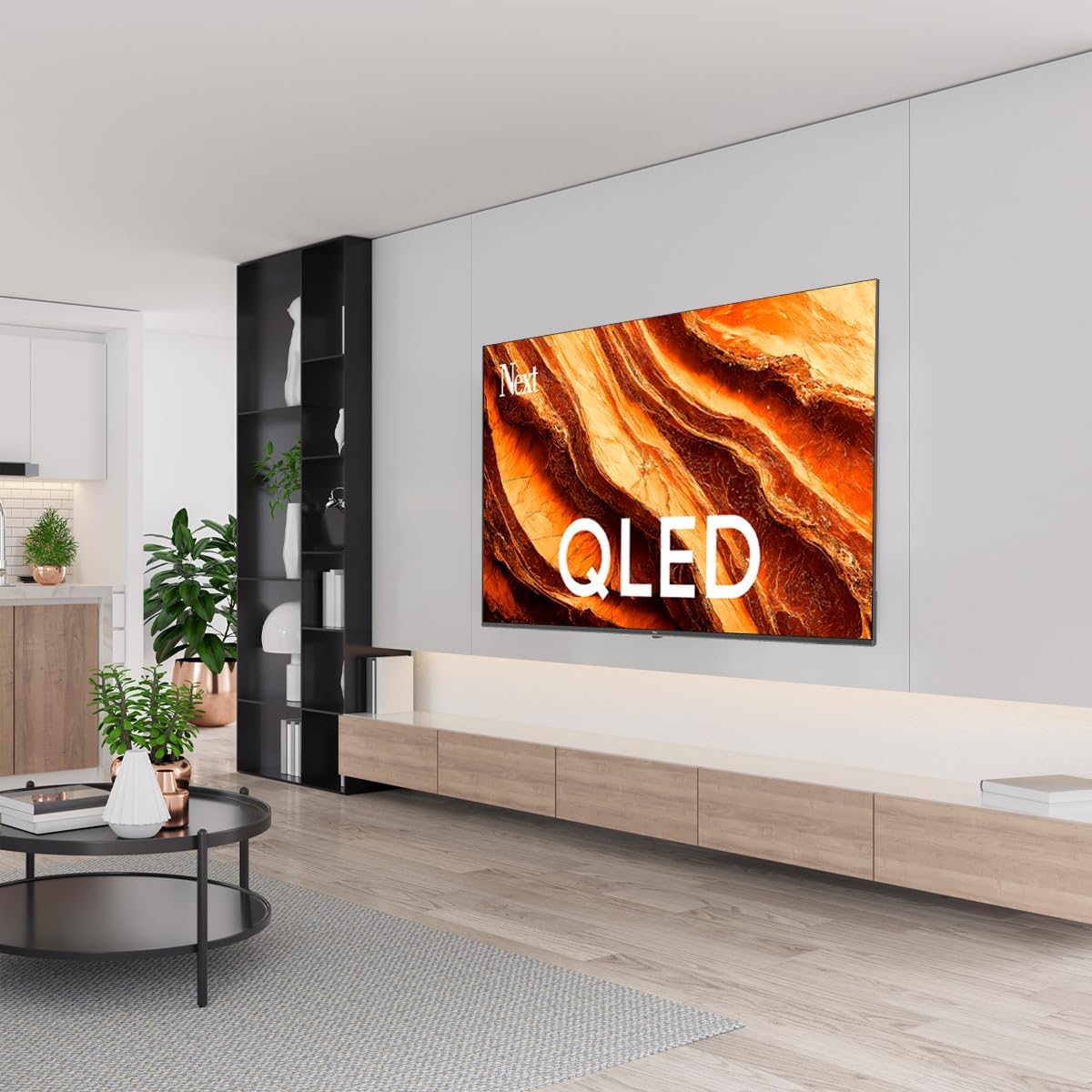
This manual provides essential information for the safe and efficient operation of your Next YE-65GFSG8-QLED 65-inch UHD 4K Google QLED TV. Please read this manual thoroughly before using the television and retain it for future reference. Your new television combines QLED display technology with the Google TV operating system, offering a high-quality viewing experience and smart features.
2. Nga Korero Haumaru Nui
Always follow these basic safety precautions when operating your television:
- Puna Hiko: Me whakarite kei te hono te pouaka whakaata ki tētahi pūtake hiko i roto i te rōrahi kua tohuatage awhe.
- Whakahau: Kaua e araia nga whakatuwheratanga hau. Whakaaetia he mokowā tika huri noa i te pouaka whakaata kia tika te rere o te hau.
- Te wai me te makuku: Kaua e tukuna te pouaka whakaata ki te ua me te makuku. Kaua e tuu i nga mea kua whakakiia ki te wai, penei i nga ipu, ki runga i te pouaka whakaata.
- Te horoi: Wewetehia te pouaka whakaata mai i te putanga hiko i mua i te horoi. Whakamahia he kakahu ngohengohe, maroke. Kaua e whakamahia nga kai horoi wai me nga kai horoi aerosol.
- Turanga: Whakanohoia te pouaka whakaata ki runga i te papa, papa. A ape i te tuu ki te ra tika, ki te tata ranei ki nga puna wera.
- Uira: I te wa o te awha uira, ka kore ranei e whakamahia mo te wa roa, wetekina te pouaka whakaata mai i te putanga hiko ka momotuhia te antenna.
- Ratonga: Kaua e tarai ki te mahi i tenei hua maau ake. Tirohia nga ratonga katoa ki nga kaimahi tohu tohu.
3. Ihirangi mokete
Verify that all items are present in your TV package:
- Next YE-65GFSG8-QLED 65-inch UHD 4K Google QLED TV
- Mana Mamao
- Waea Hiko
- Pouaka Whakaata (2 nga wahanga) me nga Tiu
- Pukapuka Kaiwhakamahi (tenei tuhinga)
- Aratohu Timata Tere
4. Tatūnga
4.1 Tāutanga Tinana
You can install your TV on a stand or mount it on a wall. Ensure the TV is placed on a stable surface or securely mounted.

Atahanga: TV Dimensions. This image illustrates the physical dimensions of the 65-inch television, including its width, height, and diagonal screen size of 164 cm (65 inches).
Tāutanga Tu:
- Tuhia te pouaka whakaata kia anga whakararo ki runga i te mata ngawari, papatahi kia kore ai e pakaru te mata.
- Attach the two stand pieces to the designated slots on the bottom of the TV.
- Whakaorangia nga turanga ki nga wiri kua whakaratohia.
- Āta hiki te pouaka whakaata ki tōna tūnga tika i runga i te mata pūmau.
Whakapiki taiepa:
For wall mounting, use a VESA-compatible wall mount kit (sold separately) that matches the TV's VESA pattern. Follow the instructions provided with your wall mount kit. It is recommended to have professional assistance for wall mounting.
4.2 Hononga Pikitia
Connect your external devices to the appropriate ports on the back of your TV.
Atahanga: Rear Panel Connections. This image displays the various input and output ports located on the back of the television, including HDMI, USB, DVB-S, DVB-T, CI Module, Mini AV-IN, Optical Out, and Ethernet.
- HDMI (ARC): Connect Blu-ray players, game consoles, or other HDMI devices. HDMI 1 supports Audio Return Channel (ARC).
- USB (2x): Honoa nga taputapu rokiroki USB mo te purei pāpāho.
- DVB-S / DVB-T: Connect satellite (DVB-S) or terrestrial (DVB-T) antenna cables.
- CI Module: Insert a Common Interface (CI) module for encrypted digital channels.
- Mini AV-IN: Connect older devices using an AV adapter cable.
- Optical Out: Connect to an external audio system for digital audio output.
- Itarangi: Honoa he taura Itarangi mo te hononga ipurangi waea.
- Mana: Tūhonohia te taura hiko ki te pouaka whakaata, katahi ki te putanga pakitara.
4.3 Te Hiko Tuatahi me te Tatūnga Wā Tuatahi
- I muri i te hono i nga taura katoa, monohia te taura hiko ki te putanga hiko.
- Patohia te paatene mana i runga i te mana mamao, i runga ranei i te pouaka whakaata.
- The TV will guide you through the initial setup process, which includes:
- Te whiriwhiri reo
- Te hono atu ki te Wi-Fi, ki te Itarangi ranei
- Signing in with your Google Account (required for Google TV features)
- Te whakaae ki nga tikanga me nga tikanga
- Channel scanning (for DVB-S/T)
- Whaia nga tohutohu i runga-mata hei whakaoti i te tatūnga.
5. Whakahaerehia Tou TV
5.1 Nga Mahi Mana Mamao
The remote control allows you to navigate the TV's features. Familiarize yourself with its buttons:
- Mana: Ka whakakā, whakaweto rānei i te pouaka whakaata.
- Kaiāwhina Google: Whakahohehia nga whakahau reo.
- Papa Whakaterenga (Whakarunga/Whakararo/Mauī/Matau/ĀE): Ka whakatere i nga tahua me te kowhiri i nga whiringa.
- Hoki: Ka hoki ki te mata o mua.
- Kāinga: Ka uru ki te mata o te Google TV.
- Rōrahi +/-: Whakaritea te taumata oro.
- Channel +/-: Hurihia nga hongere pouaka whakaata.
- Tāuru: Ka whiriwhiri i nga puna whakauru (HDMI, AV, me etahi atu).
- Pātene Taupānga: Te uru tika ki nga tono roma rongonui.
5.2 Te Whakatere i te Atanga Google TV
Google TV organizes your entertainment with a personalized home screen. Content from your apps is brought together and organized for easy discovery.

Atahanga: Google TV Interface. This image shows the main Google TV home screen with various streaming app icons and content recommendations, demonstrating the user interface.
- Mata Kāinga: Displays personalized recommendations, installed apps, and quick access to content.
- For You Tab: Provides tailored content suggestions based on your viewmau peu.
- Ripa Ora: Accesses live TV channels from integrated services.
- Apps Tab: Shows all installed applications. You can download more from the Google Play Store.
- Library Tab: Accesses your purchased or rented content from Google Play.
5.3 Tautuhinga Pikitia me te Oro
Hei whakatika i nga tautuhinga pikitia me te oro:
- Pehia te Tautuhinga button (usually a gear icon) on your remote.
- Whakatere ki Whakaatu & Oro.
- Tautuhinga Pikitia: Adjust brightness, contrast, color, sharpness, and select picture modes (e.g., Standard, Vivid, Movie, Game). Your QLED TV offers enhanced color saturation.
- Tautuhinga oro: Adjust bass, treble, balance, and select sound modes (e.g., Standard, Music, Movie, Speech).

Atahanga: QLED Color Saturation. This image visually demonstrates the high color saturation achieved with QLED technology, showing a vibrant and rich color display.

Atahanga: HDR (High Dynamic Range). This image illustrates the visual impact of HDR, showcasing improved contrast and color detail in a scene when HDR is enabled versus when it is off.
5.4 Tautuhinga Whatunga
To connect your TV to the internet:
- Pehia te Tautuhinga pātene i runga i to mamao.
- Whakatere ki Whatunga me te Ipurangi.
- Tīpakohia Wi-Fi to connect to a wireless network or ensure Itarangi is connected for a wired connection.
- For Wi-Fi, select your network from the list and enter the password.
6. Tiaki
6.1 Te horoi i te pouaka whakaata
- Wewetehia te TV i mua i te horoi.
- Whakamahia he kakahu ngohengohe, maroke, kore-raro hei muru ata i te mata me te tinana pouaka whakaata.
- Mo nga tohu pakeke, kia ngawari dampen the cloth with water or a specialized screen cleaner (ensure it's safe for TV screens). Never spray cleaner directly onto the screen.
- A ape i te whakamahi i nga kai horoi, te wax, te whakarewa ranei.
6.2 Whakahōu Pūmanawa
Your TV may receive software updates to improve performance and add new features. It is recommended to keep your TV's software updated.
- Me mohio kei te hono to pouaka whakaata ki te ipurangi.
- Pehia te Tautuhinga pātene i runga i to mamao.
- Whakatere ki Pūnaha > Mō > Whakahoutanga o te punaha.
- Tīpakohia Tirohia mo te whakahou.
- Whaia nga tohu o runga-mata ki te tango me te whakauru i nga whakahou e waatea ana.
7. Te Raru
Mena ka raru koe ki to pouaka whakaata, tirohia nga raru me nga otinga e whai ake nei:
| Raruraru | Te Take Taea / Rongoa |
|---|---|
| Karekau he kaha | Check if the power cord is securely plugged into the TV and the wall outlet. Ensure the outlet is working. |
| Karekau he pikitia, engari he oro | Check the input source. Ensure the connected device is turned on and functioning correctly. |
| Karekau he oro, engari he pikitia kei reira | Check the volume level and mute status. Verify audio cable connections for external devices. Check TV sound settings. |
| Ko te mana mamao kaore e mahi | Whakakapihia nga pākahiko. Me whakarite karekau he arai i waenga i te mamao me te pukoro IR o te pouaka whakaata. |
| Kaore e taea te hono ki Wi-Fi | Ensure your Wi-Fi router is on and within range. Re-enter the Wi-Fi password carefully. Try restarting the TV and router. |
| He puhoi, he mīti ranei nga taupānga | Close unused apps. Clear app cache (Settings > Apps > See all apps > [App Name] > Clear cache). Ensure a stable internet connection. |
Mena ka mau tonu te raru i muri i te whakamatau i enei otinga, tena koa whakapā atu ki te tautoko a te kaihoko.
8. Whakatakotoranga
Technical specifications for the Next YE-65GFSG8-QLED 65-inch UHD 4K Google QLED TV:
- Waitohu: Whai muri
- Tauira Tau: 2025
- Whakatau: 4K (3840x2160)
- Hangarau Whakaatu: QLED
- Rahi Mata: 65 inihi (165 cm)
- Ahuatanga ōwehenga: 16:9
- Rere tāmata: 60 Hz
- Āhuatanga matua: Hoahoa Huakore
- Hononga: Bluetooth, Ethernet, HDMI (ARC), USB (2x), Wi-Fi
- Rahi Hua: 27.8D x 144.6W x 88.9H cm
- Taumaha: 16.3 Kirokaramu
- Pūnaha Mahi: Google TV
- Nga Waahanga Kei roto: Mana Mamao
- Whenua Taketake: Tureke
9. Pūtāhui me te Tautoko
Your Next YE-65GFSG8-QLED TV comes with a manufacturer's warranty. Please refer to the warranty card included in your package for specific terms and conditions, including the warranty period and coverage details.
For technical support, service requests, or further assistance, please contact Next customer service. Contact information can typically be found on the manufacturer's webpae, i roto ranei i nga tuhinga whakamana.
- Tautoko Aipurangi: Visit the official Next website for FAQs, troubleshooting guides, and support contact details.
- Pokapū Ratonga: For hardware issues, locate an authorized service center near you.