
1. Kupu Whakataki
This manual provides essential information for setting up, operating, and maintaining your Beelink SER9 MAX Mini PC. Please read these instructions carefully before using the device to ensure optimal performance and longevity.
The Beelink SER9 MAX is a high-performance mini PC equipped with an AMD Ryzen 7 H 255 processor, 64GB DDR5 RAM, and a 1TB M.2 NVME SSD. It supports triple display output at 4K@240Hz, offering robust capabilities for various computing tasks.
2. He aha kei roto i te Pouaka
Manatokona kei roto katoa nga mea kei roto i te kete:
- 1 x Beelink SER9 MAX Mini PC
- 1 x taura HDMI
- 1 x Pūurutau Hiko
- 1 x Manual Kaiwhakamahi (tenei tuhinga)
3. Aratohu Tatūnga
- Tūhono ki te Hiko: Plug the power adapter into the DC-IN port on the mini PC, then connect it to a power outlet.
- Hono ki te Whakaatu: Connect your monitor(s) to the mini PC using the HDMI, DisplayPort (DP), or USB4 (Type-C) ports. The device supports up to three displays simultaneously.
- Tūhono Pikitia: Tūhonohia tō papapātuhi, kiore me ētahi atu pūrere USB ki ngā tauranga USB e wātea ana.
- Hononga Whatunga: For wired internet, connect an Ethernet cable to the 10Gbps LAN port. For wireless internet, the device supports WiFi 6 (802.11ax) and Bluetooth 5.2.
- Whakahiko: Press the power button located on the front or side of the mini PC. The power indicator light will illuminate.
Upon first boot, the system will guide you through the Windows 11 Pro setup process. Follow the on-screen instructions to complete the initial configuration.
4. Nga Tohutohu Whakahaere
4.1 Hiko / Whakaweto
- Hei Whakahiko: Patohia te paatene mana.
- Hei Whakaweto: Pāwhiritia te pātene Tīmata i roto i te Windows, kātahi ka tīpako i te Mana > Whakaweto.
- Hei Tīmata anō: Patohia te paatene Tīmata ki Windows, ka kowhiria te Mana > Tīmata anō.
- Moe: Pāwhiritia te pātene Tīmata i roto i te Windows, kātahi ka tīpako i te Mana > Moe.
4.2 Initial Windows 11 Pro Configuration
The Beelink SER9 MAX comes pre-installed with Windows 11 Pro. During the first startup, you will be prompted to:
- Tīpakohia tō rohe me te tahora papapātuhi.
- Connect to a network (wired or wireless).
- Sign in with a Microsoft account or create a local account.
- Whakatūria ngā tautuhinga tūmataiti.
4.3 Te Mahi Neke Atu i teview
The AMD Ryzen 7 H 255 processor (8 cores/16 threads, up to 4.9GHz) combined with the AMD Radeon 780M GPU (12 cores, 2600 MHz) provides strong performance for demanding applications, 4K video editing, and gaming.

Image: Beelink SER9 MAX Mini PC highlighting the AMD Ryzen 7 H 255 Processor for efficient work.

Image: Beelink SER9 MAX Mini PC showcasing the AMD Radeon 780M GPU for gaming performance.
5. Hononga me ngā Tauranga
The Beelink SER9 MAX offers a comprehensive range of ports for versatile connectivity:
- Itarangi: 1 x 10Gbps RJ-45 LAN port for high-speed wired network.
- Tauranga USB: 2 x USB 3.2 (10Gbps), 2 x USB 2.0.
- Putanga Ataata: 1 x HDMI 2.1, 1 x DisplayPort 1.4, 1 x USB-C (USB4 40Gbps) for triple display support.
- USB-C: 1 x USB-C (USB4 40Gbps, full-featured), 1 x USB-C (10Gbps, data only).
- Ororongo: 1 x 3.5mm Audio Jack (HP&MIC).
- Mana: 1 x DC Jack.
- Ahokore: Built-in WiFi 6 (802.11ax) and Bluetooth 5.2.

Whakaahua: Mua me muri views of the Beelink SER9 MAX Mini PC, detailing all available ports and interfaces.
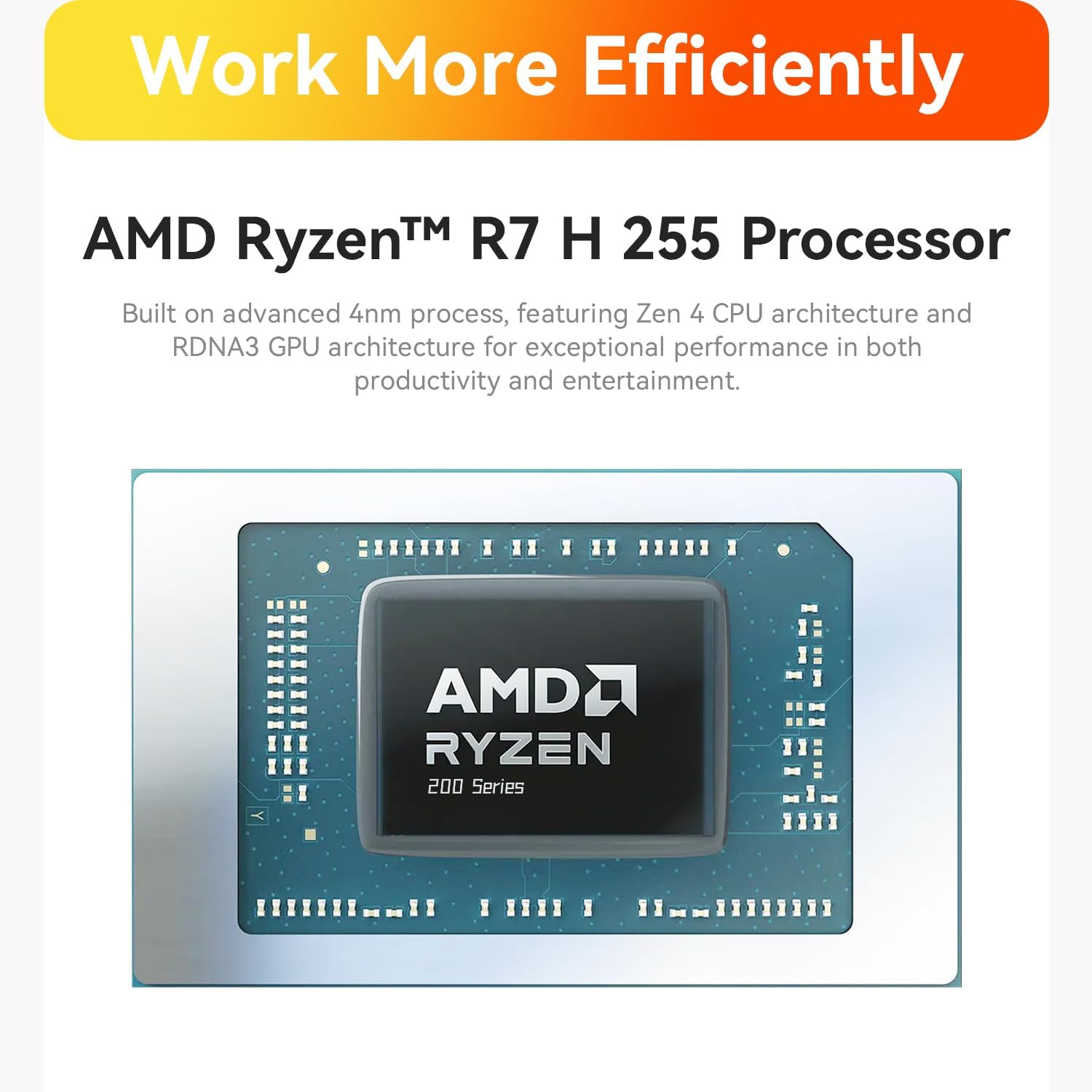
Image: Close-up of the 10Gbps Ethernet port on the Beelink SER9 MAX Mini PC, illustrating high-speed network capability.
6. Te Whakawhanui i te Rokiroki me te Mahara
The Beelink SER9 MAX is equipped with 64GB DDR5 RAM and a 1TB M.2 NVME SSD. It offers expansion capabilities:
- RAM: The system features two DDR5 SO-DIMM slots, allowing for memory upgrades up to 256GB (2 x 128GB).
- SSD: Dual M.2 PCIe 4.0 x4 SSD slots are available, supporting up to 8TB of internal storage.

Whakaahua: Roto view of the Beelink SER9 MAX Mini PC, highlighting the dual-channel DDR5 RAM and dual M.2 PCIe 4.0 SSD slots for storage expansion.
7. Whirihoranga Whakaatu
The mini PC supports triple display output, allowing you to connect up to three monitors simultaneously for enhanced productivity or immersive experiences. It supports resolutions up to 4K at a refresh rate of 240Hz via HDMI and DisplayPort.
- Atanga 2.1: Connects to HDMI-compatible displays.
- Tauranga Whakaatu 1.4: Connects to DisplayPort-compatible displays.
- USB4 (Type-C): Full-featured USB-C port supporting video output.
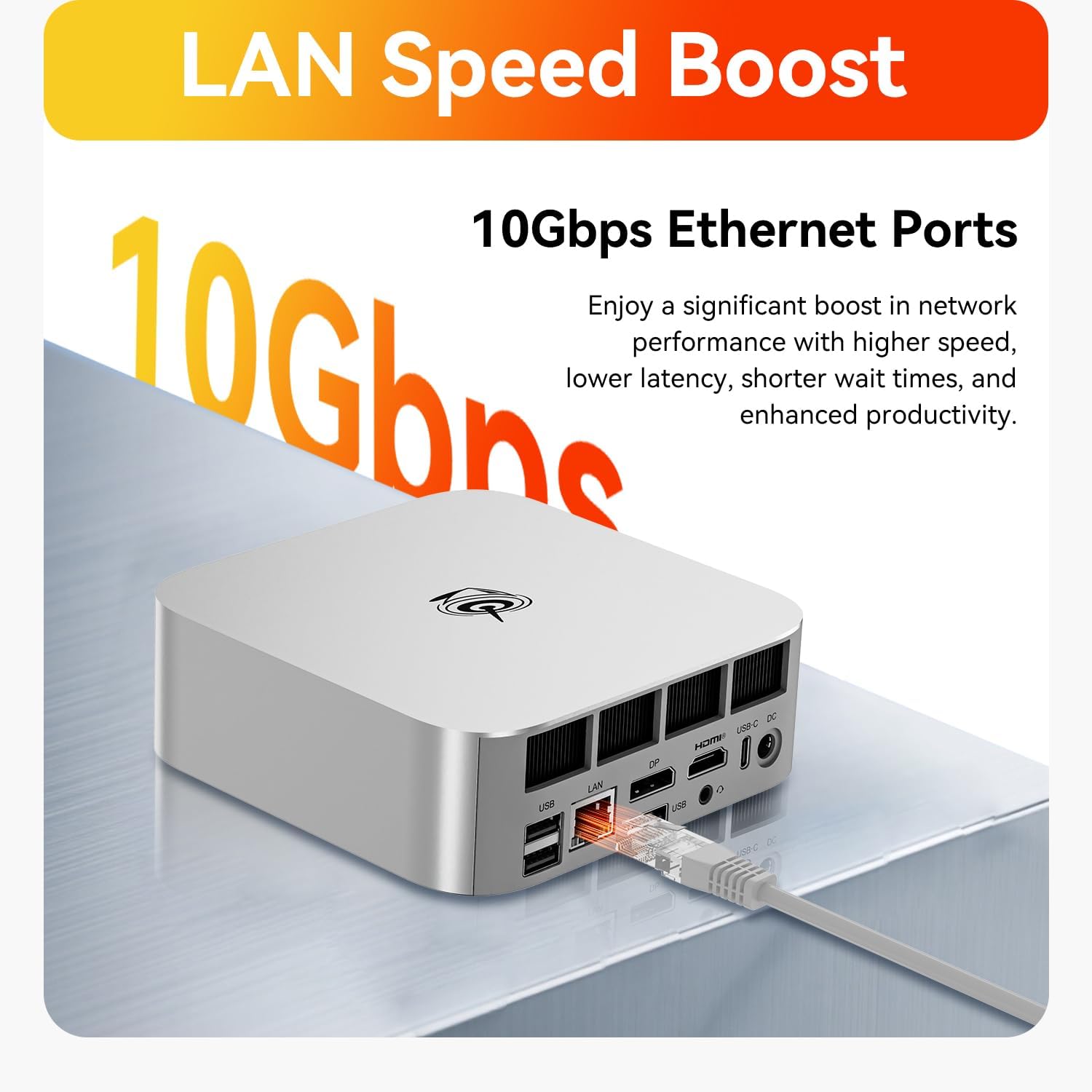
Image: The Beelink SER9 MAX Mini PC connected to three monitors, demonstrating its triple-display output capability at 4K 240Hz.
8. Pūnaha whakamatao
The Beelink SER9 MAX features the MSC2.0 cooling system, designed for efficient heat dissipation and quiet operation. It incorporates a vapor chamber technology that absorbs and spreads CPU heat evenly, ensuring sustained peak performance.

Image: Diagram illustrating the vapor chamber technology within the Beelink SER9 MAX Mini PC's cooling system, designed for superior thermal dissipation.
9. Whakatakotoranga
| Āhuahira | Whakatakotoranga |
|---|---|
| Waitohu | Beelink |
| Ingoa Tauira | SER9 MAX |
| Tauira PTM | AMD Ryzen 7 H 255 (8C/16T, up to 4.9GHz) |
| Kaitukatuka Whakairoiro | AMD Radeon 780M (12core 2600 MHz) |
| Rahi kua whakauruhia te mahara RAM | 64 GB DDR5 |
| Mahara RAM Rahi Morahi | 256 GB |
| Whakaahuatanga Kōpae Mārō | 1 TB M.2 NVME SSD |
| Pūnaha Mahi | Windows 11 Pro |
| Putanga Ataata | HDMI 2.1, DisplayPort 1.4, USB4 (Type-C) |
| Whakaatu Taumira Morahi | 3840x2160 Pixels (4K@240Hz) |
| Hononga Ahokore | Wi-Fi 6 (802.11ax), Nihokikorangi 5.2 |
| Itarangi | 10Gbps LAN (RJ-45) |
| Tauranga USB | 2 x USB 3.2, 2 x USB 2.0, 1 x USB4 (Type-C), 1 x USB-C (10Gbps) |
| Jack Ororongo | 1 x 3.5mm (HP&MIC) |
| Tikanga whakamatao | MSC2.0 Cooling System (Vapor Chamber) |
| Taumaha Tūemi | 16 hekere |
10. Te Raru
- Kore Mana: Ensure the power adapter is securely connected to both the mini PC and a working power outlet. Check the power indicator light.
- Kore Whakaatu: Verify that the monitor is powered on and the video cable (HDMI, DP, or USB-C) is securely connected to both the mini PC and the monitor. Try a different video port or cable if available. Ensure the correct input source is selected on your monitor.
- Kaore he Hononga Ipurangi: For wired connections, check the Ethernet cable and router status. For Wi-Fi, ensure Wi-Fi is enabled in Windows settings and you are connected to the correct network with the correct password.
- Mahinga Puturi: Katia ngā tono kāore e hiahiatia. Tirohia mēnā he nui te CPU, te RAM rānei e pau ana i ngā tukanga papamuri. Me whakarite kia rawaka te hauhautanga o te pūnaha.
- Te wera nui: Ensure the mini PC is placed in a well-ventilated area and that its vents are not obstructed. Avoid placing it on soft surfaces that can block airflow.
11. Tiaki
- Pupuri Ma: Regularly clean the exterior of the mini PC with a soft, dry cloth. Use compressed air to gently clear dust from ventilation openings to maintain optimal airflow.
- Whakahōu Pūmanawa: Keep your Windows operating system and drivers updated to ensure system stability, security, and performance.
- Raraunga Pūrua: Whakahokia nga raraunga nui ki tetahi puku o waho, ki te rokiroki kapua ranei hei aukati i te ngaronga raraunga.
- Whakaweto Tika: Always shut down the mini PC properly through the operating system rather than simply unplugging it, to prevent data corruption.

Whakaahua: Pahū view of the Beelink SER9 MAX Mini PC, showing its internal structure including the metal case, vapor chamber, motherboard, and SSD heatsink.
12. Pūtāhui me te Tautoko
The Beelink SER9 MAX Mini PC comes with a 3-tau pūtāhui. Beelink offers lifetime technical support and 24/7 after-sales service. For any questions or assistance, please contact Beelink customer support.
All Beelink products have passed strict inspections and obtained FCC, RoHS, and CE Certifications.


