
1. Hua Neke Atuview
The seenda SKM64-2 Bluetooth Keyboard and Mouse Combo is designed for seamless integration with Apple devices, offering multi-device connectivity, quiet operation, and a slim, portable design. This combo is ideal for enhancing productivity across your Mac, MacBook, and iPad.

2. Ihirangi mokete
- seenda SKM64-2 Bluetooth Keyboard
- seenda Bluetooth Mouse
- USB-C Uira Whakatau
- Silicone Keyboard Cover (for noise reduction and protection)
- Pukapuka Kaiwhakamahi
3. Tatūnga me te Tauhoa
3.1 Te Whakataki i nga taputapu
Both the keyboard and mouse are equipped with built-in rechargeable batteries. Use the provided USB-C cable to charge them. A full charge provides up to 200 hours of standby time. The charging port for the keyboard is located on the top edge, and for the mouse, it is on the front edge, allowing use while charging.

3.2 Takirua Nihokikorangi
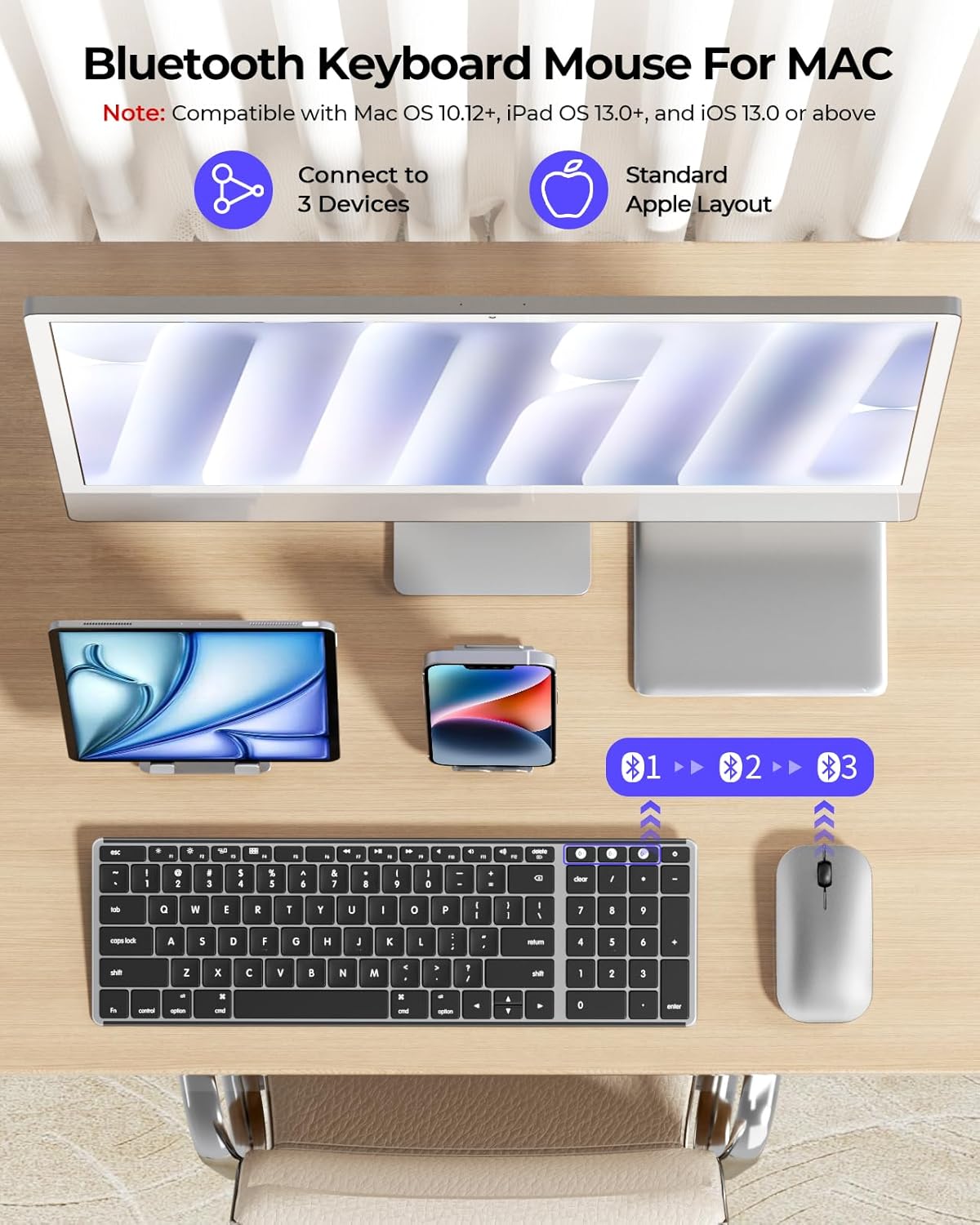
The combo supports up to three devices via Bluetooth channels (BT1, BT2, BT3). Ensure your device has Bluetooth 4.0 or above. To pair:
- Turn on the keyboard/mouse using the ON/OFF switch.
- Press and hold the desired Bluetooth channel button (BT1, BT2, or BT3) on the device until the indicator light flashes, indicating pairing mode.
- On your Mac, MacBook, or iPad, go to Bluetooth settings and select the 'seenda Keyboard' or 'seenda Mouse' from the list of available devices.
- Kia honoa, ka mutu te mura o te rama tohu.

4. Nga Tohutohu Whakahaere
4.1 Nga Mahi Papapātuhi
The keyboard features a standard Apple layout with quiet scissor-switch keys for a comfortable typing experience. Function keys (F1-F12) provide quick access to media controls, brightness, and other system functions. The integrated numeric keypad is convenient for data entry.

4.2 Nga Mahi Kiore
The mouse offers smooth, silent clicking and adjustable DPI settings (1000-1600-2400) to control cursor speed. Use the DPI button on the underside of the mouse to cycle through sensitivity levels.

4.3 Whakawhiti i waenga i nga Pūrere
To switch between paired devices, simply press the corresponding Bluetooth channel button (BT1, BT2, or BT3) on the keyboard or mouse. The device will automatically connect to the last paired device on that channel.
5. Tiaki
To maintain the longevity and performance of your seenda keyboard and mouse:
- Te horoi: Use a soft, dry cloth to clean the surfaces. For the keyboard, the included silicone cover can be removed and cleaned separately.
- Parenga: Utilize the provided silicone keyboard cover to protect against dust, spills, and reduce typing noise.
- Rokiroki: When not in use for extended periods, turn off the devices using the ON/OFF switch to conserve battery life. The devices also feature an auto-sleep function after 30 minutes of inactivity.
6. Te Raru
- Kaore te taputapu e hono ana: Ensure both the keyboard and mouse are fully charged and powered on. Verify that Bluetooth is enabled on your host device (Mac, MacBook, iPad). Try re-pairing the devices by following the 'Bluetooth Pairing' steps.
- Hononga whakaroa, hononga motumotu rānei: Ensure the devices are within the optimal Bluetooth range (typically up to 10 meters). Minimize interference from other wireless devices.
- Keys or mouse not responding: Check battery levels and recharge if necessary. Restart the keyboard/mouse and your host device.
7. Whakatakotoranga
| Āhuahira | Taipitopito |
|---|---|
| Tau tauira | SKM64-2 |
| Waitohu | seenda |
| Hangarau Hononga | Triple Bluetooth |
| Pūrere Hototahi | MacBook Pro, MacBook Air, Mac, iPad, iPhone (macOS 10.12+, iPadOS 13.0+, iOS 13.0+) |
| Nga waahanga motuhake | Designed for Mac, Rechargeable, Slim, Portable, Quiet Keys |
| Puna Mana | Pūhiko (Momo-C ka taea te whakahou) |
| Tahora Papapātuhi | QWERTY |
| Te Matotoru Papapātuhi | 0.12 inihi |
| Mouse Thickness | 0.9 inihi |
| Taumaha | 0.74 Kirokaramu |
8. Pūtāhui me te Tautoko
The seenda SKM64-2 Bluetooth Keyboard and Mouse Combo comes with a 24-marama whakamana. For any product inquiries or support, please contact seenda customer service.
I tua atu, a 30-ra kaupapa here whakahoki is available through Amazon for eligible purchases.
For further assistance, visit the official seenda store: Toa Seenda i runga i a Amazon