
1. Kupu Whakataki
The Reyke Air Tracker Smart Tag is designed to help you locate your valuable items quickly and efficiently. Utilizing the Apple Find My network, this smart tag allows you to track keys, wallets, backpacks, luggage, and more directly from your Apple device. This manual provides detailed instructions for setup, operation, and maintenance to ensure optimal performance of your Reyke Air Tracker.

Image: Reyke Air Tracker Smart Tags in various colors.
2. Ihirangi mokete
Your Reyke Air Tracker package includes the following items:
- Reyke Air Tracker Smart Tags (4 units: Baby Blue, Pink, Yellow, Green)
- Keychains (4 units, one for each tag)
- Lithium Metal Batteries (4 units, pre-installed)
- Pukapuka Kaiwhakamahi

Image: Contents of the Reyke Air Tracker package, including four tags and keychains.
3. Tatūnga
To begin using your Reyke Air Tracker, follow these steps:
- Whakahiko: The Reyke Air Tracker tags come with pre-installed batteries. To activate, ensure the battery is properly seated.
- Download the Find My App: Open the App Store on your Apple device (iPhone, iPad, Mac, or Apple Watch) and search for the "Find My" app. Download and install it if you don't already have it.
- Tūhono tō Kairapu Tūemi:
- Whakatuwheratia te taupānga "Kimihia Taku".
- Tap the "Items" tab at the bottom of the screen.
- Pāwhiritia te ata "+" ka tīpako "Tāpirihia tētahi atu tūemi".
- Follow the on-screen instructions to pair your Reyke Air Tracker. This typically involves pressing the button on the tracker to make it discoverable.
- Once detected, name your item and assign an emoji to easily identify it.
- Attach to Your Item: Use the provided keychain to attach the Reyke Air Tracker to your keys, backpack, luggage, wallet, or any other item you wish to track.
Tuhipoka: The Reyke Air Tracker is compatible with iOS 14.5 or higher and is not designed for Android devices.

Image: Pairing the Reyke Air Tracker with the Apple Find My app on an iPhone.
4. Nga Tohutohu Whakahaere
The Reyke Air Tracker offers several features to help you keep track of your belongings:
4.1 Find Nearby
When your item is within Bluetooth range (up to 180 feet), you can trigger the built-in speaker to emit a loud beep (up to 100dB) to help you pinpoint its exact location.
- Whakatuwheratia te taupānga "Kimihia Taku".
- Go to the "Items" tab.
- Select the Reyke Air Tracker you wish to locate.
- Tap "Play Sound". The tag will emit a sound until you tap "Stop Sound" or it is found.

Image: Using the 'Play Sound' feature in the Find My app to locate a nearby item.
4.2 Left-Behind Remind
Receive instant notifications on your iPhone if you leave your Reyke Air Tracker behind and it goes out of Bluetooth range. You can then view its last known location on a map within the Find My app.
- In the "Find My" app, select your Reyke Air Tracker.
- Under "Notifications", toggle on "Notify When Left Behind".
- You can also set up specific locations where you don't want to be notified (e.g., your home).
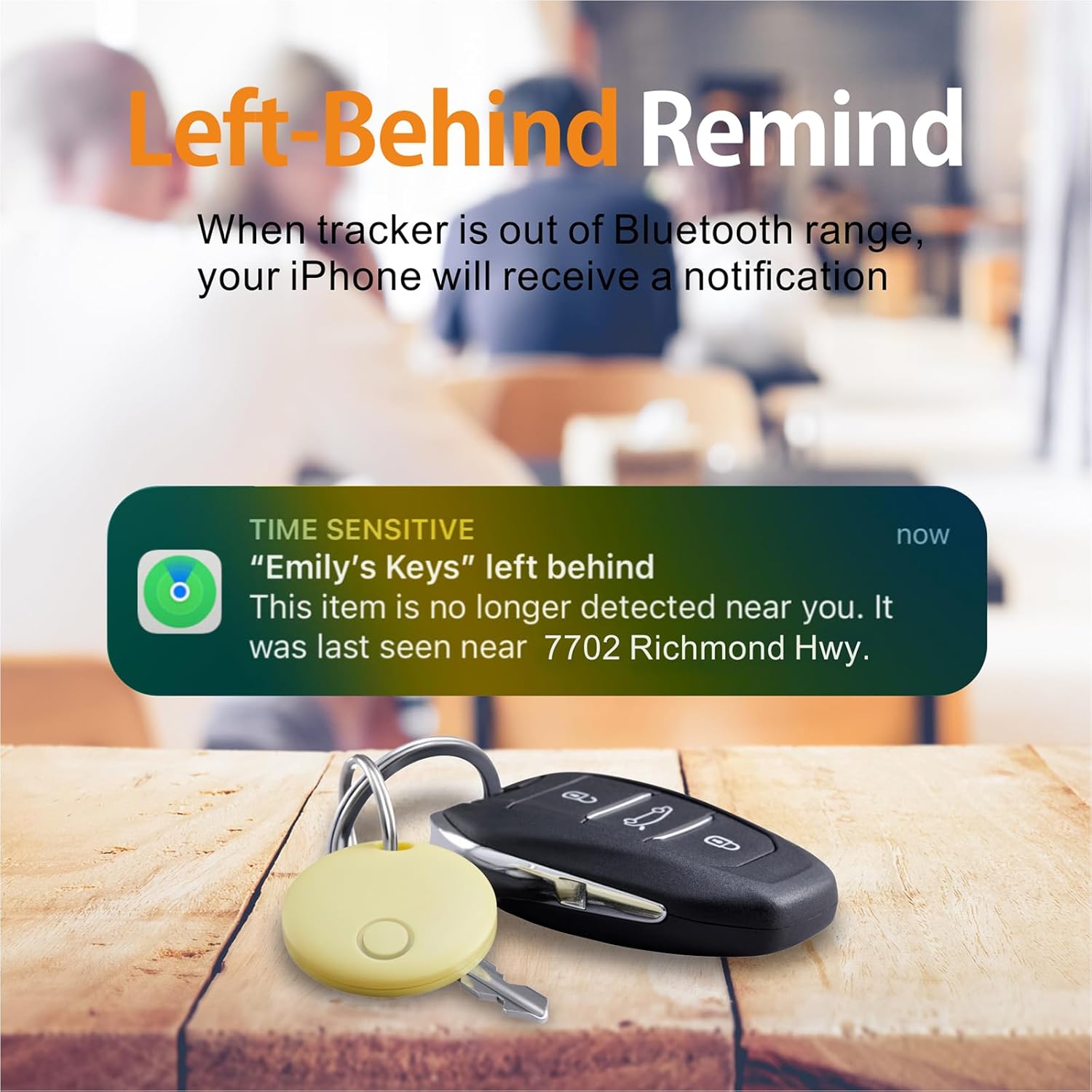
Image: An iPhone notification for a left-behind Reyke Air Tracker.
4.3 Aratau Ngaro
If your item is truly lost, activate Lost Mode to leverage the vast Apple Find My network. Hundreds of millions of Apple devices worldwide can anonymously detect your tag and relay its location to you.
- In the "Find My" app, select your Reyke Air Tracker.
- Under "Lost Mode", tap "Enable".
- Follow the prompts to enter your contact information. If your tag is found by someone, they can use an NFC-enabled smartphone to view ō taipitopito whakapā.
- You will receive a notification when your lost item is detected by an Apple device in the network.
4.4 Share This Item (iOS 17+ only)
With iOS 17 or later, you can share the location of your Reyke Air Tracker with up to 5 other Apple users. This is ideal for shared items like family car keys or luggage when traveling together.
- Ensure your Apple device is updated to iOS 17 or later.
- In the "Find My" app, select your Reyke Air Tracker.
- Tap "Share This Item" and follow the instructions to add borrowers.
- Borrowers will be able to see the item's location on a map and will not receive tracking notifications as the item moves with them.
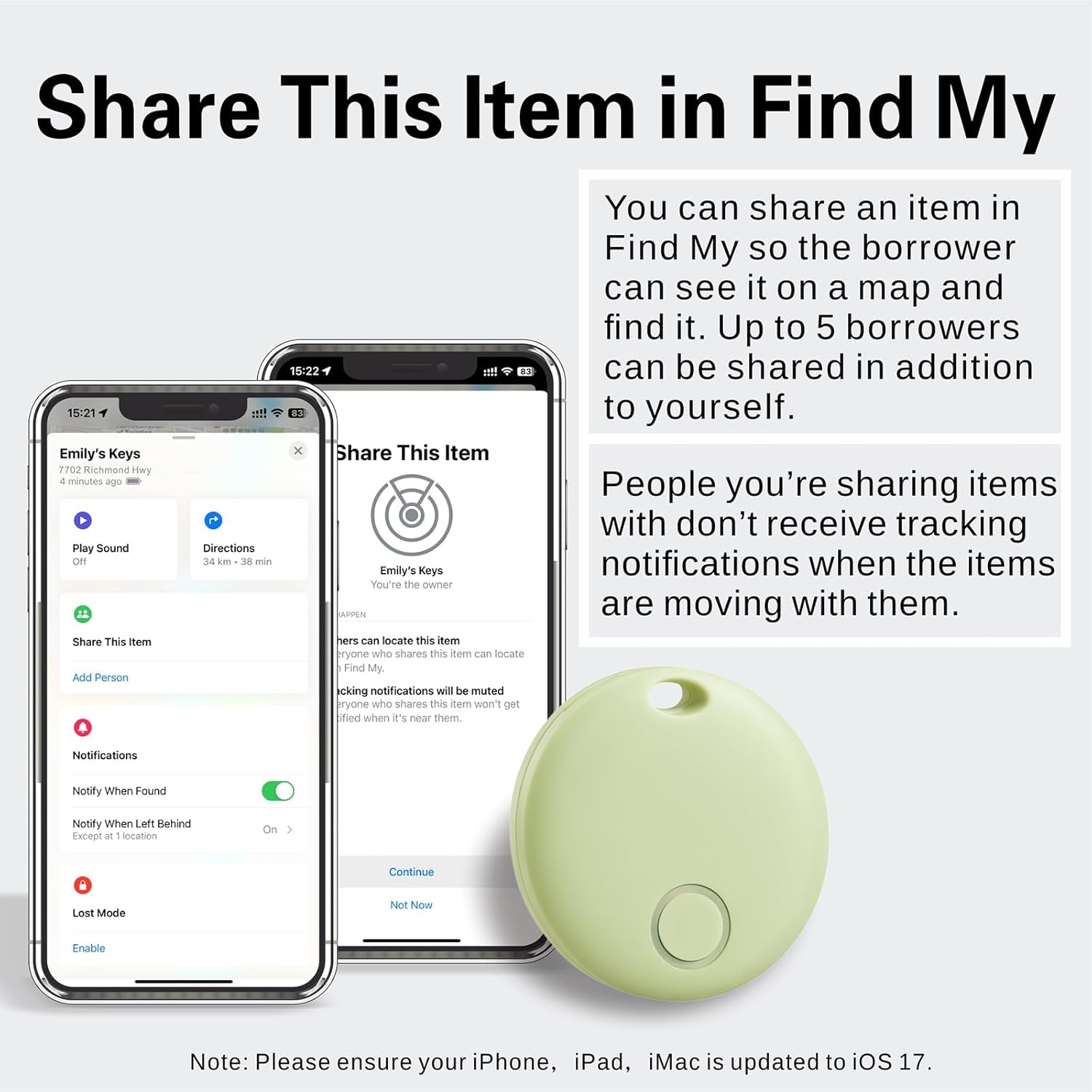
Image: Sharing a Reyke Air Tracker's location with others via the Find My app.
5. Whakakapinga Pūhiko
The Reyke Air Tracker uses a replaceable CR2032 Lithium Metal battery, which typically lasts up to 1 year depending on usage and environmental factors.
- Identify the Battery Compartment: Locate the small slot on the side of the Reyke Air Tracker.
- Whakatuwherahia te Casing: Use a small, flat tool (like a coin or the provided key-like tool if available) to gently pry open the casing at the slot. The two halves of the tag will separate.
- Tango Pūhiko Tawhito: Carefully remove the old CR2032 battery from its compartment.
- Kōkuhu Pūhiko Hōu: Place a new CR2032 battery into the compartment with the positive (+) side facing up.
- Katia te Casing: Align the two halves of the Reyke Air Tracker and press them firmly together until they snap securely into place. Ensure the O-ring seal is properly seated to maintain water resistance.
Tuhipoka: Makahia nga pākahiko kua whakamahia kia rite ki nga ture o te rohe.
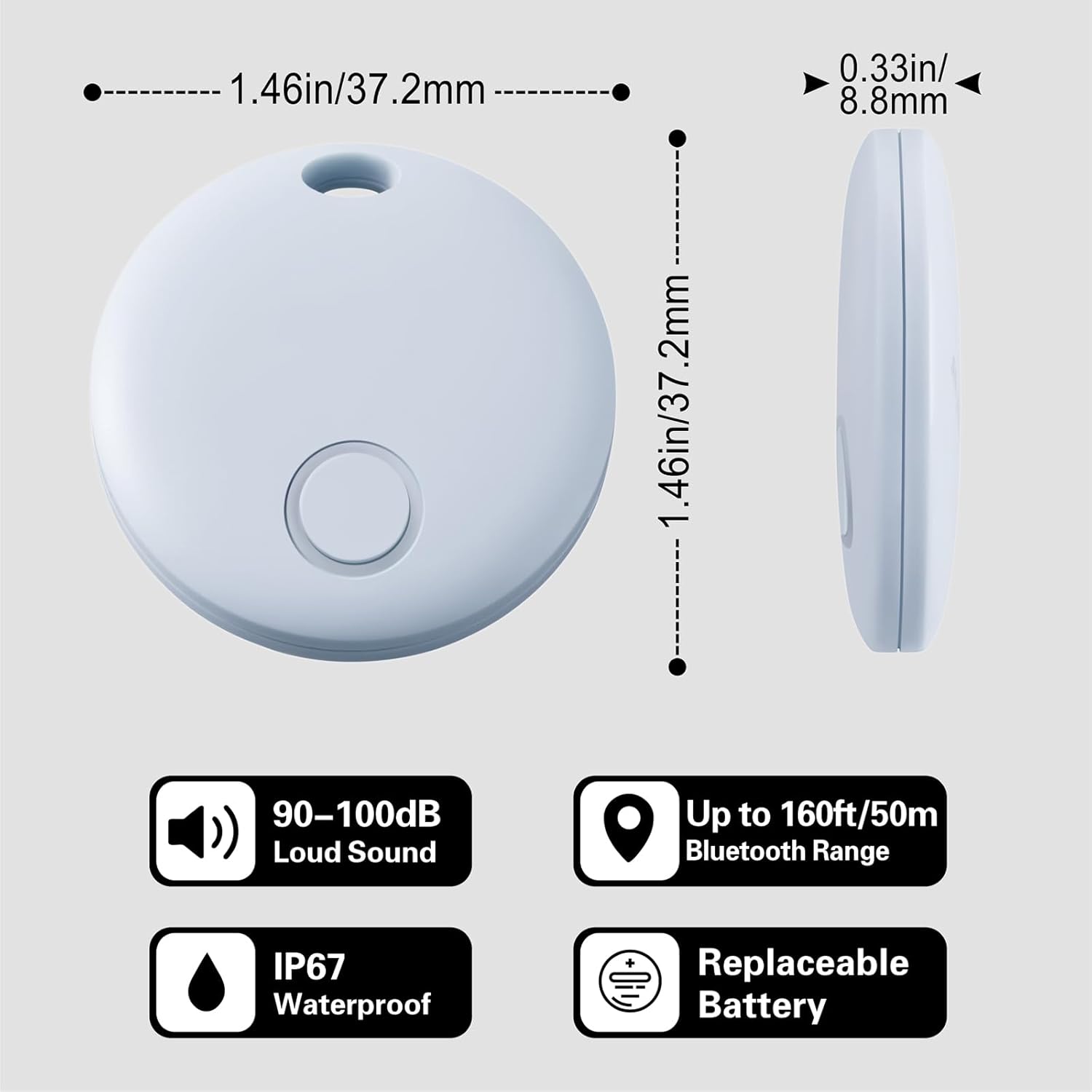
Image: Key features of the Reyke Air Tracker, including replaceable battery.
6. Tiaki me te Tiaki
To ensure the longevity and optimal performance of your Reyke Air Tracker, follow these care guidelines:
- Atete Wai me te Puehu: Ko te tag has an IP67 rating, meaning it can withstand immersion in water up to 3 feet (1 meter) for 30 minutes. While it is resistant to splashes and rain, prolonged submersion or exposure to high-pressure water jets is not recommended.
- Te horoi: Horoia te tag me te kakahu ngohengohe, maroke. A ape i te whakamahi i nga matū kino, i nga taonga abrasive ranei.
- Te pāmahana: A ape i te whakaatu i te tag to extreme temperatures (hot or cold) as this can affect battery life and performance.
- Rokiroki: Rokiroki te tag i te wahi matao, maroke ina kore e whakamahia.

Image: The Reyke Air Tracker demonstrating its IP67 waterproof capability.
7. Te Raru
If you encounter issues with your Reyke Air Tracker, try the following solutions:
- Tag Not Connecting:
- Me whakarite kei te whakahohea te Nihokikorangi i runga i tō pūrere Apple.
- Tirohia mehemea te tag's battery needs replacement.
- Nuku te tag closer to your Apple device.
- Tīmata anō i tō pūrere Apple ka ngana anō ki te hono.
- Kāore e Pureitia ana te Oro:
- Manatokohia te tag is within Bluetooth range of your device.
- Check the battery level of the tag.
- Ensure your device's volume is turned up.
- Left-Behind Notifications Not Working:
- Confirm that "Notify When Left Behind" is enabled in the Find My app settings for the specific tag.
- Check your device's notification settings to ensure Find My notifications are allowed.
- Me mohio kei te hou tonu te punaha whakahaere o to taputapu.
- Kāore te Tauwāhi e Whakahōu ana:
- Ko te tag's location updates when it comes within range of any Apple device in the Find My network. If it's in a remote area, updates may be less frequent.
- Ensure Lost Mode is activated if the item is truly lost.
8. Whakatakotoranga
| Tau tauira | HB02 |
| Ahu | 1.46 x 1.46 x 0.33 inihi (37.2 x 37.2 x 8.8 mm) |
| Taumaha | 2.39 hekere |
| Hononga | Nihokikorangi |
| Awhe Nihokikorangi | Tae atu ki te 180 putu (tata ki te 55 mita) |
| Ātete wai | IP67 (Waterproof up to 3 feet for 30 minutes) |
| Momo Pūhiko | CR2032 Lithium Metal (replaceable) |
| Ora Pūhiko | Tae atu ki te 1 tau |
| Hototahi | Apple devices with iOS 14.5 or later (not for Android) |
9. Pūtāhui me te Tautoko
For warranty information, technical support, or further assistance, please refer to the product packaging or contact Reyke customer service through the official website or your retailer. Keep your purchase receipt for warranty claims.