
1. Kupu Whakataki
The ORICO ACOM2 40Gbps M.2 NVMe SSD Enclosure is designed for high-speed data transfer and efficient heat dissipation. It supports M-Key NVMe SSDs up to 8TB capacity and is compatible with Thunderbolt 3/4 and various USB standards. This manual provides instructions for setup, operation, maintenance, and troubleshooting.
2. Ihirangi mokete
Tena koa tirohia kei roto katoa nga taonga kei roto i to kete:
- 40Gbps NVMe Enclosure (1 unit)
- USB C to A/C Cable (1 unit)
- Thermal Pad and Cooling Vest (1 set)
- SSD Fastener (2 units)
- Pukapuka Kaiwhakamahi (1 wae)
3. Nga Hua o te Hua
- Whakawhiti Raraunga Tino Tere: Equipped with a stable smart chip and Thunderbolt 3/4 compatible Type-C interface, achieving up to 40Gbps data transfer speeds. Read speeds up to 3500MB/s, write speeds up to 2800MB/s.
- Pūnaha whakamatao pai: Features an aluminum alloy body with a 360° stripe pattern, built-in fan, cooling silicone pad, and metal vest to prevent overheating, speed drops, and data loss.
- Utauta-Kore he Tāuta: Simple push-button mechanism for easy SSD installation without screws or screwdrivers.
- Tautoko Rawa Nui: Supports M.2 NVMe SSDs up to 8TB, suitable for demanding tasks like 4K/8K video projects.
- Hototahi Whānui: Supports M-Key 2230/2242/2260/2280 SSDs and is compatible with Thunderbolt 3/4, USB4/3.2/3.1/3.0 ports. Works with Windows, macOS, Linux, and Android.
4. Hototahi
The ORICO ACOM2 enclosure is designed for broad compatibility:
- Momo SSD: Supports M-Key NVMe SSDs (PCIe protocol) in 2230, 2242, 2260, and 2280 form factors.
- Ngā SSD kore hototahi: Not compatible with SATA AHCI M.2 SSDs, mSATA SSDs, or B-Key/B+M Key SATA SSDs. SSDs with pre-installed heatsinks may not fit.
- Atanga Kaihautū: Compatible with Thunderbolt 3, Thunderbolt 4, USB4, USB 3.2, USB 3.1, USB 3.0, and USB 2.0 ports.
- Pūnaha Whakahaere: Fully compatible with Windows, macOS, Linux, and Android.
- Specific SSD Notes: Not recommended for use with Crucial-P3 Plus, WD Black SN750, and Samsung 970 EVO Plus.
- Thunderbolt Port Notes: Not compatible with Intel Thunderbolt ports prior to 12th Gen (except 12th Gen). Compatible with AMD and Apple Thunderbolt ports.
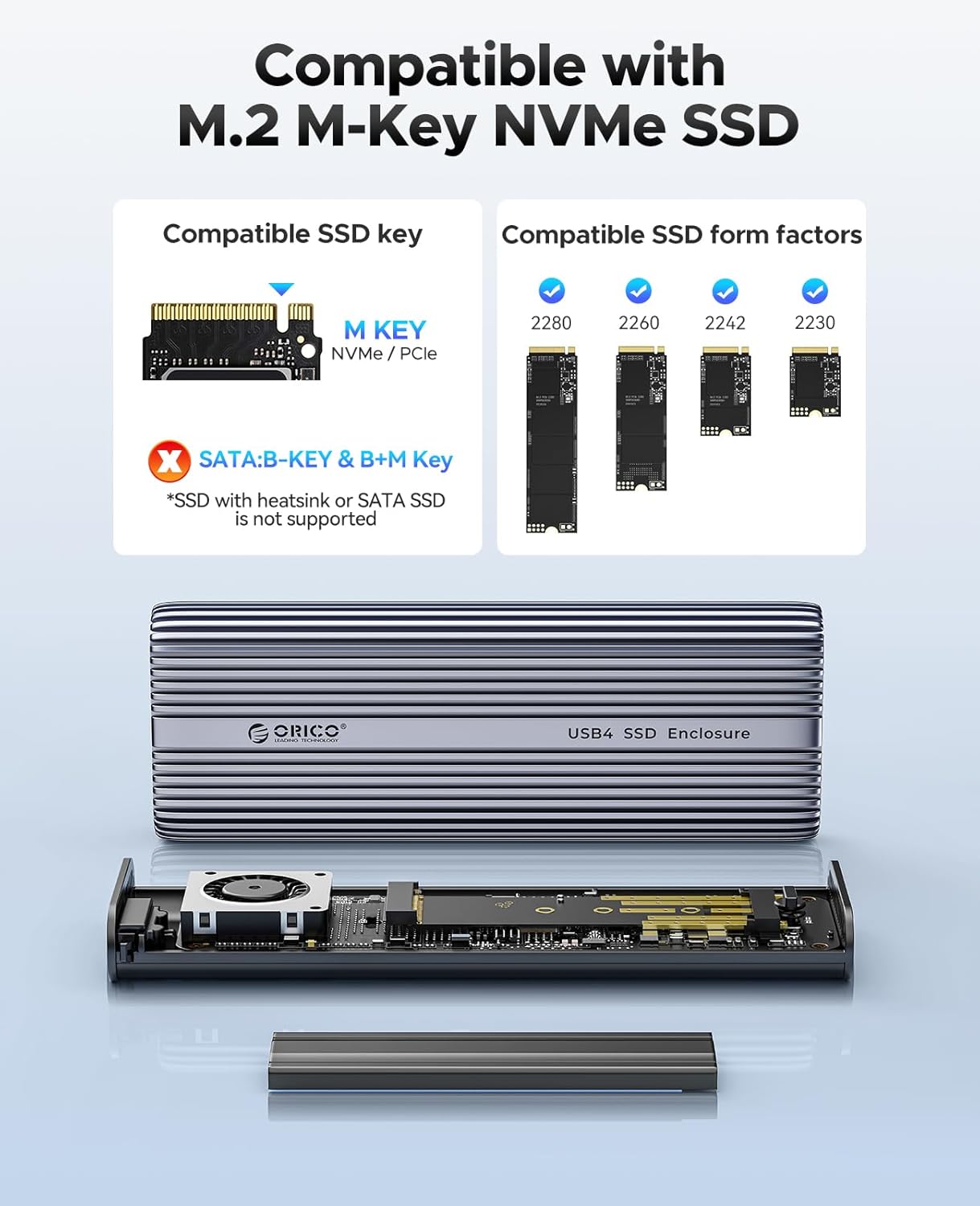
Image: Compatible M.2 M-Key NVMe SSD types and form factors.
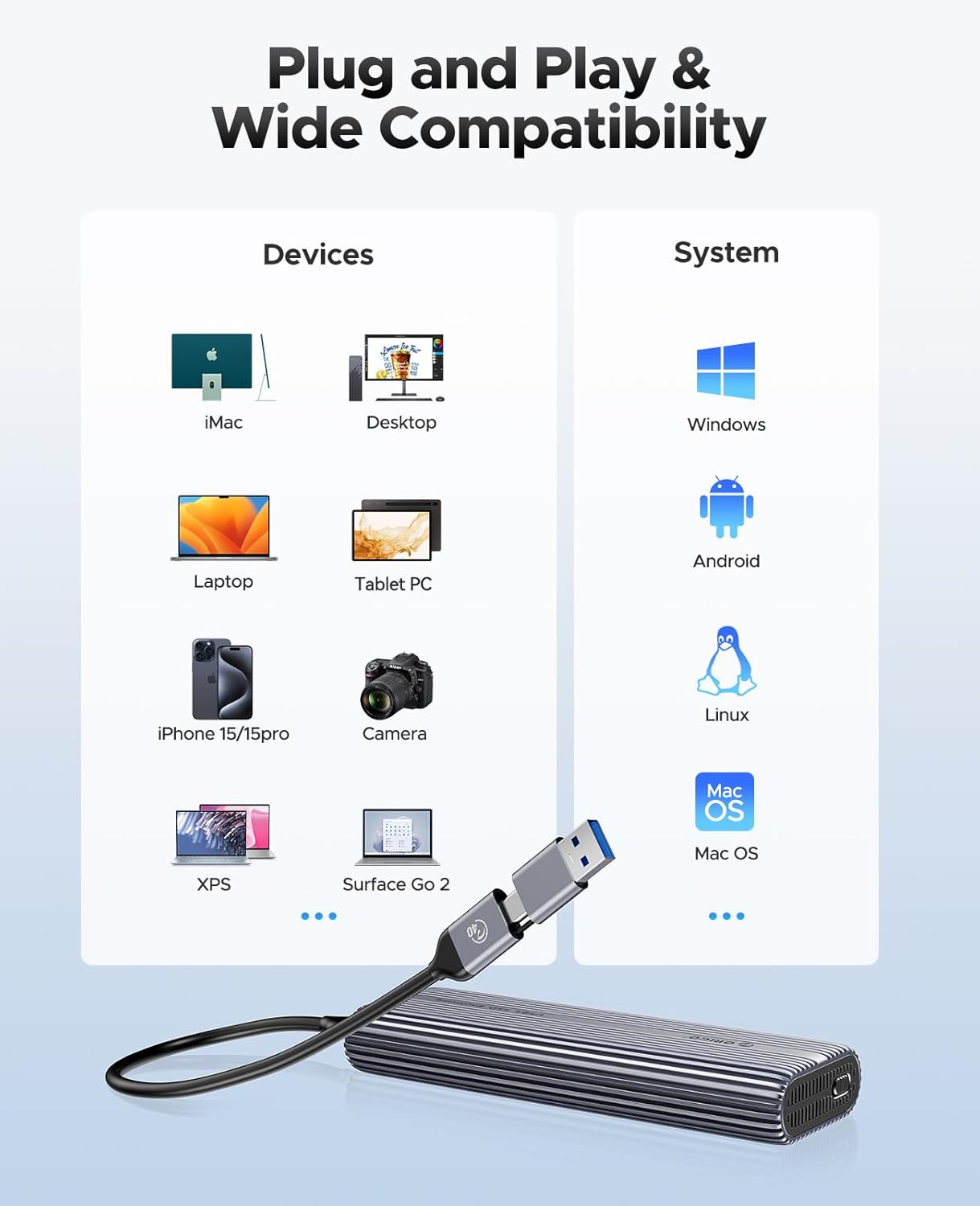
Whakaahua: Ka mutuview of device and operating system compatibility.
5. Tohutohu Tatūnga
A pee i enei taahiraa ki te whakauru i to M.2 NVMe SSD ki roto i te waahi:
- Whakatuwheratia te Whakapiri: Gently slide the bottom cover and pull the internal tray out of the aluminum shell.
- Whakaritea te SSD: Attach the thermal pad to the top surface of your M.2 NVMe SSD. Then, place the cooling vest over the thermal pad, ensuring good contact.
- Whakauruhia te SSD: Align your M.2 NVMe SSD with the slot on the circuit board. Insert it firmly and secure it with the provided SSD fastener.
- Katia te Whakapiri: Slide the internal tray back into the aluminum shell until it clicks securely into place.
- Tūhono ki te Pūrere: Use the included USB-C to C or USB-C to A cable to connect the enclosure to your computer or compatible device.
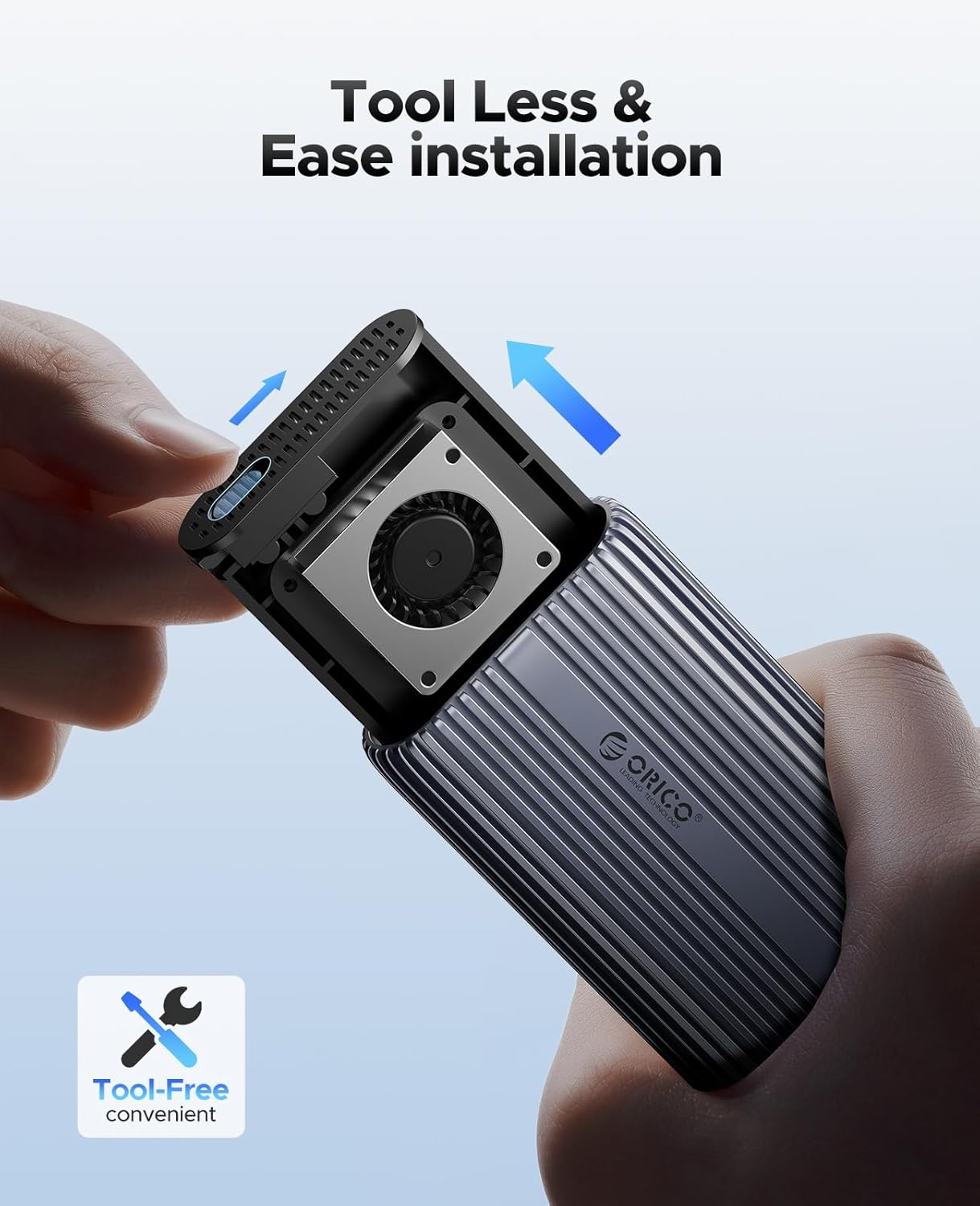
Image: Step-by-step guide for tool-free SSD installation.
Video: A short demonstration of the ORICO 40Gbps M.2 NVMe Enclosure's cooling features and tool-free installation process, including inserting an SSD and connecting the device.
6. Nga Tohutohu Whakahaere
Once your SSD is installed and the enclosure is connected to your device, it operates as a plug-and-play external storage solution.
- Whakamahinga Tuatahi: For new SSDs, you may need to initialize and format the drive through your operating system's disk management utility before it appears as a usable drive.
- Whakawhiti Raraunga: Tōia ka taka files to and from the enclosure as you would with any external drive. The 40Gbps interface ensures rapid transfers for large files.
- Tango Haumaru: Me pana marie te puku mai i tō pūnaha whakahaere i mua i te momotu i te taura hei ārai i te pirau o ngā raraunga.
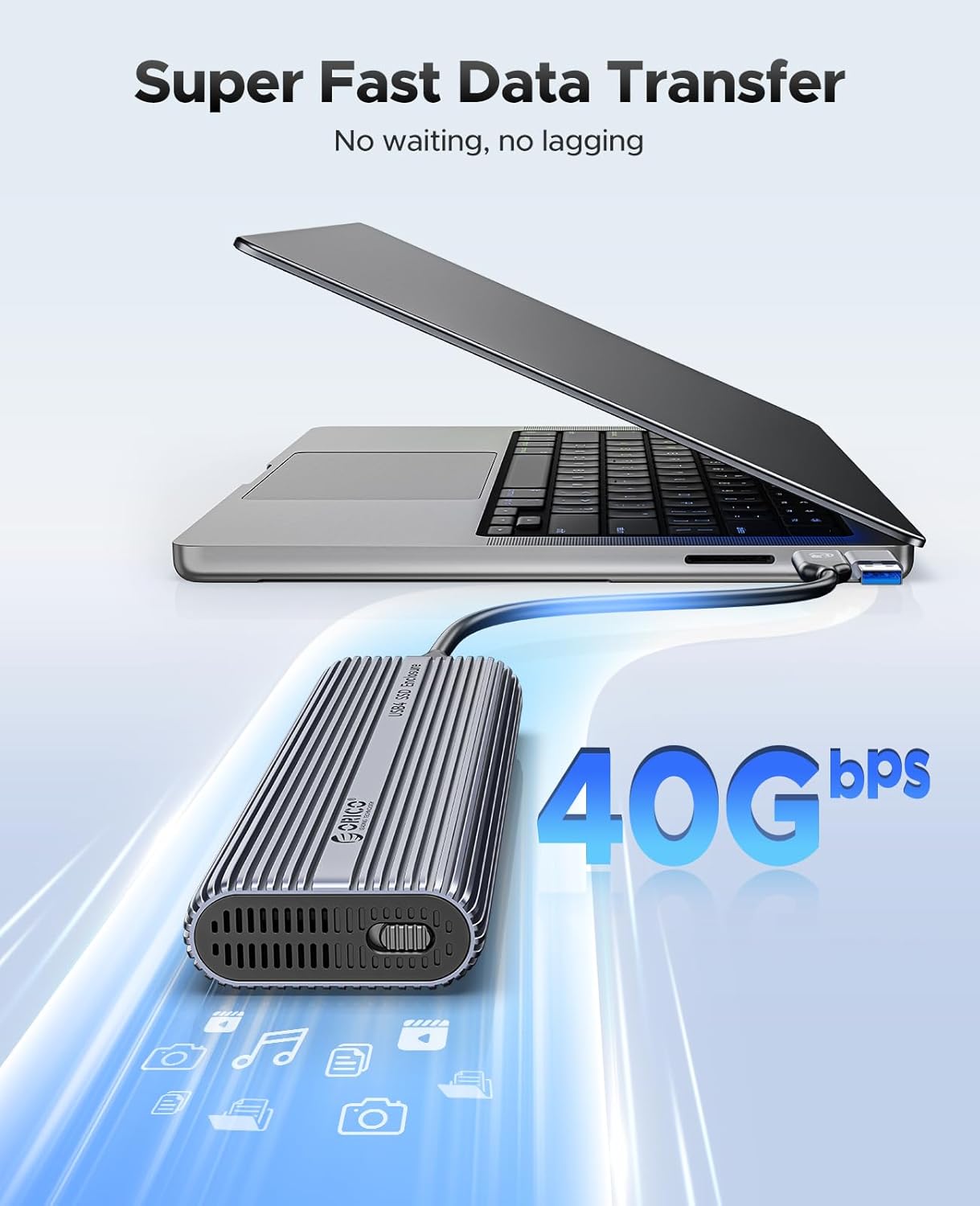
Image: The enclosure connected to a laptop, demonstrating high-speed data transfer.
7. Tiaki
To ensure the longevity and optimal performance of your ORICO ACOM2 SSD Enclosure:
- Te horoi: Whakamahia he kakahu ngohengohe, maroke hei horoi i waho o te papa. A ape i te horoi wai, whakarewa ranei.
- Rererangi: Ensure the ventilation holes are not obstructed to allow for proper heat dissipation by the built-in fan.
- Te pāmahana: Operate the enclosure in a well-ventilated area and avoid extreme temperatures.
- Te whakahaere: Kia tupato ki te hapai i te keera kia kore ai e pakaru tinana.
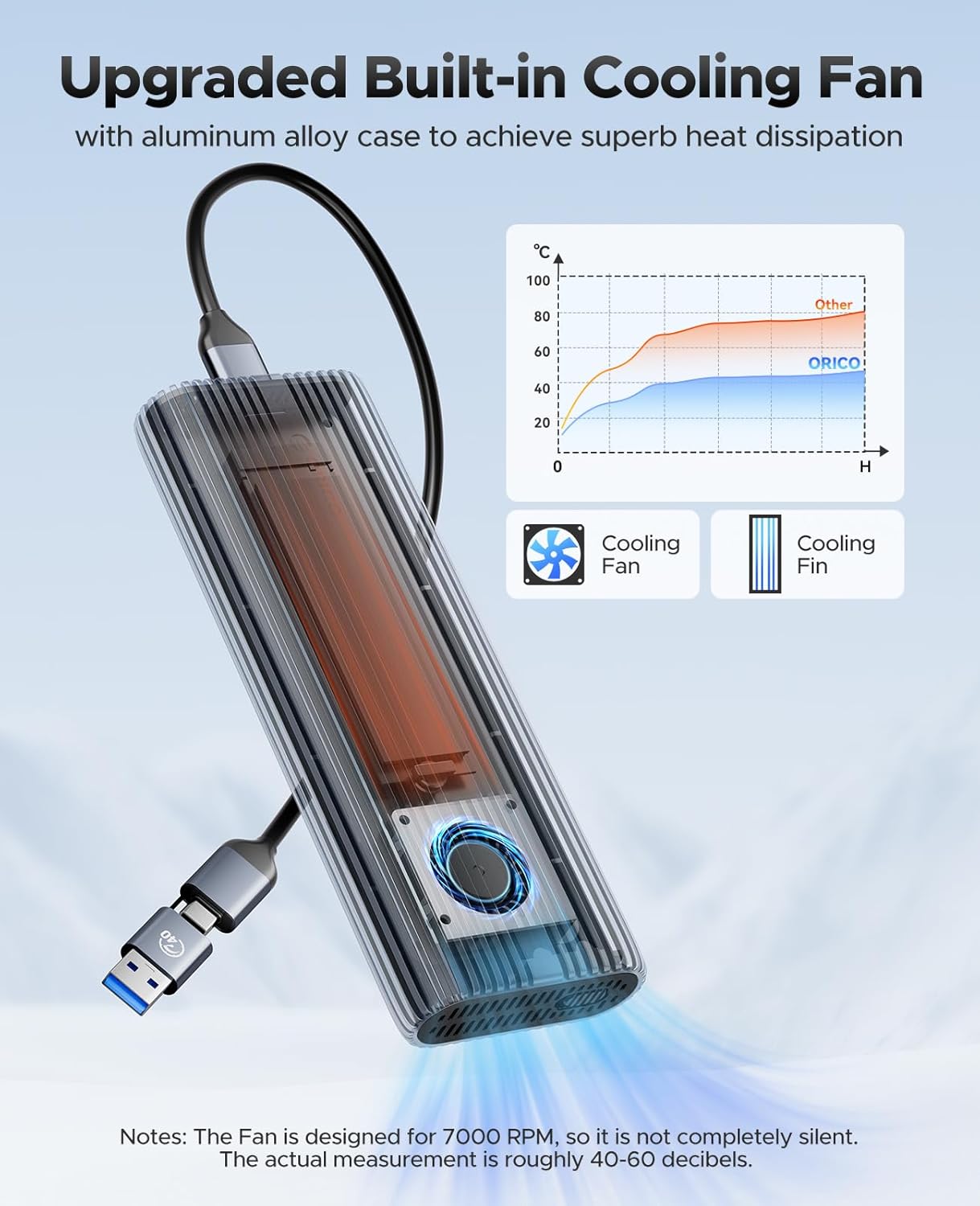
Image: Internal cooling fan and heat dissipation performance graph.
8. Te Raru
If you encounter issues with your ORICO ACOM2 SSD Enclosure, refer to the following common solutions:
- Kāore i Kitea te Āpiti:
- Ensure the USB cable is securely connected to both the enclosure and your device.
- Whakamātauria tētahi tauranga USB rerekē, taura rānei.
- Verify that the SSD is correctly installed and secured within the enclosure.
- Mō ngā SSD hou, tirohia te Whakahaere Kōpae (Windows) te Whakamahinga Kōpae rānei (macOS) hei tīmatanga me te whakahōputu i te puku.
- Nga Tere Whakawhiti Puturi:
- Ensure your device's port supports 40Gbps (Thunderbolt 3/4 or USB4) for maximum performance. Connecting to a slower USB port (e.g., USB 3.0) will result in lower speeds.
- Confirm your SSD is an NVMe M-Key type and not a slower SATA M.2 SSD.
- Check the compatibility notes regarding specific SSD models (e.g., Crucial-P3 Plus, WD Black SN750, Samsung 970 EVO Plus) and Intel Thunderbolt ports prior to 12th Gen.
- Ensure the thermal pad and cooling vest are properly installed to prevent thermal throttling.
- Te wera nui:
- Ensure the enclosure is placed in an area with good airflow and not covered.
- Verify the thermal pad and cooling vest are correctly applied to the SSD.
- The built-in fan operates to dissipate heat; ensure its vents are clear.
- Haruru Fan: The built-in fan operates at 7000 RPM and may produce a sound level of roughly 40-60 decibels. This is normal operation.

Image: ORICO 40Gbps M.2 NVMe Enclosure Test Report for various SSDs.
9. Whakatakotoranga
| Āhuahira | Taipitopito |
|---|---|
| Tauira | ACOM2 |
| Atanga Pūmārō | USB Type C (Thunderbolt 3/4, USB4/3.2/3.1/3.0 compatible) |
| Rere Whakawhiti Raraunga | Tae atu ki te 40 Gigabits ia Hekona |
| SSDs hototahi | M-Key NVMe SSDs (2230/2242/2260/2280) |
| Te Kaha Rawa | 8 TB |
| Rauemi Whakapiri | Aluminum Aluminum |
| Pūnaha whakamatao | Built-in Fan, Cooling Vest, Silicone Pad |
| Hunga Hua | 5.9"L x 2.2"W x 0.87"H (150mm x 56mm x 22mm) |
| Pūrere Hototahi | Papamahi, Pona, Waea Atamai, Papaaho |
| Pūnaha Whakahaere | Windows, macOS, Linux, Android |

Image: Comparison of data transfer speeds across different USB and Thunderbolt standards.
10. Pūtāhui
The ORICO ACOM2 40Gbps M.2 NVMe SSD Enclosure comes with a 2-Tau Pūtāhui mai i te ra o te hokonga. Ka kapi tenei whakamana i nga hapa o te hangahanga me nga mahi kino i raro i te whakamahinga noa. Tena koa pupurihia to tohu mo te hoko mo nga kereme whakamana.
11. Tautoko
For technical assistance, troubleshooting not covered in this manual, or warranty inquiries, please contact ORICO customer support through the official ORICO website or your retailer's support channels. Please have your product model (ACOM2) and proof of purchase ready when contacting support.