
Kupu Whakataki
Thank you for choosing the HP 14-inch Laptop. This manual provides essential information for setting up, operating, maintaining, and troubleshooting your new device. Please read this guide thoroughly to ensure optimal performance and longevity of your laptop.
The HP 14-inch Laptop is designed for everyday computing tasks, offering a balance of portability and functionality. It features an Intel Celeron N4120 processor, 8GB of RAM, and 256GB of storage, running on Windows 11 Home in S Mode.
He aha kei roto i te Pouaka
Manatokona kei roto katoa nga mea kei roto i te kete:
- HP 14-inch Laptop
- Pouaka AC
- Kāri Rokiroki 128GB
- Papa Kiore
- Tauera HDMI
- Tauira USB
- Waea Waeakore
- Kiore Ahokore

Image: The HP 14-inch Laptop shown with its 5-in-1 value pack bundle, including wireless earbuds, mouse pad, HDMI cable, USB cable, and wireless mouse.
Tatūnga
1. Hinga-Whakatika Tuatahi
- Wetekina te Pūkoro Rorohiko: Tangohia marietia te pona me ngā taputapu katoa i roto i te takai.
- Hono Hono: Plug the AC power adapter into the laptop's AC smart pin port and then into a wall outlet. It is recommended to fully charge the battery before first use.
- Whakahiko: Whakatuwheratia te taupoki o te pona ka pēhi i te pātene mana, kei runga i te papa papapātuhi.
2. Windows 11 S Mode Setup
Follow the on-screen prompts to complete the initial Windows 11 Home S Mode setup. This includes selecting your region, keyboard layout, connecting to a Wi-Fi network, and setting up your Microsoft account.
3. Hononga Taonga
- Kiore Ahokore: Insert the USB receiver for the wireless mouse into an available USB Type-A port on the laptop. The mouse should connect automatically.
- Waea Waea Ahokore: Refer to the earphones' specific instructions for pairing via Bluetooth. On your laptop, go to Tautuhinga> Nihokikorangi me nga taputapu ki te takirua.
- 128GB Storage Card: Insert the storage card into the multi-format media card reader slot.
- Tauira HDMI: Connect one end of the HDMI cable to the laptop's HDMI port and the other end to an external display (monitor or TV).
4. Activating Microsoft Office 365
Your laptop includes a 1-year subscription to Microsoft Office 365. To activate:
- Open any Office application (e.g., Word, Excel) from the Start Menu.
- Follow the on-screen prompts to sign in with your Microsoft account and activate your subscription.
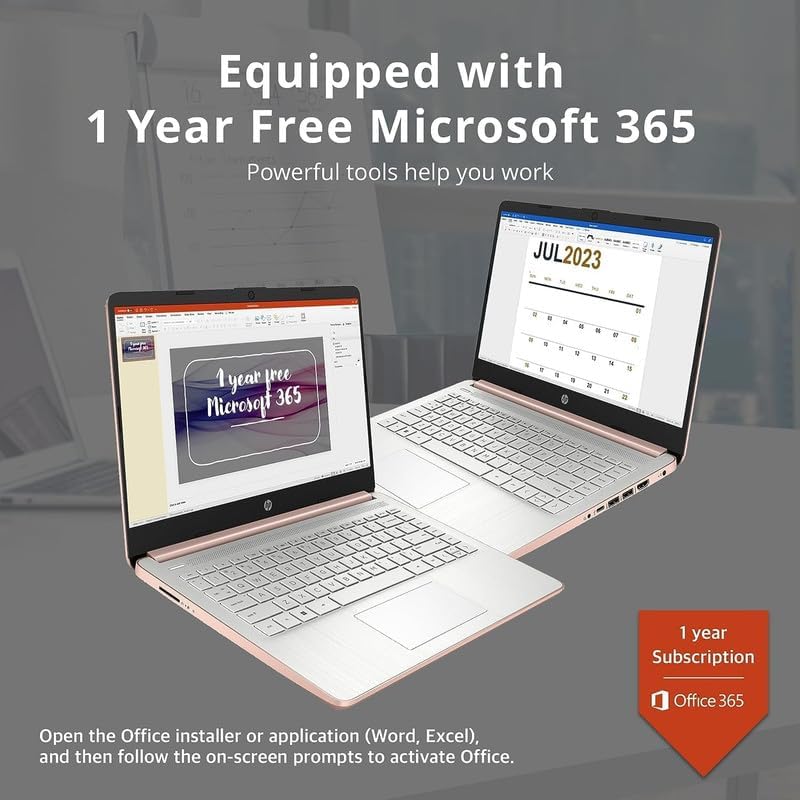
Image: Two HP laptops illustrating the activation process for the included 1-year Microsoft 365 subscription.
Te Whakahaere i tō Pona Rorohiko
1. Windows 11 Home in S Mode
Windows 11 Home in S Mode is a streamlined version of Windows configured for security and performance. It exclusively uses apps from the Microsoft Store and requires Microsoft Edge for safe browsing. You can switch out of S Mode if you need to install apps from outside the Microsoft Store, but this action is irreversible.
2. Using Ports and Connectivity
Your HP 14-inch Laptop is equipped with various ports for connectivity:
- USB Type-C (1): For data transfer and connecting compatible devices.
- USB Type-A (2): For connecting standard USB devices like external drives, keyboards, or mice.
- HDMI 1.4b (1): Mo te hono ki nga whakaaturanga o waho.
- Headphone/Microphone Combo Jack (1): For audio output to headphones or input from a microphone.
- Multi-format Media Card Reader (1): For reading SD cards and other compatible memory cards.
- AC Smart Pin (1): Mo te hono i te urutau hiko.

Image: A detailed diagram highlighting the multi-port configuration on the HP 14-inch laptop, including SD Card Reader, Headphone Jack, USB Type-A, USB Type-C, HDMI, and AC Smart Pin.
3. Wi-Fi me te Nihokikorangi
To connect to Wi-Fi or Bluetooth devices:
- Patohia te Whatunga icon on the taskbar (bottom right).
- Select the desired Wi-Fi network and enter the password, or turn on Bluetooth and pair with your device.
4. Te whakamahi i te Webkamera
The HP True Vision 720p HD camera is integrated for video calls and conferencing. Access it through applications like Camera, Microsoft Teams, or Zoom.

Image: The HP 14-inch laptop demonstrating its remote work capabilities, featuring HP Fast Charge, HP True Vision 720p HD camera, and HD audio with stereo speakers.
5. Whakahaere Pūhiko
The laptop offers up to 11.5 hours of battery life. To optimize battery performance:
- Whakaritea te kanapa o te mata.
- Katia nga tono kaore i whakamahia.
- Whakamahia ngā aratau penapena hiko a Windows.
- The laptop supports HP Fast Charge, allowing it to charge from 0% to 50% in approximately 45 minutes.
Te tiaki
1. Te Horoi i tō Pona
- Mata: Kia ngawari te whakamahi i te kakahu ngohengohe, karekau he ngongo damphoroia ki te wai, ki te kaihoroi mata rānei. Kaua e rehu tika te wai ki runga i te mata.
- Papapātuhi me te Chassis: Whakamahia he kakahu ngohengohe, maroke. Mo te paru maro, he paku damp ka taea te whakamahi i te kakahu, kia kore ai he wai e uru ki ngā pūaha.
- Tauranga: Whakamahia te hau kōpeke hei tango mārire i te puehu mai i ngā putanga.
2. Whakahōu Pūmanawa
Tirohia me te tāuta i ngā whakahōutanga Windows i ia wā, kia mōhio ai kei tō pūnaha ngā papaki haumarutanga hou me ngā whakapainga mahi. Haere ki Tautuhinga > Windows Update.
3. Whakahaere Rokiroki
Ia wā anōview me te whakakore i nga mea kore files to free up storage space on your 256GB drive (128GB eMMC + 128GB Storage Card). Utilize the included 128GB storage card for additional file rokiroki.
4. Tiaki Pūhiko
- A ape i te wera nui.
- Do not leave the laptop plugged in constantly after it is fully charged for extended periods.
- Mō te rokiroki roa, utua te pākahiko ki te 50% pea, ka rongoatia te pona ki te wāhi hauhautanga, maroke hoki.
Raparongoā
This section addresses common issues you might encounter with your HP 14-inch Laptop.
| Raruraru | Rongoa pea |
|---|---|
| Karekau te pona i te hiko | Ensure the AC adapter is securely connected to both the laptop and a working power outlet. Try a different outlet. If the battery is completely drained, it may take a few minutes to respond after plugging in. |
| He pātea, he mangu rānei te mata | Check if the laptop is powered on. Adjust screen brightness. If an external monitor is connected, ensure it is properly configured (press Pātene Matapihi + P to cycle display modes). |
| Nga take hononga Wi-Fi | Ensure Wi-Fi is enabled in Windows settings. Restart your router and modem. Forget the network and reconnect. Update Wi-Fi drivers if necessary. |
| Ko te taputapu Nihokikorangi kaore i te takirua | Me whakarite kia whakahohea te Nihokikorangi i runga i te pona me te taputapu. Whakatakotoria ngā taputapu kia tata tetahi ki tetahi. Tangohia ka tāpirihia anō te taputapu ki ngā tautuhinga Nihokikorangi. |
| Laptop performance is slow/lagging | Close unnecessary applications. Check for background processes in Task Manager. Ensure Windows is up to date. Consider running a disk cleanup. If running in S Mode, ensure all apps are from the Microsoft Store. |
| Ororongo kore e mahi | Check volume levels. Ensure correct playback device is selected. Update audio drivers. Test with headphones. |
Whakatakotoranga
Detailed technical specifications for the HP 14-inch Laptop:
| Āhuahira | Taipitopito |
|---|---|
| Waitohu | HP |
| Ingoa Tauira | Newest HP 14 Inch Laptop |
| Tukatuka | Intel Celeron N4120 (Quad-Core, 1.1 GHz base, up to 2.6 GHz burst) |
| Whakairoiro | Intel UHD Graphics 600 (Whakaurua) |
| Pūnaha Mahi | Windows 11 Home i roto i te Aratau S |
| Pūmahara (RAM) | 8 GB DDR4 SDRAM |
| Rokiroki | 256 GB (128GB eMMC + 128GB Storage Card) |
| Whakaatu | 14.0-inch diagonal, HD (1366 x 768), micro-edge, BrightView, 220 nits, 45% NTSC |
| Hononga | Realtek 802.11b/g/n/ac (2x2) Wi-Fi, Bluetooth |
| Tauranga | 1x SuperSpeed USB Type-C (5Gbps), 2x SuperSpeed USB Type-A (5Gbps), 1x HDMI 1.4b, 1x Headphone/microphone combo, 1x AC smart pin, Multi-format media card reader |
| Webkamera | Ko te kamera HP True Vision 720p HD me nga hopuoro mamati huinga rua |
| Ororongo | Nga Kai-korero Takirua |
| Papapātuhi | US English, Non-Backlit |
| Pūhiko | 3-cell, 41 Wh Lithium-Ion Prismatic Battery |
| Ora Pūhiko | Tae atu ki te 11.5 haora (whakahoki ataata) |
| Ahu (L x W x H) | 12.76 x 8.86 x 0.71 inihi |
| Taumaha | 3.24 lbs |
| Tae | Rose Koura |

Image: The sleek design of the HP 14-inch laptop, highlighting its thin profile me ngā inenga whānui.

Image: A visual representation of the Intel Celeron N4120 processor, detailing its 4 cores, 4 threads, 2.6GHz Max Turbo Frequency, Intel UHD Graphics 600, and 4MB Smart Cache.

Image: The HP 14-inch laptop displayed in a scenic outdoor setting, emphasizing its core components: Intel Celeron N4020 processor, Intel UHD Graphics 600, and Windows 11 Home in S mode.
Nga korero Whakaputanga
Your HP 14-inch Laptop comes with a limited manufacturer's warranty. For specific terms and conditions, please refer to the warranty documentation included with your product or visit the official HP support webpae. Puritia to tohu hoko mo nga kereme whakamana.
Tautoko
For further assistance, technical support, or to download updated drivers and manuals, please visit the official HP support webpae:
You can also find contact information for HP customer service on their webpae.