
GHome Smart K10PRO
GHome Smart Fingerprint Door Lock K10PRO User Manual
Model: K10PRO
1. Kupu Whakataki
This manual provides detailed instructions for the installation, operation, and maintenance of your GHome Smart Fingerprint Door Lock K10PRO. Please read this manual thoroughly before installation and use to ensure proper function and safety.

Image: GHome Smart Fingerprint Door Lock K10PRO, showcasing the exterior and interior knobs, mechanical keys, and smartphone app interface.
2. He aha kei roto i te Pouaka
Manatokona kei te noho nga waahanga katoa i mua i te tiimata o te whakaurunga:
- Exterior Door Knob x 1
- Interior Door Knob x 1
- Riki x 1
- Kī Hangarau x 2
- Pereti Patua x 1
- Pouaka Patua x 1
- Screws x 6 (various types)
- Pukapuka Kaiwhakamahi x 1
Video: Unboxing the GHome Smart Door Knob with Keypad, showing all included components.
3. Whakaritenga Whakaritenga
I mua i te whakaurunga, whakarite kia tutuki to tatau ki nga whakaritenga e whai ake nei:
- Matotoru o te tatau: 1-3/8" to 2-1/8" (35-55mm)
- Te Taone o te Poka Kuaha: 2-1/8" (55mm)
- Te Taone o te Kohao Tapa o te Kuaha: 1" (25mm)
- He Tautuhi: 2-3/8" (60mm) 2-3/4" (70mm rānei)
The lock is compatible with single cylinder doors. Mortise locks are NOT compatible.

Image: Diagram illustrating required door dimensions and compatibility for installation.
4. Aratohu Whakauru
Follow these steps carefully to install your GHome Smart Fingerprint Door Lock K10PRO.
4.1. Prepare the Latch
- Adjust the latch size to match your door's backset (60mm or 70mm).
- Insert the latch into the door edge hole.
- Secure the latch with Screw A.
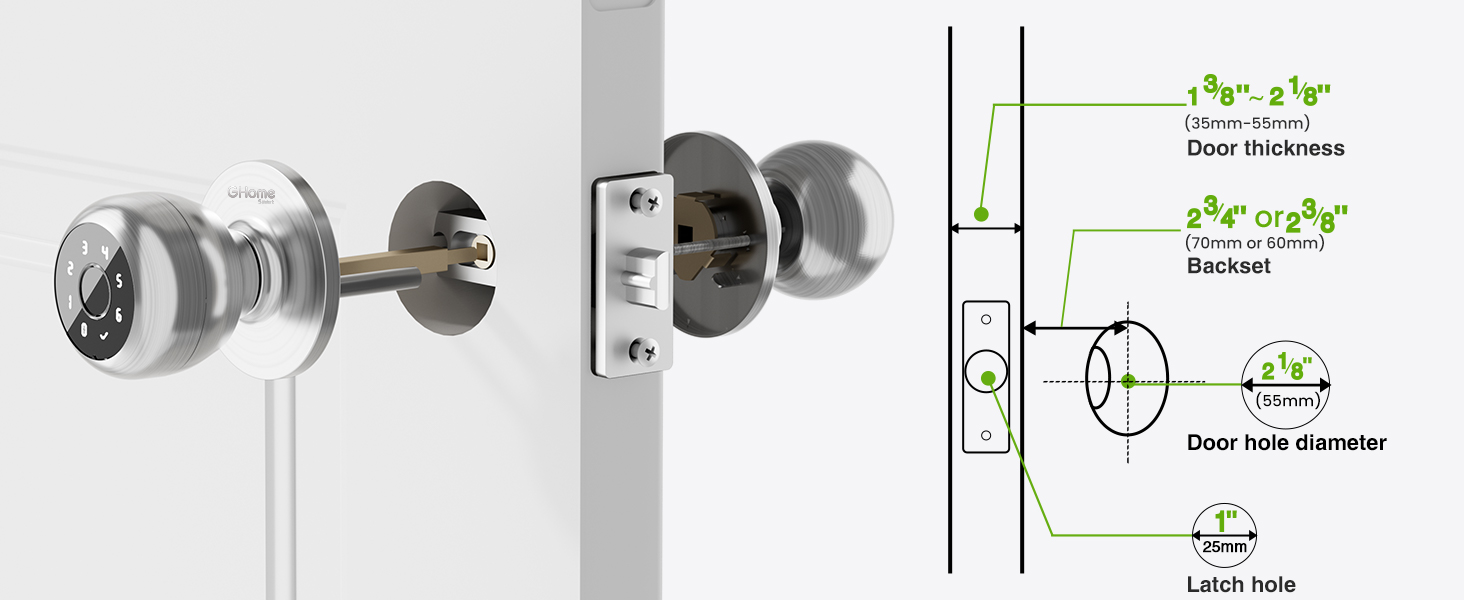
Image: Visual guide for checking door dimensions and installing the latch mechanism.
4.2. Install the Exterior Knob
- Remove the screen protector sticker from the exterior knob.
- Align the spindle bar of the exterior knob with the latch mechanism, ensuring the 'UP' arrow on the knob is facing upwards.
- Gently push the exterior knob into place.
4.3. Tāutahia te Porowhita o Roto
- Remove the interior knob cover by pulling it off.
- Remove Screw B from the interior knob assembly.
- Align the interior knob with the exterior knob's spindle bar, ensuring the 'UP' arrow is facing upwards and the knob is centered.
- Insert Screw B to secure the interior knob.
- Reattach the interior knob cover.
Video: Step-by-step installation guide for the GHome Smart Door Lock K10PRO, demonstrating latch and knob assembly.
5. Nga Tohutohu Whakahaere
The GHome Smart Fingerprint Door Lock K10PRO offers multiple convenient ways to unlock your door.
5.1. Wewete Tikanga
- Wewete Tapumati: Place your registered fingerprint on the sensor for quick access. The lock features 0.2-second recognition and stores up to 20 fingerprints.
- Wewete Kupuhipa: Enter a personalized 6-10 digit password on the keypad. Up to 20 unique codes can be stored. The anti-peep security feature allows you to enter random digits before or after your code to protect your privacy.
- Mana Taupānga: Use the GHome app (available for iOS and Android) to unlock the door via Bluetooth within range. With an optional Wi-Fi gateway (sold separately), you can control the lock remotely from anywhere.
- Kī Hangarau: Two mechanical backup keys are provided for emergency access.

Image: Visual representation of the four unlocking methods: fingerprint, password, app, and mechanical key.
5.2. Whakahaere Taupānga
The GHome app allows for comprehensive management of your lock:
- Whakahaere Kaiwhakamahi: Easily add or remove fingerprints and passwords for family members and guests.
- Temporary Access Codes: Generate time-limited or one-time passwords for visitors, deliveries, or services.
- Rangitaki Uru: Monitor detailed access logs to track who entered your home and when.
- Whakamōhiotanga: Receive smartphone notifications when your door is accessed (within Bluetooth range or via Wi-Fi gateway).
- Whakawhiti Aratau: Customize settings with silent mode for undisturbed rest or passage mode for continuous access.
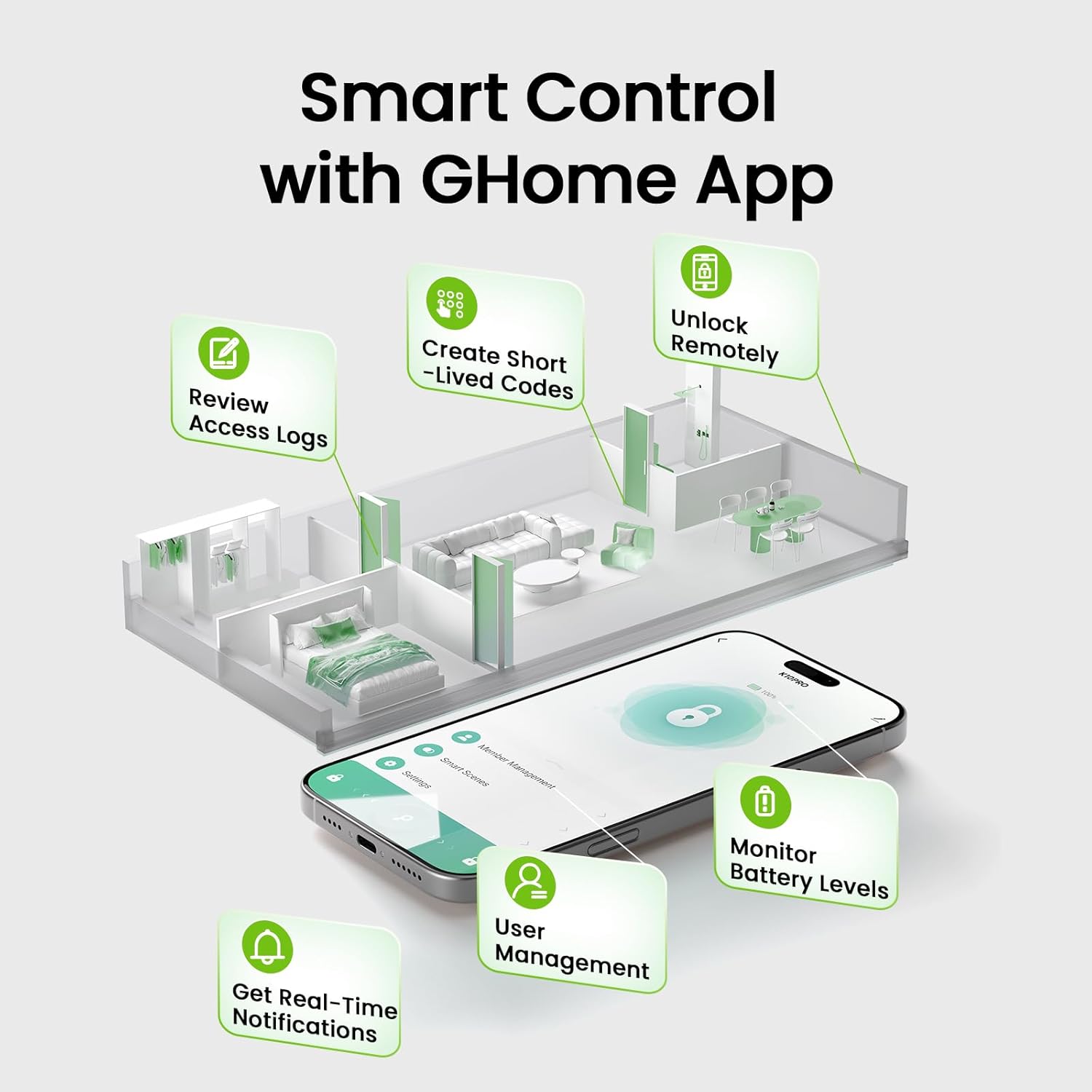
Image: Screenshot of the GHome app demonstrating various smart control features.
5.3. Āhuahira Maukati-Aunoa
The lock automatically engages after 5 seconds of unlocking. This feature can be customized within the app to auto-lock between 5 seconds and 30 minutes after unlocking, or set to passage mode for continuous access.
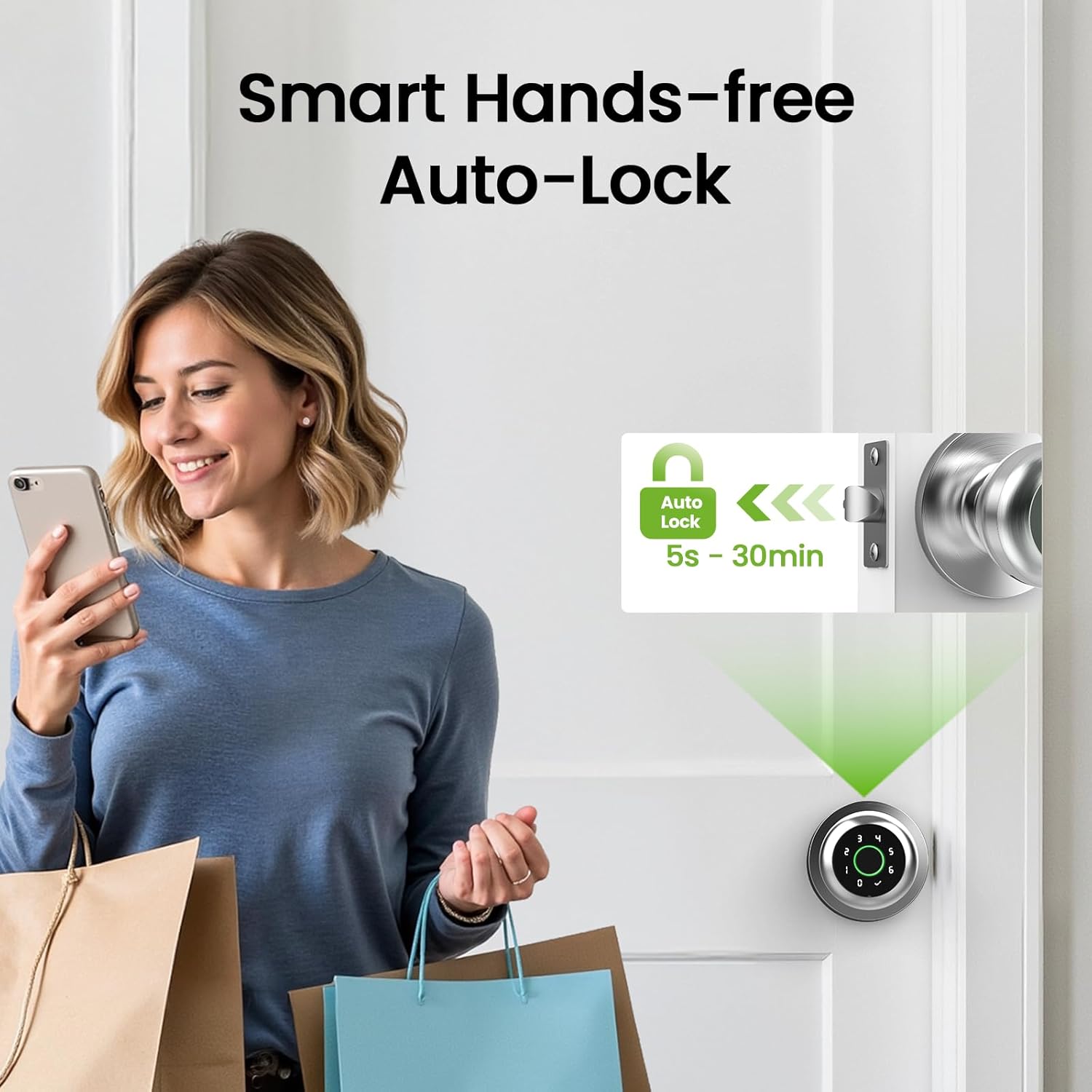
Image: Illustration of the smart hands-free auto-lock feature.
6. Tiaki
6.1. Tohutohii Pakihi
The GHome Smart Fingerprint Door Lock K10PRO is equipped with a 400mAh rechargeable Lithium Polymer battery. A full charge takes 4-6 hours and provides power for approximately 10,000 unlocks or 300+ days, depending on usage frequency.
- Tohu Pūhiko Iti: The app will display a low battery warning when the battery level drops below 20%.
- Kei te utu: Use a Type-C cable (5V/2A required) to charge the lock. The charging port is located on the exterior knob.

Image: Visual guide to the USB Type-C charging port and low battery alert.
6.2. Te horoi
Horoia te mata o te raka ki te kakahu ngohengohe, maroke. Āta karohia te whakamahi i ngā kaihoroi whakakoi, i ngā whakarewa rānei ka kino pea te āhua o te raka, ngā wāhanga hiko rānei.
7. Te Raru
- Karekau te matimati i te mohio: Ensure your finger is clean and dry. Try re-registering your fingerprint or registering multiple angles of your finger. The self-learning AI improves recognition over time.
- Kāore te papapātuhi e aro mai: Ensure the battery is charged. If the keypad lights up but doesn't respond, try restarting the lock (refer to the app for specific instructions).
- Nga take hononga taupānga: Ensure Bluetooth is enabled on your smartphone and you are within range of the lock. If using a Wi-Fi gateway, ensure it is properly configured and connected to your network.
- Kāore te raka e hono/wete: Check for any obstructions in the door frame or latch mechanism. Ensure the installation was performed correctly, particularly the alignment of the spindle bar.
- Lost password/fingerprint access: Use the mechanical backup keys for immediate access. Reset passwords or re-register fingerprints via the GHome app.
8. Whakatakotoranga
| Āhuahira | Taipitopito |
|---|---|
| Tauira | K10PRO |
| Rauemi | Konumohe |
| Tae | Hiriwa |
| Hunga Hua | 3.93"L x 9.05"W |
| Taumaha Tūemi | 1.65 pauna (0.75 Kirokaramu) |
| Wewete Tikanga | Fingerprint, Keypad, App Control, Mechanical Key |
| Te Maama Maihao | Tae atu ki te 20 |
| Raukaha Kupuhipa | Tae atu ki te 20 |
| Momo Pūhiko | 1 Lithium Polymer (400mAh, included) |
| Tauranga Whakatau | Momo-C USB (5V/2A) |
| Te Waahi Mahi | 23°F ki te 131°F (-5°C ki te 55°C) |
| Nga waahanga motuhake | Auto-Lock, Backup Keys, Fingerprint Access, Local Data Storage, Password Unlock |
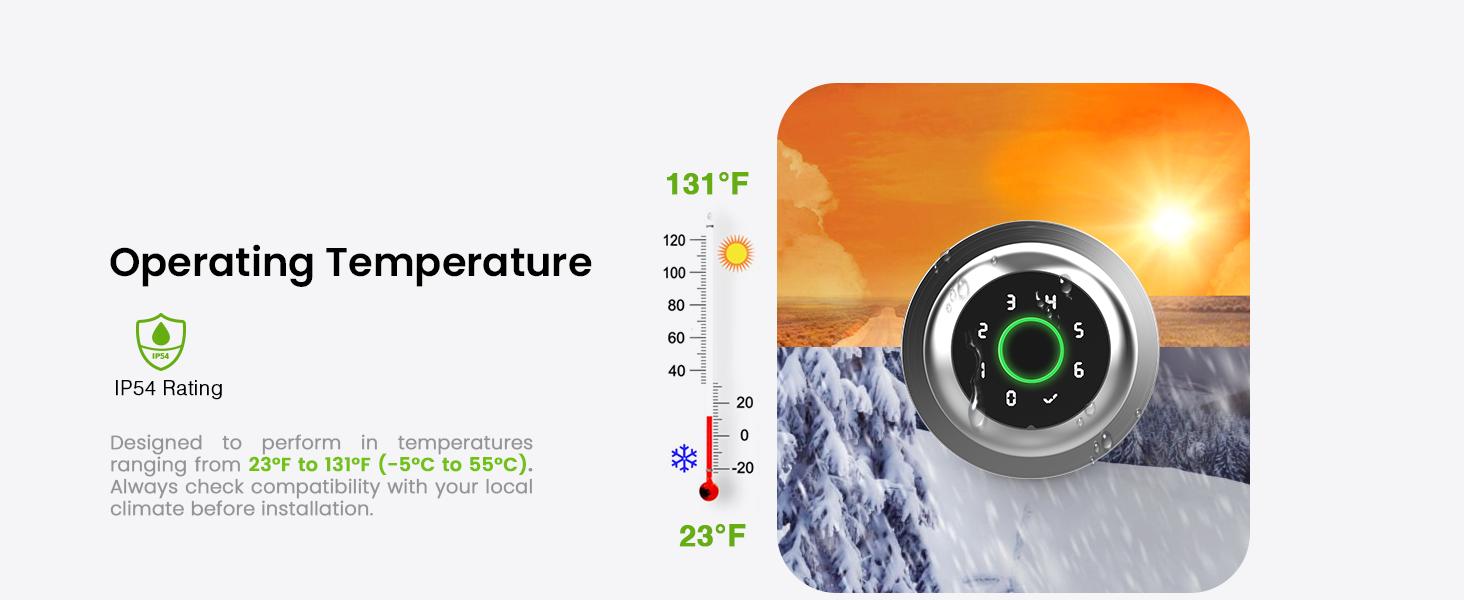
Image: Graphic illustrating the operating temperature range of the lock.
9. Pūtāhui me te Tautoko
GHome Smart offers a 1-year warranty for the K10PRO Smart Fingerprint Door Lock. For any issues or inquiries, please contact GHome Smart customer support.
- Kaihanga: GHome Maamaa
- Ratonga Kiritaki: Refer to your product packaging or the GHome Smart webpae mo nga korero whakapiri tino hou.