
Kupu Whakataki
Thank you for choosing the KLIM K7 Cassette Tape Player and MP3 Converter. This device allows you to enjoy your classic cassette tapes and convert them into digital MP3 files for modern playback. It features a built-in microphone for recording, an integrated speaker, and a rechargeable battery for portability. This manual provides detailed instructions for setup, operation, and maintenance of your KLIM K7.
Ka mutu te huaview
Nga waahanga matua
- Cassette to MP3 Converter: Effortlessly convert cassette tapes to digital MP3 files directly onto an SD card.
- Hoahoa Kawe: Lightweight and compact for on-the-go listening.
- Puoro-roto: Record audio directly to the SD card.
- Kaikorero Roa-roto: Share your audio without external devices.
- Pūhiko Rechargeable: Integrated 1000mAh battery provides extended playback.
- SD Card Player: Purei MP3 files rongoa i runga i te kāri SD.
- 3.5mm Waea Kaweoro: For private listening with included earphones.
Nga Waenga Pūrere me nga Mana Whakahaere
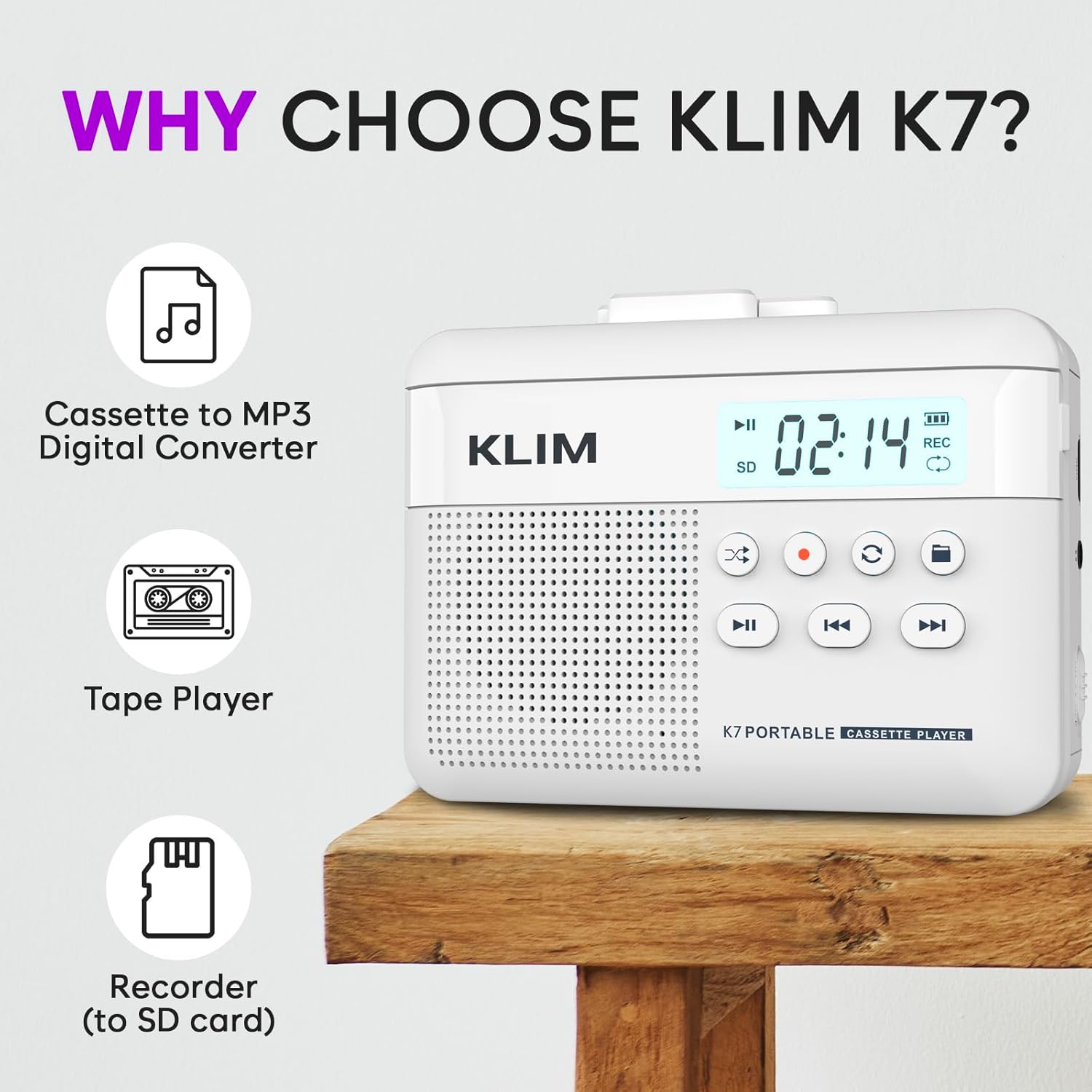
Whakaahua 1: Mua view of the KLIM K7 Cassette Player, showing the speaker grille, LCD display, and control buttons (Play/Pause, Rewind, Fast Forward, Stop, Record, Mode, Folder, Loop).
- Whakaaturanga LCD: Shows track number, recording status, and battery level.
- Kaikōrero: Kaikorero whakauru mo te purei ororongo.
- Pātene Purei/Whakamutu (►▮): Ka tiimata ka okioki ranei i te purei ano.
- Rewind Button (◀◀): Rewinds the cassette tape or navigates backward through MP3 tracks.
- Fast Forward Button (►►): Fast forwards the cassette tape or navigates forward through MP3 tracks.
- Pātene Whakamutu (■): Ka mutu te purei, te rekoata ranei.
- Record Button (●): Initiates or stops recording.
- Mode Button (↻): Switches between cassette playback and SD card MP3 playback.
- Folder Button (🖿): Navigates through folders on the SD card.
- Loop Button (⟳): Ka tāruatia te ara o nāianei, ngā ara katoa rānei.

Whakaahua 2: Te taha view of the KLIM K7 Cassette Player, highlighting the SD card slot, 3.5mm headphone jack, and On/Off switch.
- Mokamoka Kaari SD: Insert your Micro SD card here for recording and MP3 playback.
- 3.5mm Jack Paneoro: Connect the included earphones or other standard headphones.
- Whakawhiti Whakaka/Weto: Ka whakakaha, ka weto ranei te taputapu.
- Mana Rōrahi: Whakaritea te taumata whakaputa ororongo.

Whakaahua 3: Runga view of the KLIM K7 Cassette Player with the cassette compartment open, showing the tape mechanism.
- Wāhanga Kāsete: Insert your cassette tapes here.
- Cassette Door Release: Ka huaki i te wāhanga kaseti.
Tatūnga
1. Te Whakataki i te Pūhiko
Before first use, fully charge the KLIM K7. The device comes with a 1000mAh rechargeable battery.
- Locate the Type-C USB charging port on the side of the device.
- Connect the included Type-C USB cable to the charging port and the other end to a USB power adapter (not included) or a computer's USB port.
- The charging indicator on the LCD display will show charging status. A full charge typically takes approximately 2 hours.

Whakaahua 4: The KLIM K7 connected to a Type-C USB cable for charging.
2. Te Whakauru i tētahi Kāri SD
An SD card (16GB included) is required for converting tapes to MP3 and for recording with the built-in microphone.
- Rapua te mokamoka kaari SD i te taha o te taputapu (tirohia te Whakaahua 2).
- Whakauruhia te kaari Micro SD ki roto i te mokowhiti me nga hononga koura e anga ana ki raro kia pao noa.
- To remove, push the SD card inward until it clicks, then release, and it will eject.

Whakaahua 5: Inserting the Micro SD card into the KLIM K7.
3. Inserting a Cassette Tape
- Press the Cassette Door Release button to open the cassette compartment.
- Insert your cassette tape with the open side facing upwards and the tape reels aligned with the player's mechanism.
- Close the cassette compartment door firmly until it clicks.
Nga Tohutohu Whakahaere
1. Playing Cassette Tapes
- Ensure the device is powered on using the On/Off switch.
- Insert a cassette tape as described in the Setup section.
- Pehia te Play/Pause (►▮) paatene ki te tiimata te purei ano.
- Whakaritea te rōrahi mā te whakamahi i te mana rōrahi.
- Whakamahia te Whakahoki (◀◀) a Tere Whakamua (►►) ngā pātene hei whakatere i te rīpene.
- Pehia te Kati (■) pātene ki te whakamutu purei anō.
2. Converting Cassette Tapes to MP3
The KLIM K7 allows direct conversion of cassette audio to MP3 files on the inserted SD card, without needing a computer or additional software.
- Ensure an SD card is inserted and the device is powered on.
- Insert the cassette tape you wish to convert.
- Pehia te Play/Pause (►▮) button to start playing the tape.
- Perehi roa te Record (●) button. The 'REC' indicator on the LCD display will illuminate, indicating that recording has started.
- Hei whakamutu i te hopukanga, paatohia te Record (●) button again. The 'REC' indicator will turn off. The recorded audio will be saved as an MP3 file i runga i te kaari SD.
- You can then remove the SD card and use the included SD card reader to transfer the MP3 files to a computer or other device.

Whakaahua 6: Visual guide for converting cassette audio to MP3 files.
3. Using the Built-in Microphone for Recording
The KLIM K7 can also record audio directly from its built-in microphone to the SD card.
- Ensure an SD card is inserted and the device is powered on.
- Pehia te Mode (↻) button until the device is in SD card mode (no cassette playing).
- Perehi roa te Record (●) button. The 'REC' indicator will light up, and the device will start recording audio from its microphone.
- Hei whakamutu i te hopukanga, paatohia te Record (●) button again. The 'REC' indicator will turn off, and the recording will be saved as an MP3 file.

Whakaahua 7: Using the KLIM K7's built-in microphone for recording.
4. Playing MP3 Files from SD Card
- Ensure an SD card with MP3 files is inserted and the device is powered on.
- Pehia te Mode (↻) button to switch to SD card playback mode. The LCD display will show track information.
- Pehia te Play/Pause (►▮) paatene ki te tiimata te purei ano.
- Whakamahia te Whakahoki (◀◀) a Tere Whakamua (►►) nga paatene ki te peke i nga ara.
- Ko te Folder (🖿) button allows navigation through different folders on the SD card.
- Ko te Loop (⟳) button can be used to repeat the current track or all tracks.
- Whakaritea te rōrahi mā te whakamahi i te mana rōrahi.
- Pehia te Kati (■) pātene ki te whakamutu purei anō.

Whakaahua 8: Enjoying audio with the KLIM K7 and included earphones.
Te tiaki
Proper maintenance ensures the longevity and optimal performance of your KLIM K7.
- Te horoi: Whakamahia he kakahu ngohengohe, maroke hei horoi i te taha waho o te taputapu. Kaua e whakamahi i ngā wai horoi, i ngā whakarewa rānei.
- Wāhanga Kāsete: Horoia ngā pane rīpene me ngā roera pītiti i ia wā ki te miro miro.ampened with isopropyl alcohol to prevent audio quality degradation. Ensure the device is off and dry before use.
- Rokiroki: Whakaorangia te taputapu ki te waahi makariri, maroke atu i te ra tika me te wera nui.
- Tiaki Pūhiko: Mō te rokiroki mō te wā roa, utua te pākahiko ki te 50% i ia torutoru marama hei pupuri i te hauora o te pākahiko.
Raparongoā
If you encounter any issues with your KLIM K7, please refer to the following common solutions:
| Raruraru | Take pea | Rongoā |
|---|---|---|
| Kaore te taputapu i te hiko. | Kua pau te pākahiko. | Charge the device using the provided Type-C USB cable. |
| No sound during cassette playback. | Volume is too low or headphones are not connected properly. | Increase the volume. Ensure headphones are fully plugged into the 3.5mm jack. |
| Recording to MP3 fails or produces no file. | SD card is full, not inserted correctly, or corrupted. | Check SD card insertion. Ensure sufficient space on the SD card. Try reformatting the SD card (this will erase all data). |
| Poor audio quality from cassette. | Dirty tape heads or worn-out cassette tape. | Clean the tape heads and pinch rollers. Try a different cassette tape to determine if the issue is with the tape itself. |
| Ka whakatio te taputapu, ka kore ranei e aro. | Hapa rorohiko rangitahi. | Turn the device off and then on again. If the issue persists, allow the battery to fully discharge and then recharge. |
Whakatakotoranga
- Rahi Hua: 4.76 x 3.61 x 1.56 inihi
- Taumaha Tūemi: 9.9 hekere
- Pūhiko: 1 pākahiko Lithium Ion (kei roto), 1000mAh
- Wā Whakataki: Tata ki te 2 haora
- Rokiroki: Tautoko kāri Micro SD (kei roto ko te 16GB)
- Putanga Ororongo: Built-in speaker, 3.5mm headphone jack
- Hōputu Hopu: MP3

Whakaahua 9: Dimensions of the KLIM K7 Cassette Player.
Pūtāhui me te Tautoko
KLIM is committed to producing quality electronics. The KLIM K7 Cassette Tape Player comes with a Whakapūmautanga 5-tau. If you encounter any problems with your device, please contact KLIM customer support for assistance.
Ka waatea pea etahi atu mahere whakamarumaru mo te hoko:
- Mahere Tiaki Tau 2: $3.99 (one-time)
- Mahere Tiaki Tau 3: $5.99 (one-time)
- NEW Complete Protect: $16.99 (monthly)
Mo etahi atu tautoko, tirohia te KLIM Store on Amazon.