

1. Kupu Whakataki
This manual provides instructions for the 8Bitdo Ultimate Bluetooth Controller. This wireless gamepad features Hall Sensor Joysticks, a multifunctional charging dock, and a travel case. It is compatible with Nintendo Switch, Steam Deck, and Windows 10, offering versatile connectivity options including Bluetooth, 2.4G wireless, and USB-C wired connections.
2. Ihirangi mokete
Me mohio kei roto katoa nga mea kei roto i te kete:
- 8Bitdo Ultimate Bluetooth Controller
- Tauranga Whakatau
- 2.4G Pūurutau Ahokore
- USB-C taura
- Take haerenga
3. Hua Neke Atuview me nga Waehanga
Familiarize yourself with the controller's layout and features.

Whakaahua: Mua view of the 8Bitdo Ultimate Bluetooth Controller, showing the D-pad, ABXY buttons, Hall Effect joysticks, and central function buttons.

Whakaahua: Hoki view of the 8Bitdo Ultimate Bluetooth Controller, highlighting the two Pro back paddle buttons and the mode switching button.

Image: The charging dock for the 8Bitdo Ultimate Bluetooth Controller, shown with the 2.4G wireless adapter removed from its storage slot.
- Hall Effect Sensing Joysticks: Provide enhanced precision and durability.
- 2 Pro Back Paddle Buttons: Customizable buttons located on the rear of the controller.
- Ritenga Profile Patene Whakawhiti: Allows switching between stored controller profiles.
- 2-way Mode Switching Button: Toggles between Bluetooth and 2.4G wireless modes.
- Player Indicators: LEDs indicating player number.
- Tauranga USB-C: Mo te utu me te hononga waea.
- Multifunctional Charging Dock: Provides stable charging and automatically switches the controller ON/OFF when docked/undocked.
4. Tatūnga
4.1 Te Whakataki i te Kaiwhakahaere
The controller can be charged using the included charging dock or directly via the USB-C cable.
- Te whakamahi i te Tauranga Whakatau: Place the controller onto the charging dock. The controller will automatically begin charging. The player indicators will show charging status.
- Te whakamahi i te taura USB-C: Connect the USB-C cable to the controller's USB-C port and to a power source (e.g., computer, USB wall adapter).
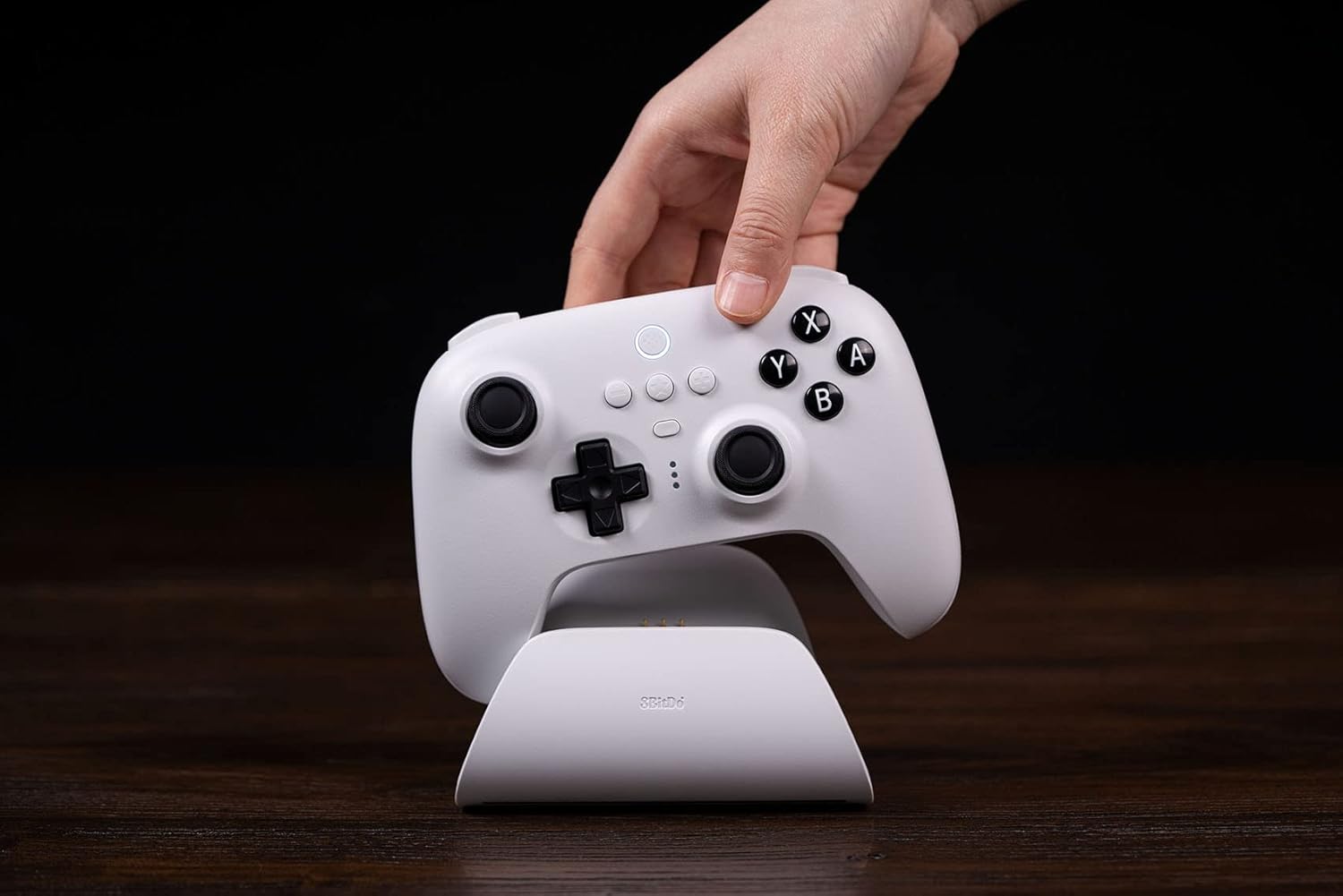
Image: A hand gently placing the white 8Bitdo Ultimate Bluetooth Controller onto its matching white charging dock, which rests on a wooden surface.
4.2 Te hono ki nga taputapu
The controller supports Bluetooth, 2.4G wireless, and USB-C wired connections.
- Nintendo Whakawhiti:
- Ensure your Switch firmware is version 3.0.0 or above.
- Nihokikorangi: Set the controller's mode switch to Bluetooth. On your Switch, go to System Settings > Controllers and Sensors > Disconnect Controllers, then Pair New Controllers. Hold the pairing button on the controller until the player indicators flash.
- 2.4G Whāurutau: Insert the 2.4G adapter into a USB port on the Switch dock. Set the controller's mode switch to 2.4G. The controller should connect automatically.
- Papa Kohu:
- Update your Steam Deck to the latest version.
- Connect the controller to your Steam Deck in Xinput mode to play. This can be done via Bluetooth, 2.4G adapter, or USB-C cable.

Image: A white 8Bitdo Ultimate Bluetooth Controller being held by hands, connected to a Steam Deck displaying a game. A black 8Bitdo controller is also visible in the foreground.
- Windows 10:
- 2.4G Whāurutau: Insert the 2.4G adapter into an available USB port on your Windows 10 PC. Set the controller's mode switch to 2.4G. The controller should connect automatically.
- Taura USB-C: Connect the controller directly to your PC using the USB-C cable for a wired connection.

Image: A person's hands holding the white 8Bitdo Ultimate Bluetooth Controller while playing a game on a black laptop. The charging dock is visible in the background.
5. Nga Tohutohu Whakahaere
5.1 Whakawhiti Aratau
Use the 2-way mode switching button on the back of the controller to select between Bluetooth and 2.4G wireless modes, depending on your device and preferred connection method.

Image: A close-up triptych showing details of the 8Bitdo Ultimate Controller: Custom Profile Switching button, three LED player indicators, and the 2-way Mode Switching button (Bluetooth/2.4G).
5.2 Ultimate Software
The 8Bitdo Ultimate Software is available for PC and mobile devices (Android/iOS). This software allows for advanced customization:
- Mahere Patene: Whakaritea ano nga mahi paatene.
- Macro Support: Create and assign complex button sequences.
- Whakatikatika Tairongo: Fine-tune joystick and trigger sensitivity.
- Profile Whakahaere: Penapenahia kia 3 ngā whakaritenga ngaiofiles to the controller and switch between them using the Custom Profile Switch Button.
Tikiake i te Pūmanawa Tino Pai mai i te paetukutuku mana o 8Bitdo webpae.
5.3 Multifunctional Charging Dock
The charging dock provides a stable connection and convenience. The controller will automatically switch ON when undocked and OFF when docked, conserving battery life.

Image: A hand lifting a black 8Bitdo Ultimate Controller from its matching charging dock, illustrating the automatic power on/off feature.
5.4 Nga waahanga taapiri
- Wiri haruru: Provides tactile feedback during gameplay.
- Mana Motini: Supported for compatible games (primarily on Switch).
6. Tiaki
6.1 Te horoi
Wipe the controller and charging dock with a soft, dry cloth. Avoid using harsh chemicals or abrasive materials that could damage the surfaces.
6.2 Rokiroki
When not in use, store the controller in its included travel case to protect it from dust, scratches, and impacts. Store in a cool, dry place away from direct sunlight.
6.3 Tiaki Pūhiko
The controller contains a rechargeable Lithium Polymer battery. To prolong battery life:
- A ape i te tino tuku i te pākahiko i nga wa katoa.
- Charge the controller regularly, even if not in constant use.
- Kaua e whakaatuhia te kaiwhakahaere ki ngā pāmahana tino kino.
7. Te Raru
If you encounter issues with your 8Bitdo Ultimate Bluetooth Controller, refer to the following common solutions:
- Karekau te Kaiwhakahaere e hono ana:
- Ensure the controller's mode switch is set correctly for your device (Bluetooth or 2.4G).
- Verify the 2.4G adapter is securely plugged into the device.
- Mō te Nihokikorangi, kia mohio kei te whakahohea te Nihokikorangi o tō pūrere, ā, kei roto te kaiwhakahaere i te aratau takirua.
- Check for and install any available firmware updates for the controller from the official 8Bitdo webpae.
- Ultimate Software Issues:
- Ki te profiles are not saving or features are not working, ensure the software is the latest version.
- Some users report difficulties with saving profiles to the controller's memory; ensure the controller is connected properly during the sync process.
- Joystick Snapback or Drift:
- While Hall Effect joysticks reduce drift, some snapback may occur. This can often be mitigated by configuring manual deadzone settings within your game or system settings.
- Buttons Feel Loose:
- If face buttons feel loose, ensure they are not obstructed. If the issue persists and affects functionality, contact customer support.
8. Whakatakotoranga
| Tauira | Kaiwhakahaere Nihokikorangi Mutunga |
| Hototahi | Nintendo Switch (3.0.0+), Steam Deck (latest version), Windows 10 |
| Hononga | Bluetooth 5.0, 2.4G Wireless, USB-C Wired |
| Nga waahanga motuhake | Hall Effect Sensing Joysticks, 2 Pro Back Paddle Buttons, Custom Profile Switch Button, 2-way Mode Switching Button, Player Indicators, Rumble Vibration, Motion Controls |
| Momo Pūhiko | Lithium Polymer (kei roto) |
| Ora Pūhiko | Tata ki te 22 haora |
| Ahu | 10.98 x 6.93 x 5.31 inihi (Pake) |
| Taumaha | 1.54 pauna |
| Kaihanga | 8Bitanga |
Tuhipoka: Switch compatibility does not support HD rumble or amiibo scanning.
9. Raihana me te Tautoko
For detailed warranty information and technical support, please visit the official 8Bitdo webpapaanga. Te website provides resources such as FAQs, firmware updates, and contact information for customer service.
Whaimana Webpae: www.8bitdo.com