
Kupu Whakataki
This manual provides detailed instructions for the QCOQ T60 Smart Watch. It covers setup, operation, maintenance, and troubleshooting to ensure optimal use of your device. The QCOQ T60 Smart Watch features a 1.91-inch display, Bluetooth call functionality, heart rate monitoring, and IP68 water resistance.
Ihirangi mokete
Tena koa tirohia te kete mo nga mea e whai ake nei:
- QCOQ T60 Smart Watch (1 unit)
- Uera Whakatau
- Pukapuka Kaiwhakamahi
Tatūnga
1. Ka tohatohahia te Pūrere
Before first use, fully charge the smart watch. Connect the magnetic charging cable to the charging contacts on the back of the watch and plug the USB end into a standard USB power adapter (not included).

Image: The QCOQ T60 Smart Watch connected to its magnetic charging cable, illustrating the charging process. The watch display shows an 80% battery level, indicating partial charge.
- Te Waa Whakatau: Tata ki te 2 haora mo te utu katoa.
- Battery Life: Up to 7 days of typical usage on a full charge.
2. Taupānga Tāutanga me te Paihere
To utilize all features of your QCOQ T60 Smart Watch, download and install the companion application on your smartphone.
- Scan the QR code provided in the quick start guide or search for the app name (usually indicated in the watch's initial setup screen or manual) in your smartphone's app store (App Store for iOS, Google Play Store for Android).
- Me mohio kei te whakahohea te Nihokikorangi i runga i to waea atamai.
- Whakatuwheratia te taupānga kua whakauruhia ka whai i nga tohutohu i runga-mata hei hanga i tetahi kaute, takiuru ranei.
- Within the app, navigate to the device pairing section and select your QCOQ T60 Smart Watch from the list of available devices.
- Whakaūtia te tono honohono i runga i tō waea atamai me te mātaaratanga atamai.
Nga Tohutohu Whakahaere
1. Whakaterenga Taketake
The QCOQ T60 Smart Watch features a touchscreen display and a side button for navigation.
- Swipe Runga/Whakararo: Panuku i roto i nga tahua me nga whakamohiotanga.
- Swipe Mauī/Matau: Access quick functions or different widgets.
- Tap: Tīpakohia tētahi tūemi, whakaū rānei i tētahi mahi.
- Pātene taha: Pēhia kia hoki ki te mata o te kāinga, whakaoho ranei i te taputapu. Pehi roa mo nga whiringa hiko.
2. Taumahinga Waea Nihokikorangi
Once paired with your smartphone, the QCOQ T60 Smart Watch allows you to make and answer calls directly from your wrist.
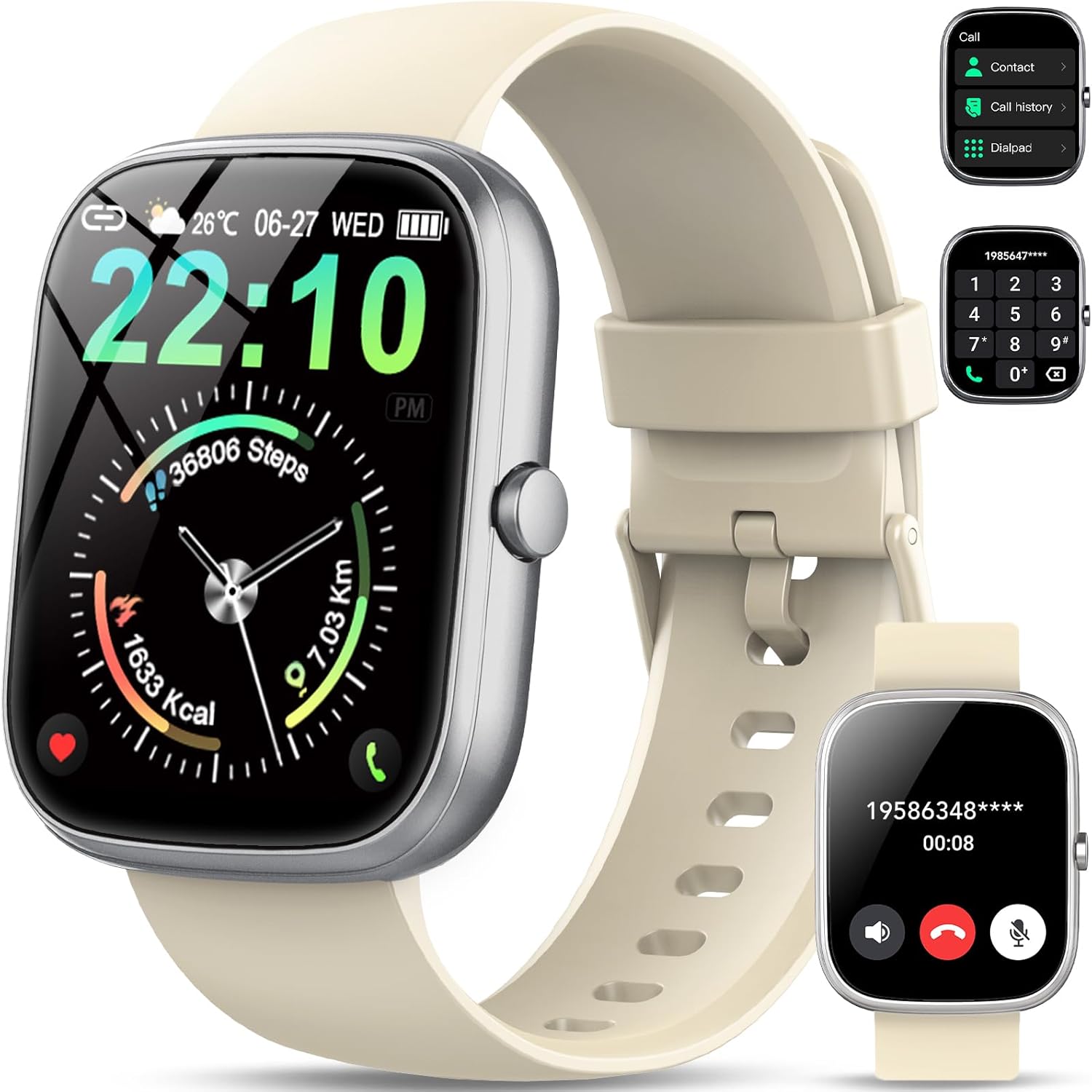
Image: The QCOQ T60 Smart Watch screen showing the call interface, including options to access contacts, view call history, and use a dialpad. A separate inset shows an incoming call notification.
- Whakautu Waea: Ina tae mai he waea taumai, patohia te ata whakautu matomato i runga i te mata o te mataarataki.
- Waeatanga: Access the 'Call' menu on the watch, then select from contacts, call history, or use the dialpad to enter a number.
3. Whakamōhiotanga
Whiwhi whakamōhiotanga mai i tō waea atamai tika i runga i tō mātaaratanga.

Image: The QCOQ T60 Smart Watch screen showing notifications from various social media and messaging applications. Adjacent to it, a smartphone displays an incoming call, demonstrating the watch's Bluetooth call feature.
- Ensure notification permissions are enabled for the companion app on your smartphone.
- Swipe ki raro mai i te tihi o te mata o te mataaratanga ki view whakamohiotanga tata.
4. Aroturuki tinana
The QCOQ T60 Smart Watch monitors various fitness metrics.

Image: A visual representation of the QCOQ T60 Smart Watch's fitness capabilities, highlighting over 110 sport modes, step counting, calorie expenditure tracking, IP68 water resistance, and comprehensive daily activity data.
- Te Arotake i te Ngakau: The watch provides real-time heart rate data. Access the heart rate function on the watch or through the app.
- Step Count & Calories: Tracks your daily steps, distance, and estimated calories burned.
- Ngā Aratau Hākinakina: Select from over 110 sport modes to track specific activities.
5. Te Aroturuki Moe
The watch automatically monitors your sleep patterns.

Image: The QCOQ T60 Smart Watch screen showing detailed sleep monitoring data, including deep, light, and awake sleep stages. Another section displays a 7-day weather forecast.
- Wear the watch while sleeping for accurate data.
- View detailed sleep analysis in the companion app, including deep sleep, light sleep, and awake times.
6. Ētahi atu āhuatanga
- Matapae huarere: View current weather and a 7-day forecast.
- Mana Waiata: Whakahaerehia te purei puoro i runga i to waea atamai (takaro, okioki, pekehia nga ara).
- Mamao o te Kamera: Whakamahia te mātaaratanga hei ārai mamao mō te kāmera o tō waea atamai.
- Kaiawhina Reo: Uru atu ki te kaiawhina reo o tō waea atamai.
- Whakamaumahara Nohonoho: Whiwhi matohi ki te neke i muri i nga wa kore mahi.
- Pūoho: Whakatakotoria ngā whakaoho tika mai i te mātaaratanga.
- Te Aroturuki Toto Oxygen: Inehia to taumata o te hāora toto.
- Hauora Wahine: Aroturuki i nga huringa paheketanga me nga raraunga e pa ana.
- Kalikete: Mahi tātaitai taketake.
7. Whakaritea Mata Mataara
Whakawhaiarohia tō mātaaratanga ki ngā mata mātaaratanga rerekē.

Image: A collage of various watch faces available for the QCOQ T60 Smart Watch, demonstrating the range of styles and information displays, including options for personalized backgrounds.
- Long press on the current watch face to enter the watch face selection menu.
- Swipe left or right to browse available watch faces. Tap to select.
- More watch faces and customization options (including custom backgrounds) are available through the companion app.
Te tiaki
1. Te horoi
- Ūkuia te mata mataara me te tinana ki te kakahu ngohengohe, kore-puru.
- For the strap, use a mild soap and water solution if necessary, then rinse thoroughly and dry completely before wearing.
- A ape i te whakamahi i nga matū kino, i nga taonga abrasive ranei.
2. Ātete Wai (IP68)
The QCOQ T60 Smart Watch is IP68 rated, meaning it is resistant to dust and can withstand immersion in water up to 1.5 meters for up to 30 minutes. It is suitable for daily use, such as hand washing or light rain.
- Do not use the watch for diving, hot showers, saunas, or in environments with high-pressure water.
- Ehara te ātete wai i te āhuatanga pumau, ā, ka heke haere pea i roto i te wā me te pakaru noa.
3. Tiaki Pūhiko
- A ape i nga wera nui, ka taea te whakaheke i te mahi o te pākahiko.
- Me utu tonu te mataaratanga; karohia te tuku i te pākahiko kia mimiti mo te wa roa.
Raparongoā
- Kia mataara kia kaua e huri: Me whakarite kua whakakiia te mataaratanga. Honoa ki te rihi mo te iti rawa 10 meneti.
- Kaore e taea te hono ki te waea atamai:
- Me mohio kei te whakahohea te Nihokikorangi i runga i to waea me te mataaratanga.
- Me mohio kei roto te mataaratanga i to waea.
- Tīmatahia te mataaratanga me to waea.
- Check if the companion app has necessary permissions.
- Ko nga whakamohiotanga kaore i tae:
- Verify that notifications are enabled in the watch's settings and the companion app.
- Ensure the watch is properly connected via Bluetooth.
- Tirohia nga tautuhinga whakamohiotanga o to waea mo te taupānga.
- Ngā raraunga tere/ngohe o te manawa kāore i te tika: Ensure the watch is worn snugly on your wrist, not too tight or too loose. Clean the sensor regularly.
Whakatakotoranga
| Āhuahira | Whakatakotoranga |
|---|---|
| Waitohu | QCOQ |
| Tauira | T60 |
| Rahi Whakaatu | 1.91 Inihi |
| Hangarau Whakaatu | LCD |
| Whakatau | 240 x 240 |
| Hononga | Nihokikorangi |
| Pūrere Hototahi | Waea atamai |
| Ātete wai | IP68 |
| Nga waahanga motuhake | Heart Rate Monitor, Notifications, Camera Remote, Voice Assistant |
| Whakauru Atanga Tangata | Mata pa |
| GPS | Kore he GPS |
| Momo Pūhiko | Lithium Ion (1 e hiahiatia ana) |
| Ngā Ahu (Mōkihi) | 17.4 x 9.4 x 1.8 cm |
| Taumaha (Mōkihi) | 38.19 g |
| Tae | Kiriata Ma |
Nga korero haumaru
- Consult your doctor before starting any new exercise regimen or if you have pre-existing health conditions.
- Kaua e ngana ki te wetewete, ki te whakarereke ranei i te wati.
- Purihia te taputapu mai i te wera nui, te makariri ranei.
- Makahia te taputapu me tona pākahiko kia rite ki nga ture o te rohe.
Pūtāhui me te Tautoko
For warranty information and customer support, please refer to the documentation included with your purchase or visit the official QCOQ website. Ensure you have your purchase receipt and product model number (T60) available when contacting support.