
GZCRDZ V011
User Manual for GZCRDZ V011 Bluetooth OBD2 Scanner
Tauira: V011
1. Kupu Whakataki
Thank you for choosing the GZCRDZ V011 Bluetooth OBD2 Scanner. This manual provides detailed instructions on how to set up, operate, and maintain your device. Please read this manual thoroughly before using the scanner to ensure proper functionality and to maximize its benefits for vehicle diagnostics.
2. Hua Neke Atuview
The GZCRDZ V011 is a state-of-the-art Bluetooth 5.4 OBD2 diagnostic tool designed to provide comprehensive insights into your vehicle's health. It connects wirelessly to your smartphone or tablet via the 'OBD Home' application, offering a user-friendly interface for various diagnostic functions.

Image: The GZCRDZ V011 Bluetooth OBD2 Scanner, a compact diagnostic device.
Āhuatanga matua:
- Nihokikorangi 5.4 Hononga: Ensures a fast and stable wireless connection to your mobile device.
- Comprehensive OBD2 Diagnosis: Supports all standard OBD2 full modes, including reading and clearing Diagnostic Trouble Codes (DTCs), turning off the Check Engine Light (CEL), MIL status, battery voltage check, freeze frame data, and more.
- Performance Test Function: Analyze speed changes, engine speed, and fuel consumption to assess engine power output.
- Pūtake Raraunga DTC Whānui: Built-in database of over 35,000 DTCs for accurate fault identification.
- Taupānga ratarata-kaiwhakamahi: Works with the 'OBD Home' app (iOS/Android) for intuitive operation and data visualization.

Whakaahua: Ka mutuview of the V011's diagnostic capabilities and the 'OBD Home' app interface.
3. Ihirangi mokete
Tena koa tirohia nga mea kei roto i te kete i runga i te wetewete pouaka kia mohio kei te noho katoa nga taonga:
- 1x V011 Device
- 1x Manual Kaiwhakamahi
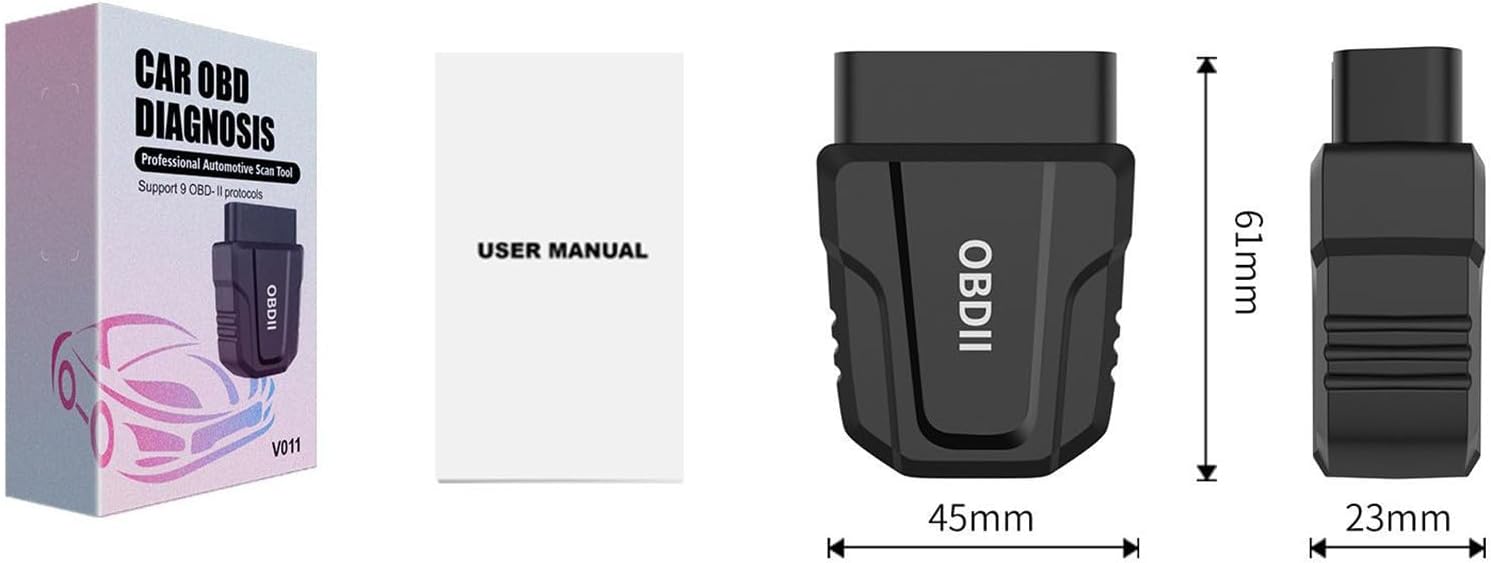
Image: The V011 device, user manual, and product packaging.
4. Tatūnga
Follow these steps to set up your GZCRDZ V011 OBD2 Scanner:
- Kimihia te tauranga OBD2: The OBD2 port is typically located under the dashboard on the driver's side, usually near the steering wheel. Refer to your vehicle's owner's manual if you cannot find it.
- Plug in the V011 Device: Firmly insert the V011 scanner into your vehicle's OBD2 port. Ensure it is securely connected. The device will power on automatically.
- Download the 'OBD Home' App: Rapua 'OBD Home' in your device's app store (Google Play Store for Android or Apple App Store for iOS) and install it.
- Whakahohe Nihokikorangi: Me mohio kei te whakahohea a Nihokikorangi i runga i to waea atamai papa ranei.
- Tūhono ki te Pūrere: Open the 'OBD Home' app. The app is designed to automatically detect and connect to the V011 device via Bluetooth 5.4. No manual pairing through your phone's Bluetooth settings is typically required.
- Tīmata te Tātaritanga: Once connected, the app will display a 'Connection succeeded' message, and you can begin using the diagnostic functions.

Image: The V011 scanner connected and communicating with the 'OBD Home' application on a smartphone.
5. Nga Tohutohu Whakahaere
The 'OBD Home' app provides a comprehensive suite of diagnostic functions. Here are the primary operations:
5.1. Reading and Clearing Trouble Codes
This function allows you to identify and clear Diagnostic Trouble Codes (DTCs) that trigger the Check Engine Light (CEL).
- Navigate to the 'Read/Clear Codes' section in the app.
- The scanner will perform a scan and display any active or pending DTCs.
- For each code, the app provides a brief description. You can use the built-in Google search engine within the app for more detailed definitions.
- To clear codes, select the 'Clear Codes' option. This will turn off the Check Engine Light. Ensure you address the underlying issue before clearing codes to prevent recurrence.

Image: Visual representation of diagnosing and clearing a fault, showing the Check Engine Light turning off.
5.2. Te Rerenga Raraunga Ora
View real-time sensor data from your vehicle's engine control unit (ECU). This includes parameters like engine RPM, vehicle speed, coolant temperature, fuel system status, and more. This data is crucial for diagnosing intermittent issues.
5.3. Whakatiohia ngā Raraunga Anga
When a DTC is set, the ECU records a snapshot of critical sensor values at that moment. This 'freeze frame' data helps technicians determine the conditions under which the fault occurred.
5.4. Tūnga Ririri I/M
Check the readiness status of various emission-related monitors. This is essential for vehicle inspections and ensures all systems are functioning correctly.
5.5. Performance Test
Utilize the performance test function to analyze your vehicle's acceleration, speed changes, engine RPM, and fuel consumption. This feature can help assess the overall power output and efficiency of your engine, particularly useful for evaluating used vehicles.
5.6. Pūhiko Voltage Tirohia
Monitor your vehicle's battery voltage in real-time to ensure it is within optimal operating ranges.
5.7. On-Board Monitoring Test
Uru atu ki ngā hua o ngā whakamātautau aroturuki tātaritanga kei runga i te papa mō ngā wāhanga/pūnaha motuhake.
5.8. Trip Analysis Reports
Generate reports based on your driving trips, providing insights into fuel efficiency and driving habits.
5.9. Retrieve VIN
Quickly retrieve your vehicle's Vehicle Identification Number (VIN) directly from the ECU.
6. Hototahi
The GZCRDZ V011 scanner is compatible with most vehicles manufactured after 1996 (US cars), after 2002 (EU cars), and after 2008 (Asia cars) that support standard OBD2 protocols. Please note that it is generally not compatible with diesel vehicles and new energy vehicles.
Supported OBD2 Protocols:
- SAE J1850 PWM (41.6 Kbaud)
- SAE J1850 VPW (10.4 Kbaud)
- ISO 9141-2 (5 baud init, 10.4 Kbaud)
- ISO14230-4 KWP (5 baud init, 10.4 Kbaud)
- ISO14230-4 KWP (tere tere, 10.4 Kbaud)
- ISO15765-4 CAN (11bit ID, 500 Kbaud)
- ISO15765-4 CAN (29bit ID, 500 Kbaud)
- ISO15765-4 CAN (11bit ID, 250 Kbaud)
- ISO15765-4 CAN (29bit ID, 250 Kbaud)

Image: Details on vehicle compatibility and the list of supported OBDII communication protocols.
7. Tiaki
To ensure the longevity and optimal performance of your V011 scanner, follow these maintenance guidelines:
- Te horoi: Whakamahia he kakahu maeneene, maroke hei horoi i te taputapu. Kaua e whakamahi i nga kai horoi me nga whakarewa.
- Rokiroki: Whakaorangia te taputapu ki te waahi makariri, maroke atu i te ra tika me te wera nui.
- Te whakahaere: A ape i te tuku i te taputapu, te tuku ranei ki nga paanga kaha.
- Whakahōu Firmware: Periodically check the 'OBD Home' app for any available firmware updates for the V011 device to ensure you have the latest features and bug fixes.
8. Te Raru
Mena ka pāngia koe e ngā raruraru me tō matawai V011, tirohia ngā mahi rapurongoā noa e whai ake nei:
8.1. Kaore te Pūrere i te hiko
- Ensure the V011 is firmly plugged into the vehicle's OBD2 port.
- Verify that the vehicle's ignition is in the 'ON' position (engine can be off).
- Check the vehicle's fuse for the OBD2 port (consult your vehicle's manual).
8.2. Unable to Connect via Bluetooth
- Me mohio kei te whakahohea te Nihokikorangi i runga i to waea atamai/papa.
- Close and reopen the 'OBD Home' app.
- Restart your smartphone/tablet.
- Unplug the V011 from the OBD2 port, wait 10 seconds, and plug it back in.
- Me whakarite karekau etahi atu taputapu Nihokikorangi e pokanoa ki te hononga.
8.3. App Not Displaying Data or Errors
- Confirm the V011 is successfully connected to the app.
- Ensure your vehicle is OBD2 compliant and the ignition is on.
- Try connecting the scanner to a different OBD2 compliant vehicle to rule out vehicle-specific issues.
- Update the 'OBD Home' app to the latest version.
9. Whakatakotoranga
| Āhuahira | Whakatakotoranga |
|---|---|
| Tauira | V011 |
| Hononga | Nihokikorangi 5.4 |
| Kawa Tautokohia | SAE J1850 PWM, SAE J1850 VPW, ISO 9141-2, ISO14230-4 KWP, ISO15765-4 CAN |
| Hototahitanga Pūnaha Whakahaere | iOS, Android (via 'OBD Home' app) |
| Puna Mana | Vehicle OBD2 Port (Corded Electric) |
| Taumaha Tūemi | 1.98 hekere |
| Ahu mōkihi | 4 x 2.4 x 1.2 inihi |
| Kaihanga | Haina |
| Whakatauranga Haumaru | FCC: GCT210468050F |
| UPC | 799748789062 |
10. Pūtāhui me te Tautoko
For warranty information and technical support, please refer to the contact details provided with your purchase or visit the official GZCRDZ website. Our customer service team is available to assist you with any questions or issues regarding your V011 OBD2 scanner.
Ask a question about this manual
Ask about setup, troubleshooting, compatibility, parts, safety, or missing instructions. Manuals+ will review the question and use this page’s manual context to help answer it.