
BSP D9
BSP D9 Game Controller User Manual
Tauira: D9
1. Kupu Whakataki
The BSP D9 Game Controller is a versatile gaming accessory designed for a wide range of devices, including iPhone, iPad, Android phones and tablets, PC, Nintendo Switch, and PlayStation consoles. It features advanced Hall Effect joysticks and triggers for precise control, along with programmable back buttons for enhanced gameplay. This manual provides detailed instructions for setting up, operating, maintaining, and troubleshooting your D9 Game Controller.
2. Hua Neke Atuview
The D9 Game Controller is engineered for comfort and performance, offering a stretchable design to accommodate various device sizes. Key features include:
- Ngā Rākau Harikoa me ngā Whakaoho Pānga Hall: Provides high precision and durability, reducing drift issues.
- Programmable Back Buttons (M1/M2): Customize functions for quick access to complex commands.
- Stretchable Design: Supports device lengths from 130mm to 280mm (5-11 inches) and thickness up to 13mm.
- Hototahitanga-maha: Works with iOS, Android, PC, PS3, PS4, and Nintendo Switch.
- Mahinga Turbo: Adjustable auto-fire settings for various buttons.
2.1. Tahora Kaiwhakahaere

Image: BSP D9 Game Controller with a tablet, demonstrating its use with Call of Duty Mobile. This image highlights the controller's ergonomic design and how it holds a tablet.

Image: Detailed diagram of the BSP D9 Game Controller's buttons and indicators. This includes the Cross Key, L1/R1, L2/R2, Select, Home, Start, Turbo, A/B/X/Y buttons, Status Indicator, Charging Indicator, Left Stick/L3, Right Stick/R3, and programmable M1/M2 back buttons.

Image: Illustration explaining the Hall Effect Triggers and Joysticks. It highlights 0.1mm accuracy for triggers and features like no latency, no dead zone, long lift, and precision control for joysticks, ensuring smooth and accurate input.
3. Tatūnga me te Hononga
Before first use, ensure the controller is fully charged. Connect the provided USB cable to the controller's charging port and a power source.
3.1. Device Compatibility and Mounting

Image: Diagram illustrating the stretchable design of the BSP D9 Game Controller. It shows support for device lengths from 130-280mm (5-11 inches) and a thickness of 13mm. The image also indicates compatibility with iPhone 15 series and support for silicon & clear phone cases.
The D9 controller features a stretchable design to securely hold your smartphone or tablet. Gently pull the two halves of the controller apart to extend the central bracket. Insert your device into the bracket, ensuring it is centered and stable. The controller supports devices with lengths between 130mm and 280mm and a maximum thickness of 13mm. Extra silicone pads are included for optimal fit and protection.
3.2. Te hono ki nga Pūrere
The controller supports various connection modes. Refer to the specific pairing instructions for your device type:
- iOS Devices (iPhone/iPad):
- Whakakāhia te kaiwhakahaere.
- Go to Bluetooth settings on your iOS device.
- Select "D9 Gamepad" or similar from the list of available devices to pair.
- Pūrere Android:
- Whakakāhia te kaiwhakahaere.
- Whakahohehia te Nihokikorangi i runga i to taputapu Android.
- Rapua "D9 Gamepad" and pair.
- PC:
- Connect via USB cable or Bluetooth (if your PC has Bluetooth).
- For Bluetooth, go to PC Bluetooth settings and pair with "D9 Gamepad".
- Nintendo Switch/PS3/PS4:
- Specific pairing instructions may vary. Generally, put the console into pairing mode and then activate the controller's pairing mode (often by holding a specific button combination).

Image: Visual representation of the BSP D9 Game Controller's broad compatibility. It shows support for streaming & cloud gaming services like PS Remote Play, Xbox Game Pass, Steam Link, Rainway, NVIDIA GeForce NOW, Moonlight, and Arcade. It also lists direct play support for iOS games (Genshin Impact, Call of Duty Mobile, Diablo Immortal, Minecraft, Roblox) and Android games (Call of Duty Mobile, Diablo Immortal, Minecraft, NBA, Asphalt).
4. Nga Tohutohu Whakahaere
4.1. Mana Taketake
Familiarize yourself with the controller's buttons and their standard functions:
- Ngā Rākau Harikoa Mauī/Matau: Movement and camera control.
- Papa-D (Kī Whakawhiti): Tāuru aronga.
- Patene A/B/X/Y: Action buttons, typically for jumping, interacting, etc.
- L1/R1 (Pātene Pakihiwi): Common for aiming, firing, or menu navigation.
- L2/R2 (Ngā Whakaoho): Analog input for acceleration, braking, or precise shooting.
- SELECT/START/HOME Buttons: Menu navigation, pausing, or system functions.
4.2. Macro Programming Function (M1/M2)

Image: Instructions for the Macro Programming Function on the BSP D9 Game Controller. It shows how to set and cancel macros for the M1 and M2 back buttons, allowing users to combine A/B/X/Y/L1/L2/R1/R2/Cross key inputs into a single button press.
The D9 controller features two programmable back buttons (M1 and M2) that can be customized to perform complex key combinations, enhancing your in-game operation and potentially prolonging the life of other buttons.
How to Set a Macro:
- Press "SELECT + M1" key for 2 seconds until the LED indicator light flashes quickly.
- Press the key combination you want to set for the macro (e.g., "A + B + X + Y").
- Then press the "M1" key again. The LED light will remain on, indicating that the setting is complete.
- After setting, pressing "M1" will automatically execute the programmed key combination. (This setting also applies to "M2".)
How to Cancel a Macro:
- Press "SELECT + M1" key for 2 seconds until the LED indicator light flashes quickly.
- Press "M1" to clear the macro programming button. (Note: Do not press other buttons at this time). The LED light will remain on to confirm the clearing.
4.3. Mahi Turbo
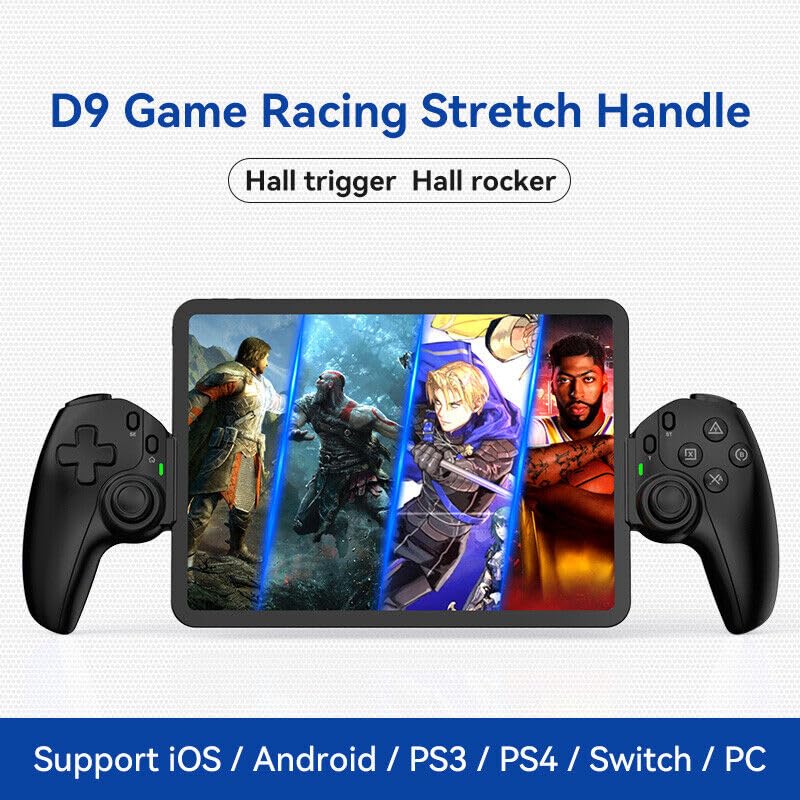
Image: The D9 Game Racing Stretch Handle, highlighting its Hall trigger and Hall rocker features. This image serves as a general product shot.

Image: Explanation of the Turbo Function on the BSP D9 Game Controller. It shows that A/B/X/Y/L1/L2/R1/R2 buttons can be set with turbo function, offering three adjustable turbo speeds: 8 shoots/s, 15 shoots/s, and 25 shoots/s.
The Turbo function allows you to set automatic rapid firing for specific buttons (A/B/X/Y, L1/L2, R1/R2). There are three adjustable turbo speeds: 8 shots/second, 15 shots/second, and 25 shots/second.
How to Set Turbo:
- Press and hold the button you wish to apply Turbo to (e.g., A button).
- While holding the button, press the "TURBO" button once to activate the lowest speed.
- Press the "TURBO" button again (while still holding the action button) to cycle through the speeds.
- Release both buttons when the desired speed is set.
How to Clear Turbo:
- Press and hold the button with Turbo enabled.
- Press the "TURBO" button until the Turbo function is deactivated (usually indicated by a specific LED flash or cessation of rapid firing).
5. Tiaki
- Te horoi: Whakamahia he kakahu ngohengohe, maroke hei muru i te kaiwhakahaere. Mo te paru maro, paku dampen te kakahu ki te wai. A ape i te whakamahi i nga matū kino, i nga horoi horoi ranei.
- Rokiroki: Whakaorangia te pūmana ki te wahi matao, maroke atu i te ra tika me te wera nui.
- Tiaki Pūhiko: Hei whakaroa i te ora o te pākahiko, kaua e tukua kia pau katoa te pūmana. Utuhia i ia wā, ahakoa kāore e whakamahia ana mō te wā roa.
- Te whakahaere: A ape i te tuku i te kaiwhakahaere, te tuku ranei ki nga paanga kaha, na te mea ka pakaru nga waahanga o roto.
6. Te Raru
| Raruraru | Take pea | Rongoā |
|---|---|---|
| Karekau te Kaiwhakahaere e ka ana. | He iti te pākahiko. | Charge the controller for at least 30 minutes. |
| Kaore te Kaiwhakahaere e hono ma te Nihokikorangi. | Bluetooth not enabled on device; controller not in pairing mode; interference. | Ensure Bluetooth is on. Put controller in pairing mode. Move closer to the device. Restart both controller and device. |
| Ko nga patene me nga rakau harikoa kaore e aro. | Software glitch; physical damage; low battery. | Recharge the controller. Restart the controller. If problem persists, contact customer support. |
| Kāore te mahi makro e mahi. | Ngā mahi hōtaka hē. | Review "Macro Programming Function" section and re-program carefully. |
| Device does not fit in the controller. | Device dimensions exceed supported range. | Check your device's length and thickness against the supported range (130-280mm length, 13mm thickness). |
7. Whakatakotoranga
- Tauira: D9
- Hononga: Bluetooth, Wired (USB)
- Papa Hototahi: iOS, Android, PC, PS3, PS4, Nintendo Switch
- Supported Device Length: 130mm - 280mm (5 - 11 inihi)
- Supported Device Thickness: Tae atu ki te 13mm
- Ngā Rākau Harikoa/Ngā Pūwhakaoho: Pānga Hall
- Nga waahanga motuhake: Programmable Back Buttons (M1/M2), Turbo Function
- Kaihanga: ShenZhen ShanWan Technology Co., Ltd.
- ASIN: B0DBR2SZZ6
8. Pūtāhui me te Tautoko
For warranty information and technical support, please refer to the official BSP webpaetukutuku, whakapā atu rānei ki tō kaihokohoko. Puritia tō rīhiti hoko hei taunakitanga hoko mō ngā kereme pūtāhui.
Kaihanga: ShenZhen ShanWan Technology Co., Ltd.