
FERIETELF T6-Black
Pukapuka Kaiwhakamahi mō te Drone FERIETELF T6
Model: T6-Black
1. Kupu Whakataki
Thank you for choosing the FERIETELF T6 Drone. This manual provides essential information for the safe operation, setup, and maintenance of your drone. Please read this manual thoroughly before operating the drone to ensure proper use and to maximize your flying experience.
2. He aha kei roto i te Pouaka
Āta wetewetehia ngā taonga katoa, ka tirohia ki te rārangi i raro nei. Mēnā kei te ngaro, kei te pakaru rānei ētahi taonga, whakapā atu ki te ratonga kiritaki.

Image: The FERIETELF T6 drone, remote controller, two modular batteries, four propeller guards, and spare propellers.
- FERIETELF T6 Drone (x1)
- Kaiwhakahaere Mamao (x1)
- Pūhiko Āhuahira (x2)
- Ngā Ārai Porowhita (x4)
- Nga Kaipupuri Tiaki (x4)
- Taura Whakamaata USB (x1)
- Tiwhikete (x1)
- Pukapuka Kaiwhakamahi (x1)
3. Hua Neke Atuview
The FERIETELF T6 drone is designed for both beginners and experienced users, featuring a 1080P HD camera, various intelligent flight modes, and a user-friendly control system.
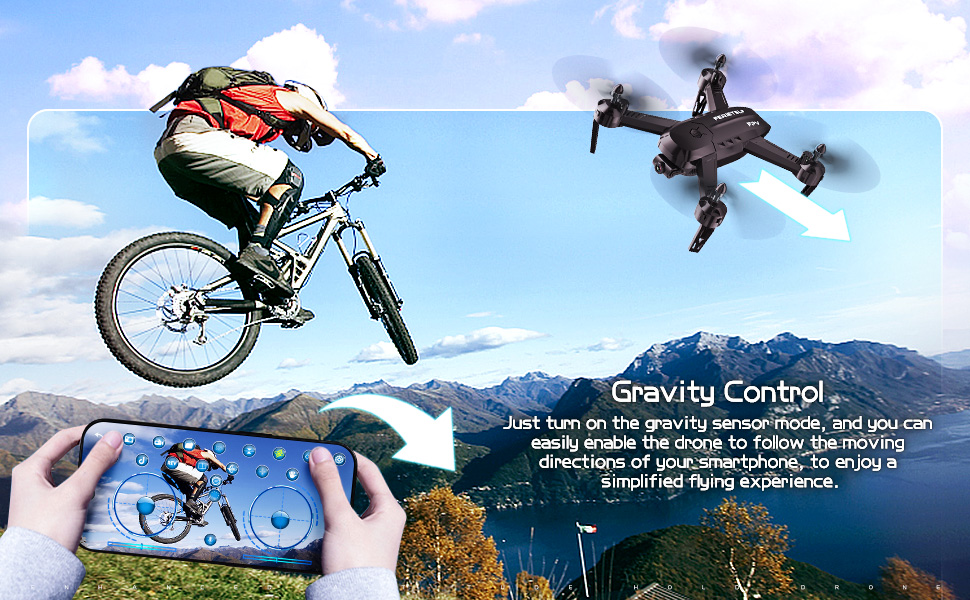
Image: The drone demonstrating its Altitude Hold capability, maintaining a stable height for photography.
Āhuatanga matua:
- 1080P HD WiFi Camera: Capture high-quality photos and videos with gesture control.
- Pupuri teitei: Maintains a stable flight height for easy control and clear aerial shots.
- Multiple Flight Modes: Includes Headless Mode, Line Drawing Flight, 360° Flip, and Gravity Control.
- Mana Reo Ataata: Command the drone with simple voice commands.
- Modular Batteries: Two batteries provide extended flight time.
- One Key Take-off/Landing: Simplifies operation for beginners.
4. Tatūnga
4.1 Tāuta Pūhiko
Install the modular battery into the drone and the AAA batteries (not included) into the remote controller.

Image: Diagram showing the correct method for inserting and removing the drone battery, emphasizing the press-push mechanism for child protection.
Pūhiko Whakatau: To insert or remove the modular battery, you need to press your thumb firmly on the snap part at the end of the battery module and push it into the battery compartment at the same time. Pushing directly without pressing the snap may damage the battery slot.
4.2 Whakataunga Kaitiaki Pourewa
Āpitihia ngā parepare poroporo ki ngā ringa o te waka rererangi hei tiaki i ngā poroporo i te wā e rere ana, inā koa mō ngā tīmatanga.
4.3 Tatūnga Kaiwhakahaere Mamao
Insert 3 AAA batteries (not included) into the remote controller. Ensure correct polarity. The remote controller will automatically pair with the drone upon power-on.
4.4 Taupānga Tāuta me te Hononga
Download the dedicated drone app from your smartphone's app store. Power on the drone, connect your smartphone to the drone's Wi-Fi network, and then open the app to establish a connection for FPV viewngā mana whakahaere matatau me ngā mana whakahaere matatau.
5. Nga Tohutohu Whakahaere
5.1 Whakariterite
Before each flight, place the drone on a smooth, horizontal surface and perform calibration as per the app or remote controller instructions. This ensures stable flight.

Image: Visual representation of placing the drone on a smooth, horizontal surface for calibration before flight.
5.2 Take-off and Landing
- Kotahi Take-off Key: Press the dedicated One Key Take-off button on the remote controller or in the app. The drone will automatically ascend to a stable height.
- Kotahi te Taunga Matua: Press the dedicated One Key Landing button. The drone will slowly descend and land automatically.
- Manual Take-off/Landing: Use the throttle stick to manually control ascent and descent.
5.3 Aratau Rererangi
- Pupuri teitei: The drone automatically maintains its current altitude, making it easier to control and capture stable photos/videos.
- Aratau Upoko: In this mode, the drone's orientation is relative to the pilot, regardless of the drone's actual front direction. This simplifies control for beginners.
- Rere Tuhi Raina: Tuhia he ara rere ki runga i to mata atamai i roto i te taupānga, ka whai aunoa te haruru i te huarahi kua tohua.
- 360° Pore: Execute impressive aerial stunts with a single button press. Ensure sufficient altitude before performing flips.
- Mana Reo Ataata: Use predefined voice commands (e.g., "Forward," "Backward," "Take Off," "Landing") to control the drone.
- Mana Gravity: Enable the gravity sensor mode on your smartphone to control the drone's movement by tilting your phone.

Image: A user drawing a flight path on a smartphone screen, which the drone then follows over a mountainous landscape.

Image: People interacting with the drone using voice commands, with speech bubbles indicating commands like "Forward," "Backward," "Landing," and "Take Off."
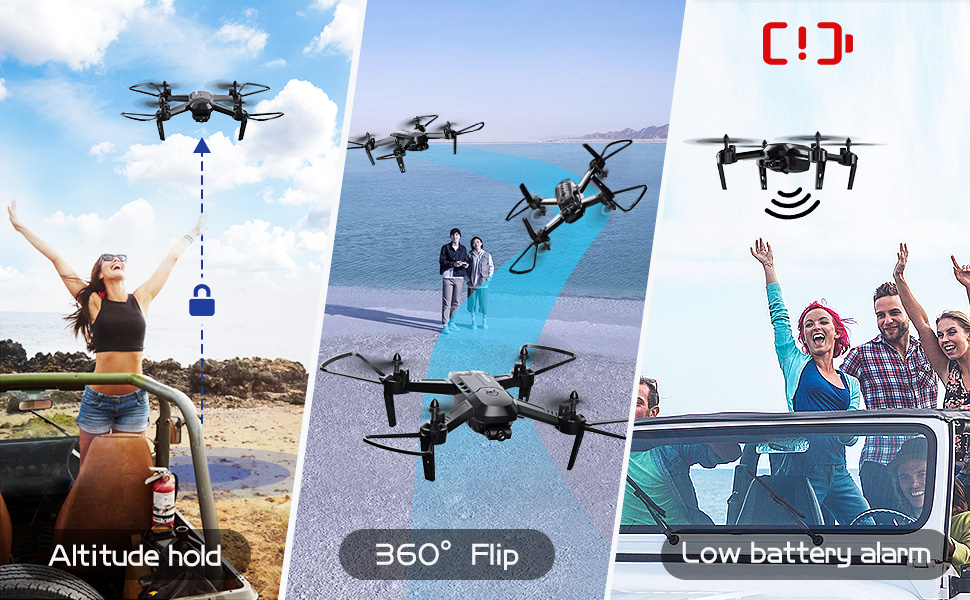
Image: A user controlling the drone by tilting a smartphone, demonstrating the gravity control feature.
5.4 Te Mahi Whakaata
The drone is equipped with a 1080P HD WiFi camera for real-time FPV (First Person View) and recording.

Image: Close-up of the drone's 1080P HD WiFi camera, highlighting its lens components and showing examples of gesture control for taking photos and videos.
- FPV Ora: View the drone's camera feed directly on your smartphone via the app.
- Hopu Whakaahua/Ataata: Use the dedicated buttons on the remote controller or within the app to start/stop recording or take photos.
- Mana Tohu: Perform specific hand gestures in front of the camera to trigger photo or video recording. Refer to the app for specific gestures.
6. Tiaki
6.1 Tiaki Pūhiko
Proper battery care extends the life of your drone batteries:
- Kaua e whakaū i te pākahiko mō te wā roa rawa.
- Replace the battery when it shows signs of swelling or damage.
- Ensure the battery is cool before charging.
- When idle, avoid direct sunlight exposure for the battery.
- Always use the original charging cable. Other cables may damage the battery's internal structure.
6.2 Te horoi
Regularly clean your drone to ensure optimal performance:
- Whakamahia he kakahu ngohengohe, maroke hei muru i te tinana o te drone.
- Gently remove any dust or debris from the propellers and motors.
- Ensure the camera lens is clean for clear image capture.
7. Te Raru
If you encounter issues with your FERIETELF T6 drone, refer to the following common problems and solutions:
Image: A diagram illustrating key precautions for drone use, including calibration, propeller guard installation, and battery care tips.
- Drone does not respond: Ensure both the drone and remote controller are fully charged and powered on. Re-pair the drone and controller if necessary.
- Rere kore iu: Perform a full calibration on a flat surface. Check for damaged propellers and replace if needed.
- Kāre e mahi ana te kāmera: Ensure the drone is properly connected to the app via Wi-Fi. Check app permissions for camera access.
- Te wā rere poto: Ensure batteries are fully charged. Old or damaged batteries may have reduced capacity and should be replaced.
- Drone drifts: Perform fine-tuning adjustments using the trim buttons on the remote controller or the calibration function in the app.
- Karekau he kai FPV: Verify Wi-Fi connection between your smartphone and the drone. Ensure the app is updated to the latest version.
8. Whakatakotoranga
| Āhuahira | Taipitopito |
|---|---|
| Waitohu | FERIETELF |
| Tau tauira | T6-Black |
| Hunga Hua | 22 x 11 x 34 cm |
| Taumaha Tūemi | 600 g |
| Momo Mana | Mana Mamao, Mana Taupānga |
| Hōputu Hopu Ataata | MP4 |
| Awhe Tau (Whakaahuatanga) | Tamariki, Pakeke |
9. Pūtāhui me te Tautoko
For warranty information and customer support, please refer to the product packaging or contact FERIETELF customer service directly. Keep your purchase receipt as proof of purchase.
Ask a question about this manual
Ask about setup, troubleshooting, compatibility, parts, safety, or missing instructions. Manuals+ will review the question and use this page’s manual context to help answer it.