
1. Kupu Whakataki
The Unitek CFexpress Type A and SD4.0 UHS-II Memory Card Reader is designed for high-speed data transfer from CFexpress Type A and SD cards to your computer or compatible device. Featuring USB 3.2 Gen 2 connectivity, it supports transfer speeds up to 10Gbps, making it suitable for professionals requiring efficient handling of large files such as high-resolution photos and Full HD videos.

Image 1.1: Unitek CFexpress Type A and SD4.0 UHS-II Memory Card Reader.
2. Nga Hua o te Hua
- Whakawhiti Raraunga Tere-Teitei: Supports up to 10Gbps (1250MB/s) via USB 3.2 Gen 2x1 for CFexpress Type A and SD4.0 UHS-II cards. Backward compatible with USB 3.1 Gen 1 and USB 3.0. An LED indicator shows data transfer activity.
- Ngā Kāri Kāri Tārua: Features dedicated slots for CFexpress Type A and SD cards (SD/SDHC/SDXC/SDUC). Both slots can be used simultaneously. Note: Not compatible with CFexpress Type B/C or XQD cards.
- Hototahi whanui: Compatible with Windows, macOS, Linux, and Android operating systems. Supports CFexpress cards up to 2TB capacity.
- Hoahoa Maama me te Kawe: Constructed with an aluminum alloy housing for durability and efficient heat dissipation. Its compact size is suitable for travel.

Image 2.1: Illustration of CFexpress Type A and SD card compatibility.
3. Ihirangi mokete
Tena koa tirohia kei roto nga taonga katoa kei roto i te kete:
- 1 x Unitek CFexpress Type A and SD4.0 UHS-II Memory Card Reader
- 1 x USB-C ki USB-C Cable
- 1 x Manual Kaiwhakamahi (tenei tuhinga)
4. Tatūnga
- Connect one end of the provided USB-C to USB-C cable to the USB-C port on the Unitek card reader.
- Connect the other end of the USB-C cable to an available USB-C port on your computer, laptop, tablet, or smartphone.
- The device is plug-and-play and does not require any driver installation. Your operating system should automatically recognize the card reader.
- For optimal 10Gbps transfer speeds, ensure your host device's USB-C port supports USB 3.2 Gen 2.
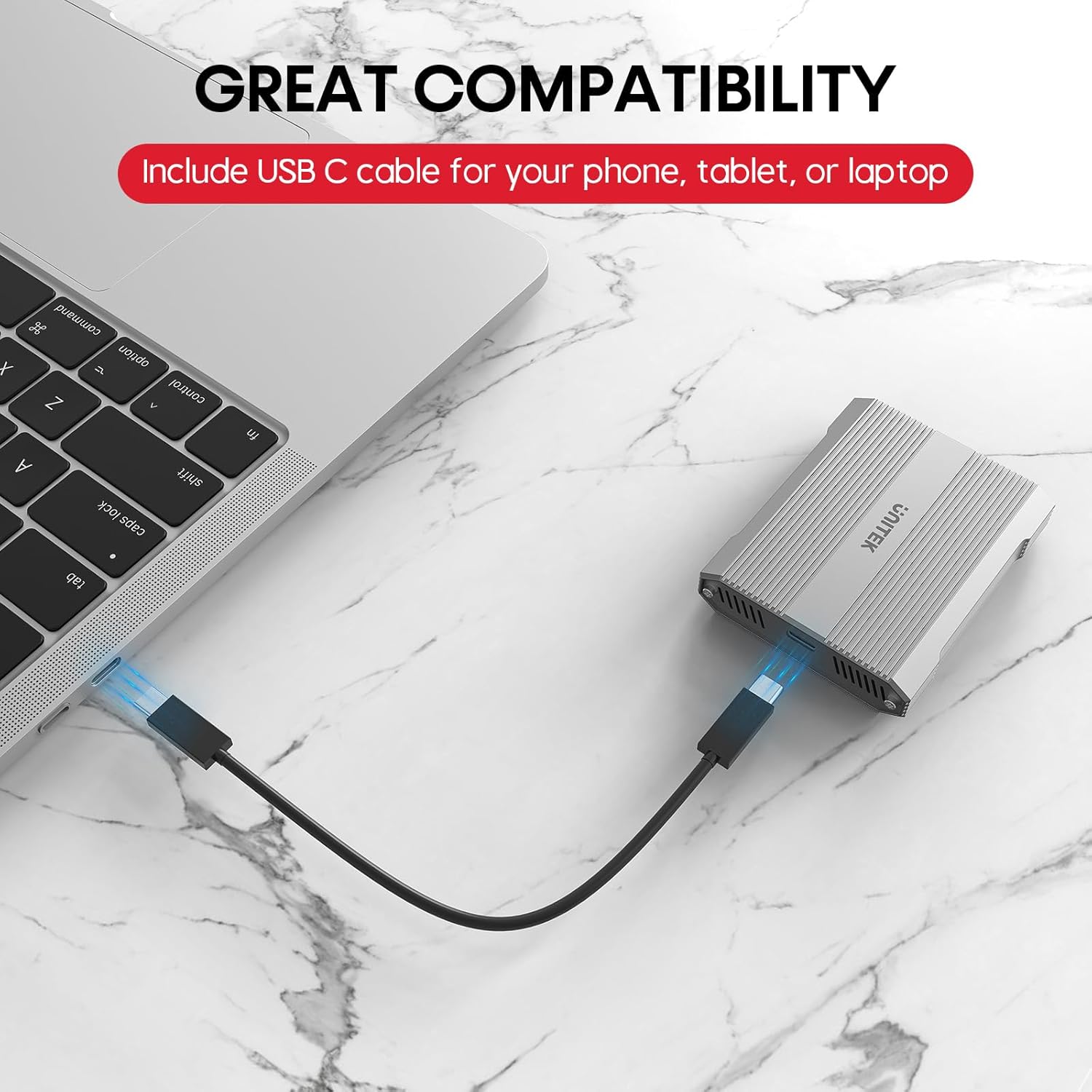
Image 4.1: Connecting the card reader to a laptop via USB-C.
5. Nga Tohutohu Whakahaere
5.1 Te Whakauru i ngā Kāri Mahara
- For CFexpress Type A Cards: Gently insert your CFexpress Type A card into the designated CFexpress Type A slot on the reader until it clicks into place. Ensure the card is oriented correctly.
- For SD Cards: Gently insert your SD, SDHC, SDXC, or SDUC card into the designated SD slot on the reader until it clicks into place. Ensure the card is oriented correctly.

Image 5.1: Correct insertion of a CFexpress Type A card.

Image 5.2: Correct insertion of an SD card.
5.2 Whakawhiti Raraunga
- Once a card is inserted and the reader is connected, it will appear as a removable drive in your computer's file te kaihōpara (Windows) te Finder rānei (macOS).
- Ka taea e koe te tō me te whakataka inaianei files, copy, or move data between your memory card and your computer.
- The LED indicator on the reader will flicker during active data transfer.

Image 5.3: Visual representation of 10Gbps data transfer.
5.3 Safely Ejecting Cards
To prevent data corruption, always safely eject the memory card or the card reader from your operating system before physically removing the card or disconnecting the reader.
- Matapihi: Right-click on the drive icon in 'This PC' or 'File Explorer' and select 'Eject'.
- macOS: Drag the drive icon from the desktop or Finder sidebar to the Trash, or right-click and select 'Eject'.
6. Hototahi
The Unitek R1022A card reader offers broad compatibility:
- Memory Card Types: CFexpress Type A, SD, SDHC, SDXC, SDUC (SD4.0 UHS-II).
- Pūnaha Whakahaere: Matapihi, macOS, Linux, Android.
- Ngā Pūrere Manaaki: Laptops, desktop computers, tablets, and smartphones with a USB-C port.
Tuhipoka Nui: This card reader is specifically designed for CFexpress Type A cards and is kore hototahi with CFexpress Type B, CFexpress Type C, or XQD cards.

Image 6.1: Compatibility with various operating systems and devices.
7. Tiaki
- Kia noho ma te kaipanui kaari me te kore he puehu me te para. Whakamahia he kakahu ngohengohe, maroke mo te horoi.
- A ape i te tuku i te taputapu ki te wera nui, te ra tika, te makuku nui ranei.
- Do not attempt to disassemble or modify the card reader, as this will void the warranty.
- Whakahaere Wea: The aluminum alloy housing aids in heat dissipation. However, during prolonged high-speed data transfers or if left connected with cards inserted, the device and cards may become warm. To prolong the lifespan of your cards and the reader, it is recommended to remove cards when not actively transferring data.
8. Te Raru
- Pūrere Kaore i te Mohiotia:
- Ensure the USB-C cable is securely connected to both the card reader and your host device.
- Ngana ki te hono atu ki tetahi tauranga USB-C rereke i runga i to taputapu.
- Whakamātauria ki tētahi atu taura USB-C mēnā e wātea ana.
- Tīmata anō i tō rorohiko, i tō pūrere manaaki rānei.
- Nga Tere Whakawhiti Puturi:
- Verify that your host device's USB-C port supports USB 3.2 Gen 2 (10Gbps). Older USB versions will result in lower speeds.
- Ensure your memory cards (CFexpress Type A or SD) are high-speed cards capable of 10Gbps or UHS-II speeds.
- Close any background applications that might be consuming system resources or performing other data transfers.
- Memory Card Not Reading:
- Me whakarite kia tika te whakauru o te kāri mahara, kia tino whakaurua ki te mokowā tika.
- Check if the memory card is damaged or corrupted. Try the card in another device if possible.
- Confirm that you are using a compatible card type (CFexpress Type A or SD). This reader does not support CFexpress Type B/C or XQD cards.
- Whakawerawera Pūrere:
- It is normal for the device to become warm during operation, especially during large data transfers.
- If the device feels excessively hot, ensure it has adequate ventilation and is not covered.
- Remove memory cards from the reader when not in active use to reduce heat buildup.
9. Whakatakotoranga
| Waitohu | Unitek |
| Ingoa Tauira | R1022A |
| Momo Media | CFexpress Type A, SD4.0 UHS-II (SD/SDHC/SDXC/SDUC) |
| Hangarau Hononga | USB Type C (USB 3.2 Gen 2x1) |
| Rere Whakawhiti Raraunga | Tae atu ki te 10 Gigabits ia Hekona |
| Pūrere Hototahi | Laptop, PC, Phone, Tablet |
| Pūnaha Mahi | Windows, macOS, Linux, Android |
| Āhuahira Motuhake | Kiato, Mono & Tākaro |
| Rauemi Whare | Aluminum Aluminum |
| Max CFexpress Card Capacity | 2TB |

Image 9.1: Compact design and dimensions of the card reader.
10. Ataata Hua Whaimana
Video 10.1: Official product video demonstrating the Unitek CFexpress Type A and SD4.0 UHS-II Memory Card Reader, highlighting its dual card slots, 10Gbps data transfer speed, and USB-C connectivity.
11. Pūtāhui me te Tautoko
The Unitek CFexpress Type A and SD4.0 UHS-II Memory Card Reader comes with a 1-tau pūtāhui mai i te ra o te hokonga.
For technical support, warranty claims, or any other inquiries, please contact Unitek customer service. Refer to the product packaging or the official Unitek webpae mo nga korero whakapā o naianei.