
Ninkear A15
Ninkear A15 Laptop User Manual
Tauira: A15
1. Kupu Whakataki
Welcome to the Ninkear A15 Laptop user manual. This guide provides essential information for setting up, operating, maintaining, and troubleshooting your new Ninkear A15 laptop. Please read this manual thoroughly to ensure proper use and to maximize the performance and longevity of your device.
The Ninkear A15 is a high-performance laptop featuring an AMD Ryzen 5 5500U Hexa-core Processor, 16GB RAM, and a 512GB PCIe SSD, designed for a variety of computing tasks from daily productivity to graphic design and entertainment.
2. He aha kei roto i te Pouaka
Upon opening your Ninkear A15 Laptop package, please verify that all the following items are included:
- A15 laptop x 1
- Kiore x 1
- Papa Kiore x 1
- Rihi x 1
3. Hua Neke Atuview
The Ninkear A15 laptop is engineered for efficiency and user comfort. Below are key features and components:
3.1 Nga waahanga matua
- Tukatuka Kaha: Equipped with an AMD Ryzen 5 5500U processor, AMD Radeon graphics, 6 cores and 12 threads, with a frequency up to 4.0Ghz, suitable for various applications.
- Whakaaturanga Rumaki: Features a 15.6-inch FHD IPS display with 1920x1080 resolution, offering a 90.3% screen-to-body ratio and a 180-degree viewing angle for clear and natural picture quality.
- Roa te Ora Pūhiko: A 4350mAh battery provides up to 6 hours of daily use, making it ideal for mobile work. It supports full-function Type-C charging.
- Ampte Rokiroki me te Mahara: Comes with 16GB DDR4 RAM (3200Mhz) and a 512GB PCIe SSD, ensuring fast performance for professional software and multitasking.
- Hoahoa ratarata-kaiwhakamahi: Includes a full digital backlit keyboard with three adjustable monochrome backlight levels (FN+F9) and a 0.5-second fingerprint unlocking feature for enhanced security and convenience.
3.2 Tirohanga ki rungaview

Mua view of the Ninkear A15 Laptop, showcasing tona hoahoa kiko me te whakaatu.

He mutuview of the Ninkear A15 Laptop highlighting key specifications like 15.6" IPS FHD display, AMD Ryzen 5 5500U processor, 16GB DDR4 RAM, 512GB PCIe SSD, 4350mAh battery, backlit keyboard, and Type-C full function port.

Taipitopito view of the AMD Ryzen 5 5500U processor, emphasizing its 6 cores, 12 threads, 7nm process, and 4.0GHz max turbo frequency.
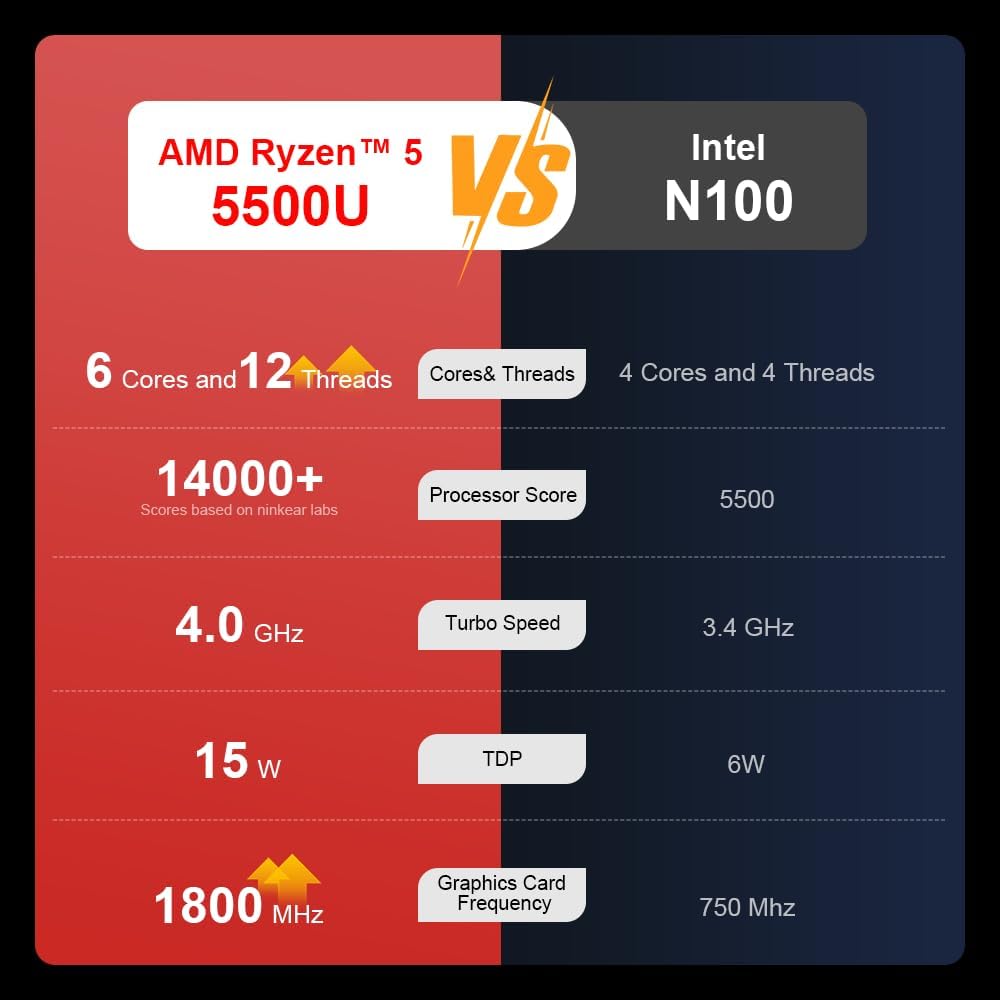
A comparison chart illustrating the performance differences between the AMD Ryzen 5 5500U and Intel N100 processors, including core/thread count, processor score, turbo speed, TDP, and graphics card frequency.

Image showing the 512GB M.2 PCIe SSD and highlighting the 3200MHz DDR4 running frequency, indicating a 20% speed improvement over 2666MHz DDR4.

The 15.6-inch IPS FHD screen of the A15, designed to deliver vibrant and accurate colors while reducing eye strain during long work hours.

Illustration of the A15 laptop's suitability for various 'recreational office' tasks, including graphic design (Ae, Ps, Ai) and gaming/entertainment.

Information about the laptop's 50.5WH high-capacity lithium-ion battery, providing up to 8 hours of local video playback and 72 hours of standby time.

A visual guide to the rich interfaces of the Ninkear A15 Laptop, including USB 3.0, USB 2.0, Headphone Jack, Charging Port, HDMI, and full-function Type-C ports.
3.3 Hua Ataata
Whakaaturanga ataata hua whaimanacasing the Ninkear A15 Laptop's features, including its design, display, backlit keyboard, and various ports. This video provides a dynamic overview of the laptop's capabilities and physical attributes.
4. Tatūnga
Follow these steps to set up your Ninkear A15 Laptop for the first time:
- Wetekina te Pūkoro Rorohiko: Tangohia marietia te pona me ngā taputapu katoa i roto i te takai.
- Hono Hono: Plug the charger into the laptop's charging port (DC-in or Type-C) and then into a power outlet.
- Whakaara Tuatahi: Open the laptop lid and press the power button (integrated with fingerprint sensor). The laptop will power on and begin the initial Windows 11 setup process.
- Tatūnga Windows 11: Follow the on-screen instructions to complete the Windows 11 setup, including selecting your region, language, connecting to Wi-Fi, and creating a user account.
- Tatūnga Tapumati: During or after Windows setup, you can configure the fingerprint reader for quick and secure login.
5. Nga Tohutohu Whakahaere
This section covers basic operation of your Ninkear A15 Laptop.
5.1 Whakakā/Whakaweto me te Moe
- Whakahiko: Patohia te paatene mana.
- Weto Whakakore: Pāwhiritia te pātene Tīmata i roto i te Windows, kātahi ka tīpako i te Mana > Whakaweto.
- Aratau Moe: Close the lid or click the Start button, then select Power > Sleep.
5.2 Papapātuhi me te Papapātuhi
- Papapātuhi Whakamuri: Perehi Fn + F9 to cycle through the three levels of monochrome backlight brightness or turn it off.
- Papapa: Use the integrated touchpad for cursor control and gestures. Refer to Windows settings for touchpad customization.
- Papapātuhi Tau: The laptop features a full digital numeric keypad for convenient data entry.
5.3 Hononga Pikitia
Utilize the various ports for external devices:
- Tauranga USB: Connect USB devices like external hard drives, mice, or keyboards to the USB 2.0 or USB 3.0 ports.
- HDMI: Connect to external monitors or projectors using the HDMI port.
- Momo-C: The full-function Type-C port supports data transfer, video output, and power delivery.
- Jack Ororongo: Honoa ngā paneoro, ngā kaikōrero o waho rānei ki te hononga oro 3.5mm.
5.4 Tautuhinga Whakaatu
Adjust display settings via Windows Settings > System > Display to optimize resolution, scaling, and multiple monitor setups.
6. Tiaki
Proper maintenance ensures the longevity and optimal performance of your Ninkear A15 Laptop.
- Te horoi: Use a soft, lint-free cloth to clean the screen and chassis. For stubborn marks, slightly dampen te kakahu ki te wai, ki te horoi mata ranei. A ape i nga matū kino.
- Whakahōu Pūmanawa: Regularly update Windows and device drivers to ensure system stability, security, and performance.
- Tiaki Pūhiko: Hei whakaroa i te ora o te pākahiko, kaua e whakawetohia te pākahiko i ngā wā katoa. Penapenahia te pona ki te wāhi hauhautanga, maroke hoki ina kore e whakamahia mō te wā roa.
- Whakahau: Kia kaua e āraia ngā pūhau o te pona hei ārai i te wera nui. Whakamahia te pona ki runga i tētahi mata mārō, papatahi.
- Pūrua Raraunga: Tāruatia ō raraunga nui ki tētahi puku o waho, ki tētahi rokiroki kapua rānei i ia wā, hei ārai i te ngaronga o ngā raraunga.
7. Te Raru
This section addresses common issues you might encounter with your Ninkear A15 Laptop.
| Raruraru | Take pea | Rongoā |
|---|---|---|
| Karekau te pona i te hiko | Low battery or power adapter issue | Ensure the charger is properly connected and the power outlet is working. Allow the laptop to charge for at least 30 minutes before attempting to power on again. |
| He pātea, he mangu rānei te mata | Display driver issue, external display connected, or sleep mode | Press any key or move the mouse to wake from sleep. Disconnect any external monitors. Try pressing Fn + F7 (or the key with a display icon) to switch display modes. If still blank, force shut down by holding the power button for 10 seconds, then restart. |
| Karekau te Wi-Fi e hono ana | Wi-Fi adapter off, incorrect password, or router issue | Check if Wi-Fi is enabled in Windows settings. Verify the Wi-Fi password. Restart your router and modem. Update Wi-Fi drivers if necessary. |
| Kāore te rama o te papapātuhi e mahi ana | Backlight turned off or low brightness setting | Perehi Fn + F9 repeatedly to adjust brightness or turn on the backlight. |
| Te mahi puhoi | Too many programs running, low disk space, or outdated drivers | Close unnecessary applications. Free up disk space. Run Windows Update and update drivers. Consider running a virus scan. |
8. Whakatakotoranga
Detailed technical specifications for the Ninkear A15 Laptop:
| Āhuahira | Whakatakotoranga |
|---|---|
| Waitohu | Ninkear |
| Ingoa Tauira | A15 |
| Rahi Mata | 15.6 Inihi |
| Whakatau Mata | 1920 x 1080 pika (FHD IPS) |
| Tukatuka | AMD Ryzen 5 5500U (2.1 GHz, 6 Cores, 12 Threads) |
| RAM | 16 GB DDR4 (3200 MHz) |
| Puku Maama | 512 GB PCIe SSD |
| Kaari Whakairoiro | Ngā Whakairoiro AMD Radeon Whakauru |
| Pūnaha Mahi | Matapihi 11 |
| Tae | Hiriwa |
| Taumaha Tūemi | 5 pauna |
| Hunga Hua | 14 x 9 x 0.15 inihi |
| Tauranga USB 3.0 | 2 |
| Toharite Pūhiko Ora | Up to 6-8 hours (daily use) |
| Nga waahanga motuhake | Backlit Keyboard, Numeric Keypad, Fingerprint Unlock, Full-function Type-C |
9. Raihana me te Tautoko
Ninkear provides a standard warranty for the A15 Laptop. Please refer to the warranty card included in your product packaging for specific terms and conditions, including warranty duration and coverage details.
For technical support, troubleshooting assistance, or warranty claims, please contact Ninkear customer service through the official website or the contact information provided with your purchase. Ensure you have your product model (A15) and purchase details ready when contacting support.
You can also visit the official Ninkear store on Amazon for additional product information and support resources: Ninkear Amazon Store