
1. Kupu Whakataki
The NIIMBOT D11H is a compact, portable, and inkless thermal label printer designed for various labeling needs. It connects wirelessly via Bluetooth to your smartphone, allowing for easy creation and printing of high-resolution labels. This manual provides essential information for setting up, operating, and maintaining your device.
2. Ihirangi mokete
Manatokohia ko nga mea katoa kei raro nei kei roto i to kete:
- 1x NIIMBOT D11H Label Printer
- 1x Label Roll (pre-installed or included)
- 1x USB Momo-C Uera Whakatau
- 1x User Manual (Japanese)

3. Tatūnga
3.1. Uta Pepa Tapanga
- Slide the cover button on the side of the printer to open the paper compartment.
- Insert the label roll into the compartment with the labels facing upwards, ensuring it is correctly aligned.
- Pull a small portion of the label paper out through the printer's exit slot.
- Katia te taupoki kia mau.

3.2. Kei te Hiko Nei
Press and hold the power button located on the front of the printer for 3 seconds until the indicator light turns green, indicating the device is powered on.
3.3. Tikiake Taupānga me te Hononga Nihokikorangi
- Download the "NIIMBOT" app from the App Store (iOS) or Google Play Store (Android).
- Whakahohehia te Nihokikorangi i runga i to waea atamai.
- Open the NIIMBOT app and tap on the "Connect" or "Printer Connection" option. The app will automatically scan for nearby devices.
- Select your NIIMBOT D11H printer from the list of available devices to establish a Bluetooth connection.

4. Nga Tohutohu Whakahaere
4.1. Te Waihanga Tapanga
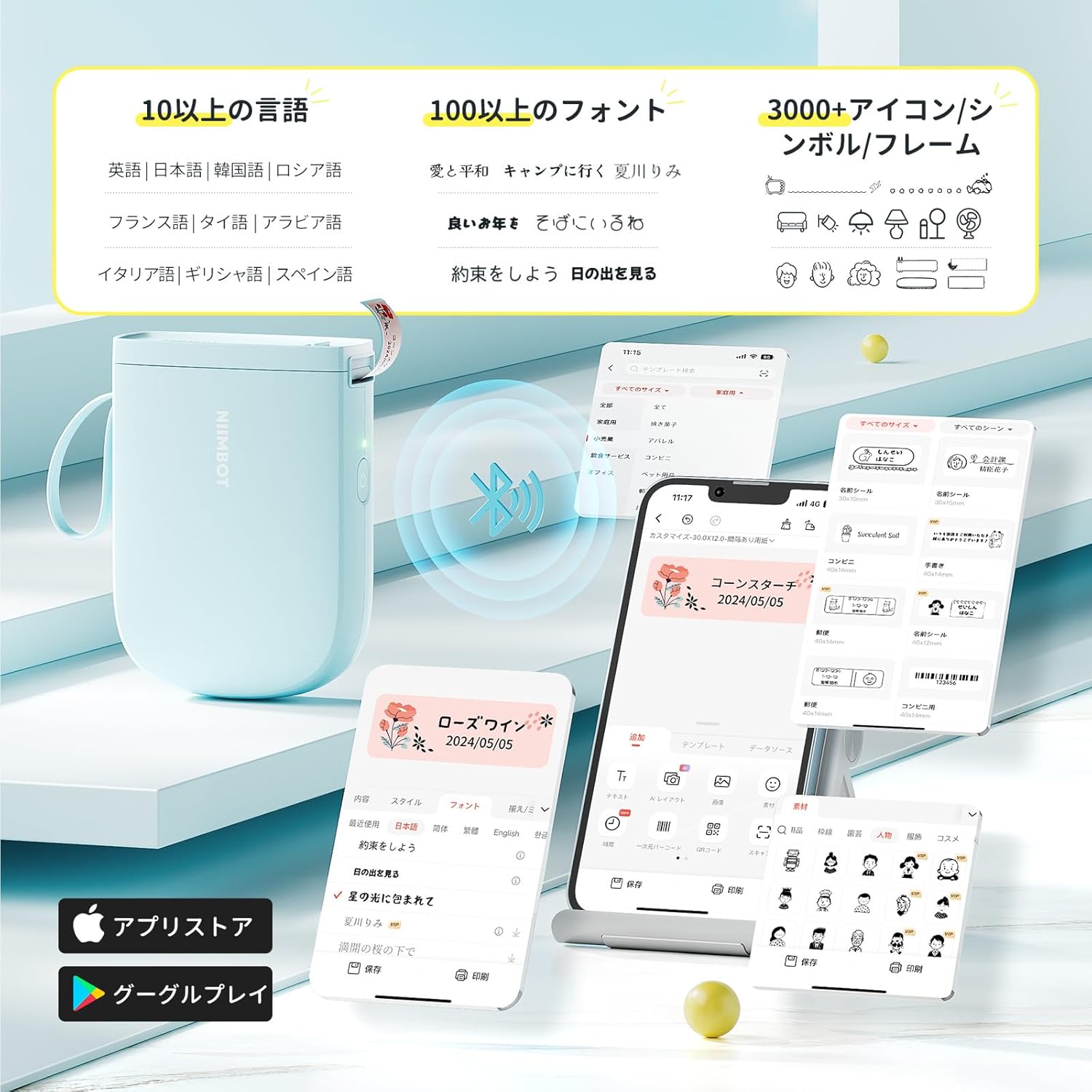
The NIIMBOT app offers a wide range of features for label creation:
- Whakauru Kuputuhi: Easily type and customize text with over 20 fonts and various styles.
- Tātauira: Utilize automatic template matching and thousands of image elements for quick design.
- Āhukahuka Atahanga: Import images for printing.
- Waehere Pae/Waehere QR: Waihangahia me te tā i ngā waehere pae me ngā waehere QR.
- Tānga Tānga: Print multiple labels efficiently.

4.2. Tapanga Tapanga
Once your label design is complete in the app, tap the "Print" button. You can adjust the number of copies and print density before confirming. The printer will automatically feed and cut the labels.
4.3. Nga tono maha
The NIIMBOT D11H is suitable for a wide range of uses, including organizing documents, creating name tags, price tags, date reminders for food, and labeling items in the kitchen, office, or warehouse.


5. Tiaki
To ensure optimal performance and longevity of your NIIMBOT D11H label printer, follow these maintenance guidelines:
- Te horoi: Regularly clean the print head with a soft, lint-free cloth moistened with alcohol. Ensure the printer is off before cleaning.
- Rokiroki: Penapenahia te pūreretā ki te wāhi hauhautanga, maroke, kia matara atu i te rā tika me ngā pāmahana tino kino.
- Pūhiko: Whakautua te pūreretā i ia wā, ahakoa kāore e whakamahia pinepinetia, kia mau tonu ai te hauora o te pākahiko.
6. Te Raru
If you encounter issues with your NIIMBOT D11H, refer to the following common troubleshooting steps:
- Kāore te Pūreretā e Hono Ana: Ensure Bluetooth is enabled on your smartphone and the printer is powered on. Try restarting both devices and reconnecting through the app.
- He Rawe te Kounga Ta: Check if the label paper is loaded correctly and is a genuine NIIMBOT thermal label. Clean the print head if necessary. Adjust print density in the app settings.
- Pepa Jam: Open the paper compartment, carefully remove any jammed paper, and reload the label roll correctly.
- Kaore te Kairereta i te whakautu: Ensure the battery is charged. If the device is unresponsive, try resetting it by holding the power button for an extended period (e.g., 10-15 seconds).
7. Whakatakotoranga
| Āhuahira | Whakatakotoranga |
|---|---|
| Waitohu | NIIMBOT |
| Ingoa Tauira | D11H |
| Hangarau Hononga | Nihokikorangi |
| Hangarau Tā | Ngawha |
| Max Print Resolution (Monochrome) | 300 DPI |
| Tere Tā Max (Monochrome) | 40.0 mm/s |
| Rahi Pāpāho (Pepa) Mōrahi | 15mm (whanui) |
| Hunga Hua | 11 x 3 x 7 cm |
| Taumaha Tūemi | 360 g |
| Pūrere Hototahi | Waea atamai (Android me iOS) |
| Tae | Kahurangi |
8. Pūtāhui me te Tautoko
For warranty information or technical support, please refer to the official NIIMBOT webpae, whakapā atu ranei ki to kaihoko. Puritia to riiki hoko hei tohu mo te hoko.