
Kupu Whakataki
Thank you for choosing the RunStar FI2019G Smart Body Composition Scale. This advanced digital scale is designed to provide a comprehensive overview of your body's health, tracking up to 22 key body metrics. By connecting to the Starfit App, you can monitor your progress, set goals, and integrate your data with popular health platforms. This manual will guide you through the setup, operation, and maintenance of your new smart scale.
Nga korero haumaru
- Always place the scale on a hard, flat surface for accurate measurements. Avoid carpets or uneven flooring.
- Step onto the scale with bare, dry feet to ensure proper contact with the ITO-coated surface for body composition analysis.
- Do not step on the scale with wet feet or when the scale surface is wet to prevent slipping.
- The scale is not a medical device. Measurement data is for reference only and should not be used as a substitute for professional medical advice.
- Keep the scale away from water and extreme temperatures. Do not immerse it in water.
- Kaua e peke ki runga i te tauine, kaua hoki e tukua kia pāngia ohorere.
Ihirangi mokete
- RunStar FI2019G Smart Body Composition Scale
- 4 x AAA Pūhiko
- Pukapuka Kaiwhakamahi
Tatūnga
- Whakauruhia nga Pataha: Open the battery compartment on the back of the scale. Insert the 4 AAA batteries, ensuring correct polarity. Remove any protective pull tabs if present.
- Download the Starfit App: Scan the QR code provided on the product packaging or in the manual, or search for 'Starfit' in your smartphone's app store (App Store for iOS, Google Play for Android).
- Waihanga Kaiwhakamahi Profile: Open the Starfit App and complete the registration process. Enter your personal information such as gender, nickname, birthday, height, and target weight. You can also enable 'Athlete Mode' if applicable.
- Tauhoa me te Waea atamai: Ensure Bluetooth is enabled on your smartphone. In the Starfit App, navigate to 'Account' > 'My Devices' > '+' > 'Bluetooth' to search for smart devices. Select 'Runstar-RX' to connect. A connected logo will appear on the scale's screen once paired.
- Whakaritenga Tuatahi: Place the scale on a hard, flat surface. Lightly step on the scale with one foot until '0.00' appears on the display, then step off. The scale is now calibrated and ready for use.

Figure 1: RunStar FI2019G Smart Body Composition Scale. This image shows the sleek design of the scale with its digital display and blue accent.
Video 1: A Closer Look at the Runstar TFT Smart Body Scale. This video provides a visual guide to the scale's features and initial setup process.
Nga Tohutohu Whakahaere
- Te Inenga: Step onto the scale with bare, dry feet. Stand still and ensure your feet are evenly placed on the ITO-coated surface. The scale will automatically turn on and begin measuring.
- Whakaatu i-Mata: The 3.5" TFT color display will show 7 key body metrics dynamically: Weight, BMI, Muscle Mass, Heart Rate, Body Fat, Bone Mass, and trend curves.
- App Data Sync: The scale supports offline measurement. Once you open the Starfit App, the data from your measurement will automatically sync to your smartphone. You can then click "CLAIM" in the app to confirm your data.
- Detailed Body Analysis: The Starfit App provides 22 key body metrics, including Weight, BMI, Muscle Mass, Body Fat, Visceral Fat, Protein, BMR, and more. You can view detailed reports and track your progress over weekly, monthly, and yearly periods.
- Pro Kaiwhakamahi mahafiles: The scale supports up to 24 individual user profiles, making it suitable for family use. Each user's data is tracked separately within the app.
- Whakakotahitanga Taupānga Hauora: The Starfit App can effortlessly connect with Apple Health, Health Connect, and Fitbit to centralize your health data.
- Tiri Kaunuku: Share your body analysis reports and fitness progress with friends and family via social media platforms like TikTok, Instagram, or Facebook directly from the Starfit App.
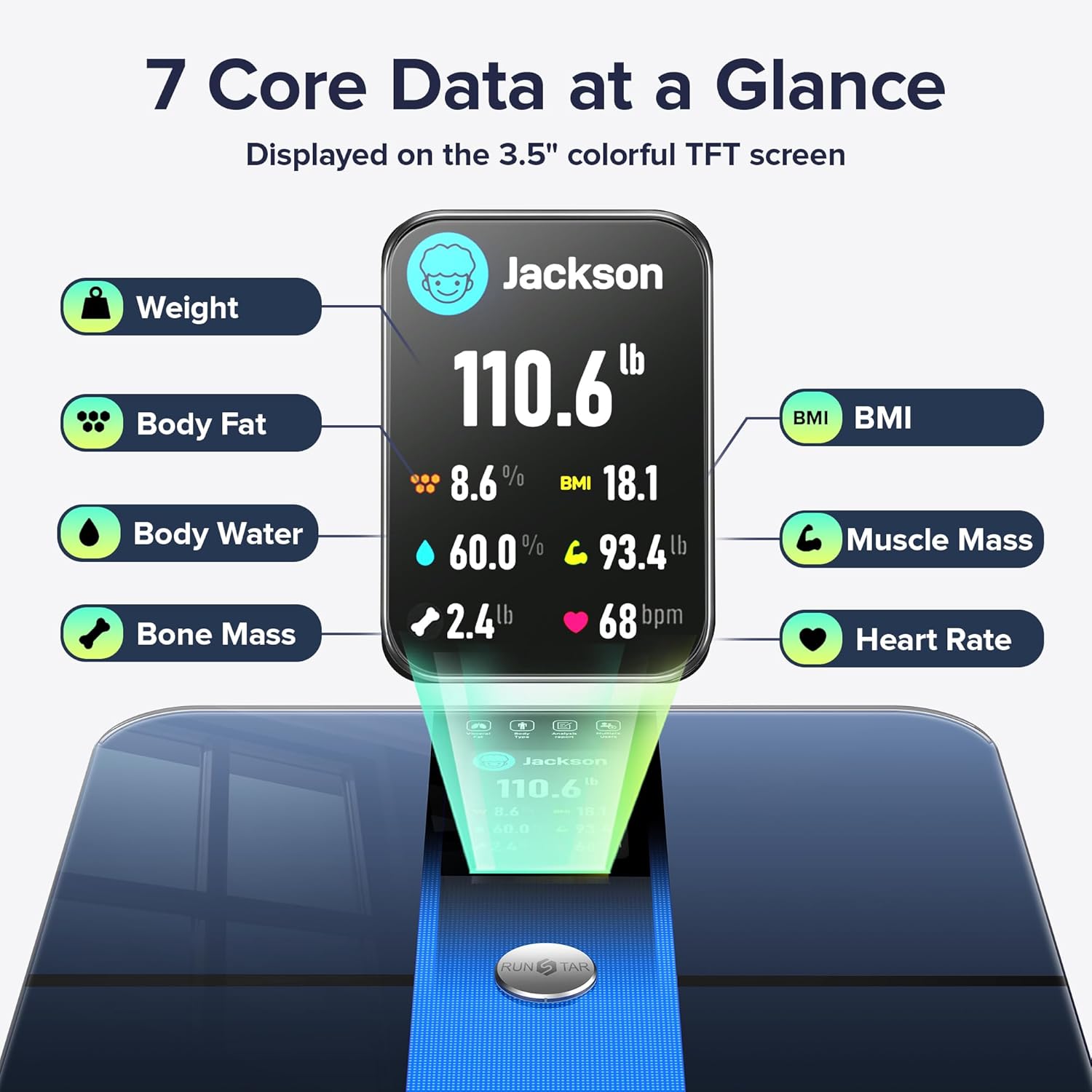
Figure 2: Seven Core Data Points at a Glance. This image highlights the seven key metrics displayed directly on the scale's TFT screen after a measurement.
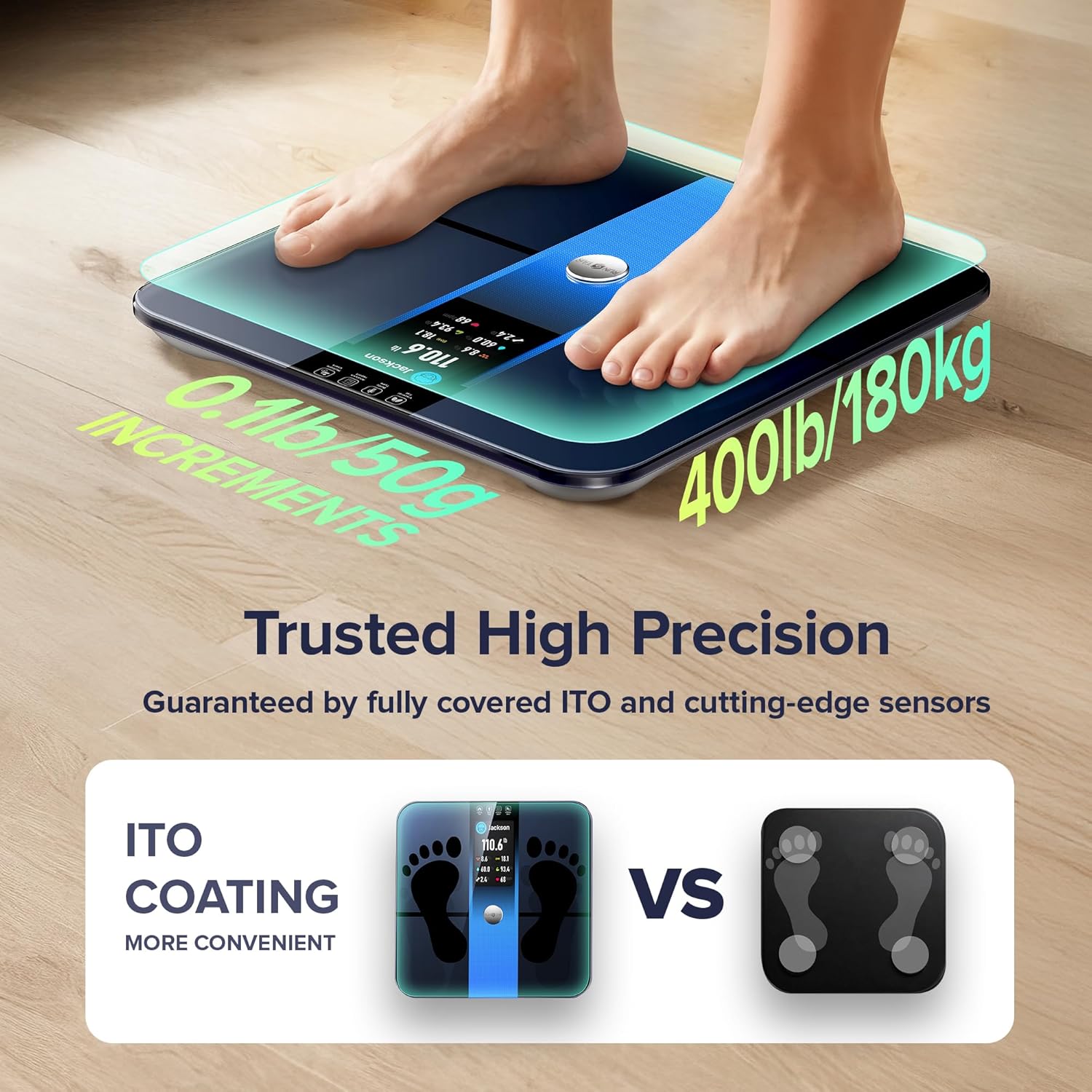
Figure 3: Trusted High Precision Measurement. This image shows feet properly placed on the scale's ITO-coated surface for accurate readings.
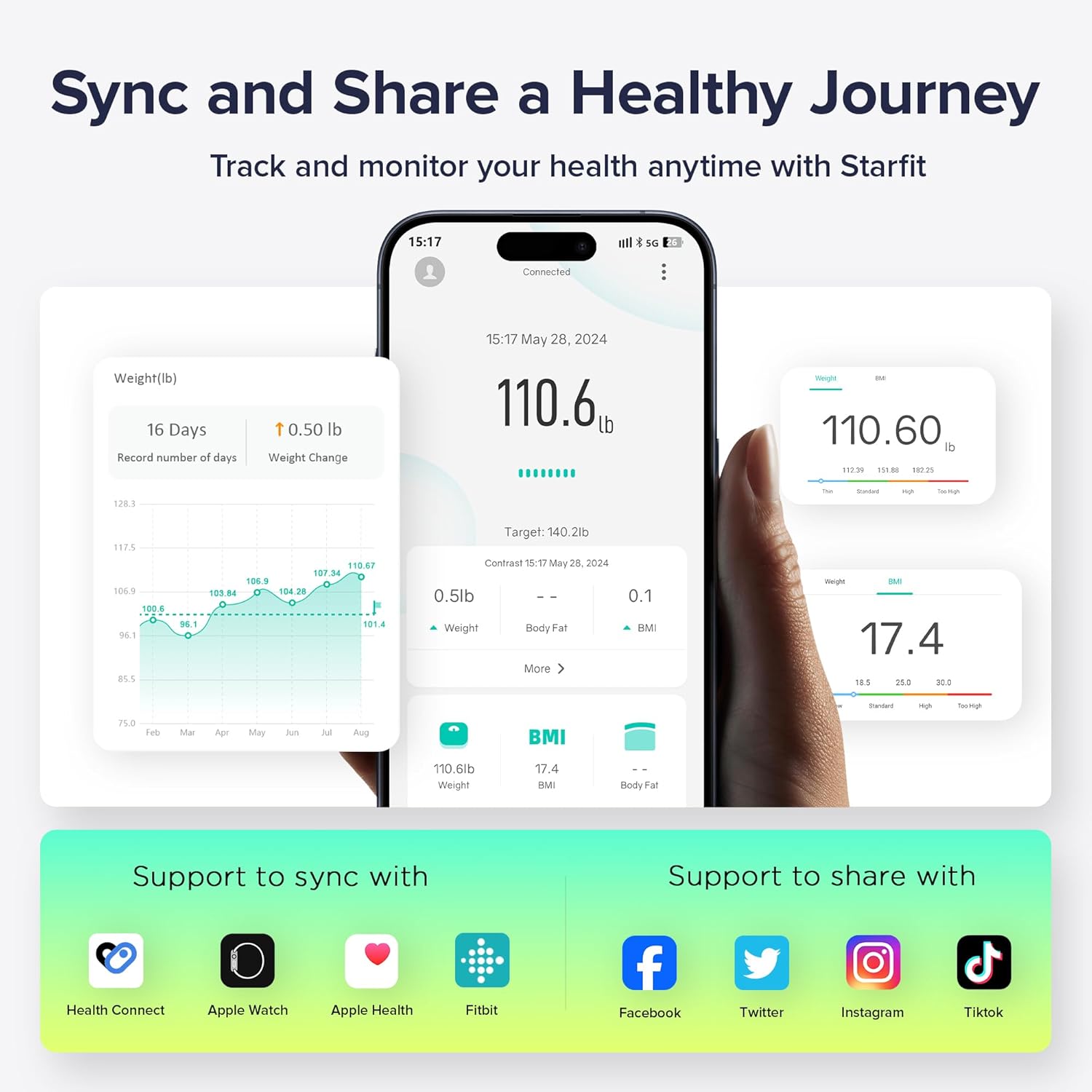
Figure 4: Sync and Share a Healthy Journey. This image illustrates the Starfit App interface, showing data tracking and integration with other health platforms.
Te tiaki
- Te horoi: Whakamahia te panuiamp cloth to clean the surface of the scale. Do not use abrasive cleaners or immerse the scale in water.
- Whakakapinga Pūhiko: When the low battery indicator appears on the display, replace the 4 AAA batteries.
- Whakatikatika: If the scale has been moved or flipped upside down, it may need to be recalibrated. To recalibrate, lightly step on the scale with one foot until '0.00' appears, then step off.
Raparongoā
- Tauine Kaore i te Whakaka: Tirohia mehemea kei te tika te whakaurunga o nga pākahiko me te nui o te utu. Whakakapihia mehemea e tika ana.
- Kaore e taea te hono ki te Taupānga: Ensure Bluetooth is enabled on your smartphone. Verify that the Starfit App is the latest version. Check the app's device management section to ensure the scale is paired.
- No Body Fat/Composition Data: Ensure you are stepping on the scale with bare, dry feet. The soles of your feet must make proper contact with the ITO-coated surface. Ensure your personal data is correctly entered in the app.
- Nga Karere Hapa:
- 'Err': Indicates an overload. The maximum capacity is 400lb/180kg.
- 'C': Indicates calibration is needed. Perform recalibration as described in the Maintenance section.
Whakatakotoranga
| Tau tauira | FI2019G |
| Waitohu | RunStar |
| Te Kaha Rawa | 400lb / 180kg |
| Momo Whakaatu | 3.5" TFT Color Display |
| Puna Mana | 4 x AAA Battery (kei roto) |
| Body Metrics Tracked | 22 (including Weight, BMI, Muscle Mass, Body Fat, Heart Rate, Bone Mass, Visceral Fat, Protein, BMR) |
| Kaiwhakamahi Profiles | Tae atu ki te 24 |
| Hononga | Bluetooth (Starfit App) |
| Ahu | 13.35 x 12.83 x 1.93 inihi |
| Taumaha | 3.6 Pauna |
Pūtāhui me te Tautoko
For warranty information or technical support, please refer to the product packaging or contact RunStar customer service directly. Keep your purchase receipt as proof of purchase.