
1. Hua Neke Atuview
The Amkette Hush Pro Astra is a wireless mouse designed for comfort and efficiency. It features 2.4 GHz wireless connectivity, silent switches for quiet operation, an ergonomic design, and adjustable DPI settings for precise control. The mouse also includes an On/Off switch and a smart auto-sleep function to conserve battery life.
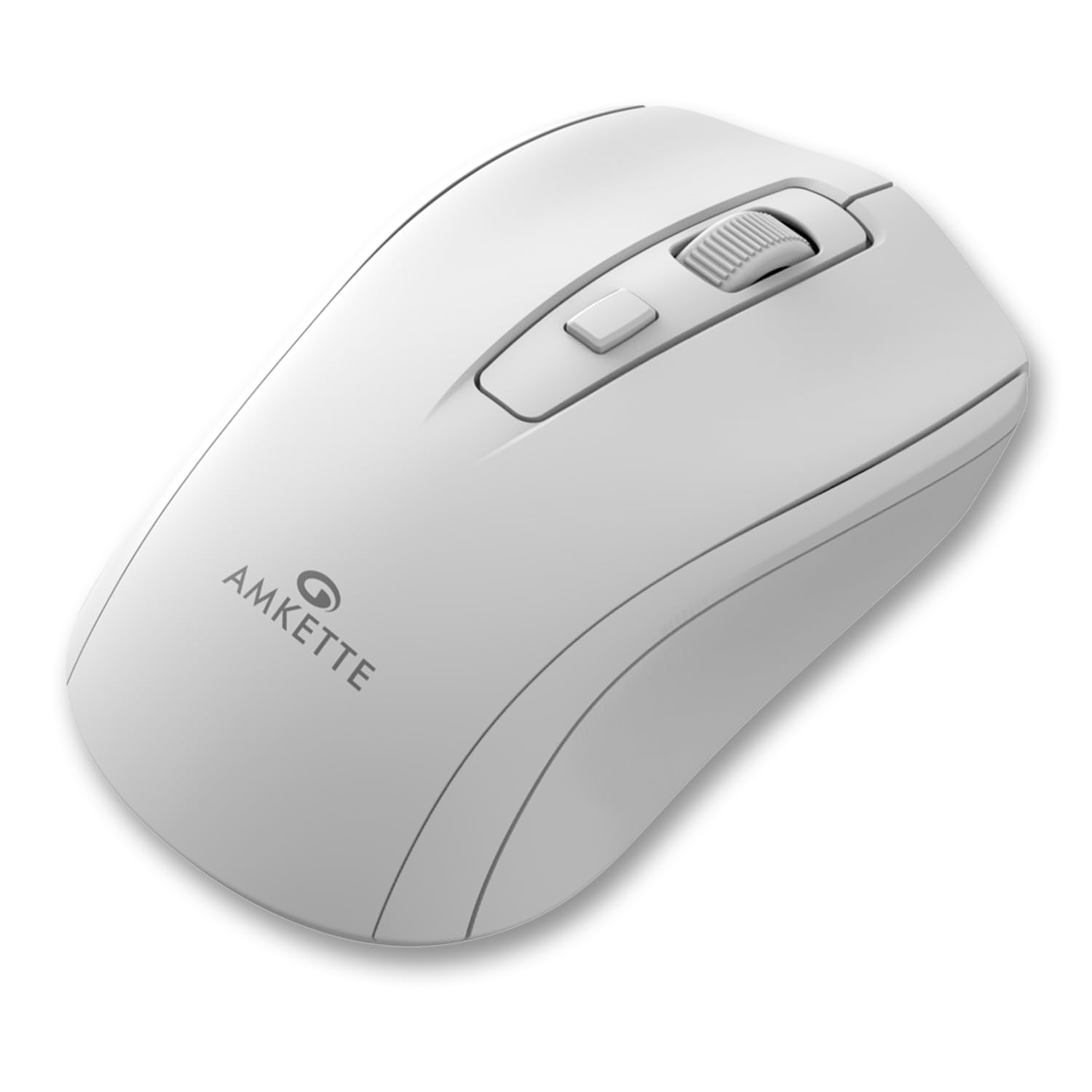
Figure 1: Amkette Hush Pro Astra Wireless Mouse (White)
Āhuatanga matua:
- Hononga Ahokore 2.4 GHz Arā Atu Anō: Ensures a stable, lag-free connection.
- Silent Switches: Provides noiseless clicks for an undisturbed work environment.
- Hoahoa Ergonomic: Shaped for comfortable long-term use.
- Tautuhinga DPI Ka taea te whakarite: Three levels (800-1000-1200 DPI) for customizable cursor sensitivity.
- Whakawhiti Whakaka/Weto: For manual power control.
- Smart Auto Sleep Function: Automatically conserves battery when not in use.
- Kiato me te Kawe: Easy to carry in a laptop bag.

Figure 2: Ergonomic grip design with matte finish for enhanced comfort.

Figure 3: Silent click switches for quiet operation.

Figure 4: Universal compatibility with Windows, Mac OS, Chrome OS, and Linux.
2. Tohutohu Tatūnga
2.1 Ihirangi mokete
Before you begin, ensure your package contains the following:
- Amkette Hush Pro Astra Wireless Mouse
- USB Nano Kaihoko
Note: 1 AA battery is required and not included in the box.
2.2 Tāuta Pūhiko
- Rapua te wahanga pākahiko kei raro o te kiore.
- Gently slide the battery cover open.
- Whakauruhia kia kotahi te pākahiko AA, kia noho tika nga pito pai (+) me te kino (-) ki nga tohu kei roto i te waahanga.
- Katia te taupoki pākahiko kia pāwhiritia rā anō ki tōna wāhi tika.

Figure 5: Battery compartment and On/Off switch location.
2.3 Te hono i te Kiore
- Remove the USB Nano receiver from its storage slot, usually located within the battery compartment or on the underside of the mouse.
- Plug the USB Nano receiver into an available USB port on your computer (PC, Mac, Laptop, etc.).
- Whakakāhia te kiore mā te whakamahi i te pātene Whakakā/Whakaweto kei raro.
- Your computer should automatically detect and install the necessary drivers. The mouse will be ready for use within a few seconds.

Figure 6: Connecting the USB Nano receiver to a laptop.
3. Nga Tohutohu Whakahaere
3.1 Hiko / Whakaweto
To turn the mouse on or off, use the slide switch located on the underside of the mouse. Slide it to the 'ON' position for use and 'OFF' to conserve battery when not in use.
3.2 Whakatikatika DPI
The mouse features a dedicated DPI button, usually located behind the scroll wheel. Press this button to cycle through three different DPI (Dots Per Inch) settings: 800, 1000, and 1200. A higher DPI setting results in faster cursor movement, while a lower DPI setting provides more precise control.

Figure 7: DPI button and available sensitivity levels.
3.3 Āhuatanga Pāwhiri Mārire
The Amkette Hush Pro Astra is equipped with silent switches, significantly reducing the clicking noise. This feature is ideal for quiet environments, ensuring minimal disturbance during use.
3.4 Smart Auto Sleep Function
To extend battery life, the mouse will automatically enter a sleep mode after a period of inactivity. To wake the mouse, simply move it or click any button.
4. Tiaki
4.1 Te horoi
- Whakamahia he kakahu ngohengohe, maroke hei muru i te mata o te kiore.
- Mo te paru maro, paku dampen te kakahu ki te wai, ki te otinga horoi ngawari ranei. A ape i nga matū kino.
- Kaua e rumakina te kiore ki te wai, ki tētahi atu wai rānei.
- Clean the optical sensor on the underside periodically with a cotton swab to ensure smooth tracking.
4.2 Rokiroki
- When not in use for extended periods, turn off the mouse using the On/Off switch.
- Store the USB Nano receiver inside the mouse's designated slot to prevent loss.
- Keep the mouse in a cool, dry place away from direct sunlight and extreme temperatures.
5. Te Raru
5.1 Kaore te Kiore e Whakautu
- Takina Pūhiko: Me whakarite kia tika te tāutanga o te pākahiko AA, ā, kia rawaka te utu. Whakakapia mēnā e tika ana.
- Whakawhiti Kaha: Verify that the On/Off switch on the underside of the mouse is in the 'ON' position.
- Hononga Kaiwhiwhi: Ensure the USB Nano receiver is securely plugged into a working USB port on your computer. Try a different USB port.
- Takirua anō: In rare cases, the mouse and receiver might lose connection. Try unplugging and re-plugging the receiver, then turn the mouse off and on again.
5.2 Te Nekehanga o te Pehu Pēpeke
- Pūoko Ma: Horoia te pūoko whatu kei raro o te kiore.
- Mata: Whakamahia te kiore ki runga i te mata ma, kore-whakaata, me te riterite. A ape i te karaehe, i nga papanga tino whakaata ranei.
- pokanoa: Move the mouse closer to the USB receiver. Other wireless devices or large metal objects might cause interference.
5.3 Poto Puhiko Ora
- Whakaweto Ina Kaore i te Whakamahi: Always turn off the mouse using the On/Off switch when not in use for extended periods.
- Kounga Pūhiko: Use high-quality AA alkaline batteries.
- Moe Aunoa: The mouse has an auto-sleep function, but manual power-off provides maximum battery conservation.
6. Whakatakotoranga
| Āhuahira | Whakatakotoranga |
|---|---|
| Waitohu | Amkette |
| Tau tauira | 516 |
| Rangatū | Hush Pro Astra |
| Hangarau Hononga | Ahokore 2.4 GHz (Kaiwhiwhi Nano USB) |
| Hangarau Hangarau Nekehanga | Optical |
| Tautuhinga DPI | 800-1000-1200 DPI (Adjustable) |
| Āhuahira Motuhake | Silent Clicks, Ergonomic Design, On/Off Switch, Smart Auto Sleep Function |
| Puna Mana | Pūhiko (e hiahiatia ana he pākahiko AA kotahi, kāore i roto) |
| Hototahitanga Pūnaha Whakahaere | Linux, Windows 7, Windows XP, Mac OS, Chrome OS |
| Hunga Hua | 11 x 6 x 0.1 cm |
| Taumaha Tūemi | 30 g |
| Tae | Mā |
7. Pūtāhui me te Tautoko
7.1 Nga Korero Whakaputanga
The Amkette Hush Pro Astra Wireless Mouse comes with a hassle-free 1-tau whakamana hangahanga mai i te ra o te hokonga. Ka kapi tenei whakamana i nga hapa hangahanga i raro i nga tikanga whakamahi noa.
7.2 Tautoko Kiritaki
For any assistance, queries, or warranty claims, please contact our support team. You can reach them via call or WhatsApp for prompt assistance with any issues.
Please refer to the product packaging or the official Amkette webpae mo nga taipitopito whakapā o naianei.
8. Hua Ataata
Video 1: Amkette Hush Pro Astra Wireless Mouse Overview. This video highlights the ergonomic design, adjustable DPI settings, and silent click features of the mouse.
Video 2: Amkette Hush Pro Astra Wireless Mouse Features. This video demonstrates the advanced 2.4 GHz connectivity, silent operation, and portability of the mouse.