
Natec SH4F
Natec FURY SHOBO SH4F RGB MIDI TOWER PC Case Manual Kaiwhakamahi
Model: SH4F | Brand: Natec
1. Kupu Whakataki
Welcome to the user manual for your Natec FURY SHOBO SH4F RGB MIDI TOWER PC Case. This guide provides essential information for the proper assembly, installation, operation, and maintenance of your new computer chassis. Please read this manual thoroughly before beginning installation to ensure optimal performance and longevity of your components.
2. Aratohu Haumaru
- Always disconnect the power supply from the wall outlet before installing or removing any components inside the PC case.
- Kia tūpato te whakahaere i ngā wāhanga kia kore ai e pakaru mai i te tukunga hiko pūmau (ESD). Whakaarohia te whakamahi i te whitiki ringaringa ārai-pūmau.
- Keep small parts, such as screws, away from children.
- Me whakarite kia tika te hau huri noa i te pouaka PC kia kore ai e wera rawa.
- Do not expose the case to extreme temperatures, humidity, or direct sunlight.
- Kaua e whakatakoto i ngā mea taumaha ki runga i te pouaka.
3. Ihirangi mokete
Tena koa tirohia kei roto katoa nga taonga kei roto i to kete:
- Natec FURY SHOBO SH4F RGB MIDI TOWER PC Case
- Accessory box (containing screws, cable ties, and other small parts)
- Pukapuka Kaiwhakamahi (tenei tuhinga)
4. Hua Neke Atuview
The Natec FURY SHOBO SH4F is a MIDI TOWER PC case designed for gaming and general-purpose computing, offering ample space for components and efficient cooling. It features a modern design with RGB lighting.
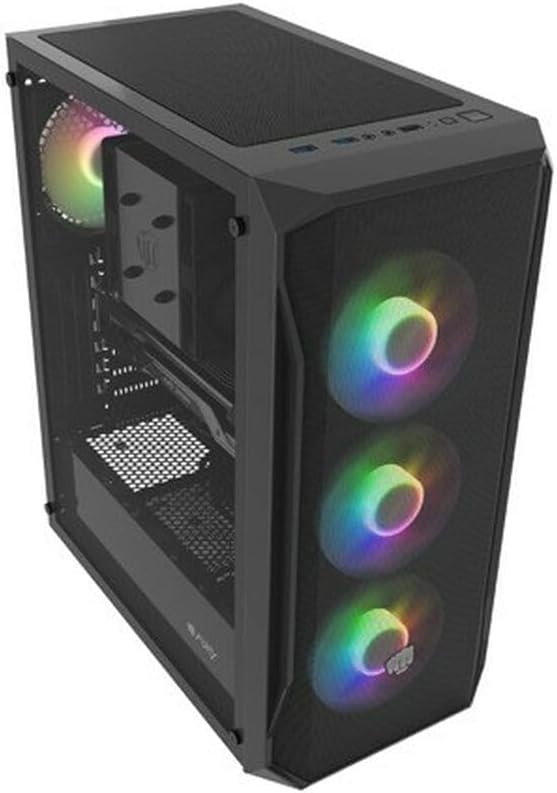
Whakaahua 4.1: He koki view of the Natec FURY SHOBO SH4F RGB MIDI TOWER PC Case, showcasing its black metal and tempered glass construction. The front panel features a mesh design with three illuminated RGB fans, and a single RGB fan is visible at the rear exhaust. The top panel includes I/O ports and a mesh filter.
4.1 Paewhiri Whakauru/Whakaputa o Mua
- Pātene Hiko
- Patene Tautuhi
- USB 2.0 Tauranga (x1)
- Audio Jacks (Headphone/Microphone)
- RGB Control Button (if applicable)
4.2 Tahora ā-roto
The case supports Micro ATX and Mini ATX motherboards and features a bottom-mounted power supply bay. It includes dedicated areas for storage drives and efficient cable management.
5. Tatūnga me te Tāuta Wae
Follow these steps to install your PC components into the FURY SHOBO SH4F case.
5.1 Te Whakarite i te Take
- Whakanohoia te keehi ki runga i te mata papatahi, pumau.
- Remove the side panels. Typically, the tempered glass side panel is secured with thumbscrews.
5.2 Whakaaturanga Papa Pouaka
- Install the I/O shield (if not pre-installed on your motherboard) into the rear opening of the case.
- Ensure the motherboard standoffs are correctly aligned for your Micro ATX or Mini ATX motherboard. Adjust or install additional standoffs if necessary.
- Āta whakanohoia te papahoahoa ki runga i ngā tūāpapa, me te whakarite i ngā kōhao tīwiri.
- Whakamaua te papahoahoa ki ngā tīwiri kua whakaratohia. Kaua e whakakī rawa.
5.3 Tāutanga Pūnaha Hiko
- Locate the power supply bay at the bottom rear of the case.
- Slide your power supply unit (PSU) into the bay from the rear of the case, ensuring the fan faces downwards (if the case has a bottom vent) or upwards.
- Whakaorangia te PSU me nga wiri mai i muri o te keehi.
5.4 Te Whakanoho Puku Rokiroki
Refer to your case's specific drive bay design for 2.5" SSDs and 3.5" HDDs. Typically, these involve trays or direct screw mounting.
5.5 Expansion Card Installation (e.g., Graphics Card)
- Remove the necessary PCI-E slot covers from the rear of the case.
- Insert your expansion card into the corresponding PCI-E slot on the motherboard.
- Secure the card with a screw or the case's retention mechanism.
5.6 Whakahaere taura
Utilize the cutouts and tie-down points behind the motherboard tray to route and secure cables. This improves airflow and aesthetics.
5.7 Connecting RGB Fans
The pre-installed RGB fans typically connect to a central RGB controller or directly to your motherboard's RGB headers. Consult your motherboard manual for specific RGB header locations and software control. Ensure all fan power cables are connected to appropriate fan headers on the motherboard or a fan hub.
6. Te Whakahaere i tō Pūkoro Rorohiko
6.1 Kei te Hiko / Weto
After all components are installed and cables connected, plug your power supply into a wall outlet. Press the power button on the front I/O panel to turn on your system. To turn off, use the operating system's shutdown function or press and hold the power button for several seconds.
6.2 Mana Rarama RGB
If your case features an RGB control button on the front I/O panel, press it to cycle through various lighting modes and colors. For advanced customization, use your motherboard's RGB software (e.g., ASUS Aura Sync, MSI Mystic Light, Gigabyte RGB Fusion) if the fans are connected to compatible headers.
7. Tiaki
Regular maintenance helps ensure optimal performance and extends the lifespan of your PC components.
7.1 Puehu Tātari Whakapai
The FURY SHOBO SH4F case includes dust filters (e.g., on the top and bottom). Periodically remove and clean these filters by rinsing them with water and allowing them to dry completely before re-installing. This prevents dust buildup and maintains airflow.
7.2 Te horoi o waho
Horoia te taha o waho o te keehe ki te ngohengohe, damp kakahu. Āta karohia ngā kaihoroi whakakoi, ngā whakarewa rānei ka kino pea te whakaotinga, te karāhe kua whakapakeketia rānei.
8. Te Raru
Mena ka raru koe, tirohia nga mahi rapurongoā noa e whai ake nei:
- Kore Mana: Ensure the power supply is properly connected to the wall outlet and the motherboard. Check all internal power cables (24-pin ATX, 8-pin CPU, GPU power). Verify the power button cable is correctly connected to the motherboard's front panel header.
- Ngā Pā Kāore e Hurihuri: Check if fan power cables are securely connected to the motherboard or fan hub. Ensure the power supply is functioning.
- Rarama RGB Kaore e Mahi: Verify RGB cables are correctly connected to the RGB controller or motherboard header. If using a button, try cycling through modes. If using software, ensure it's installed and configured correctly.
- Te wera nui: Ensure all fans are spinning correctly and oriented for proper airflow (intake/exhaust). Clean dust filters and internal components. Verify CPU cooler and GPU cooler are properly installed.
9. Whakatakotoranga
| Waitohu | Natec |
| Rangatū | SH4F |
| Tau tauira | NFO-2154 |
| Momo Take | Pourewa Midi |
| Papamatua Hototahi | Micro ATX, Mini ATX |
| Tae | Pango |
| Rauemi | Te whakarewa |
| Rahi Hua (LxWxH) | 19.69 x 16.93 x 9.84 inihi (50 x 43 x 25 cm) |
| Taumaha Tūemi | 9.46 pauna (4.3 Kirokaramu) |
| Momo Whakaeke Hiko Hiko | Maunga Raro |
| Tikanga whakamatao | Te hau |
| Te maha o nga Tauranga USB 2.0 | 1 |
10. Pūtāhui me te Tautoko
Natec products are manufactured to high-quality standards. For information regarding warranty terms and conditions, please refer to the warranty card included with your product or visit the official Natec website. If you encounter any issues not covered in this manual or require further assistance, please contact Natec customer support through their official channels.
Kaihanga: Natec
Ask a question about this manual
Ask about setup, troubleshooting, compatibility, parts, safety, or missing instructions. Manuals+ will review the question and use this page’s manual context to help answer it.