
Kupu Whakataki
This manual provides detailed instructions for the installation, operation, and maintenance of your ULTRALOQ U-Bolt WiFi Smart Lock with Door Handle Set. Please read this manual thoroughly before installation and use to ensure proper functionality and safety. The ULTRALOQ U-Bolt WiFi Smart Lock offers multiple keyless entry options and remote access capabilities for enhanced home security and convenience.

Tatūnga me te Tāuta
Proper installation is crucial for the optimal performance of your ULTRALOQ U-Bolt WiFi Smart Lock. Follow these steps carefully.
1. Nga Tirohanga i mua i te whakaurunga
- Matotoru o te tatau: Ensure your door thickness is between 1 3/8 inches (35mm) and 1 3/4 inches (44mm). For thicker doors up to 2 1/4 inches (57mm), a thick door kit may be required.
- He Tautuhi: Verify the backset is either 2 3/8 inches (60mm) or 2 3/4 inches (70mm).
- Pūaha Pōka: The cross bore hole should be 2 1/8 inches (54mm) in diameter.

2. Installing the Deadbolt and Handle
- Install the deadbolt latch into the door edge.
- Whakamaua te huihuinga papapātuhi o waho, me te whakarite kia tika te taura mā te tatau.
- Install the interior assembly, connecting the cable and securing it with screws.
- Install the door handle set according to the provided template, ensuring proper alignment.

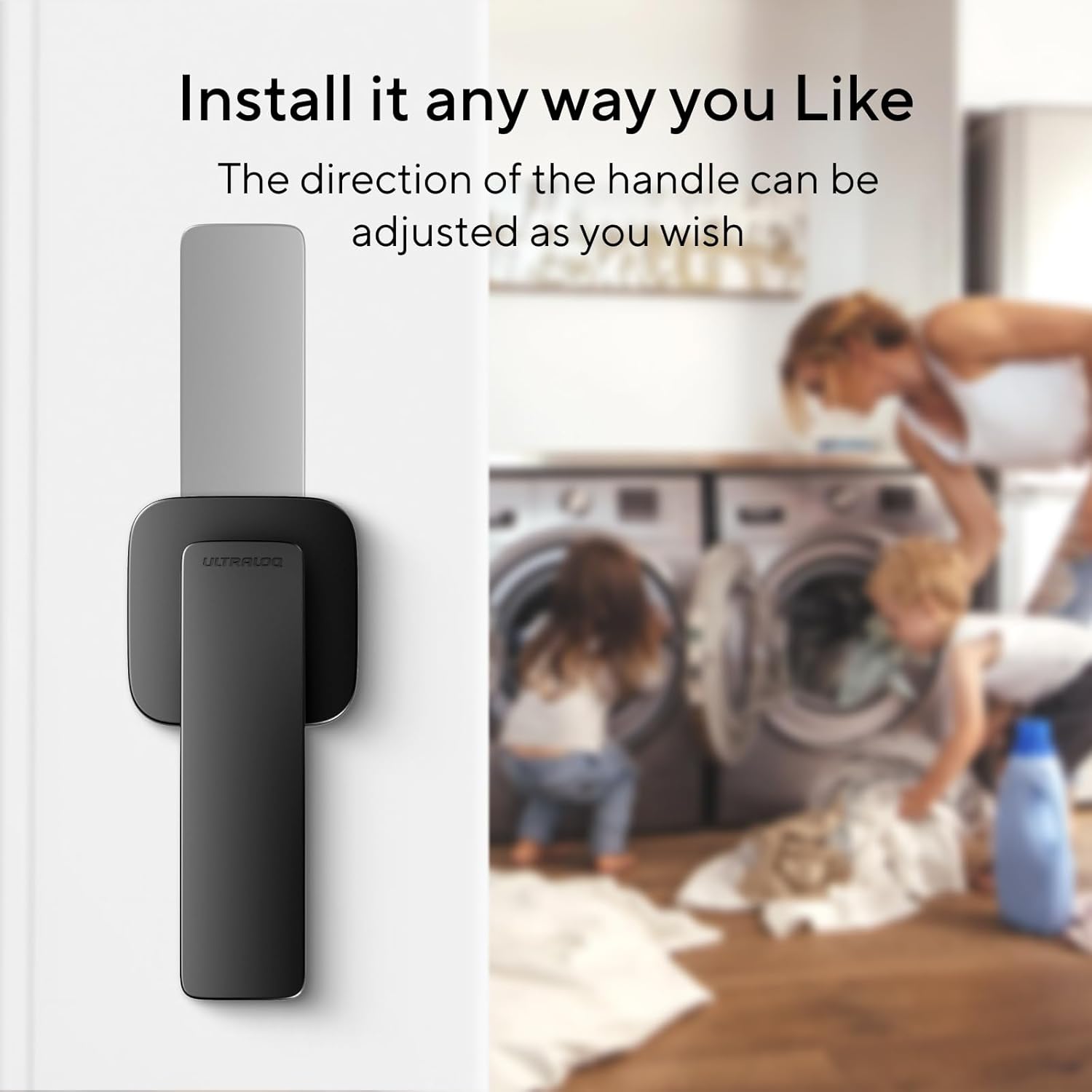
3. Te Whakatikatika i te Aronga o te Kakau
The direction of the door handle can be adjusted to suit your door's orientation (left-handed or right-handed). Refer to the specific instructions in the included quick start guide for detailed steps on how to reverse the handle if necessary.
4. Tikiake Taupānga me te Hononga Tuatahi
Download the ULTRALOQ app from your smartphone's app store. Follow the in-app instructions to create an account and pair your U-Bolt WiFi Smart Lock. This will enable remote control and advanced features.
Te whakahaere i te Maukati Ataata
The ULTRALOQ U-Bolt WiFi Smart Lock offers multiple convenient ways to access your home.
1. Keyless Entry Methods
- Papapātuhi: Enter your personalized code on the anti-peep keypad.
- Taupānga Waea atamai: Use the ULTRALOQ app to lock or unlock your door remotely from anywhere with built-in WiFi.
- Auto Unlock/Lock: The lock can automatically unlock when you approach with your smartphone and lock when the door closes (requires door sensor).
- Mana Reo: Integrate with Amazon Alexa or Google Assistant for voice commands (e.g., "Alexa, Unlock the front door.").
- Apple Watch: Compatible with Apple Watch for convenient unlocking.
- Kī Hangarau: A traditional key is provided for backup access.


2. Remote Control and Monitoring
The built-in WiFi allows you to control and monitor your lock from anywhere.
- Share eKeys/Codes: Grant temporary or permanent access to guests or family members.
- Whakahaere Kaiwhakamahi: Add or remove users and their access permissions.
- Log Record: View he hītori mō te hunga i uru mai me te wā i uru mai ai.
- Panui Maama: Receive instant alerts for door activity, such as unlocking events or if the door is left open.


Te tiaki
Mā te tiaki auau ka roa te ora me te mahi pono o tō raka atamai.
1. Whakakapinga Pūhiko
The ULTRALOQ U-Bolt WiFi Smart Lock is powered by AA batteries. When the battery level is low, you will receive notifications via the app and the lock will indicate a low battery status. Replace all batteries with new, high-quality alkaline AA batteries simultaneously. Do not mix old and new batteries or different battery types.
2. Te horoi
Horoia te taha waho o te raka ki te wai ngohengohe,amp cloth. Avoid using abrasive cleaners, solvents, or chemical sprays, as these can damage the finish and electronic components.
3. Whakahoutanga Firmware
Periodically check the ULTRALOQ app for available firmware updates. Updates often include performance improvements, bug fixes, and new features. Ensure your lock is connected to WiFi and has sufficient battery life before initiating an update.
Raparongoā
If you encounter issues with your ULTRALOQ U-Bolt WiFi Smart Lock, refer to the following common problems and solutions.
- Nga take hono: If the lock frequently disconnects from WiFi, ensure your router is within range and the 2.4GHz network is stable. Restarting your router or the lock (by removing and reinserting batteries) may help.
- Door Sensor Finickiness: If the auto-lock/unlock feature or door status alerts are inconsistent, check that the door sensor is properly aligned and securely mounted. Ensure there are no obstructions interfering with its operation.
- Slow Unlocking: If the deadbolt is slow to retract, check for any physical obstructions in the door frame or strike plate. Ensure the deadbolt operates smoothly manually. Low battery power can also affect motor speed.
- False App Alerts: If you receive incorrect alerts (e.g., door open when closed), verify the door sensor's installation and calibration within the app.
- Papapātuhi Kāore e Urupare: Check battery levels. If batteries are new, try a factory reset (refer to the quick start guide for specific steps).
For persistent issues, consult the ULTRALOQ app's help section or contact customer support.
Whakatakotoranga
| Āhuahira | Taipitopito |
|---|---|
| Waitohu | ULTRALOQ |
| Ingoa Tauira | ULTRALOQ U-Bolt WiFi Smart Door Lock with Handle Set |
| Tauira Tuemi | U-Tutaki |
| Momo Maukati | Papapātuhi |
| Āhuahira Motuhake | Kīkore |
| Rauemi | Zinc |
| Tae | Pango |
| Kawa Hononga | Wi-Fi (2.4GHz anake) |
| Momo Kaiwhakahaere | Amazon Alexa, Kaiawhina a Google |
| Tikanga Mana | Reo |
| Nga Whakamahinga Manakohia | Residential front door security, keyless access, smart home integration |
| Nga Waahanga kei roto | ULTRALOQ U-Bolt WiFi Smart Door Lock, Door Handle Set |
Pūtāhui me te Tautoko
ULTRALOQ products typically come with a manufacturer's warranty. Please refer to the warranty card included with your product or visit the official ULTRALOQ website for detailed warranty information and terms. For technical assistance, troubleshooting, or customer service, please contact ULTRALOQ support directly through their website or the ULTRALOQ app.